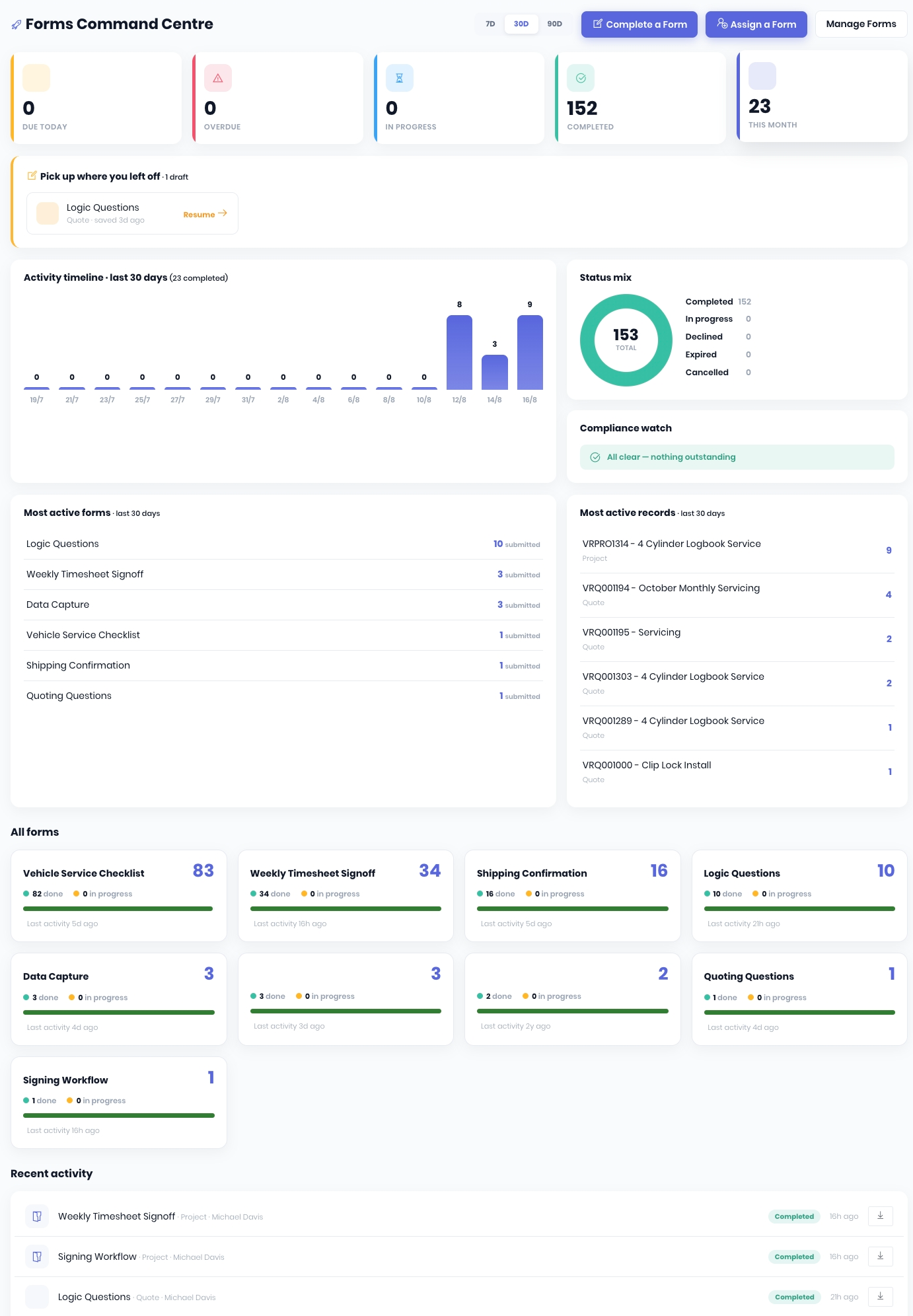
The forms command centre provides a complete overview on forms and shortcuts to Complete a Form, Assign a Form and Manage Forms. The dashboard overview is broken down by:
- Schedule and Summary Widgets
- Draft Forms
- Activity, Status and Compliance
- Activity
- All Forms
- Recent Activity
Schedule and Summary Widgets

The schedule and summary widgets alert you to a forms status based completion (In Progress, Completed and This Month) and on due and expiry dates set in the signing & due dates section of a form or when assigning forms to be completed in a specific timeframe.
Draft Forms

The Pick Up Where You Left Off widget will display any draft forms assigned to the current user to prompt you to Resume completion.
Activity, Status and Compliance
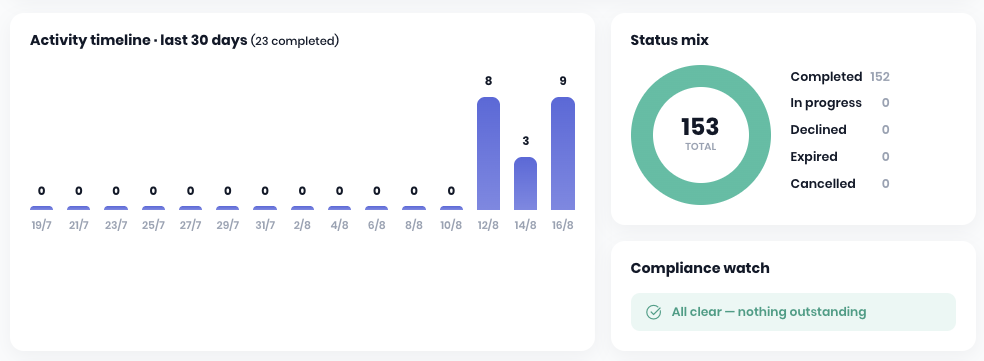
- Activity Timeline - Displays the daily (7 and 30 day) or Weekly (90 day) forms completion breakdown. The period can be selected at the top of the page by clicking the 7D, 30D or 90D buttons.
- Status Mix - Displays the current breakdown of the status of all forms. Each status is status to display a log of those forms.
- Compliance watch - Displays the status of any imported compliance forms.
Activity
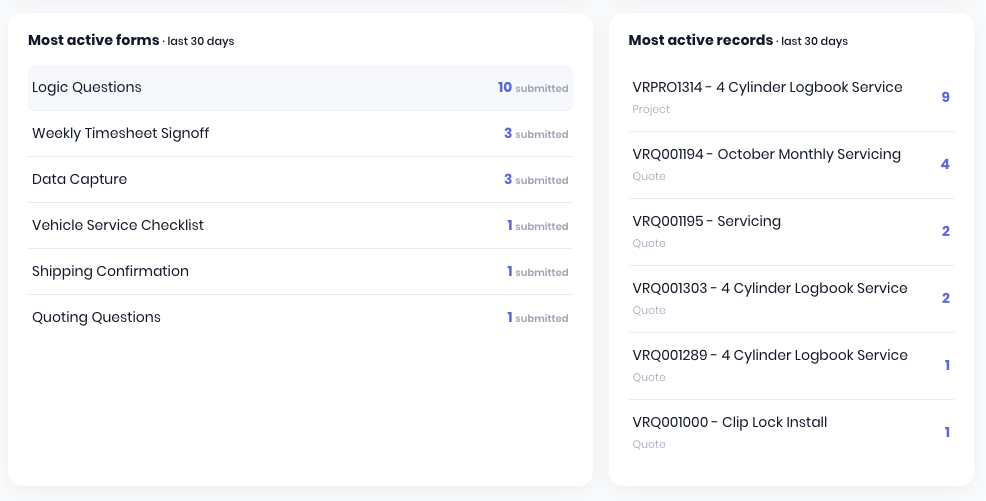
- Most Active Forms - Displays the most used forms within the selected period.
- Most Active Records - Displays transactions with the most forms usage.
All Forms
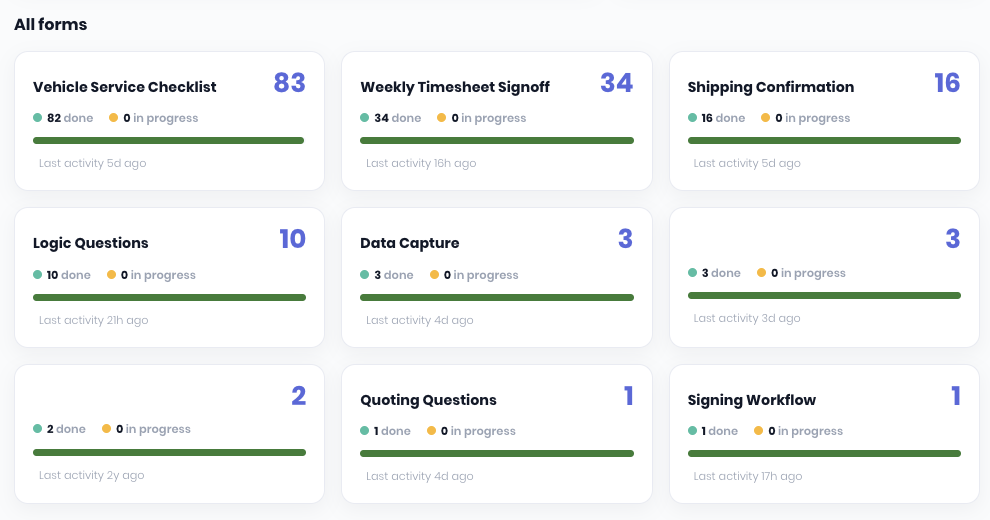
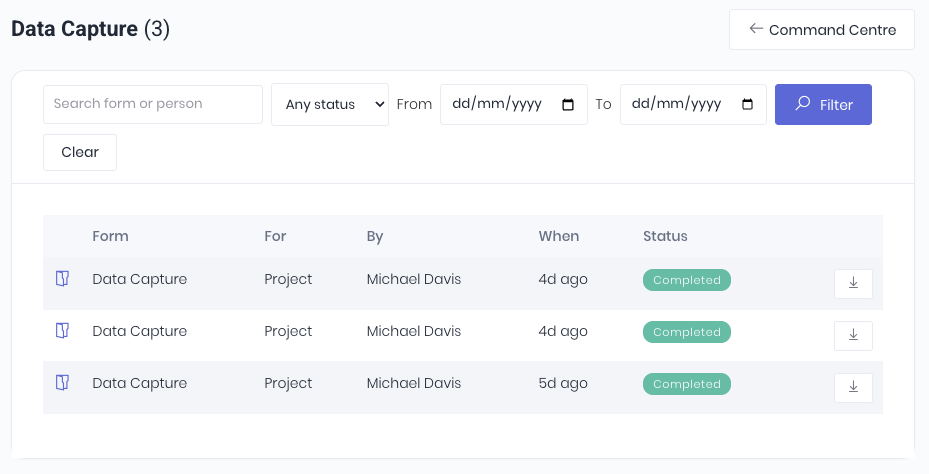
The All Forms section displays a summary in a widget each form. Clicking on the widget will open a detailed history for that form. The log can be audited by searching dates, status and person. Forms can be Downloaded using the icon on the end of the row.
Recent Activity
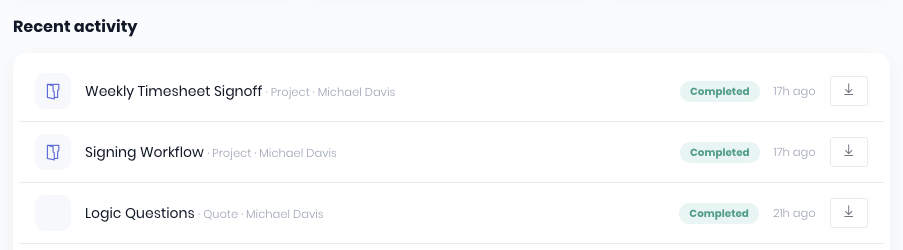
The Recent Activity section displays a log of completed forms and who completed them. Forms can be Downloaded using the icon on the end of the row.
Was this article helpful?
That’s Great!
Thank you for your feedback
Sorry! We couldn't be helpful
Thank you for your feedback
Feedback sent
We appreciate your effort and will try to fix the article