In addition to editing products directly, WorkGuru allows you to update multiple products at once via an import. All product fields except for the SKU can be updated via this method. Updating multiple products is usually a three step process:
Be aware when importing an update to apply changes in WorkGuru, if the SKU matches, it will update that product. If it the SKU doesn't match it will add the products.
Export Products
From the products dashboard Actions menu, select Product Export the list of products you want to update, for example, all products, or only products from one supplier after receiving an updated supplier price list.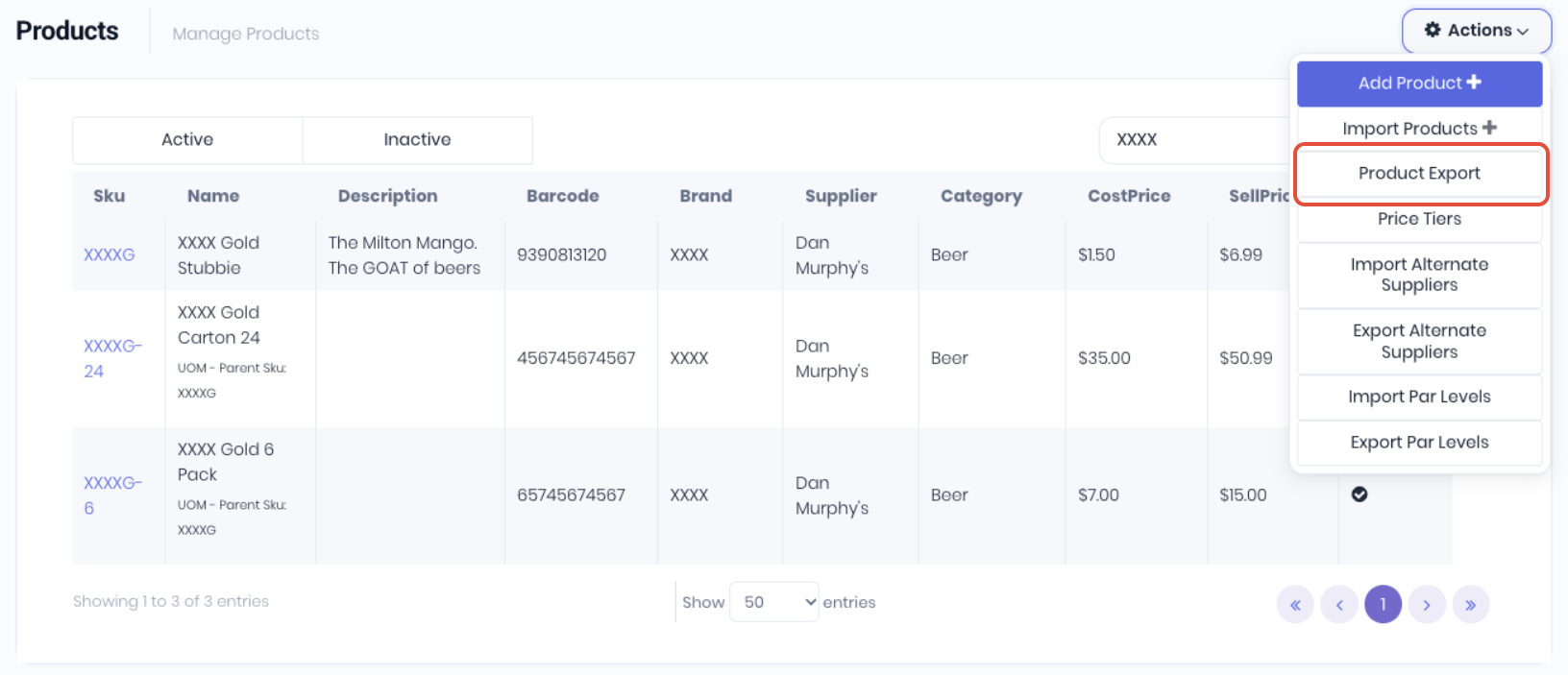
Make Changes
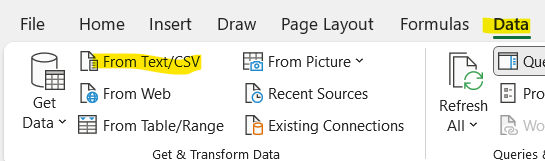
Important Note: Open the downloaded WorkGuruProductExport.csv file in your spreadsheet editor of choice. Be aware of spreadsheet editors auto-formatting data fields (removing leading 0's, dates, barcodes etc). It is recommended the csv is imported into your spreadsheet editor instead of opening it in Excel or Google Sheets and is always edited in plain text format. Once you have exported a product list, open a fresh and empty excel, then go to the Data Tab -> From Text/CSV on the top left (next to 'Get Data' on the left) and then open the file in question as shown below;
In the downloaded product export, you can update every column in the export EXCEPT for the SKU. For example, you can use your normal spreadsheet tools to update the product CostPrice and then increase the SellPrice by a required percentage to maintain your margins. When you have finished the changes, save or export the .csv. NOTE: You don't necessarily need to re-import all the rows in the spreadsheet, technically you can remove everything except for the rows you changed. You do need to retain all the columns though.

Import Changes
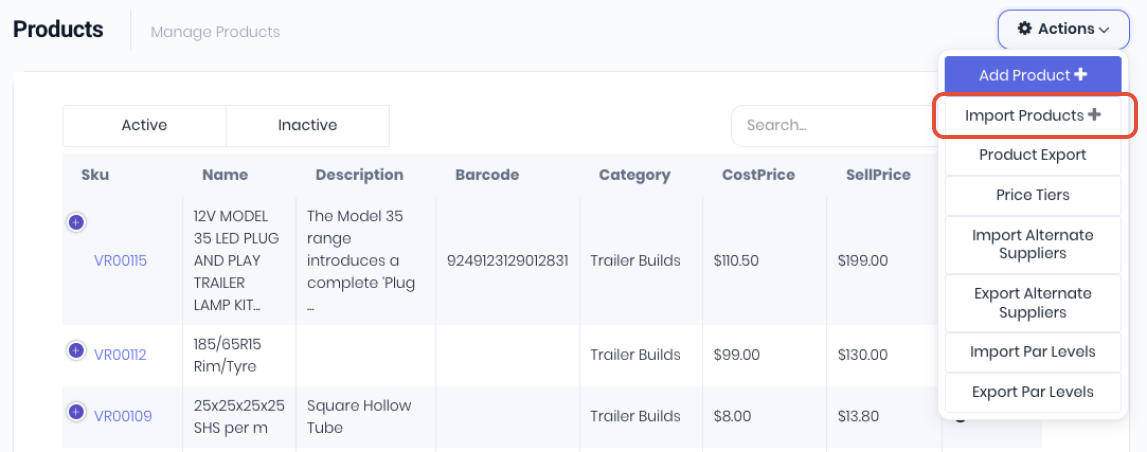
You can upload your import template from Products-> Import Products or from the Actions menu on the products dashboard.
After reviewing your spreadsheet click Choose File and select your import.
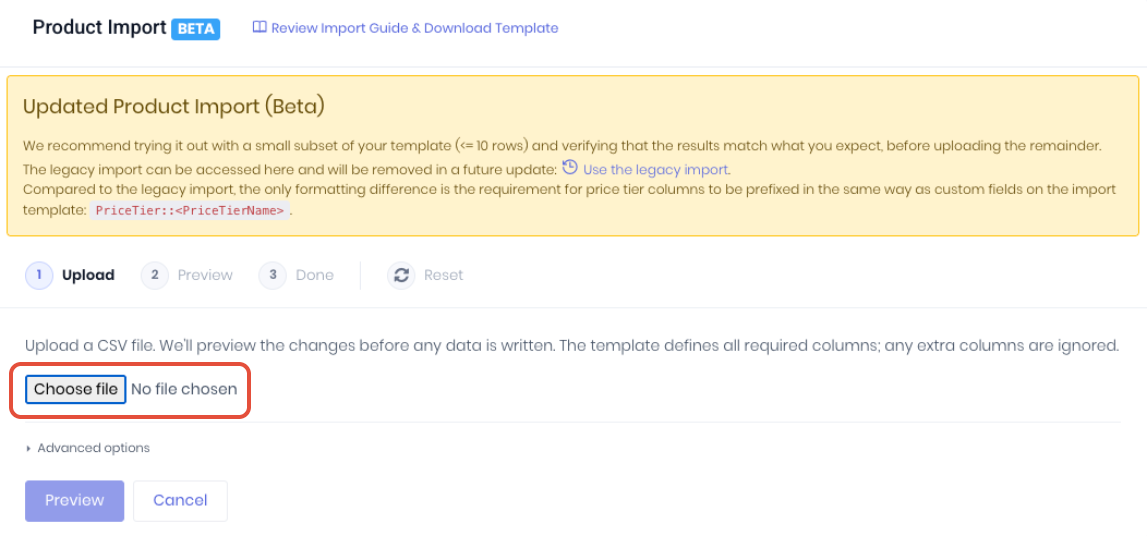
If required, expand Advanced Options to control the import process in more detail:
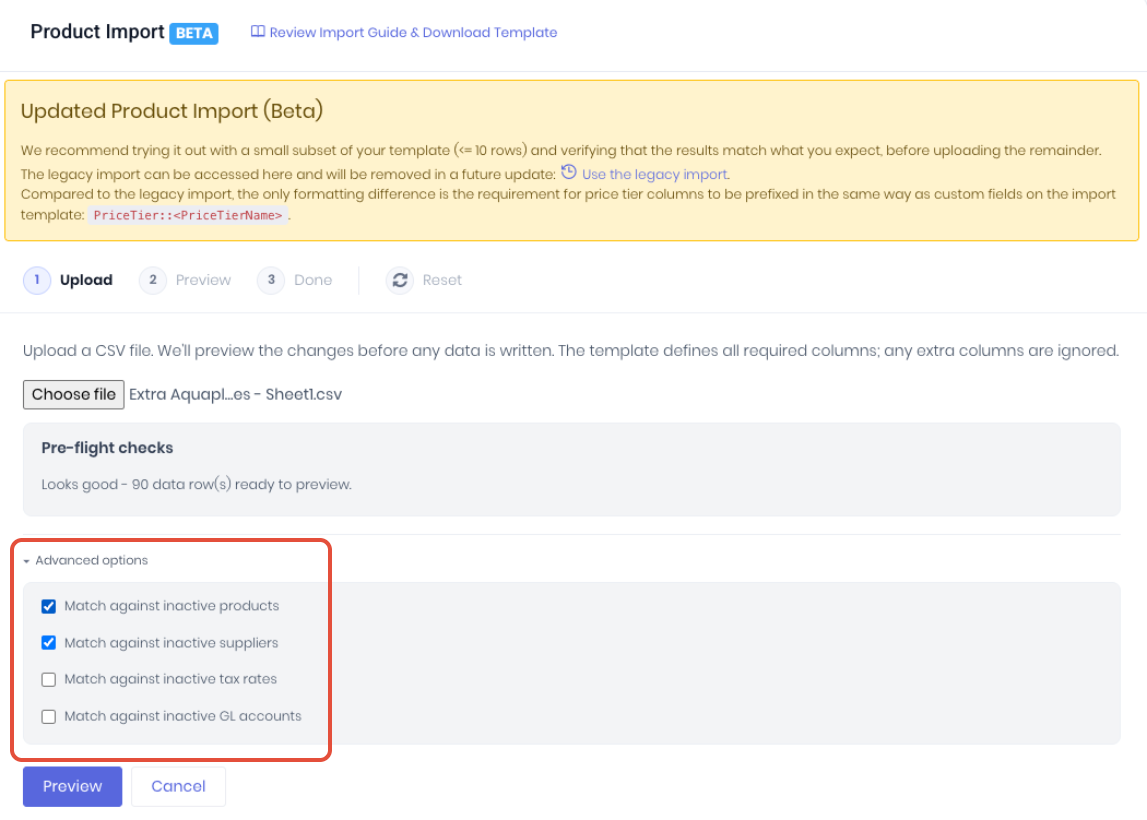
- Match against inactive products (Default) - Check the upload Sku against ALL products (active and inactive). Deselect to check upload Sku on active products only (may cause duplicates).
- Match against inactive suppliers (Default) - Check the upload SupplierName against ALL suppliers (active and inactive). Deselect to check upload SupplierName on active suppliers only (may cause duplicates).
- Match against inactive tax rates - Check the upload PurchaseTaxCode and SellTaxCode against ALL accounting integration tax codes (active and inactive).
- Match against inactive GL accounts - Check the upload AccountCode and ExpenseAccountCode against ALL accounting integration general ledger accounts (active and inactive).
Review any import errors or messages raised during the pre-import checks.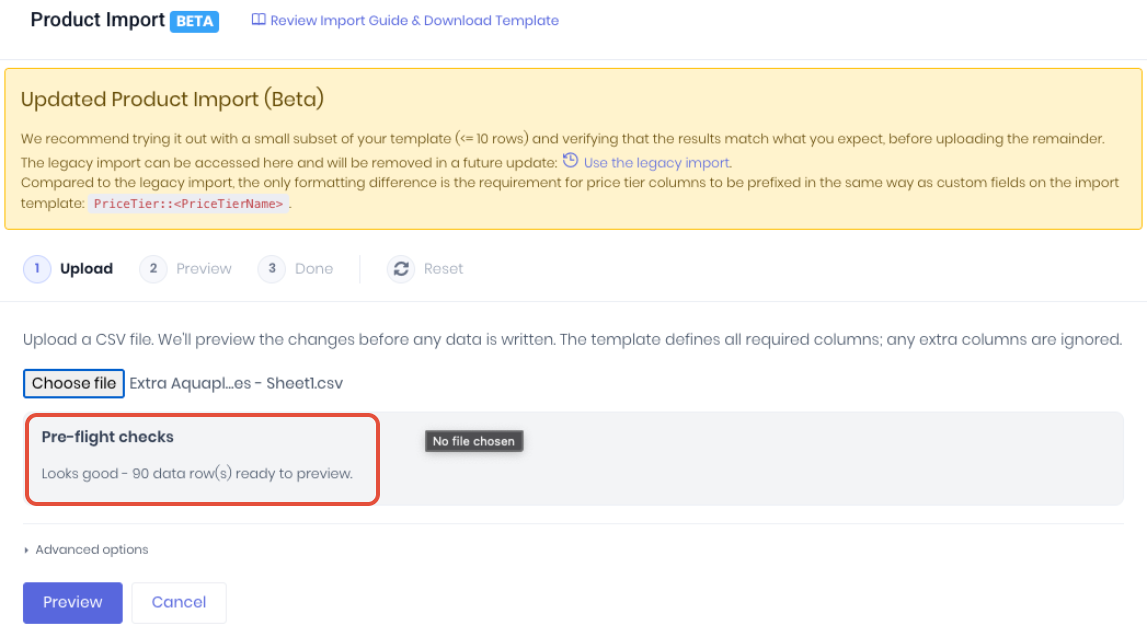
Click Preview to upload and preview the import template file. It is important to preview the import data before confirming the import to ensure your product data remains correct after upload. The Preview will display a summary of exactly what it is going to happen to double check against what you are expecting it to do.
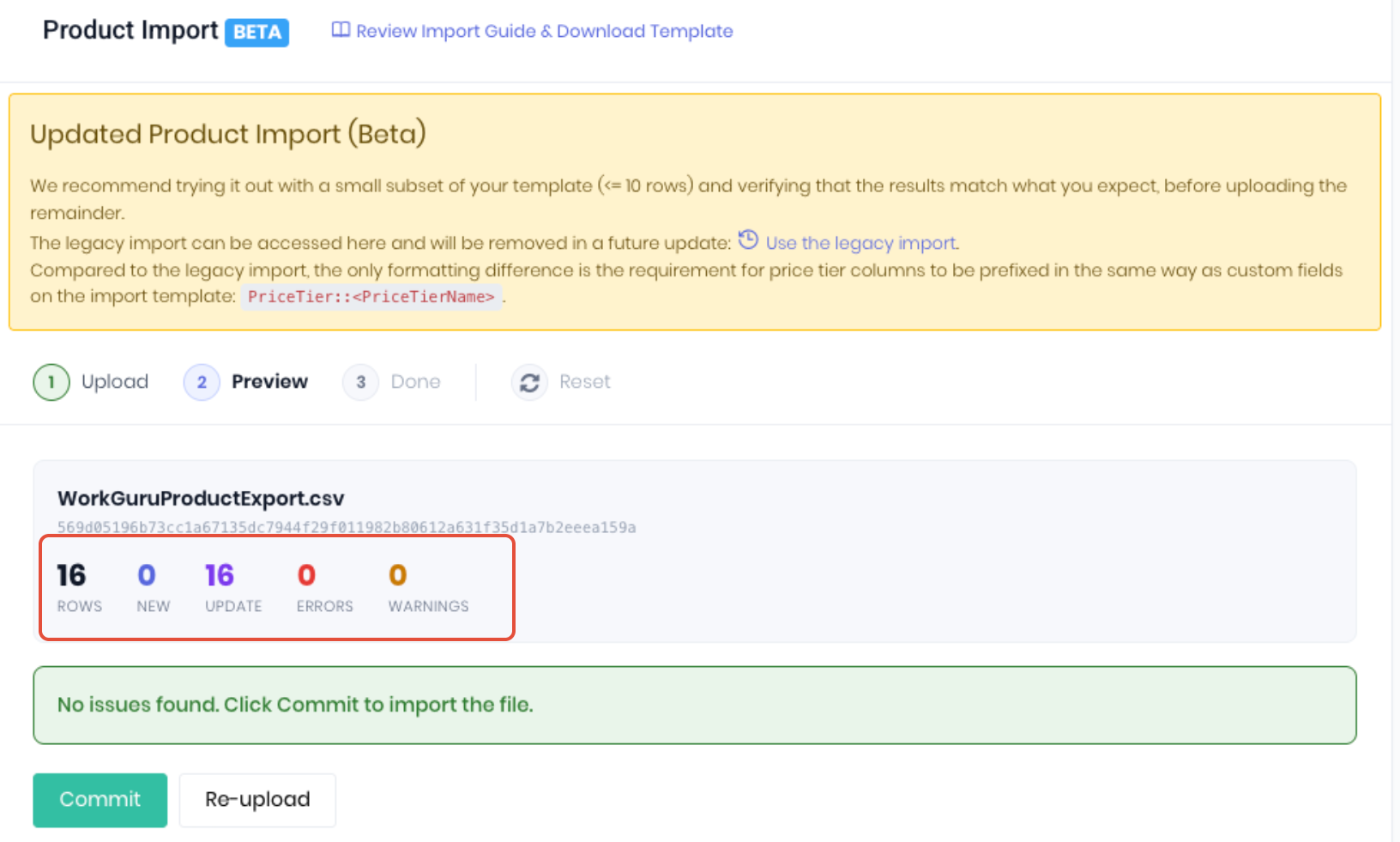
Specifically take note of the amount of Update products vs the amount of New products. For example:
- If you are re-importing an existing product export with changes, there should be no new products. When updating products, NEW rows will create a duplicate product and the original product will NOT be updated. This is usually an indication that your spreadsheet application has auto-formatted/changed product SKUs.
Any errors and warnings will be displayed that will need to be fixed in the data on the import template. Click Re-upload to restart the import process again with the updated import template.
- Errors - The upload will stop with NO products imported.
- Warnings - The upload will complete, with the data causing the warning NOT imported.
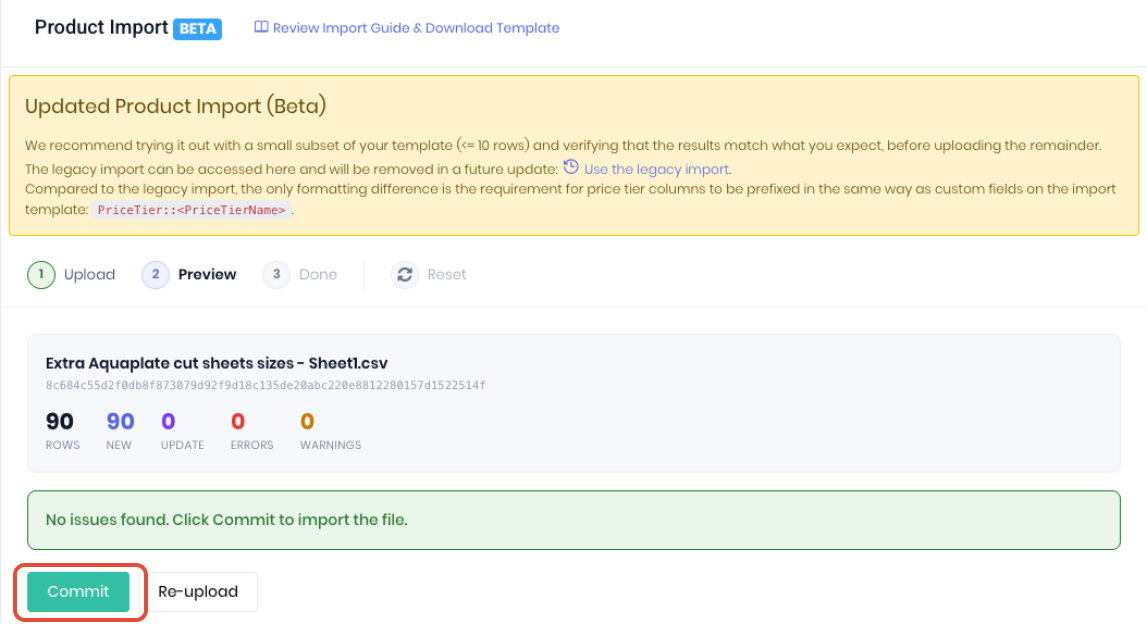
When you're satisfied the data is accurate, click Commit to complete the upload. If you want to restart the import process with another import template, click Re-upload.
Was this article helpful?
That’s Great!
Thank you for your feedback
Sorry! We couldn't be helpful
Thank you for your feedback
Feedback sent
We appreciate your effort and will try to fix the article