The WorkGuru mobile application lets you quickly access and upload files from your device to your projects. On the project's details page, tap on the Files tab to access existing files on the project.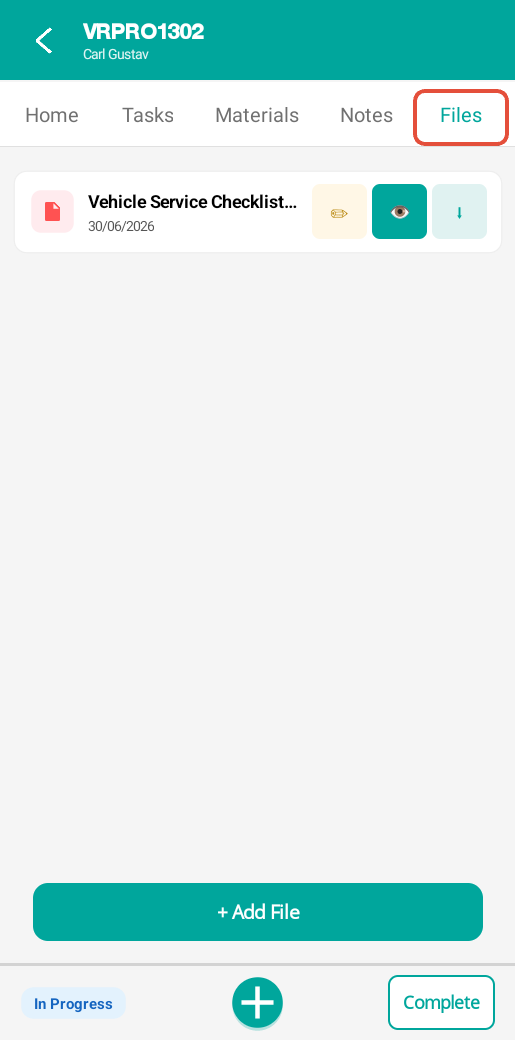
Preview Files
You can Preview a compatible files type by tapping on the "Eye" icon.
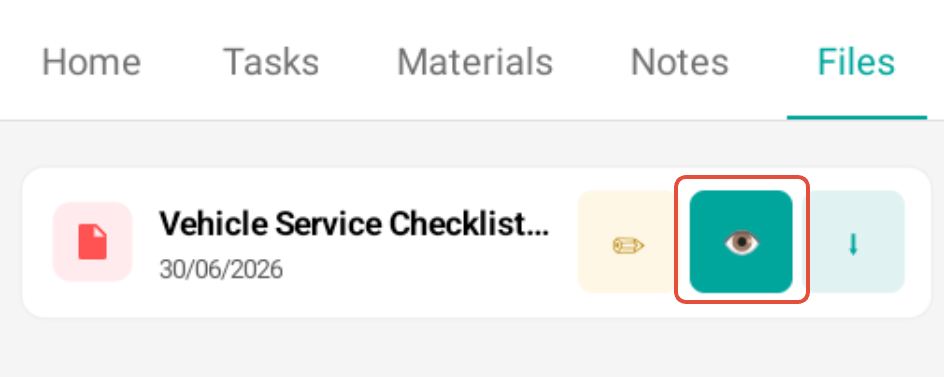
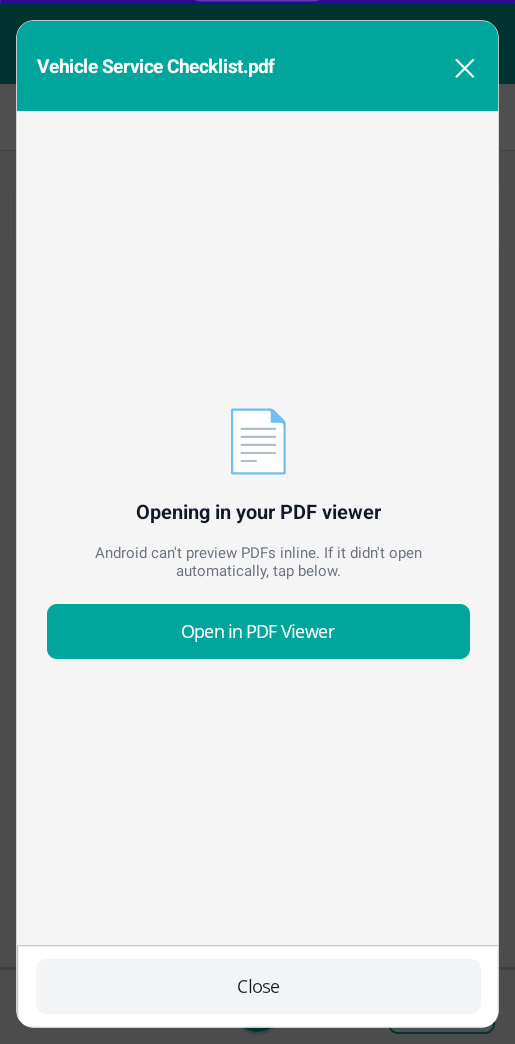
Depending on the file type, it will either be previewed inline in the app, such as an image, or will then be opened in an external application, such as a PDF.
Download Files
Save files to the device by tapping the Download icon.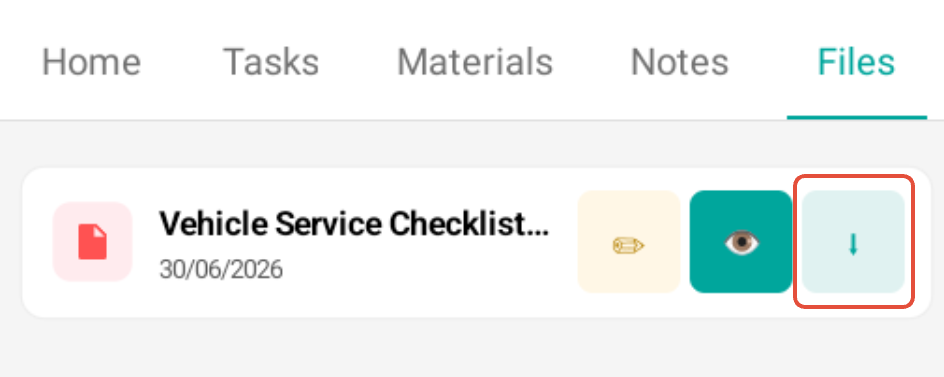
The app will then prompt where you want to save the file on your device - follow your device's instructions to confirm the download.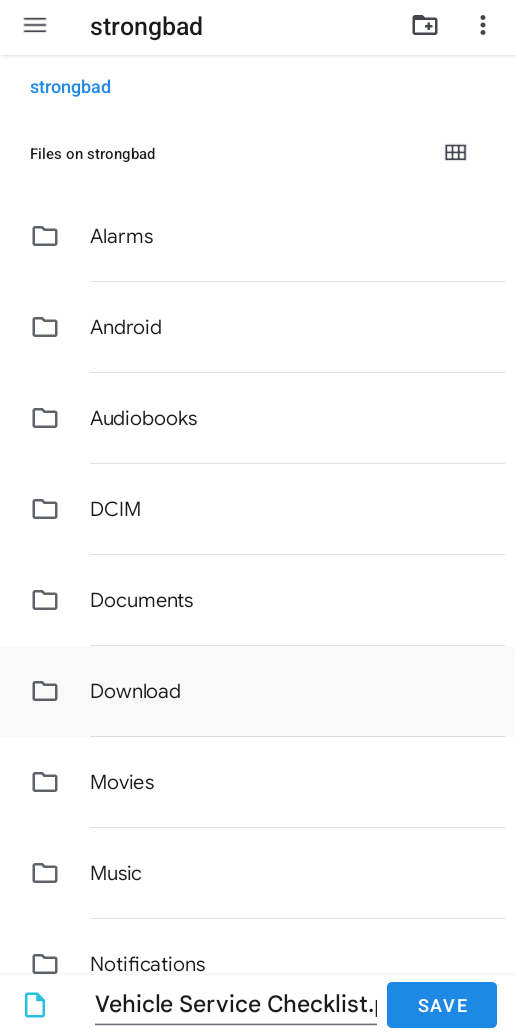
Add Files
Tap the Add File icon to upload a file to the project. Enter your Description for the file if required and tap the upload option required.
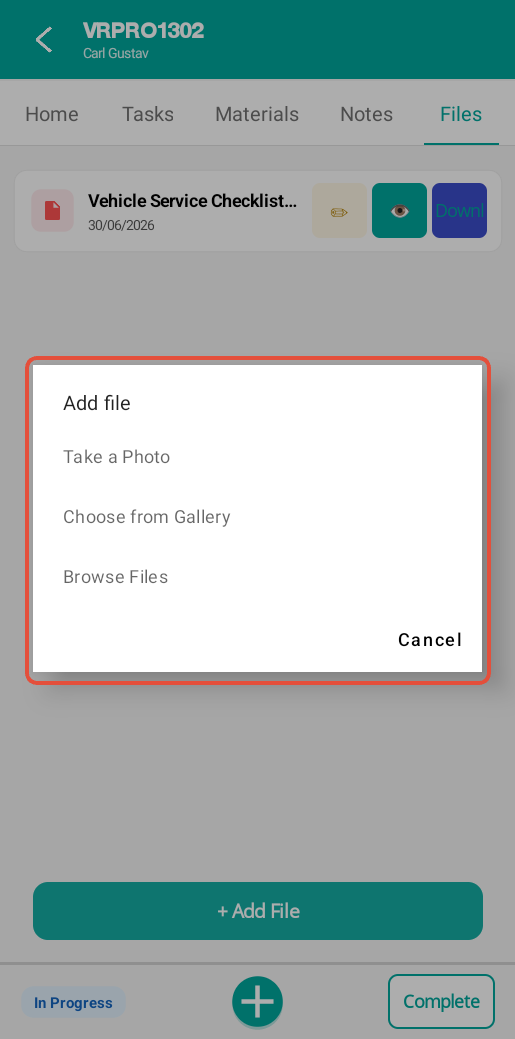
Choose the upload method from the Add File popup.
- Take a Photo - Launch the device's camera application if available to upload photo's directly to the project.
- Choose from Gallery - Select exisiting pictures from the device's gallery/camera roll if available.
- Browse Files - Select any file from the device's file system.
Follow your device specific instructions to confirm the upload.
Was this article helpful?
That’s Great!
Thank you for your feedback
Sorry! We couldn't be helpful
Thank you for your feedback
Feedback sent
We appreciate your effort and will try to fix the article