Staff can keep track of their timesheets on the go by tapping on the Timesheets in the footer, or My Timesheets from the menu to open the mobile timesheets dashboard.
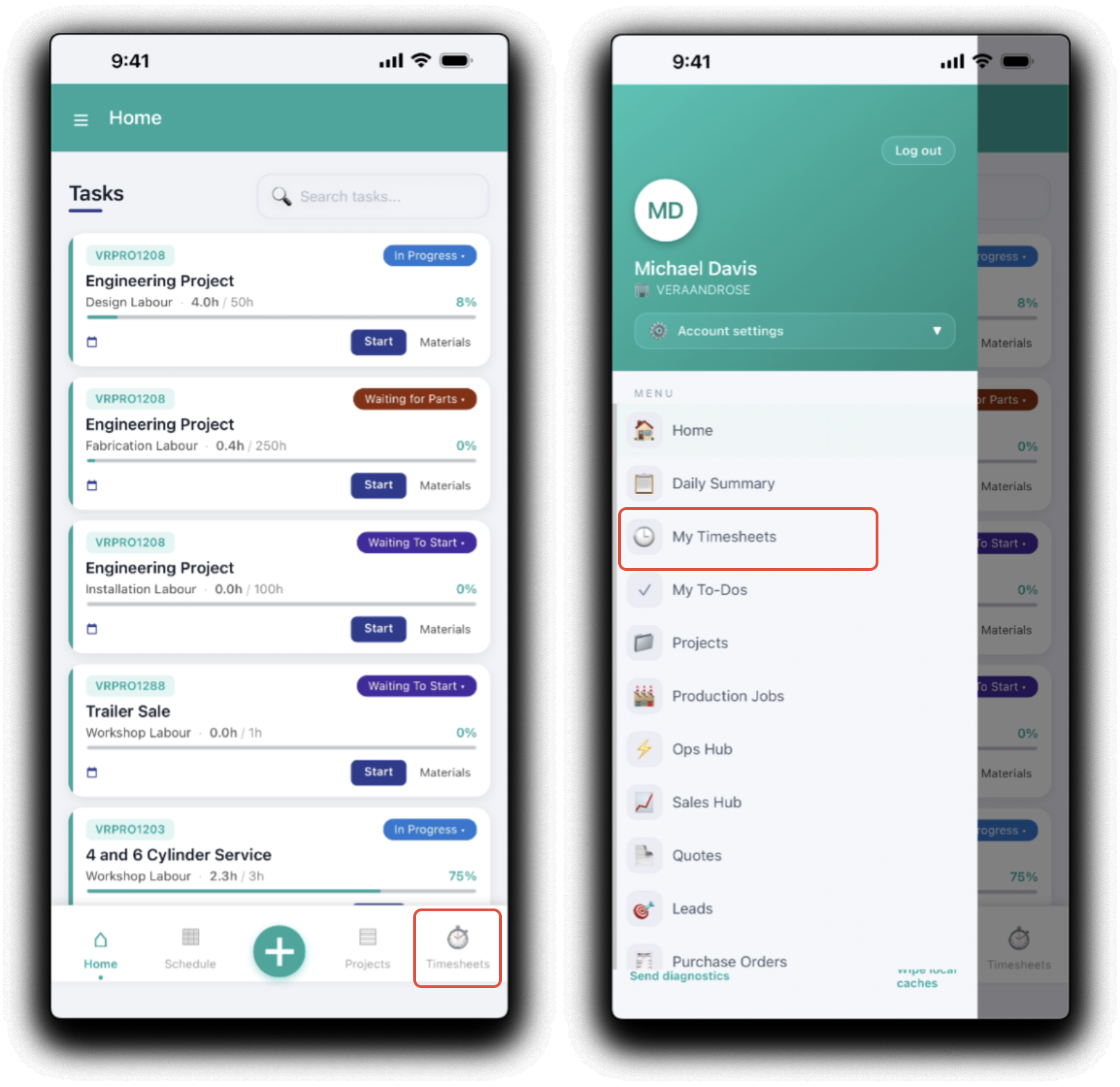
You can then review and manage your timesheets:
Review Timesheets
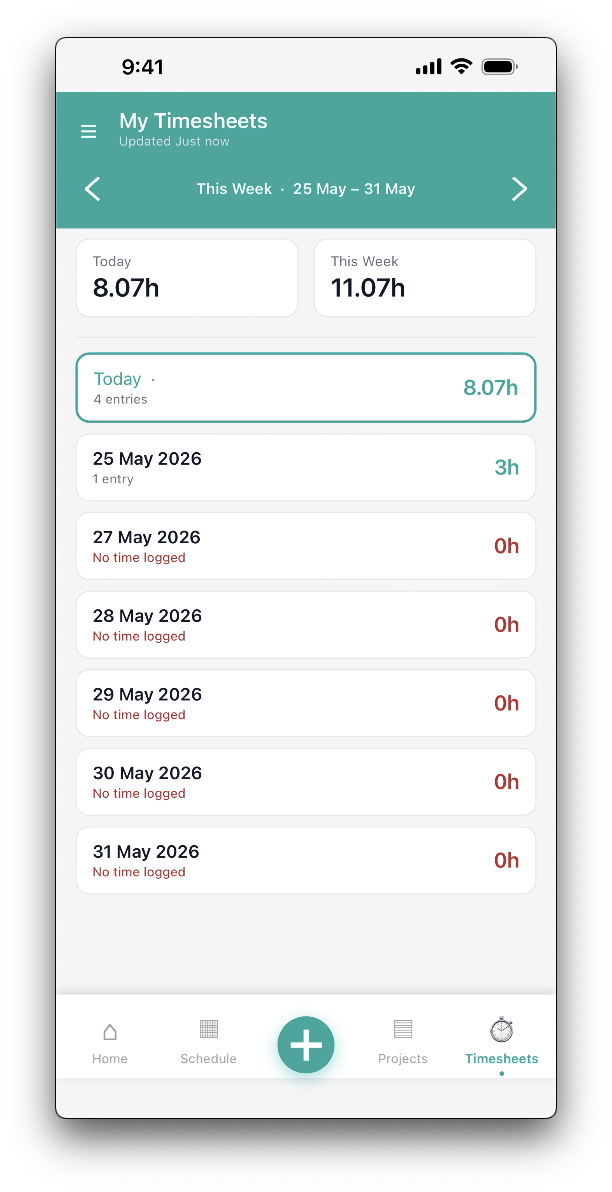
The My Timesheets dashboard will default to the current week and display a current days and weekly total hours. Each day in the week displays as a tile with the total hours per day. Use the arrows to switch between work weeks to access historical daily totals and timesheets.
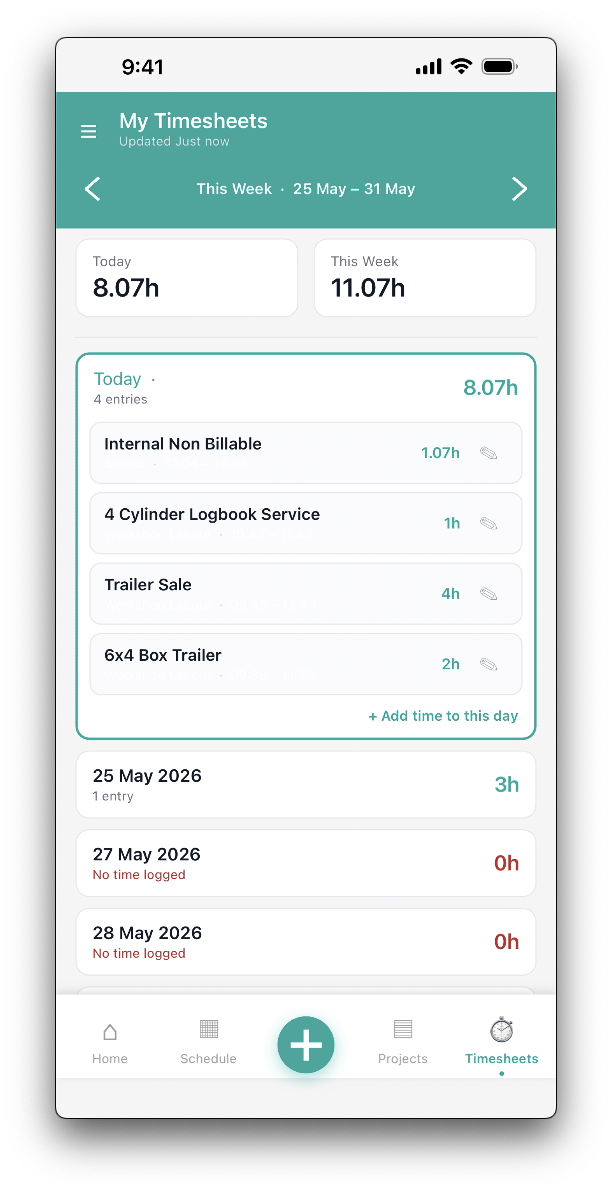
Tapping on the day tile will display the days timesheet:
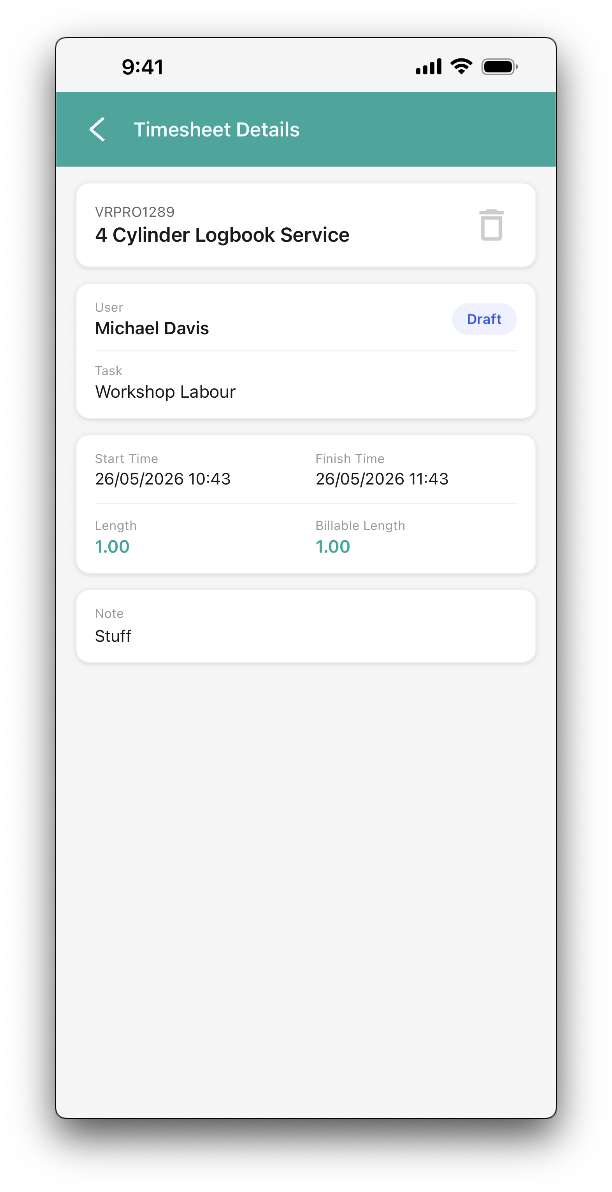
 Tapping on the timesheet will display the timesheet details
Edit Timesheets
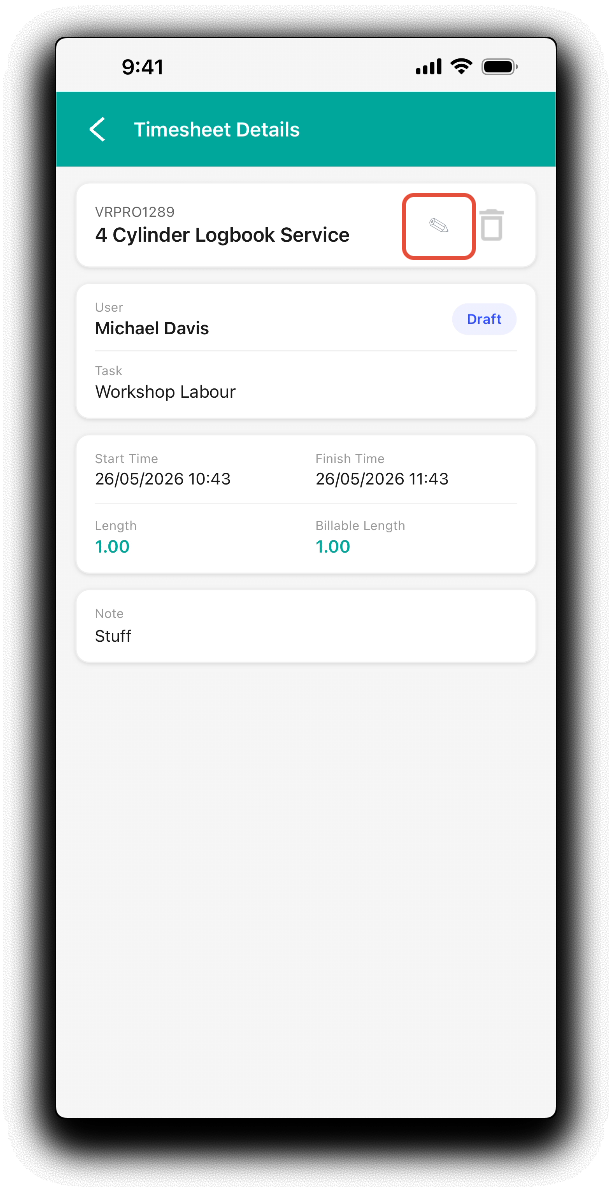
To edit a timesheet, open the timesheet details and click on the edit "pencil" icon. Make the required updates and tap Save to apply changes
Delete Timesheets
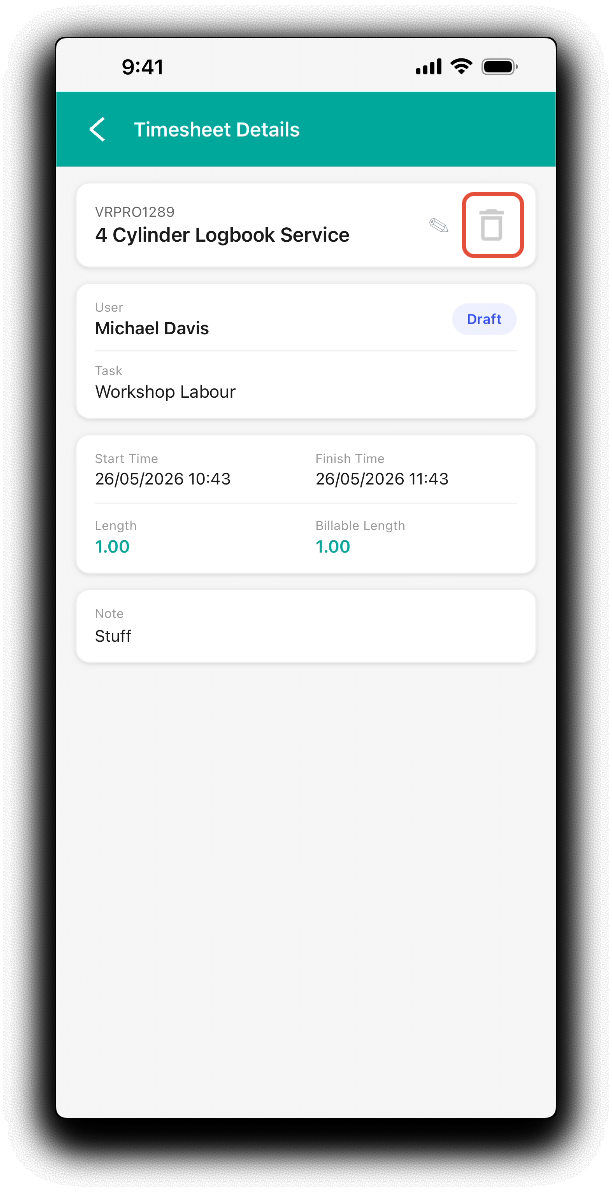
To remove a timesheet, open the timesheet details and tab on the trash icon.
Was this article helpful?
That’s Great!
Thank you for your feedback
Sorry! We couldn't be helpful
Thank you for your feedback
Feedback sent
We appreciate your effort and will try to fix the article