In addition to adding project actuals, kiosk users can review and complete their assigned project and production tasks and to-dos.
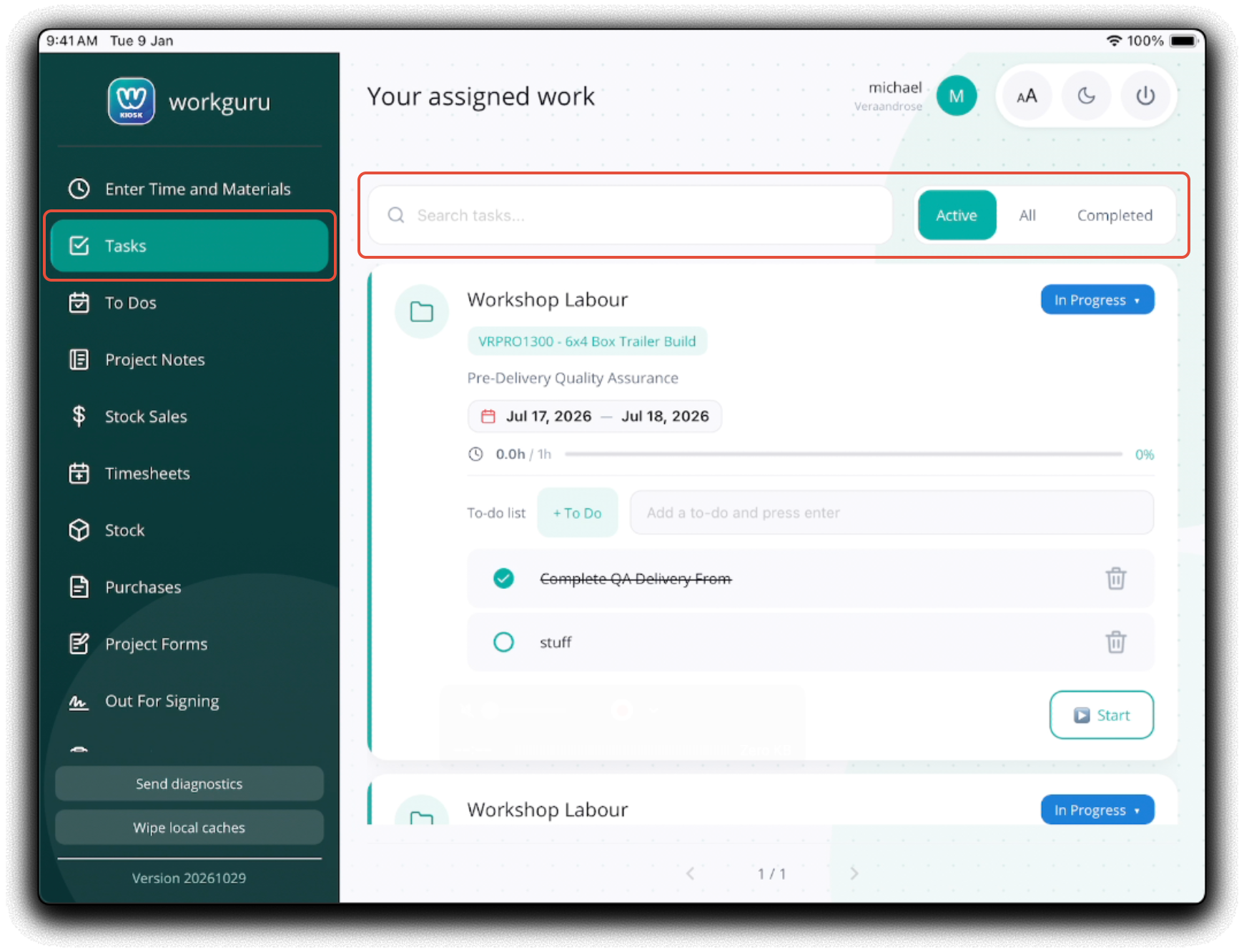
After signing into the Kiosk, Tap on the Tasks page and allocated tasks and to-do's will display in scheduled order. You can Search Tasks or display Active, All and Completed tasks.
Task Timesheet
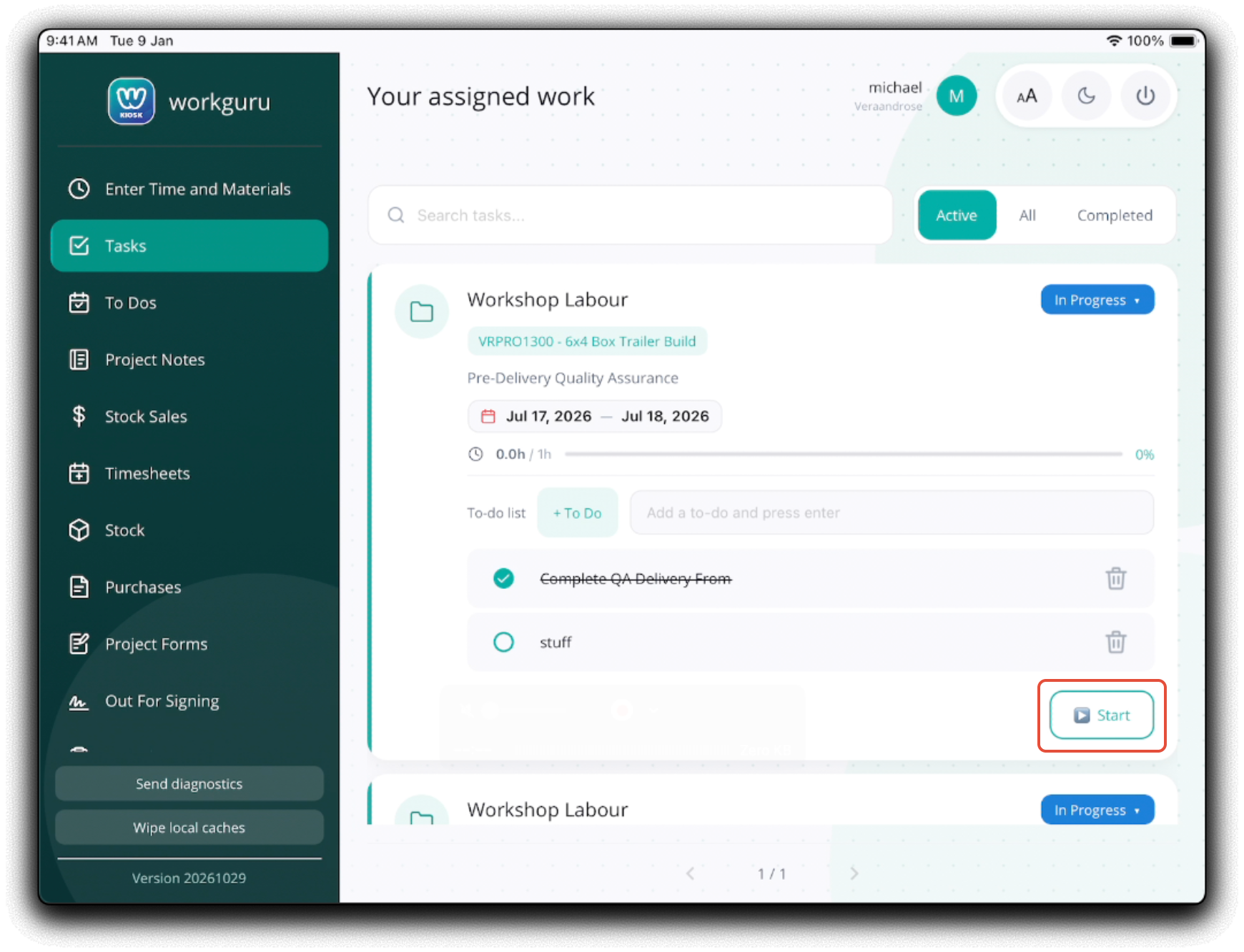
Quickly start a timesheet timer for the task by tapping on the Start shortcut.
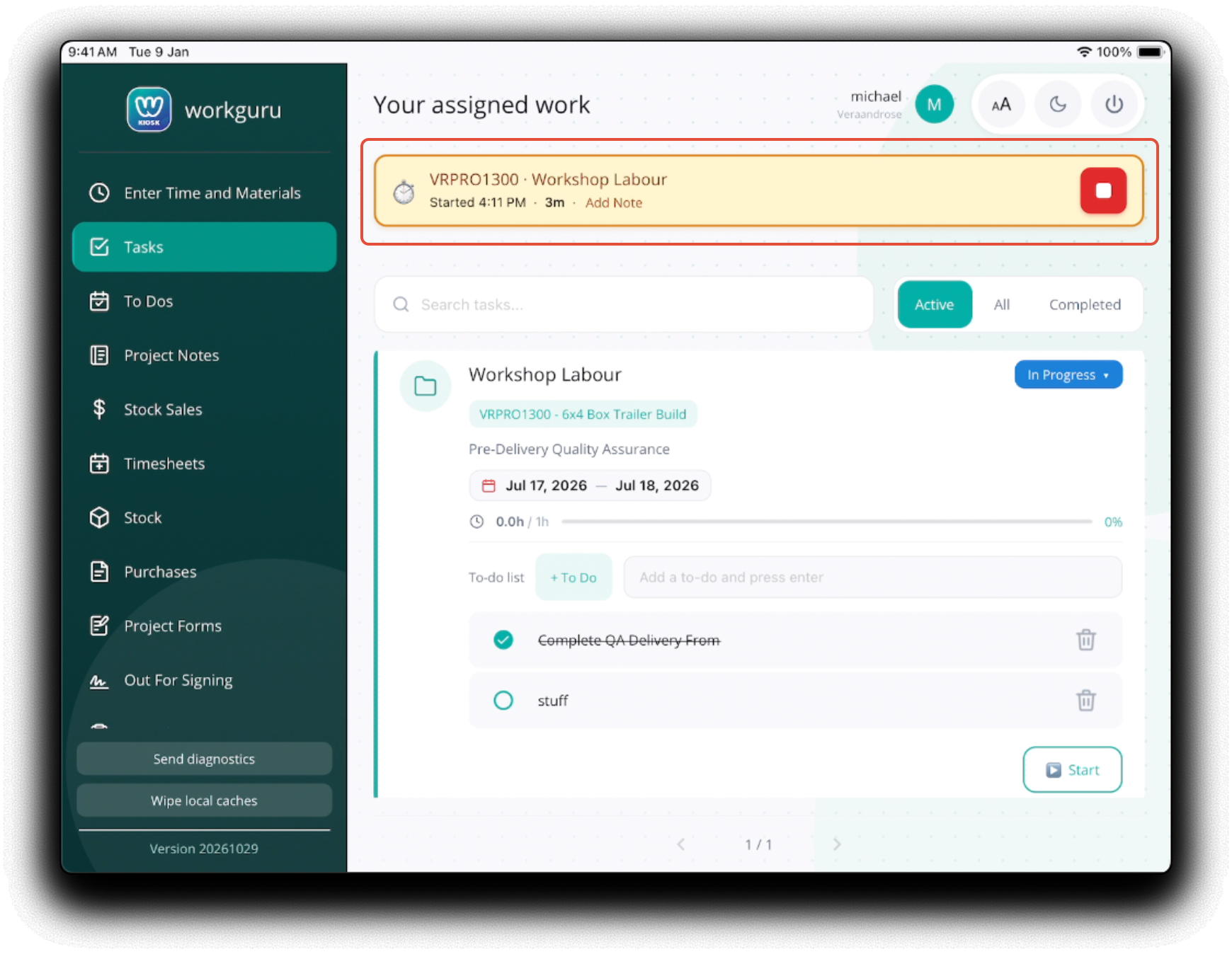
A timesheet timer will start immediately for that task and will by displayed as a banner on the app. Tap Add Note to add a timesheet note while the timer is active. Tap the Stop icon to end the time and save the timesheet.
Task Status
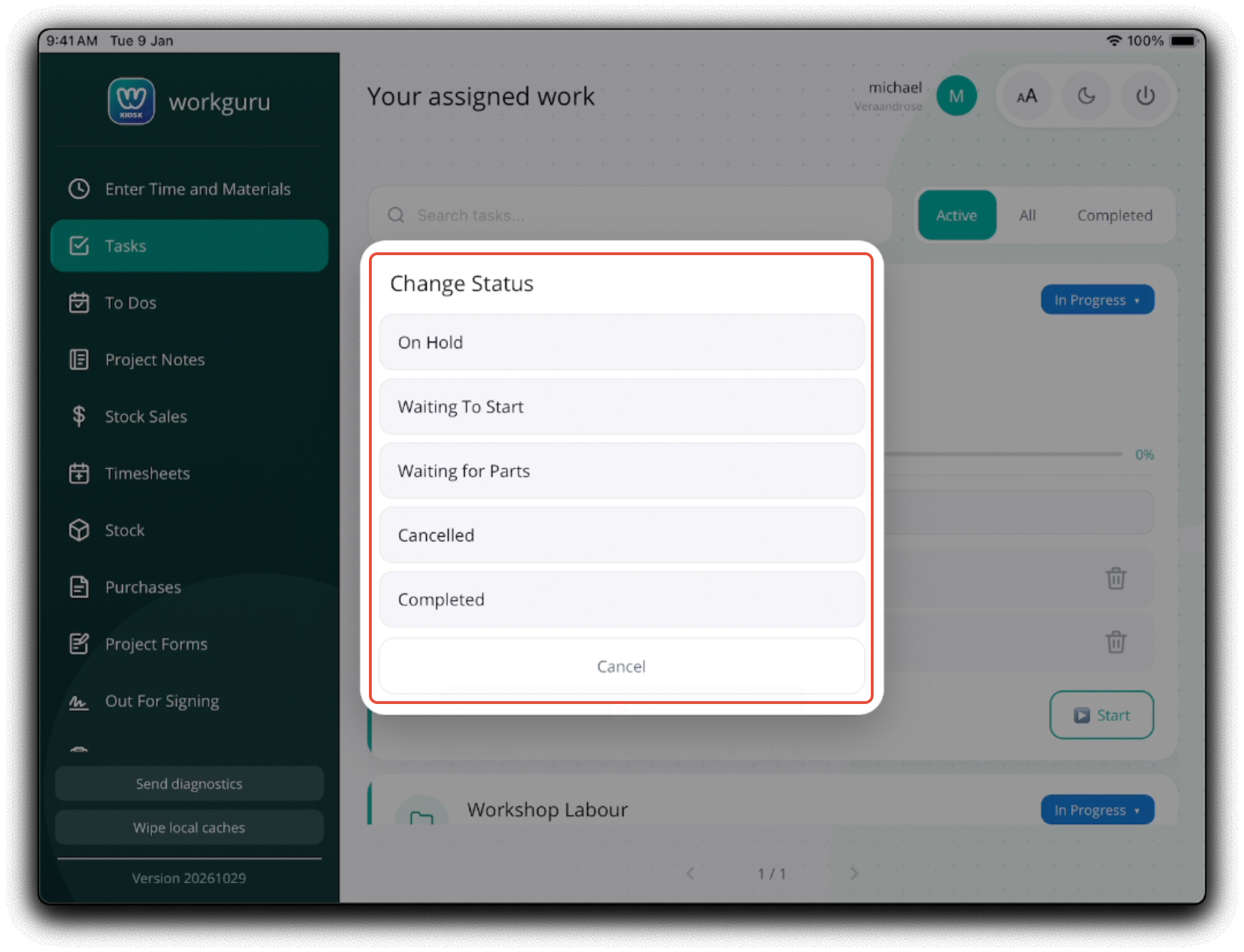
Update the task status by tapping on the current Status.
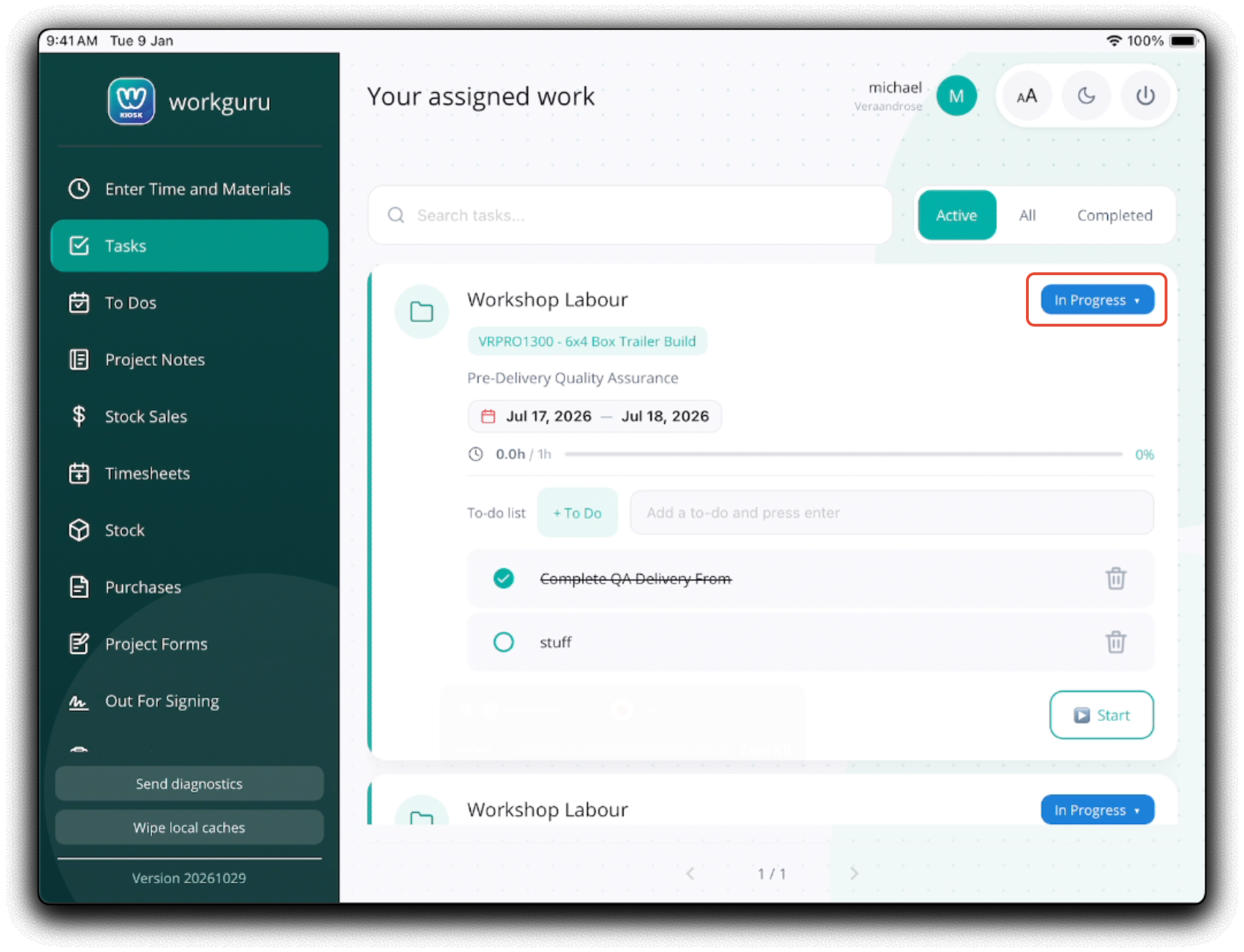
Select the updated tasks from the popup. Complete a task by selecting the default Completed status.
Task To-Dos
Mark existing task to-dos complete by tapping the relevant checkbox. Tap the check box again to un-complete a to-do.
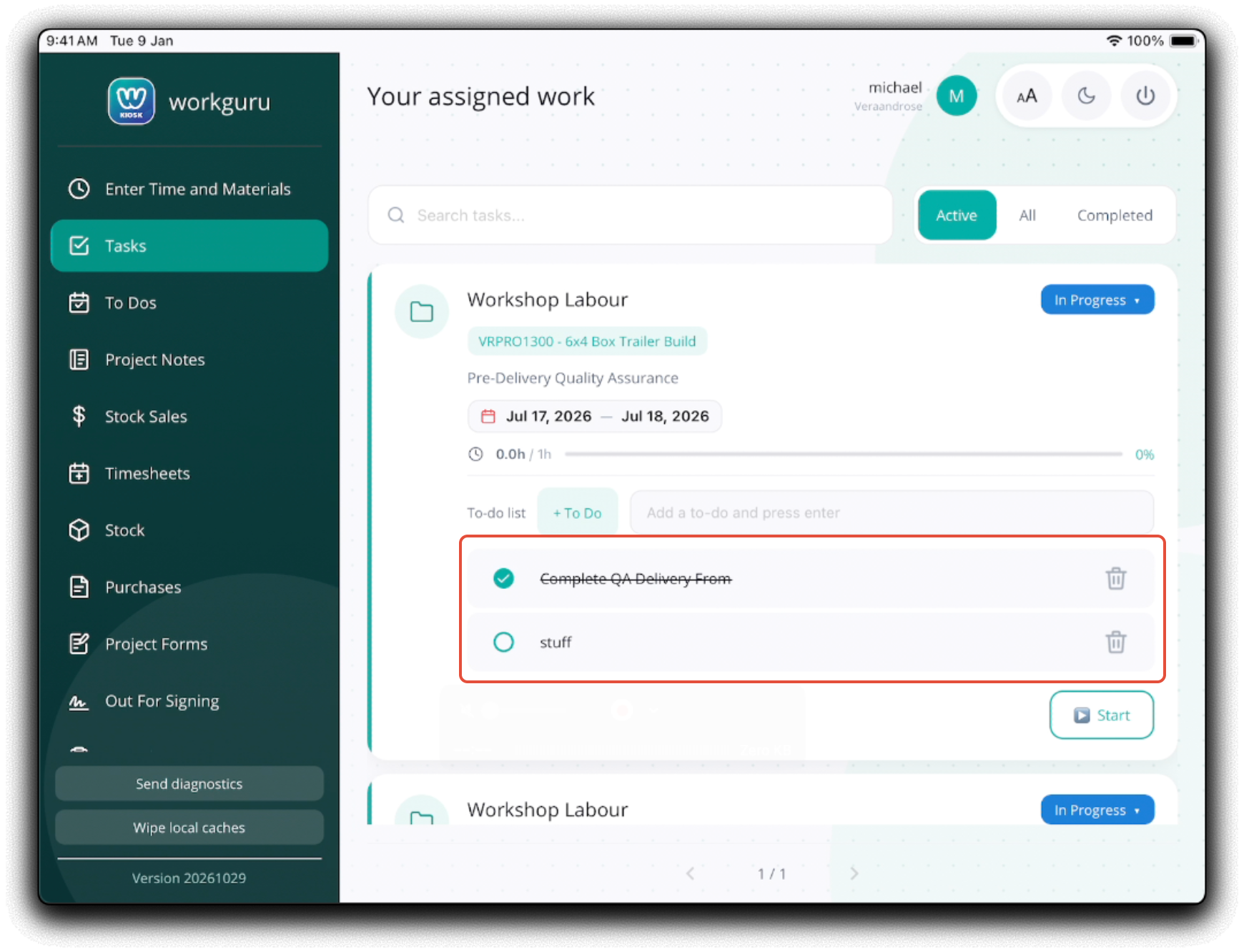
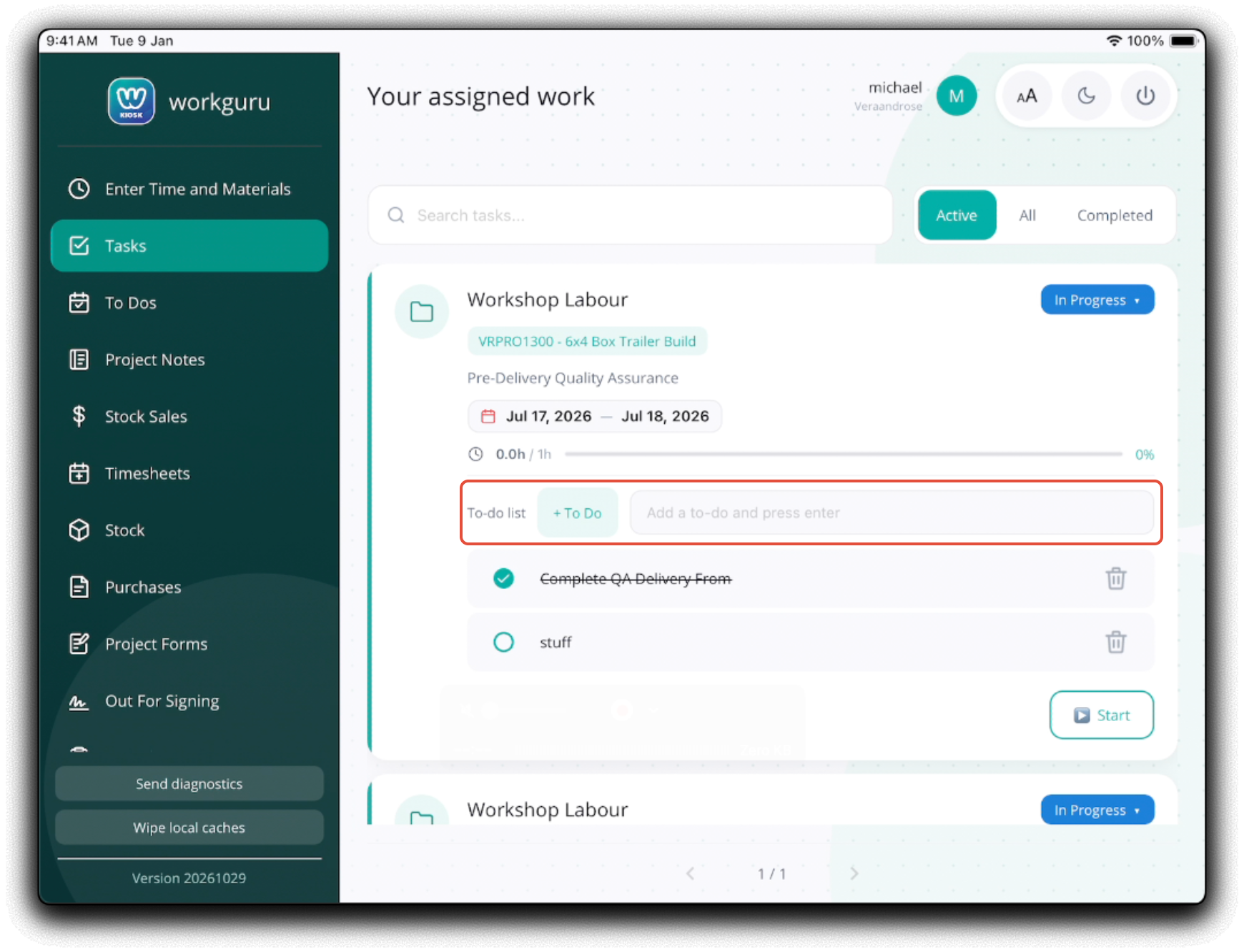
Add new to dos by selecting and typing in the Write here field and tap +To Do to add to the list. Remove a to do by tapping the Trash icon.
Was this article helpful?
That’s Great!
Thank you for your feedback
Sorry! We couldn't be helpful
Thank you for your feedback
Feedback sent
We appreciate your effort and will try to fix the article