Task statuses allow you to manage your project progress in more detail. In addition to the overall project statuses, you can set a detailed, independent status on each of the project's tasks.
Tasks status's are setup in Administration -> Settings -> Project Settings. Enter additional statuses to Custom Task Statuses. These will be added to the default status list (Cancelled, Completed, In Progress, On Hold, Waiting To Start).
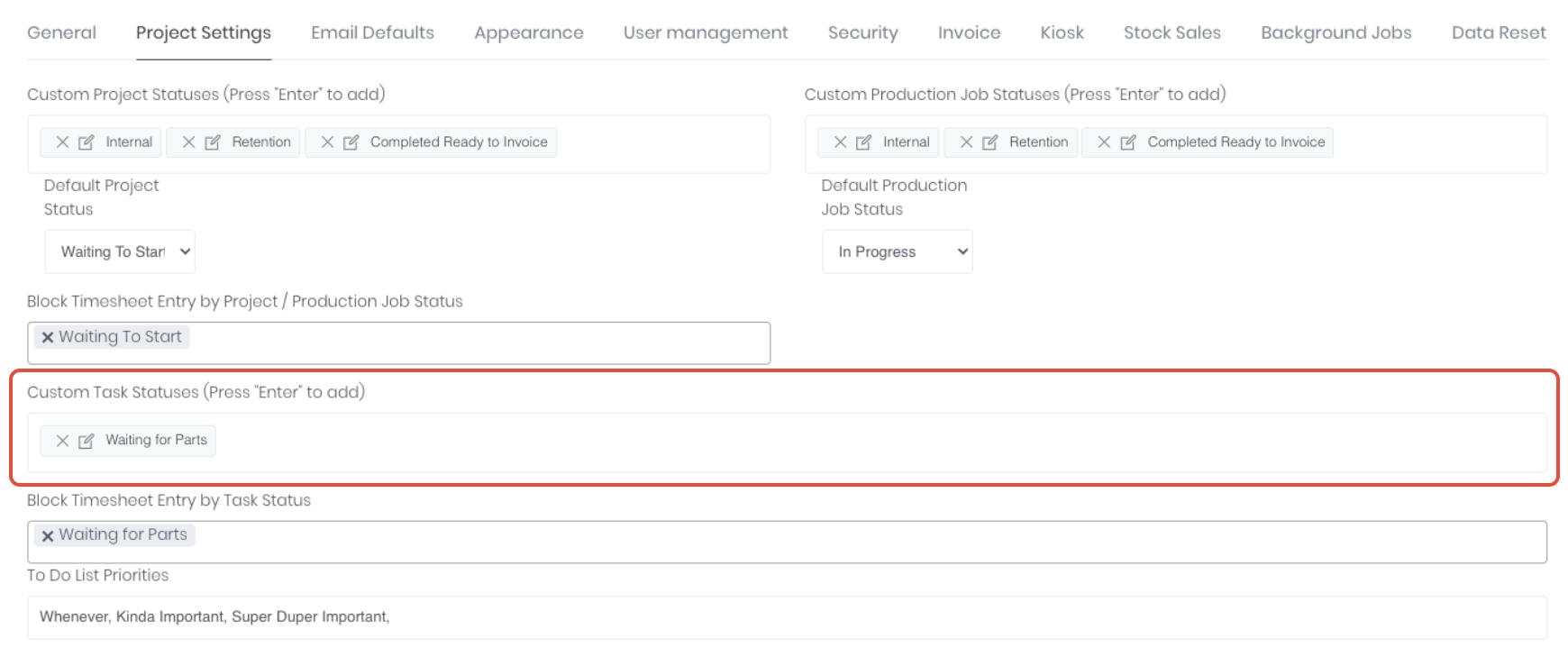
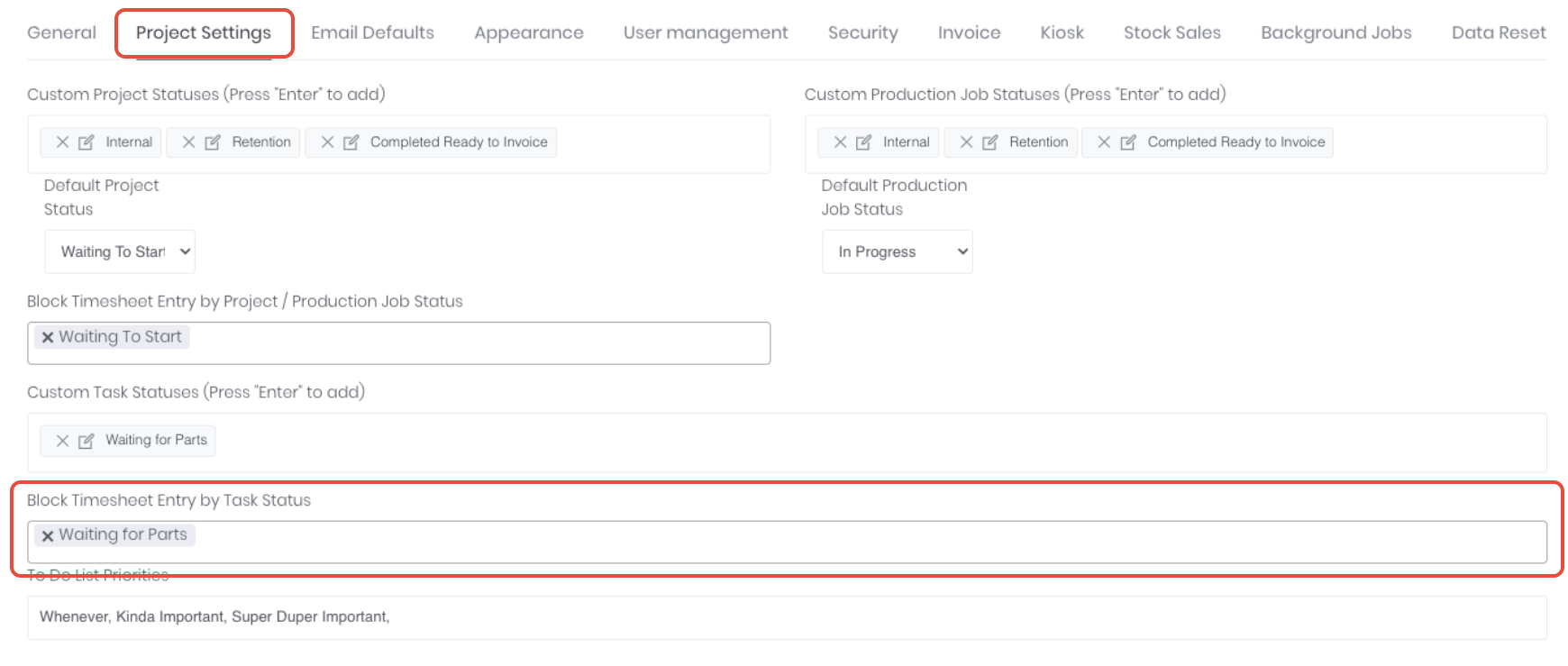
You can also block timesheet entry on nominated task statuses. Click on the Block Timesheet Entry by Task Status field and select the required status(es) from the dropdown. This will prevent the task from displaying in any timesheet entry method when that status is selected.
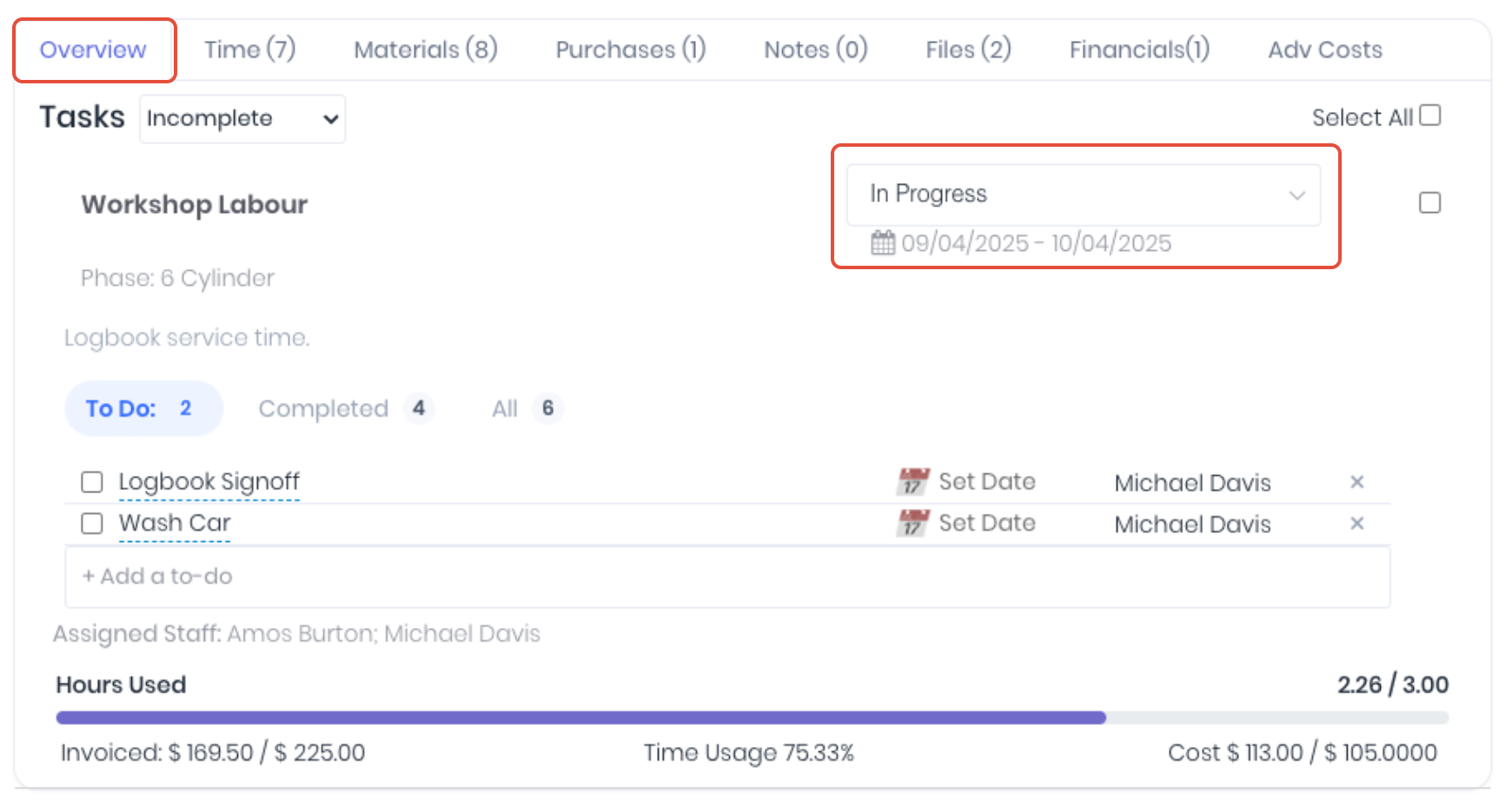
Task statuses can then be applied on the task's status dropdown in project and production job Overview tab.
Select the required task status from the dropdown:
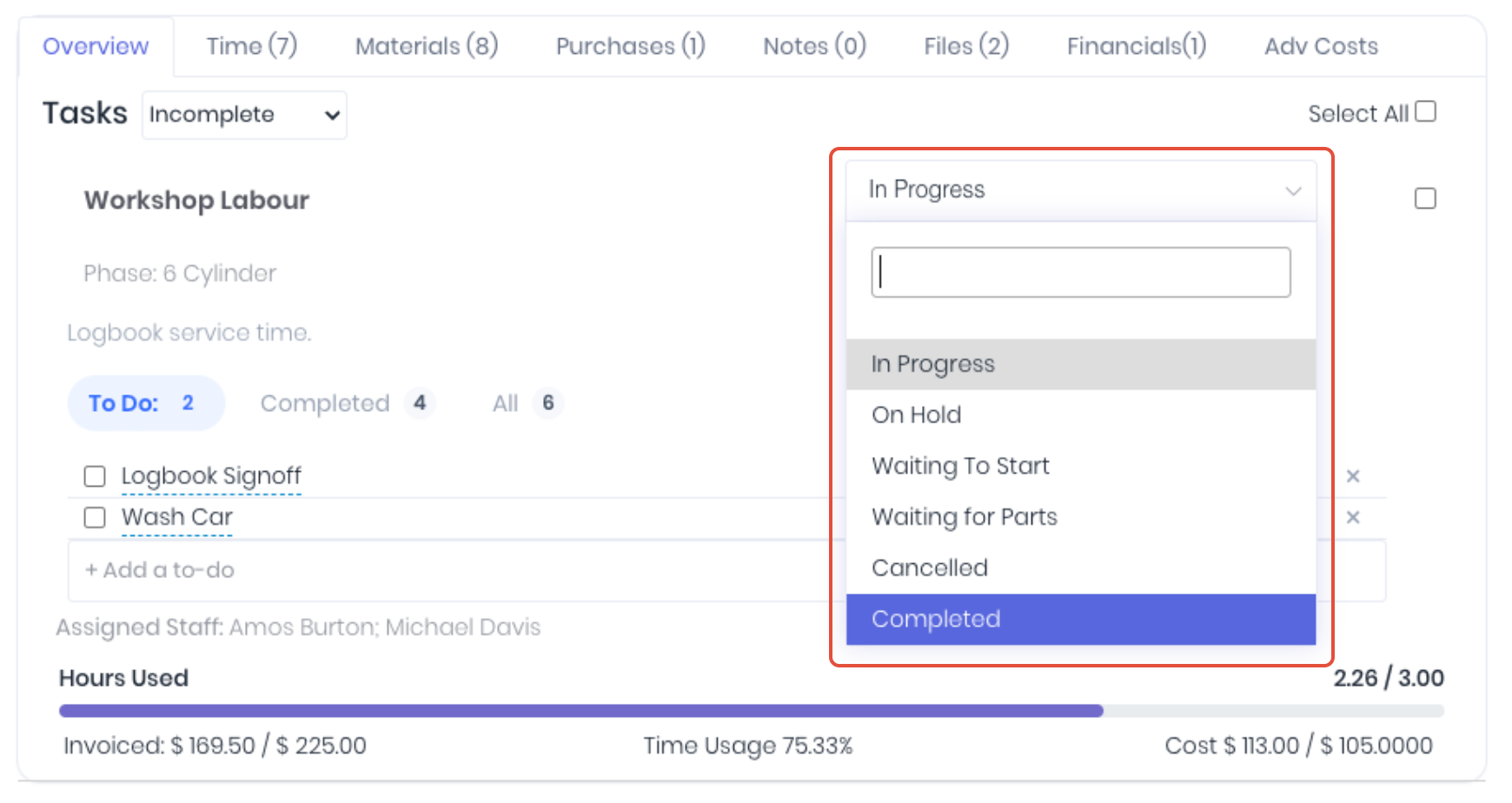
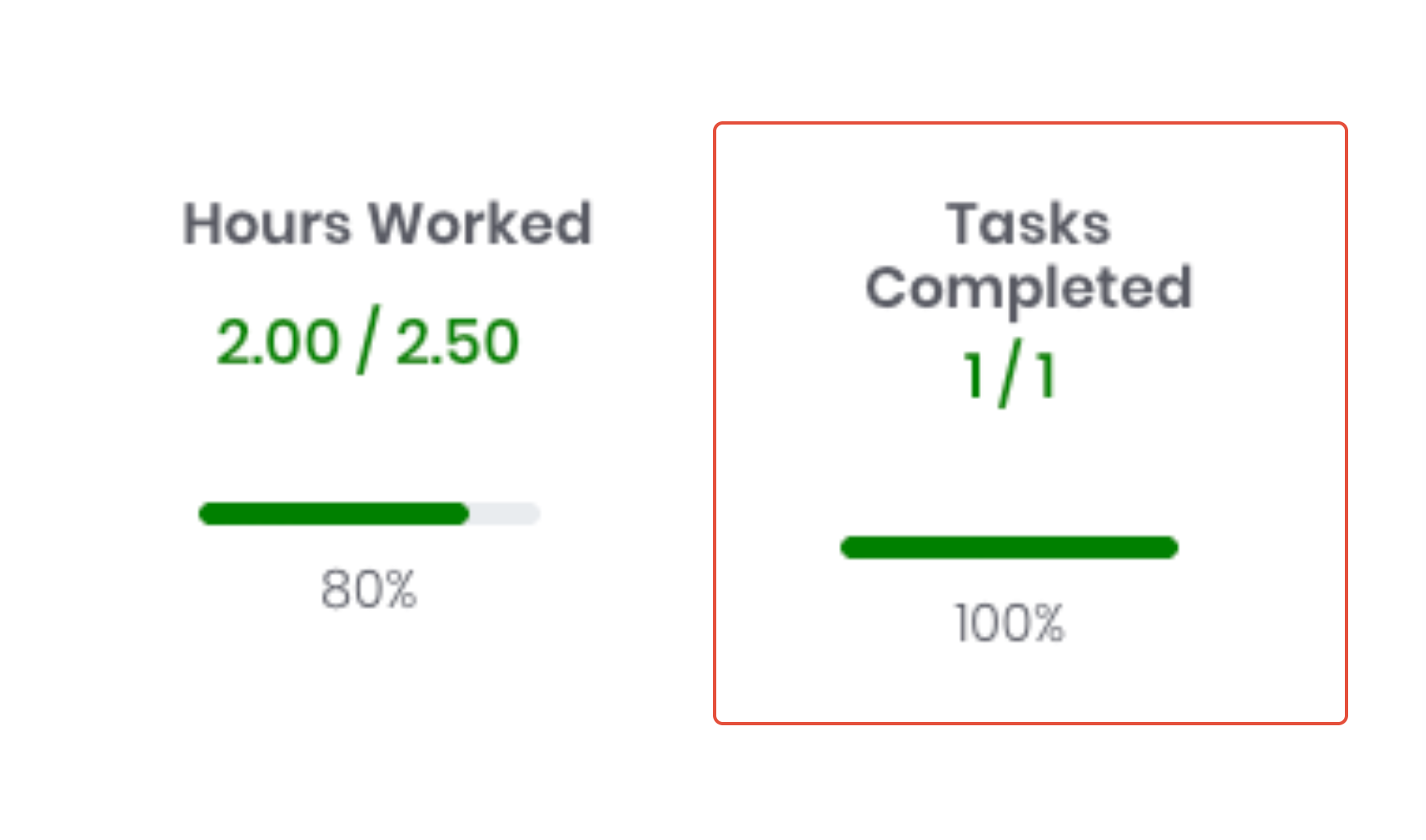
Selecting the default Completed status will enable the completed tasks invoicing function, prevent additional timesheets to be added to the task and update the project's progress widget.
You can also bulk update the task status via the Bulk Complete and Bulk Incomplete buttons on the project's Overview tab.
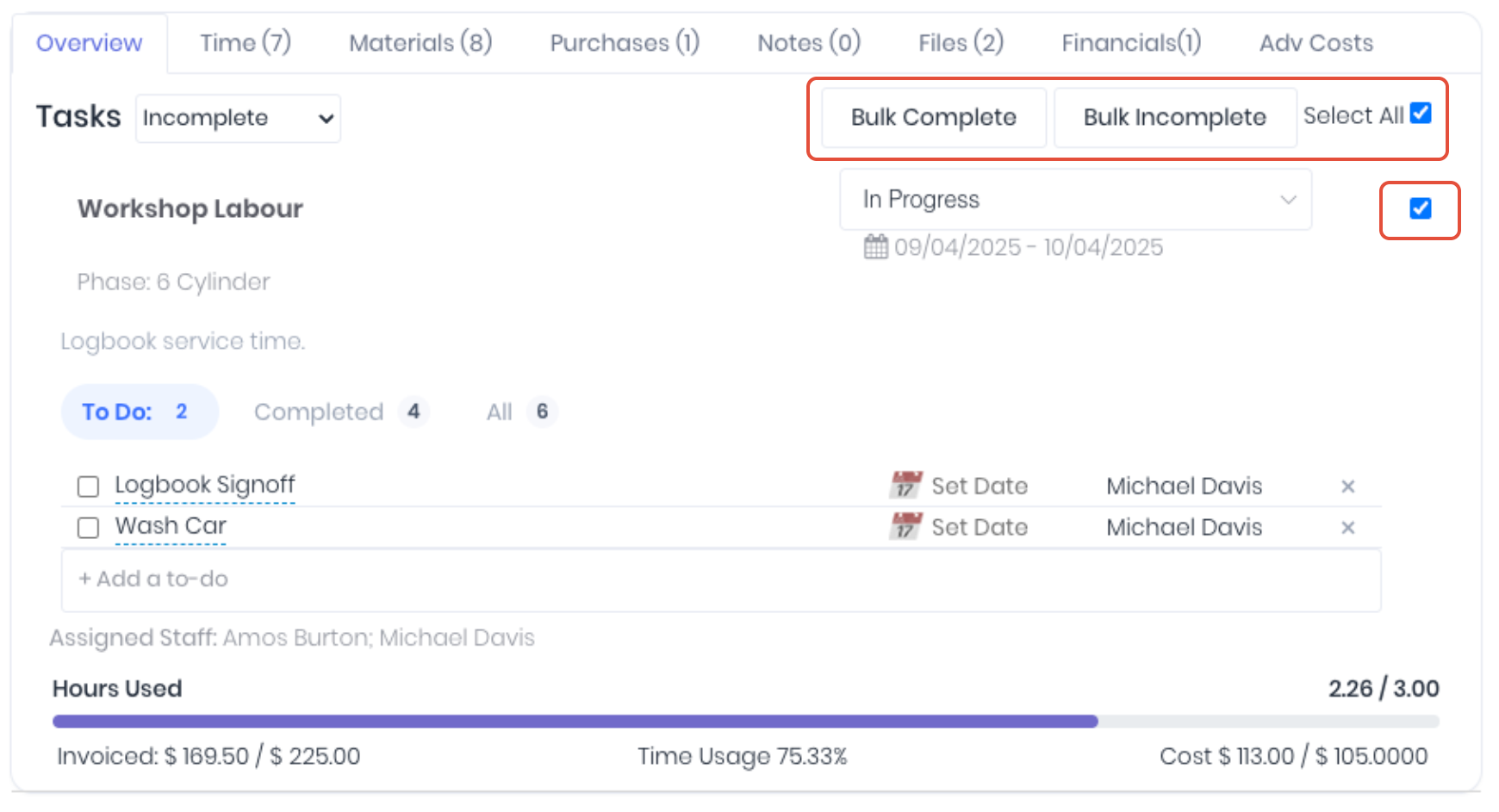
Using the first dropdown, you can filter if you wish to see all tasks, completed tasks or incomplete tasks. The Select All box can be ticked to automatically select all of the tasks in the view that have been defined by the first drop down.
Once the required tasks have been selected, you can then hit either the Bulk Complete or Bulk Incomplete button which will update the selected tasks accordingly.
Was this article helpful?
That’s Great!
Thank you for your feedback
Sorry! We couldn't be helpful
Thank you for your feedback
Feedback sent
We appreciate your effort and will try to fix the article