The EzzyBills integration uses line-item data extraction to apply supplier invoices to your WorkGuru purchases.
Every Approved PO type is sent to EzzyBills, including:
Project POs
Stock POs
Mixed POs (Project and Stock lines on the same order)
Merged POs (where the final status is Approved)
When a supplier invoice is matched in EzzyBills, the details flow back to WorkGuru via a webhook. This fills in the Supplier Invoice Number, Invoice Date, Due Date, and attaches the invoice file. It also updates the line prices and quantities on the PO to match the invoice.
PO Status and Receipting
How the PO status updates depends on what you are purchasing:
Pure Project POs: If the order contains no stock lines, the PO status changes to Received and the Received Date is set (based on your integration settings).
Stock or Mixed POs: If the order contains any stock lines, the status remains Approved and the Received Date stays blank. You must manually receipt these orders in WorkGuru when the goods arrive. This ensures that stock movements and costing are recorded only when the physical items are in your possession..
TABLE OF CONTENTS
- Setup EzzyBills Workflow Integration
- Enable PO Matching in WorkGuru
- Verify PO Matching
- EzzyBills Approvals
- Trouble Shooting the Integration
- CheckPO failed. Purchase order: X does not exist.
This setup guide assumes you have already successfully connected EzzyBills to WorkGuru.
NOTE: if you receive a partial PO invoice then it will match in WorkGuru for the received items. If you need to receive the rest of the items not originally received then you will need to manually create a back order.
Create the PO Matching Workflow in WorkGuru
To use the PO matching functionality, first you must create an EzzyBills workflow in EzzyBills. Select Workflows in EzzyBills located under the Dashboard to access workflow dashboard. Click the New Workflow dropdown at the top right, and select Create Workflow Using Template.

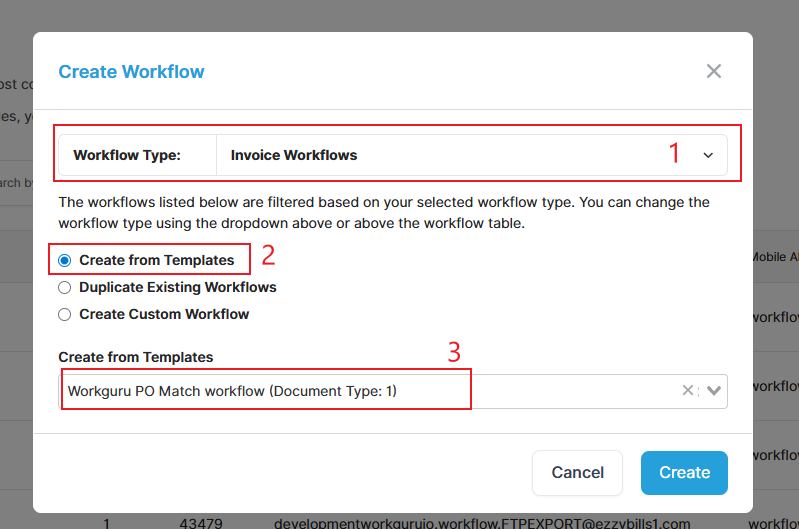
On the workflow creation pop up window, select Invoice Workflows in Workflow Type dropdown and select Create from Templates. In the next drop down, select Workguru PO Match workflow (Document Type: 1), then click Create.
*UK Client need one extra step:
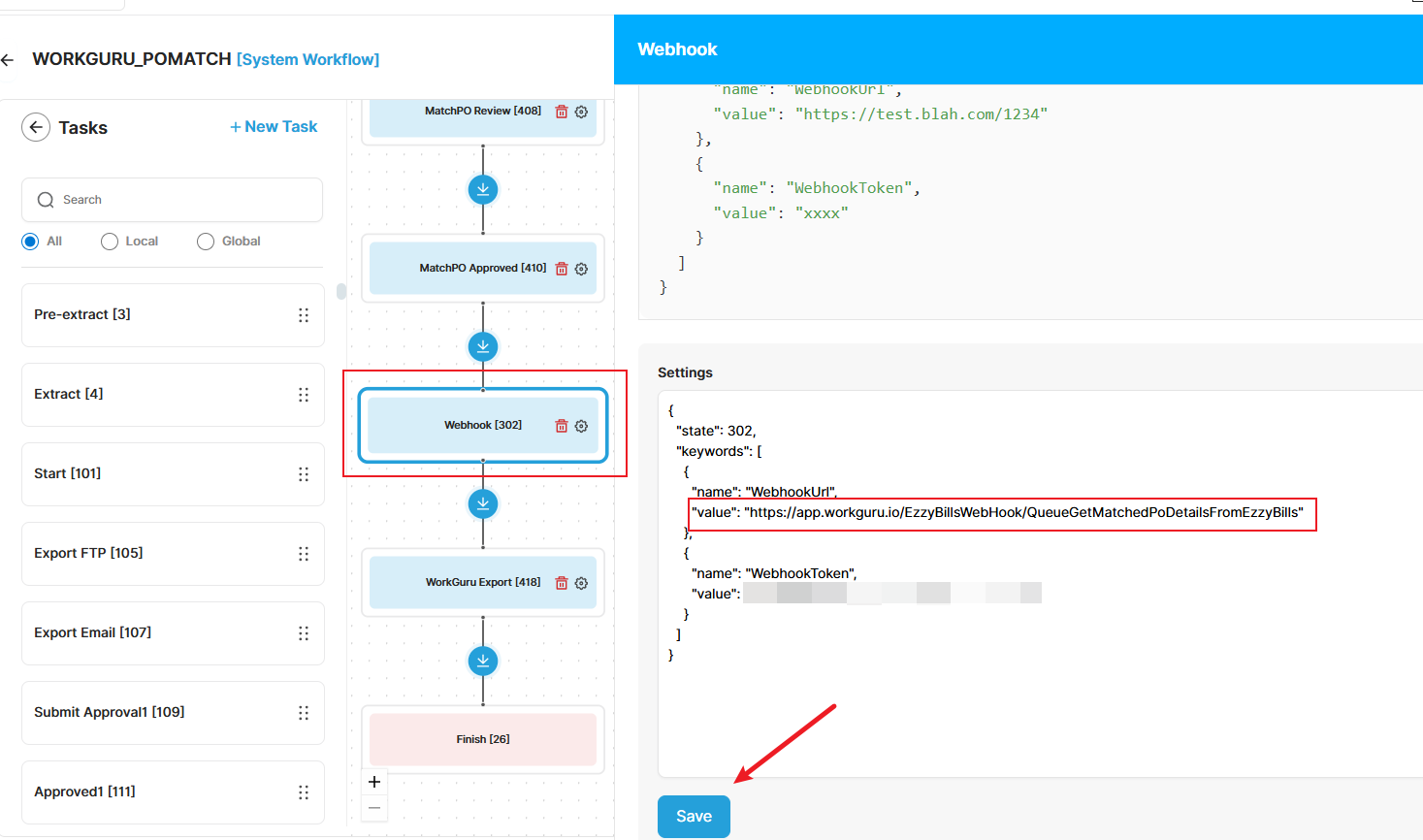
Find the Webhook task from generated workflow, click on the settings cog and replace the webhook url value by https://uk.workguru.io/EzzyBillsWebHook/QueueGetMatchedPoDetailsFromEzzyBills.
Enable PO Matching in WorkGuru
On the EzzyBills integration page in WorkGuru (Integrations-> EzzyBills), enable PO matching by selecting Match EzzyBills Supplier Invoices to WorkGuru Purchase Orders?
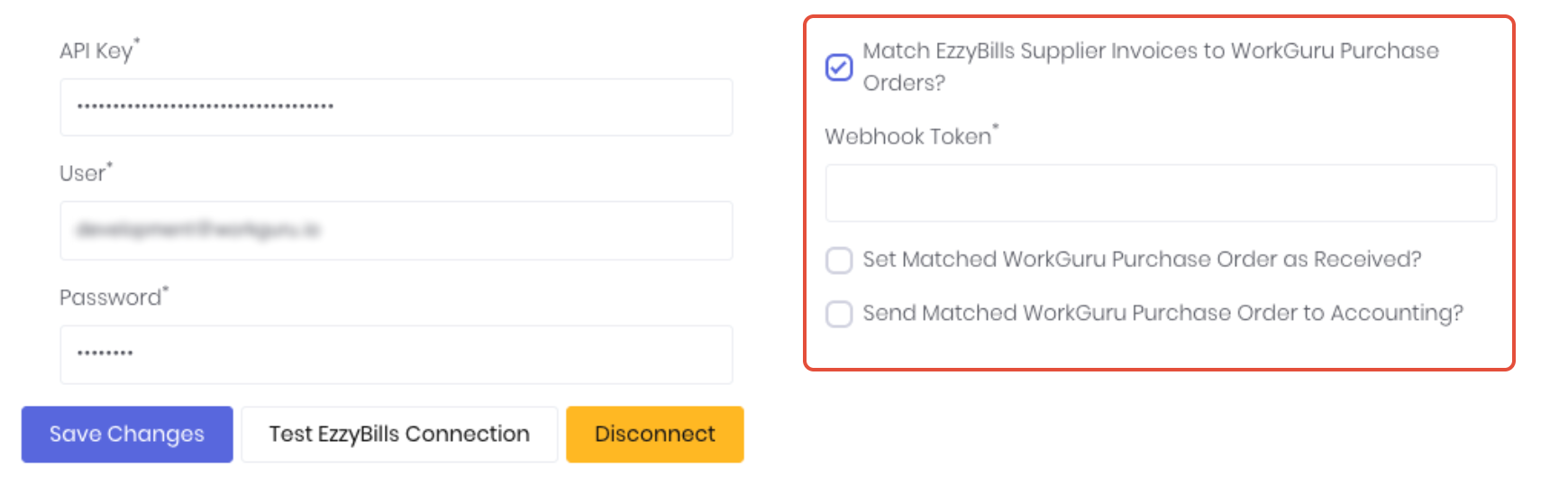
Confirm the Webhook Token* field is populated by the EzzyBills workflow. Select the other options dependant on your workflow's requirements:
- Set Matched WorkGuru Purchase Order as Received? - Once POs are matched, this marks the PO in WorkGuru as received. Note: This only applies to Pure Project POs. If the PO contains any stock lines, it will remain as Approved so you can manually record the physical stock movement and ensure costing is accurate.
- Send Matched WorkGuru Purchase Order to Accounting? - This funciton controls whether WorkGuru OR EzzyBills is sending the PO to the integrated accounting software.
Verify PO Matching
Once the workflow has been saved, you can now use the PO matching integration functionality. You can test this functionality by following these steps:
- Create and approve a purchase order within WorkGuru
- Generate a dummy supplier invoice by printing the purchase order using a document template of your design
- Upload the dummy supplier invoice against the PO matching workflow in EzzyBills
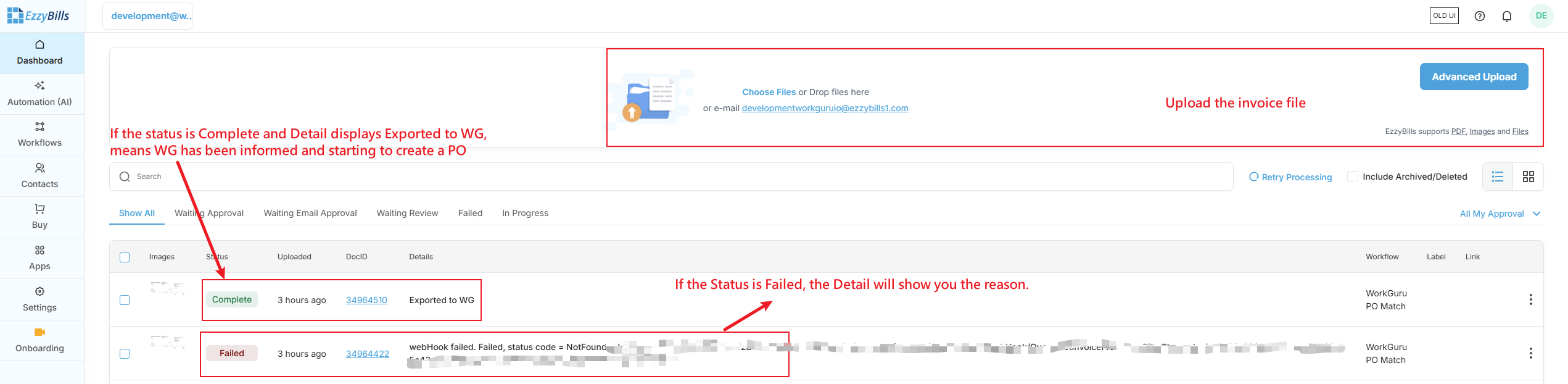
- Review the status of the data extraction for that invoice in EzzyBills
- Once the status is "Complete", take a look at the purchase order within WorkGuru and verify the invoice information against the invoice uploaded to EzzyBills
- The supplier invoice uploaded to EzzyBills will be uploaded as a file against the purchase order in WorkGuru
Note: If using the receipt upload functionality of the EzzyBills integration, the PO matching workflow in EzzyBills must not be set as the default, otherwise receipt uploads will fail at the Check PO Exists and/or MatchPO steps of the EzzyBills workflow
EzzyBills Approvals
If you require approval flows in EzzyBills, this can be achieved by adding the 'Submit Approval1' and 'Approved' steps to the workflow, between the MatchPO and Webhook steps:
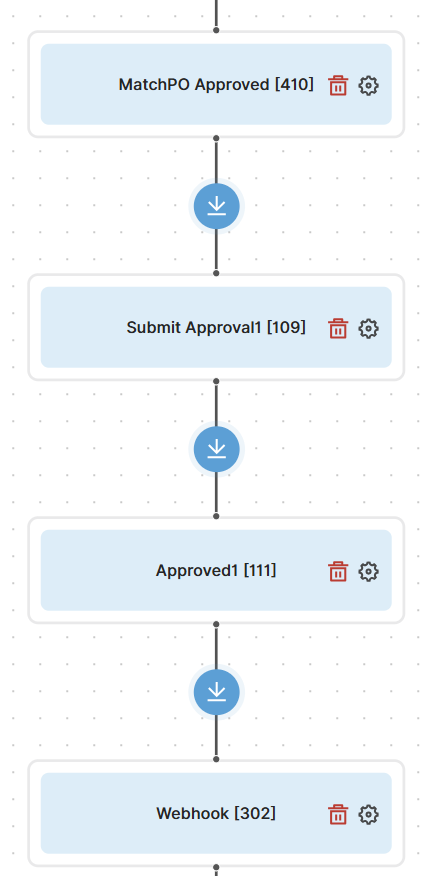
EzzyBills Approval Emails:
If using approval flows in Ezzybills, you can customise who will receive the approval email via the EzzyBills Approvals settings within WorkGuru. When the purchase order data is sent to EzzyBills (i.e. on PO approval), the approver recipient is sent with it according to these settings. Please note approval emails require the additional approval steps to be added to the workflow in EzzyBills per the section above.
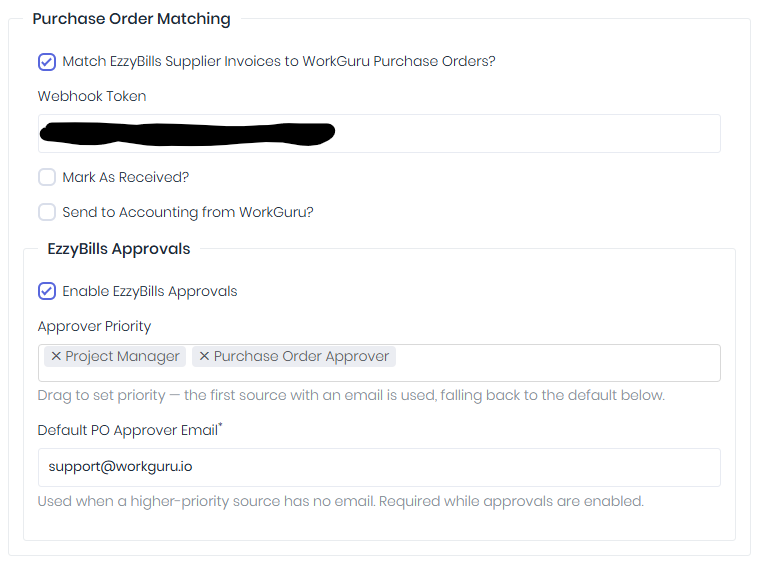
- Approver Priority: Optional. This determines which user is prioritised as the approval email recipient. In the above screenshot, the project manager is used if they exist, otherwise the user who approved the PO in WorkGuru is used. Can be left blank to delegate all EB approvals to the sole recipient defined in against the Default PO Approver Email field.
- Project Manager: the user assigned as the PM to the project which the PO is allocated against
- Purchase Order Approver: the user who approved the PO within WorkGuru
- Default PO Approver Email: Required. This is the fallback used if no higher-priority users can be found in accordance to the Approver Priority setting.
Troubleshooting PO Matching
CheckPO failed. Purchase order: X does not exist.
This error is caused by either PO hasn't been sent through or OCR on Ezzybills side failed to parse detail from uploaded file.
 Find the PO matching setting area in Settings -> Advanced Options page.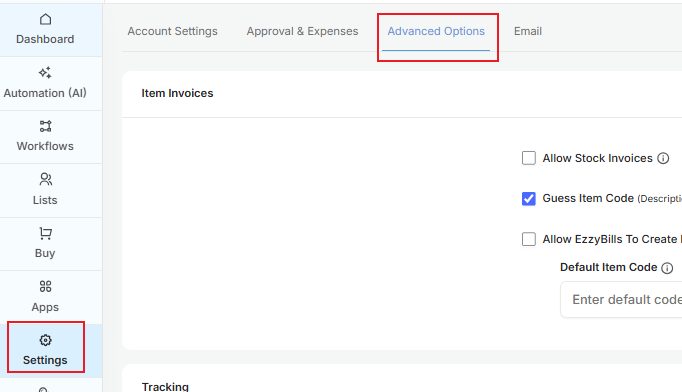
Add "+PO, Purchase Order" in the Purchase Order Keywords. If your template has different keyword, put the keyword from your template instead.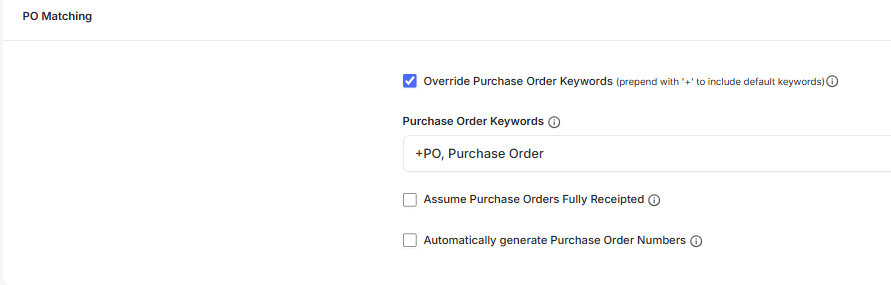
If the PO matching is set up correctly, you can click the DocID to access file details page.
Search "PurchaseOrder" at Form-Data tab (img 4, 5), you should able to find the PO number. Note: If PO number exists, means WorkGuru hasn't synced the PO, just wait for few minutes then try again.
If PO number doesn't exist, means step1 having some problems to recognise the PO number from file, suggest to review the flow, update your file template to make sure words are clear or reach out to EzzyBills support.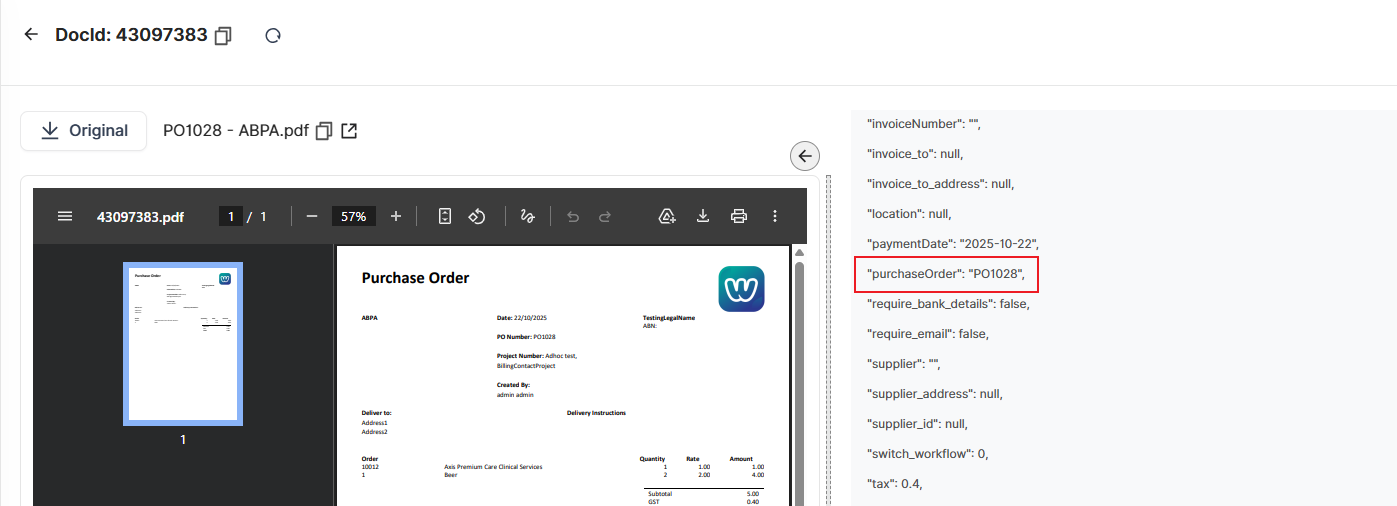
Was this article helpful?
That’s Great!
Thank you for your feedback
Sorry! We couldn't be helpful
Thank you for your feedback
Feedback sent
We appreciate your effort and will try to fix the article