Projects support percentage-based surcharges and discounts that are calculated against the combined product, and task line subtotals. These can be added manually or carried across automatically from a quote when invoicing. If the Add Surcharge/Discount button is not available, sure you have enabled this function in your settings (Administration -> Settings -> Invoice -> Enable Percentage Line Items)
- Adding a Surcharge or Discount
- Projects Created from Quotes
- How Amounts are Calculated
- Project Document Templates
- Impact on Revenue and Invoicing
Adding a Surcharge or Discount
At the bottom of a new or edit products page, click Add Surcharge / Discount button.
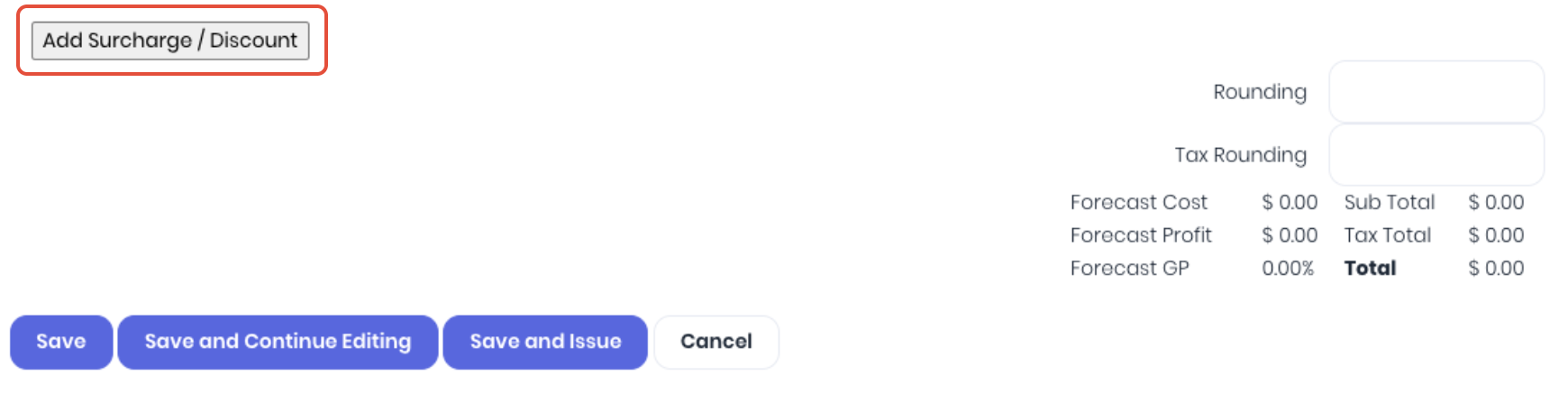
The basic discount or surcharge entry will display:
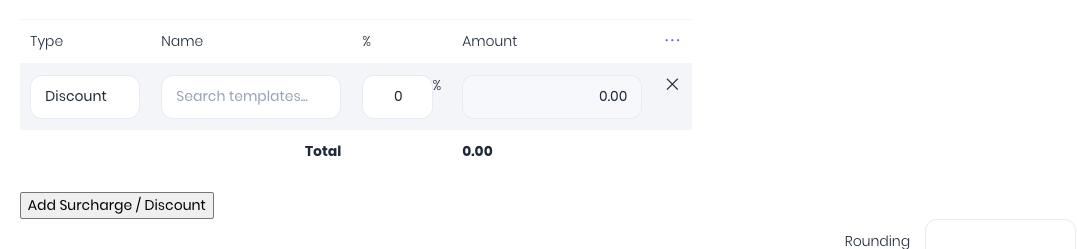
Complete the following fields:
- Type – Select Surcharge to add a charge or Discount to subtract from the total.
- Name – Enter a description for the line or lookup and select a preset discount or surcharge template, which will auto-fill the remaining fields.
- % – The percentage discount or surcharge to apply.
- Amount – Displays the calculated discount or surcharge based on the quote's current billable totals.
If you need to enter or view further details, click on the ∙∙∙ icon.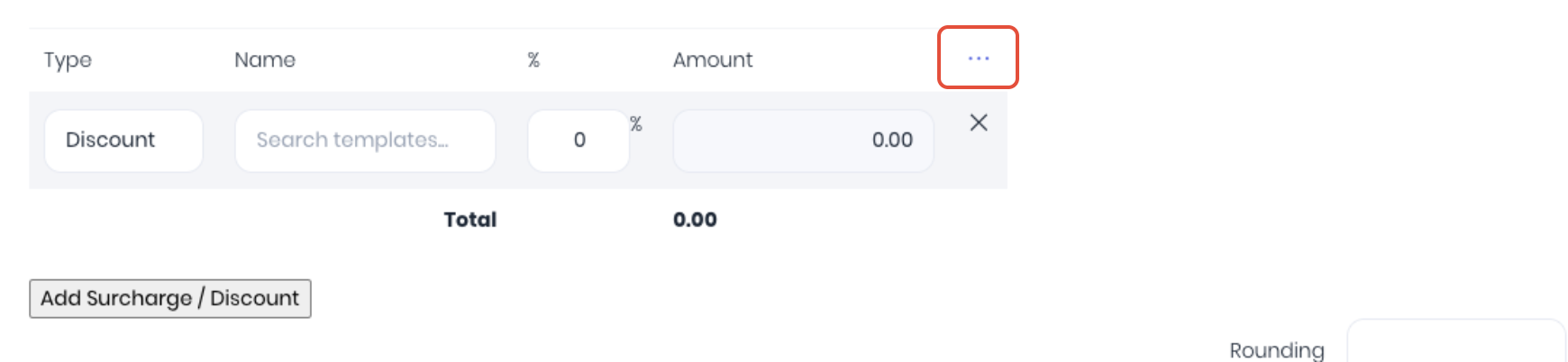
This will expand the surcharge discount to enter or view advanced fields
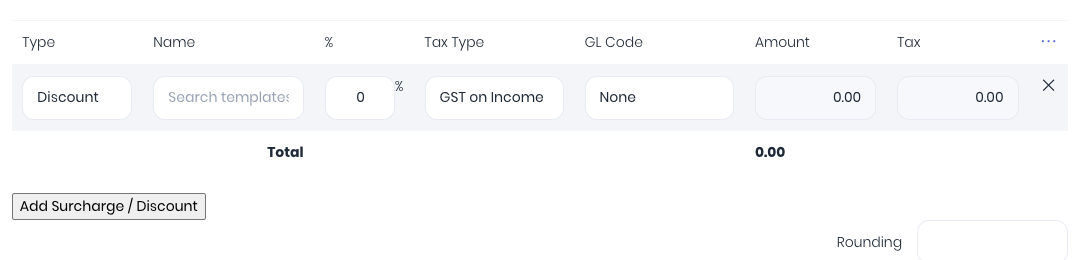
- Tax Type – Is the discount or surcharge taxed? Will default to you default sales tax setting
- GL Code – The general ledger account code for accounting integration for the discount line. Will default to your default sales GL setting.
- Tax – Calculated tax total for the discount or surcharge.
Reordering Lines
If you have more than one surcharge or discount lines on the quote, they can be reordered by dragging them up and down in the order as per products and tasks.
Removing a Surcharge or Discount
Click the X icon on the right side of the row to delete it.
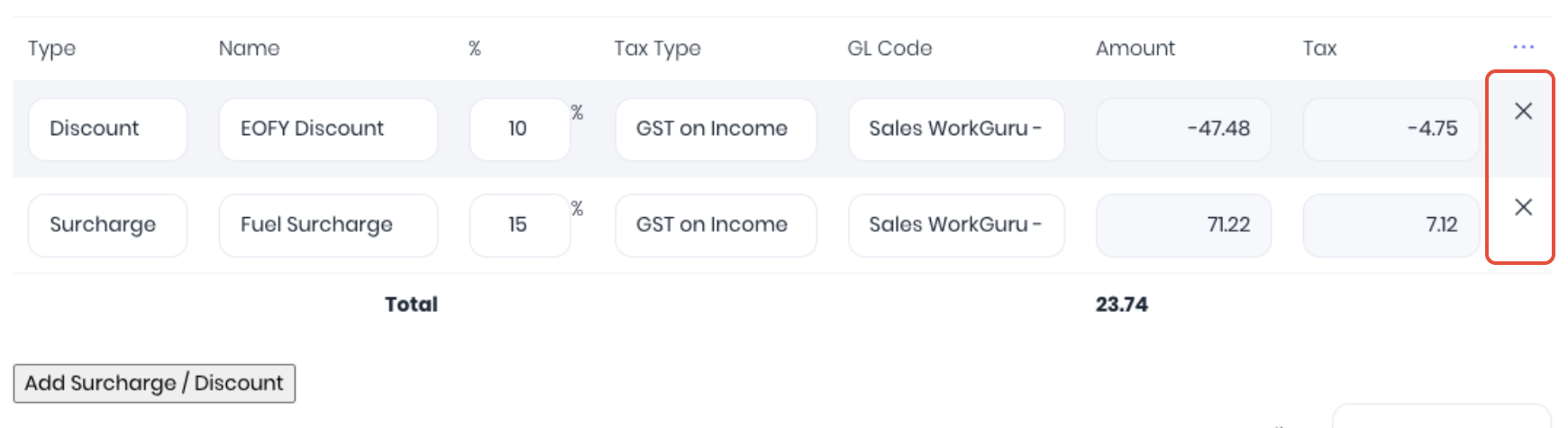
Note: For previously saved lines, the row is hidden and marked for deletion — the removal takes effect when you save the quote.
Projects Created from Quotes
When a quote is approved and creates a a project, any surcharge and discount lines on the quote are automatically copied to the new project. Each project line maintains a reference back to its originating quote line.
How Amounts are Calculated
The surcharge or discount amount is calculated as:
Line Amount = (Product Subtotal + Task Subtotal) × Percentage / 100
For discount lines, the amount is automatically negated. The amounts recalculate live as you change product or task line items, so the surcharge/discount values always stay in sync with the current subtotal.
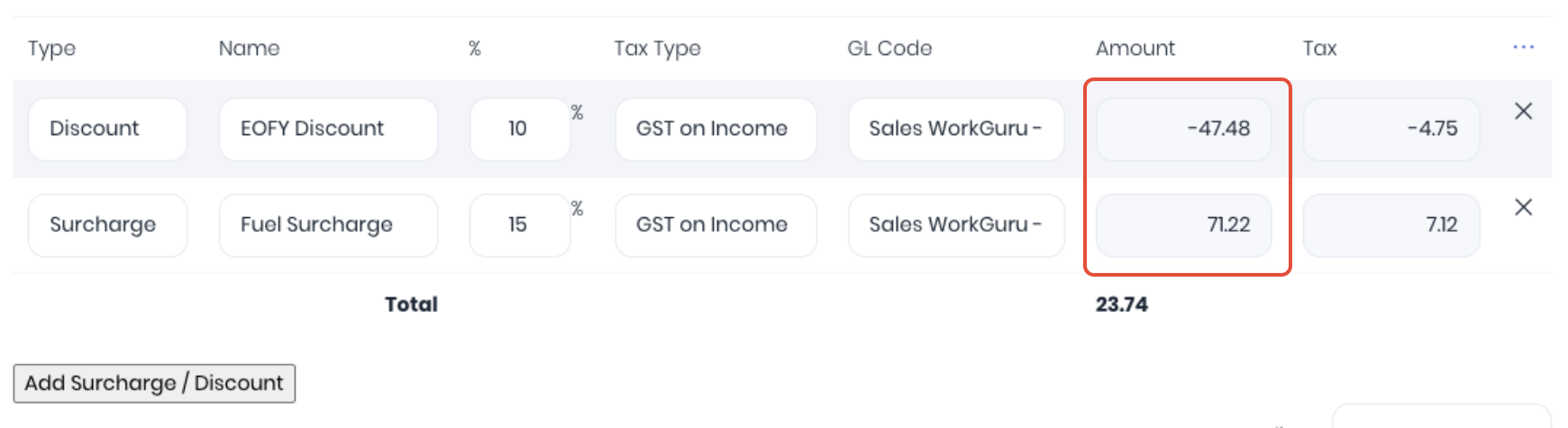
Note: Surcharges and discounts are non-compounding. Each line is calculated independently against the base product + task subtotal, not against a running total that includes other surcharges or discounts.
Project Document Templates
To display the surcharge or discount line items on your custom document templates, update your templates with the relevant surcharge or discount fields.
Impact on Revenue and Invoicing
Surcharge and discount amounts are included in the project’s total value and factor into revenue calculations displayed on the project dashboard. When the project is invoiced, these lines can flow through to the invoice as percentage line items. Note: Surcharges and discounts on a project are also reflected in the project’s revenue widget, ensuring your project profitability figures account for any applied surcharges or discounts.
Was this article helpful?
That’s Great!
Thank you for your feedback
Sorry! We couldn't be helpful
Thank you for your feedback
Feedback sent
We appreciate your effort and will try to fix the article