The WorkGuru iOS mobile application is designed to allow staff to easily allocation timesheets, stock usage and notes to projects without access to the full function web browser. The mobile applications are not designed for the detailed project management and reporting, such as scheduling and allocation, purchasing, invoices or actual vs forecast reporting. The latest WorkGuru iOS application is available on the Apple App Store on iPhones and iPads. To setup the the app, simply search the Apps Store for WorkGuru and install the application following your device's prompts. The primary difference between the Mobile App and the Kiosk App is:
- The mobile app is designed to be used by a single user, primarily on a personal, phone sized device where
- The kiosk app is designed to be used by multiple users, primarily on a shared, tablet sized device.
Note: The iOS Safari browser is NOT supported by WorkGuru. It does not handle the javascript used by WorkGuru as per the required web standards.
The mobile app is made up of the following elements:
Home Screen
The home screen of the app displays the immediate Tasks and To Dos the user has been assigned to as tiles listed in scheduled order. For most day to day functionality, staff should be able to use most of the functions directly from the home screen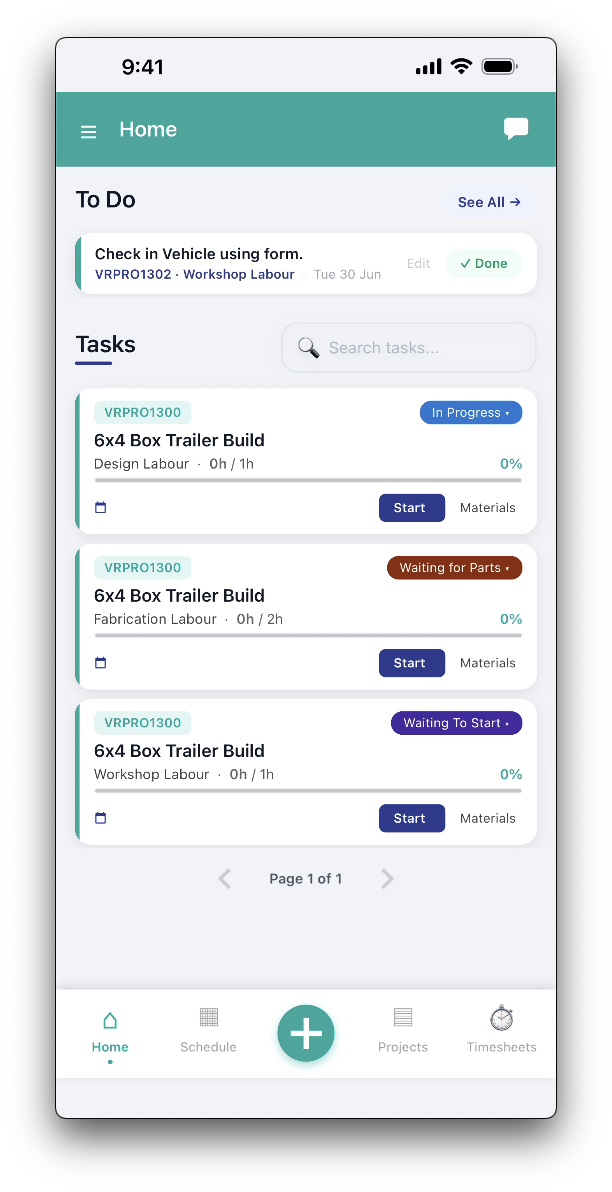
Footer
The mobile app's footer is a persistent list of shortcuts that display regardless of which screen you are in. The footer always allows quick access to the most used functions: Home, Schedule, Projects and Timesheets.
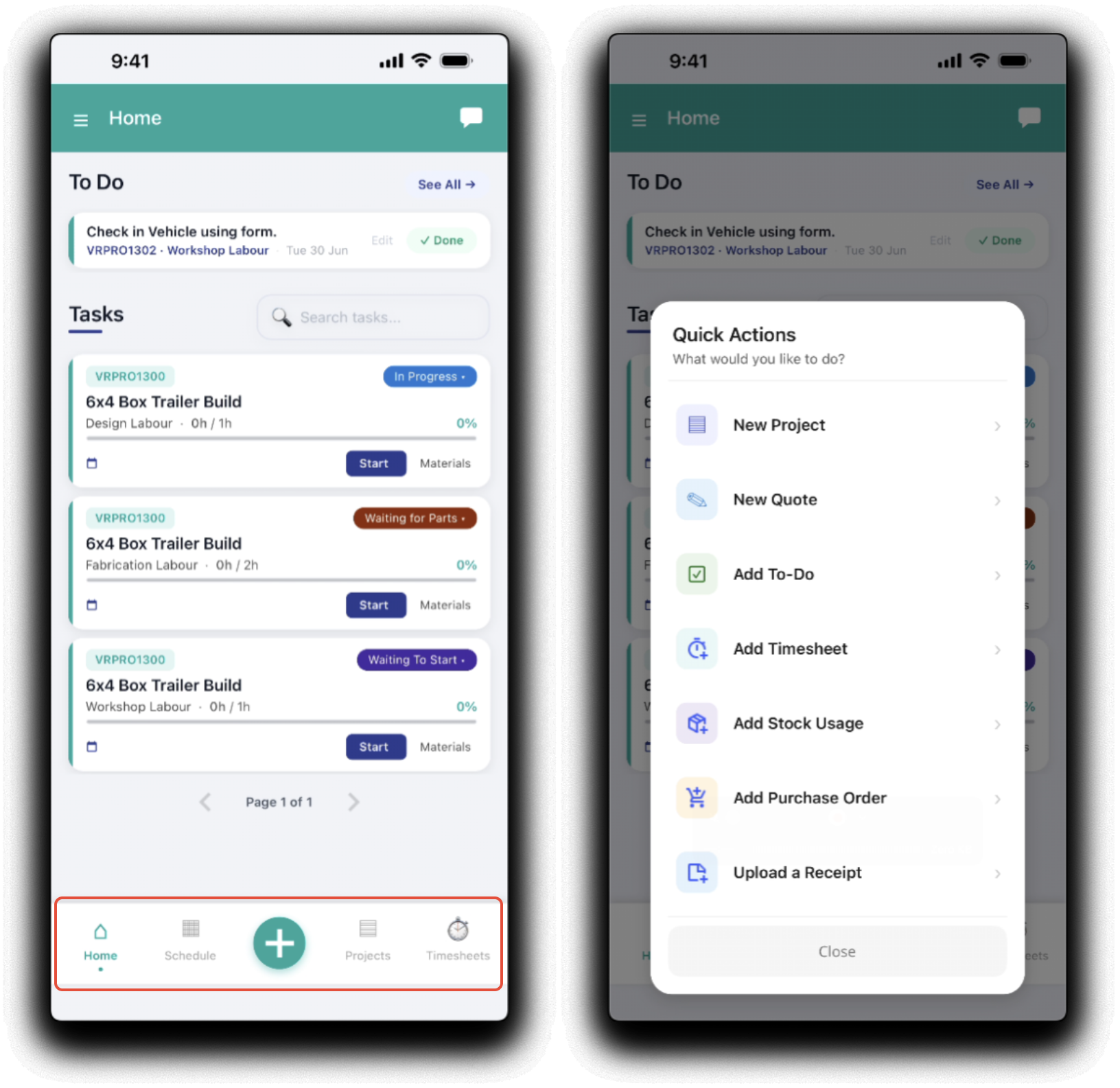
Tapping the Plus icon will open a contextual shortcut menu of quick actions:
- New Project
- New Quote
- Add To-Do
- Add Timesheet
- Add Stock Usage
- Add Purchase Order
- Upload a Receipt (Only available with an active EzzyBills integration)
Header
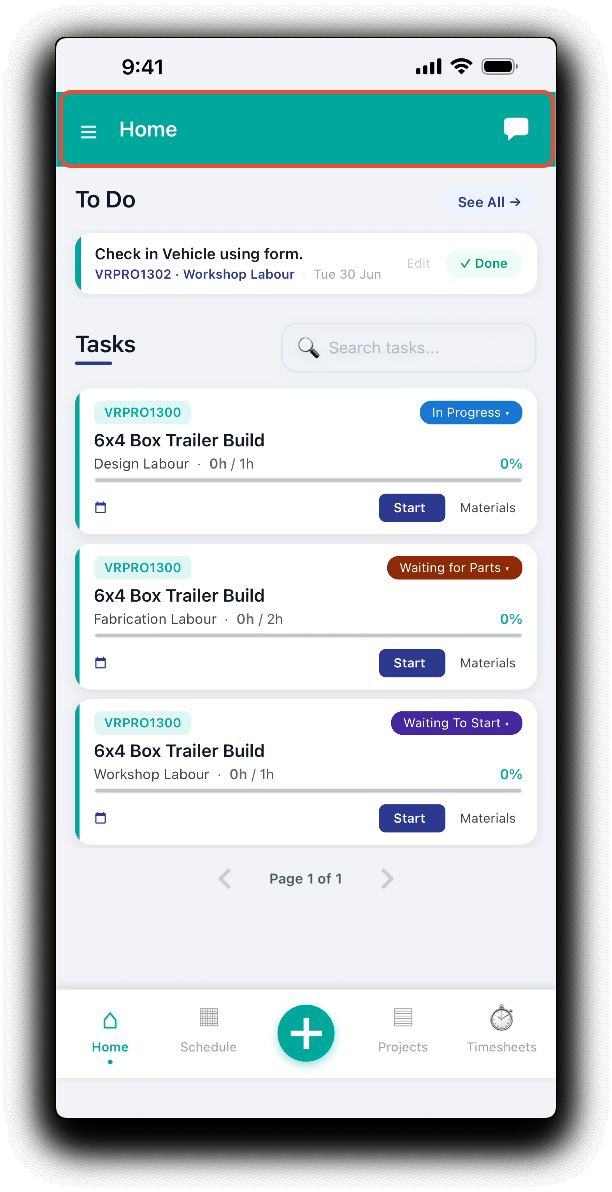
The mobile header contains shortcuts to open chats and the mobile menu which are accessable throughout the app.
Mobile Menu
To access the full functionality of the mobile app, tap on the hamburger icon (three stacked horizontal lines) in the top right corner. In addition to access to individual functions, the mobile menu provides administrative functions:
- Displays the current logged in user and tenant
- Tap Log Out to securely log out of the app. You will be required to log back in again or switch users.
- Tap Account Settings to switch the mobile app's default warehouse.
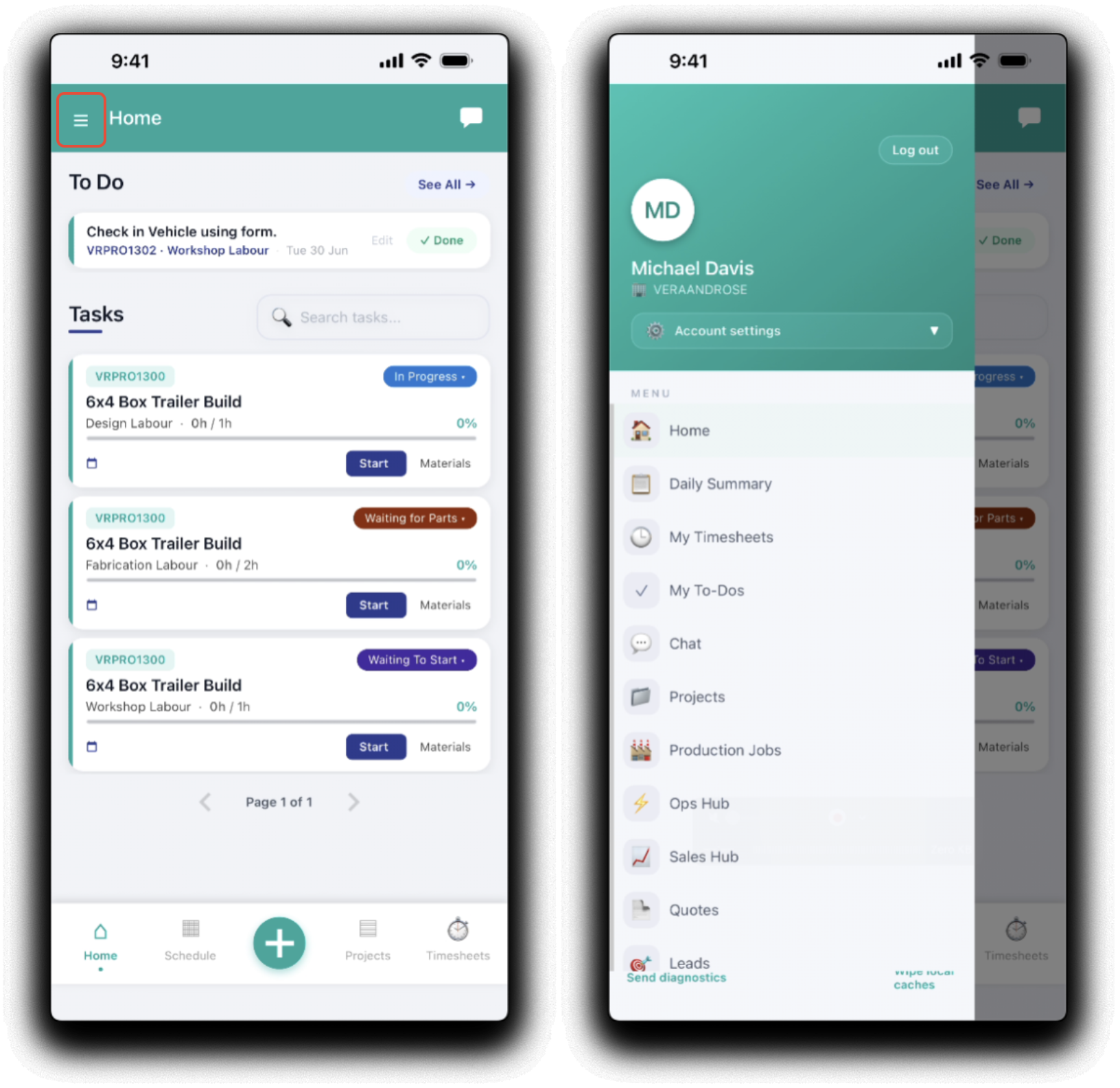
The mobile menu provides access to the mobile specific functionality if more detailed workflows are required:
Was this article helpful?
That’s Great!
Thank you for your feedback
Sorry! We couldn't be helpful
Thank you for your feedback
Feedback sent
We appreciate your effort and will try to fix the article