If your workflow requires the capture of the duration of non-billable breaks such as lunch etc, you can enable a break button in the kiosk that can be assigned to a default non-billable task.
Timesheet Break Setup
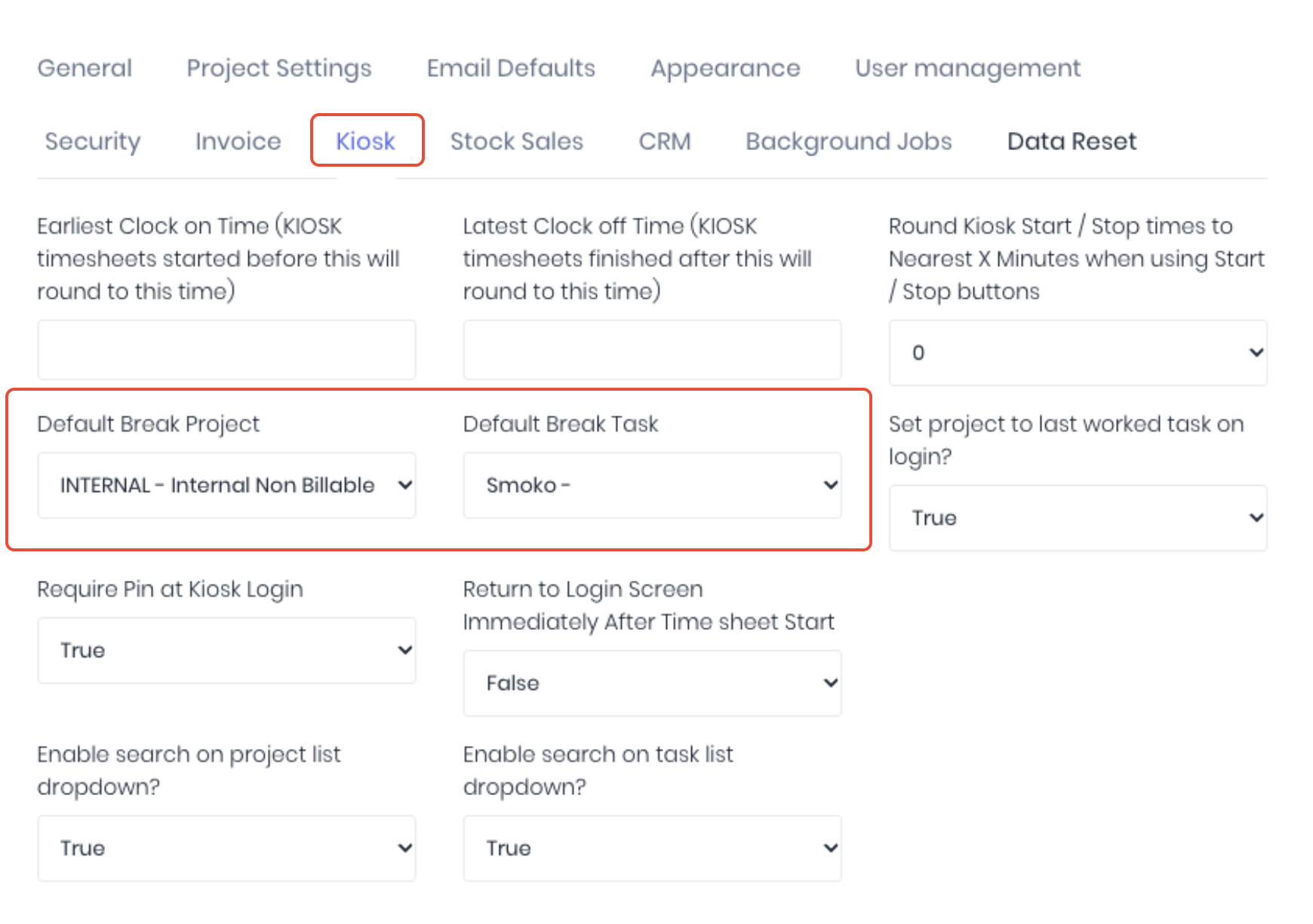
In the Kiosk tab of the settings (Administration -> Settings), select the non-billable task you would like to use to track your breaks in the Default Break Project and Default Break Task drop-downs. Click Save All to apply the kiosk settings.
Starting Timesheet Breaks
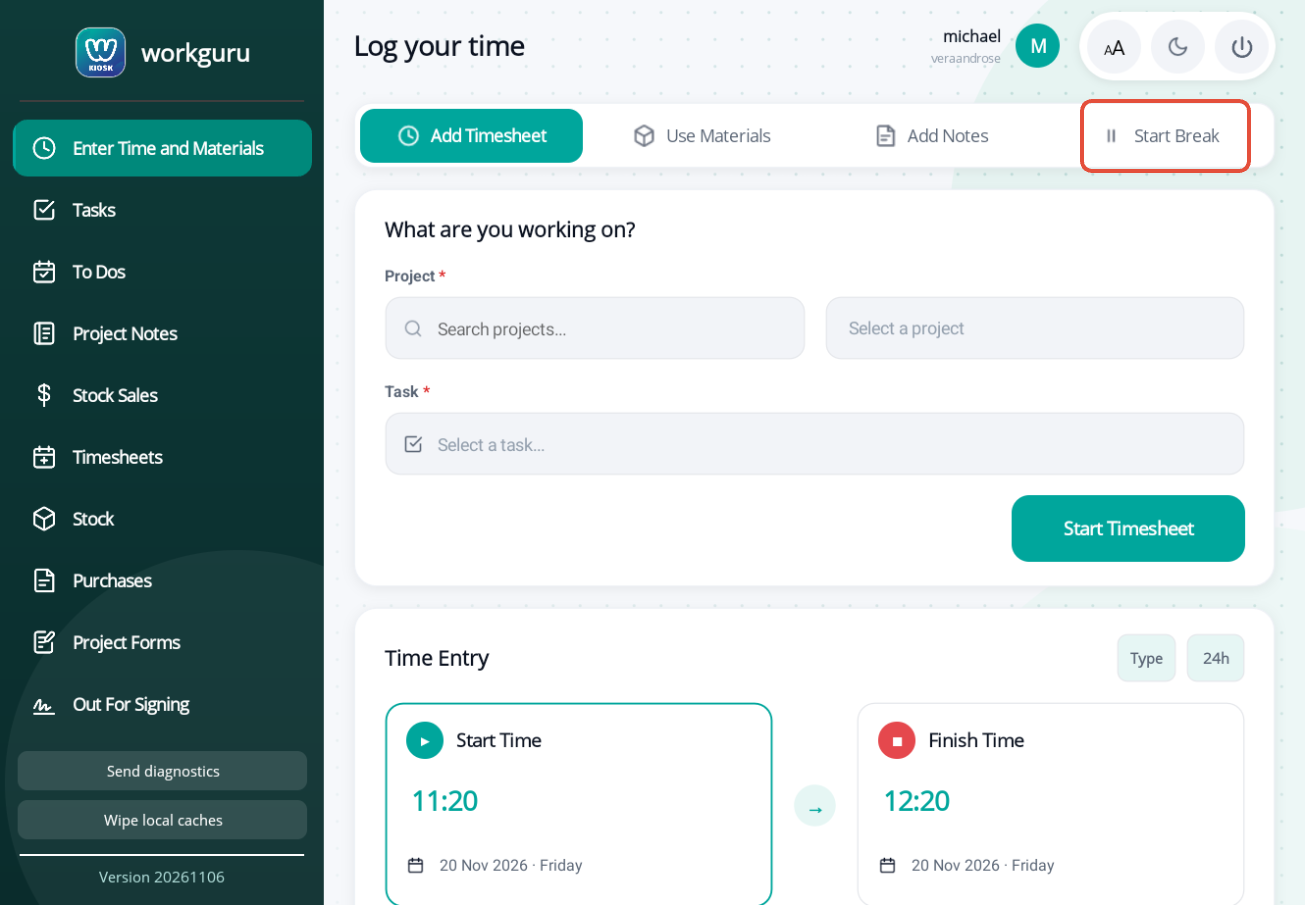
When the default break project and task fields are populated, the kiosk app will then display a Start Break button on the Enter Time and Materials page. Note: If the start break button is not available, the default break project and task settings haven't been setup correctly. Tap Start Break to immediately start a timesheet timer for the specified break task
Stopping Timesheet Breaks
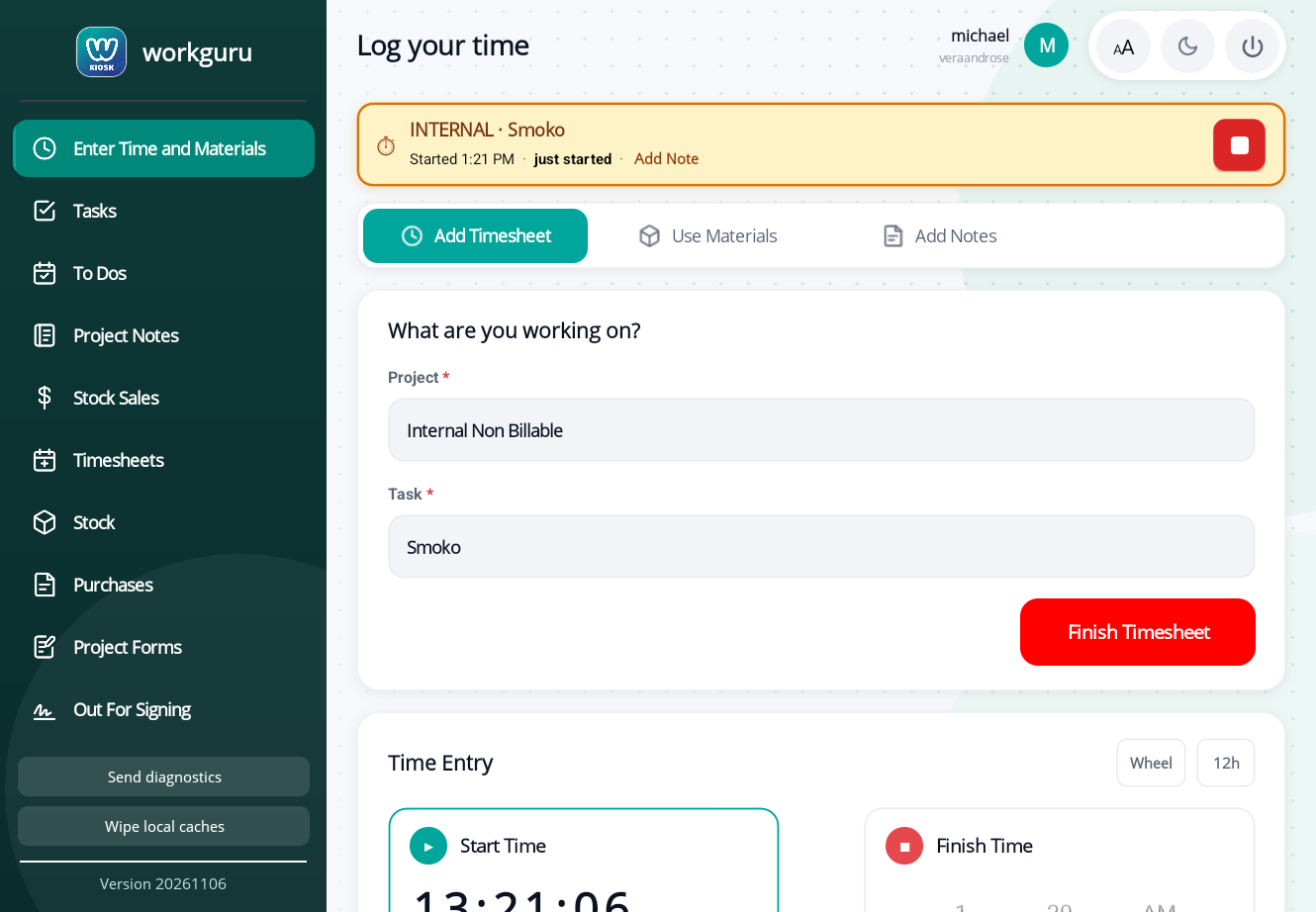
When returning from the break, stop the break timer by tapping the Stop icon in the timer banner or the Finish Timesheet button. Tap Save Timesheet to confirm. The kiosk is ready to start a billable timesheet to resume work.
Was this article helpful?
That’s Great!
Thank you for your feedback
Sorry! We couldn't be helpful
Thank you for your feedback
Feedback sent
We appreciate your effort and will try to fix the article