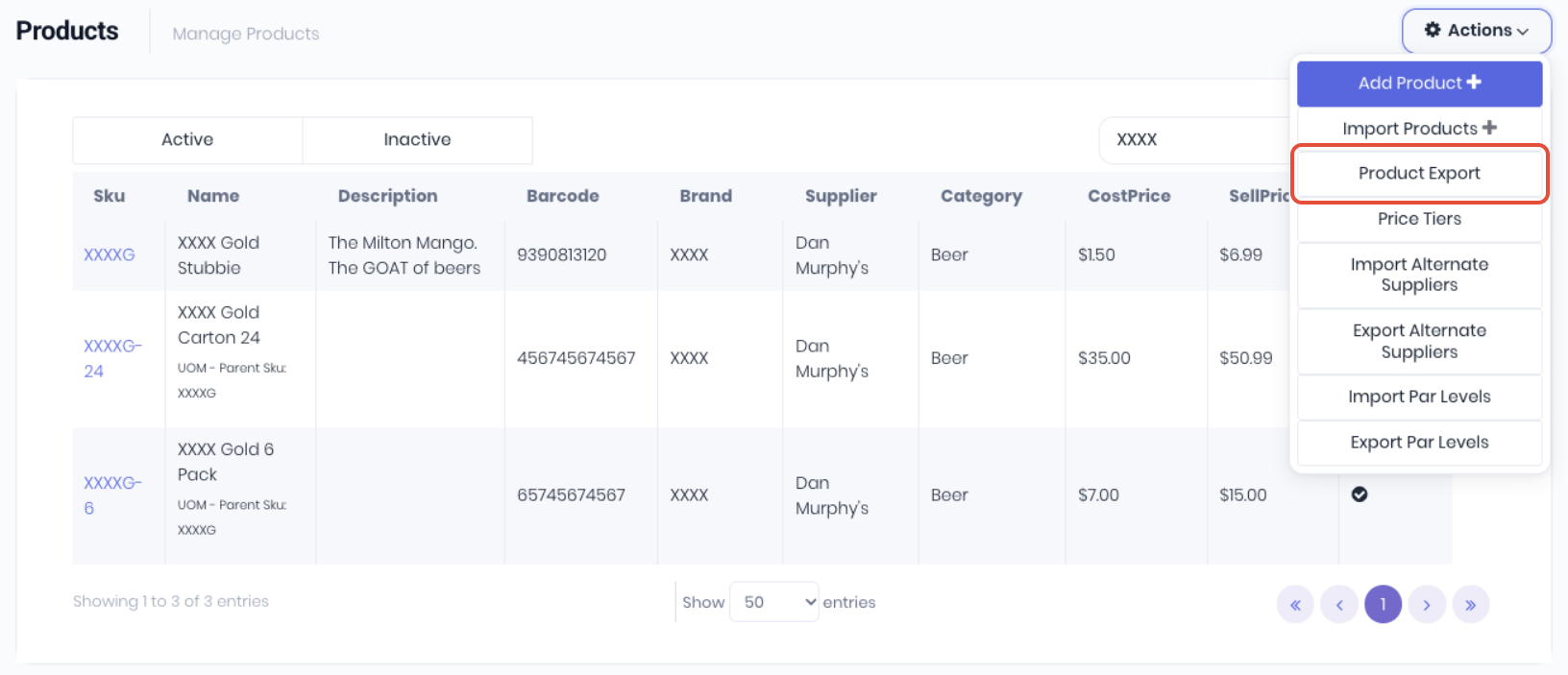
The product export allows you to select relevant lists of products from your product list. From the product dashboard Actions menu, select Product Export.
From the export options, select the options as required to create the product export. Note: If you don't select any options and click Export, the core data of all active products are downloaded by default.
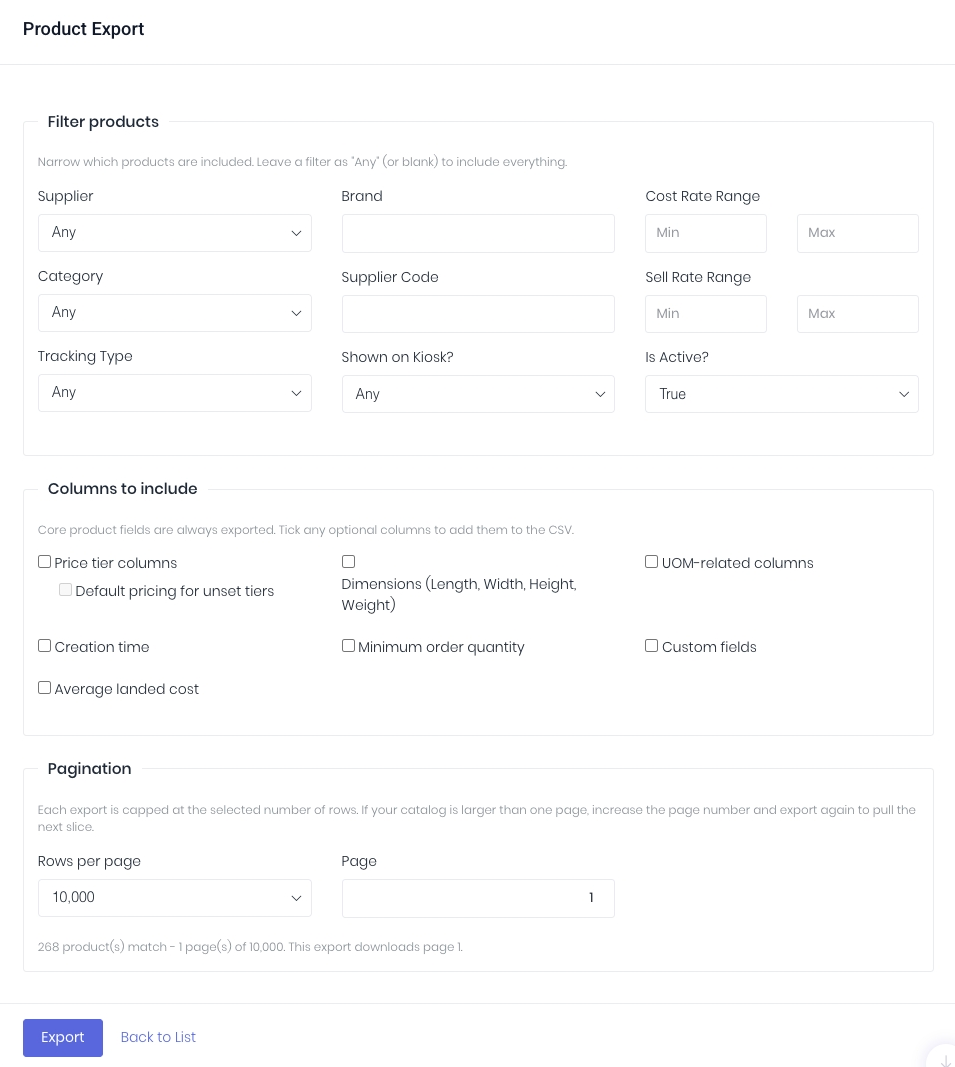
Filter Options - Narrow which products are included. Leave a filter as "Any" (or blank) to include everything.
- Supplier - Export products by default supplier.
- Category - Export products by category.
- Tracking Type - Export products by tracking type (NonStock, FIFO etc).
- Brand - Export products by brand.
- Supplier Code - Export products by supplier code.
- Shown on Kiosk? - Export products by kiosk visibility (true/false)
- Cost Rate Range - Export products with cost pricing within price range. Note: Must populate both fields.
- Sell Rate Range - Export products with sell pricing within price range. Note: Must populate both fields.
- Is Active? - Export products based on active state (true/false). Defaults to True so only active products are exported.
Columns to Include - Core product fields are always exported. Tick any optional columns to add them to the export.
- Price Tier Columns - Include price tiers and current pricing in the export.
- Default Pricing for Unset Price Tiers - If there are any price tiers that don't have a price set for the product, fill these blank prices with the default sell price.
- Creation Time - Include a column containing the date and time the product was created.
- Average Landed Cost - Include each product's average landed cost in the export.
- Dimensions - Include the dimension (Length, Width, Height) and weight columns in the export.
- Minimum Order Qty - Include the minimum order quantity (MoQ) column and data in the export.
- UOM- Related Columns - Include the Unit Of Measure (UoM) specific columns and data in the export.
- Custom Fields - Include product custom field columns and data in the export.
Pagination - Each export is capped at the selected number of rows. If your catalog is larger than one page, increase the page number and export again to pull the next slice.
- Rows Per Page - Enter the number of rows included in each .CSV file. Recommended and default number is 10000.
- Page - If your product export is split over multiple .CSV files (pages), select which page to download.
Once you've finished selecting your options, click Export to download the product export as a .csv file.
Was this article helpful?
That’s Great!
Thank you for your feedback
Sorry! We couldn't be helpful
Thank you for your feedback
Feedback sent
We appreciate your effort and will try to fix the article