If your project can't be templated or requires a large number of lines items you can bulk import product and task lines via a .csv spreadsheet. This is also useful where you use an external system or software to calculate your quote costings, such as a cutting calculator etc. Once the data has been imported in bulk, it can be managed on the project as required.
If you are experiencing errors importing your data, check here for resolutions for the most common messages or contact the WorkGuru team.
Bulk Add Products
Download the Bulk Add Product template from this page, or create your own with the following headers:
| Sku | Product code (if code does not exist in the WorkGuru product list, it will be added to the project as an ad-hoc line. | Required |
| Name | Product name (can be different from product to be specific to the project) | Required |
| Description | Product description (can be different from product to be specific to the project) | |
| CostPrice | Unit cost | Required |
SellPrice | Unit sell price. | Required |
| Quantity | Number required | Required |
| Billable | TRUE for billable, FALSE for non-billable. | Required |
| Phase | Assign an existing or new phase to the line item |
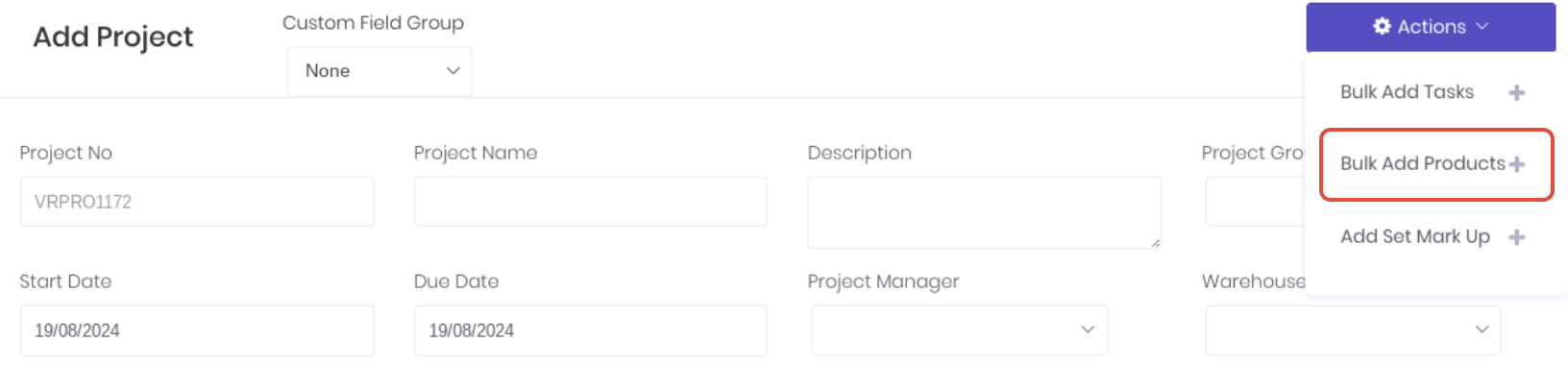
Add or Edit a project, click Actions and click the Bulk Add Products.
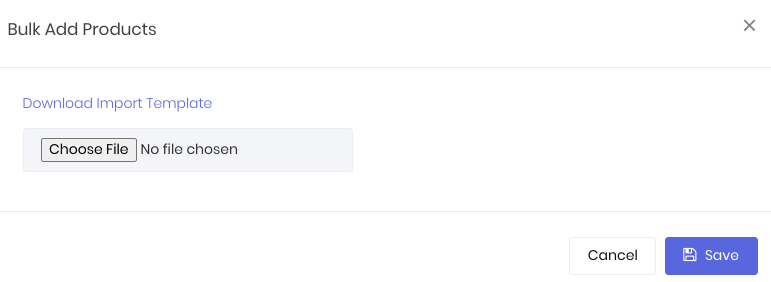
Click Choose File to select the product import template .csv file and click Save to apply.
Confirm the order of the line items imported on the project.
Bulk Add Tasks
Download the Bulk Add Task template from this page, or create your own with the following headers:
| Name | Task name (if task does not exist in the WorkGuru task list, it will be added to the project as an ad-hoc line.) | Required |
| Description | Task description (can be different from product to be specific to the project) | |
| CostPrice | Hourly cost rate | Required |
SellPrice | Hourly sell rate. | Required |
| Quantity | Number of hours required | Required |
| Billable | TRUE for billable, FALSE for non-billable. | Required |
| Phase | Assign an existing or new phase to the line item |
Add or Edit a project, click Actions and click the Bulk Add Tasks.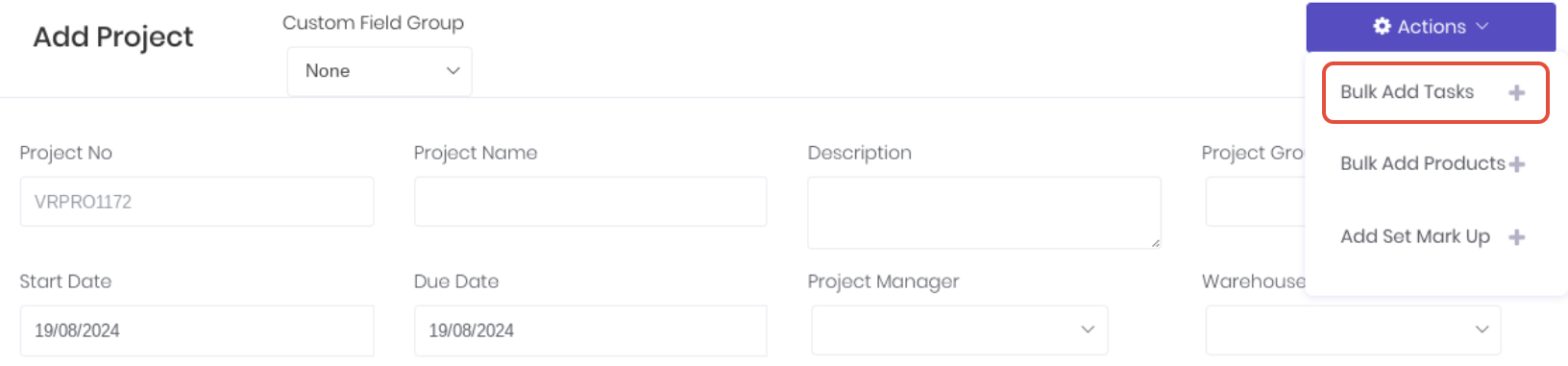
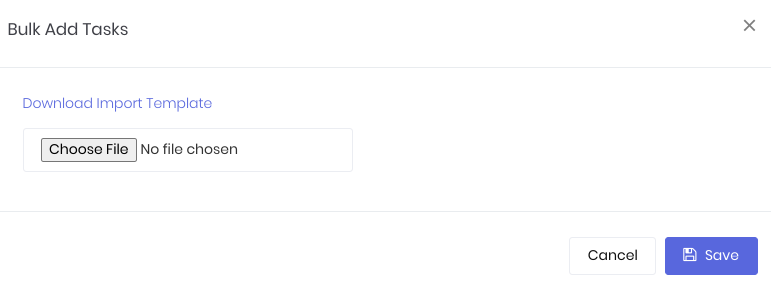
Click Choose File to select the task import template .csv file and click Save to apply.
Confirm the order of the line items imported on the project.
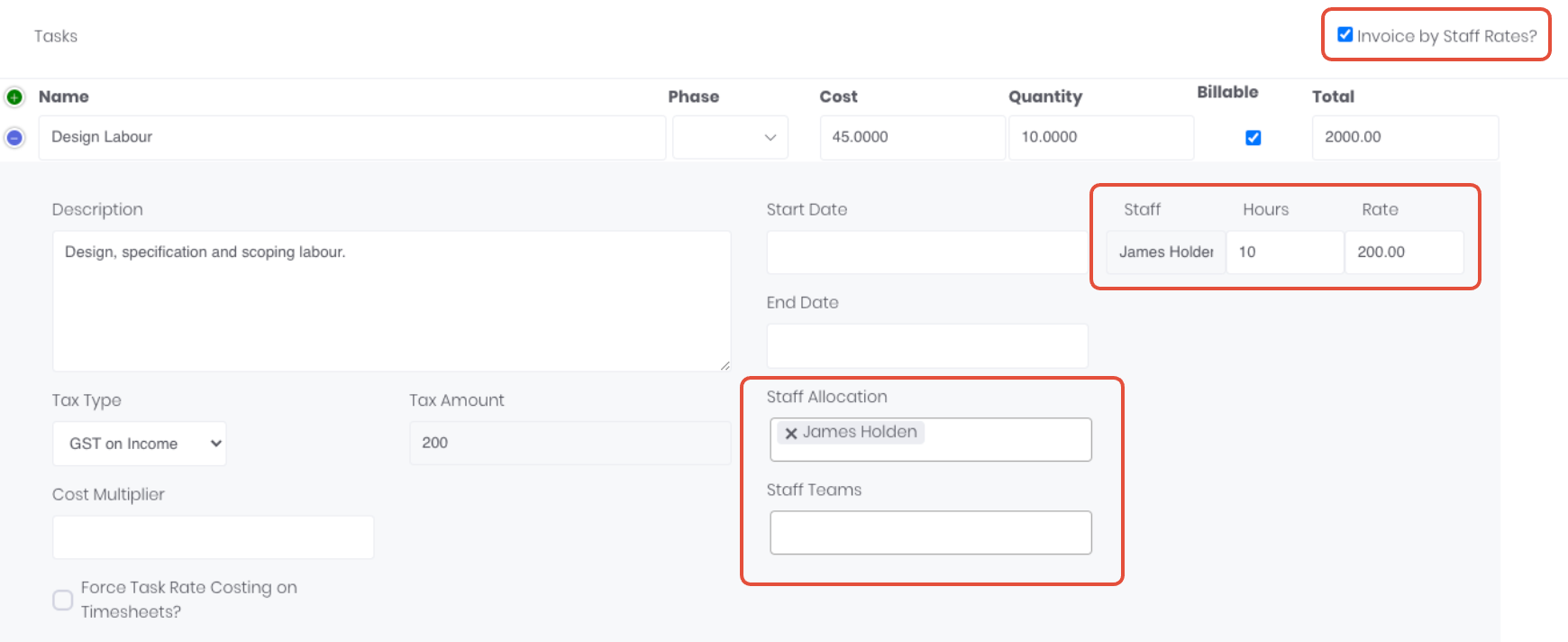
Note: If invoicing by staff rates option is required on the project, the staff allocation and hours will need to be input manually against each imported task line, otherwise it will fall back to the default task rate:
Bulk Swap Products
Use the Bulk Switch Products feature to update multiple quote or project line items simultaneously instead of editing them individually. This functionality is accessible under the Actions dropdown menu on both the Edit Quote and Project Details screens.
To make changes, filter line items by SKU or Phase to isolate the required items, then tick the checkboxes next to the lines you want to update. Search for and select your replacement product, then apply the change. You can perform multiple bulk updates in a single sitting—such as changing one set of lines to Product B and another set to Product C—before applying.
When applied, the new product automatically updates the line items with its specific cost, sell price (respecting the client's price tier), tax, and account codes. All existing quantities, discounts, phases, and billable settings remain intact.''
Lines associated with existing purchase orders or stock movements will display a warning flag. Switching the product on a line item will not move or adjust those existing actuals.
Check for warning icons next to selected items before applying the switch to ensure past transactions are accounted for.
Tips for a successful import:
- Ensure you have included the required fields.
- Ensure there are only numbers in the pricing columns.
- Pricing columns are required. If a product has no price, ensure a 0 is entered, not left blank.
- Make sure formatting has been removed (e.g. '$') and a decimal point ('.') is used as the decimal delimiter, not a comma.
- If you are updating products, ensure your SKU's haven't been auto-formatted by your spreadsheet application. Spreadsheet apps tend to strip away leading zeros and auto-format barcodes and dates. If a product can't be matched to an existing product by EXACTLY matching SKU's, a new product will be created.
- Ensure columns and data doesn't have leading or trailing spaces.
- If removing rows, ensure the row has been deleted rather than just the data it contains. Some spreadsheet apps will not remove the comma separators when deleting data instead of the row, causing an empty row (, , , , , ,) which will cause an error on import. This can easily be caught by inspecting the import template in notepad or a formatting-free text editor.
Was this article helpful?
That’s Great!
Thank you for your feedback
Sorry! We couldn't be helpful
Thank you for your feedback
Feedback sent
We appreciate your effort and will try to fix the article