The WorkGuru mobile app lets you review, edit and add asset information when on the go.
Existing Assets
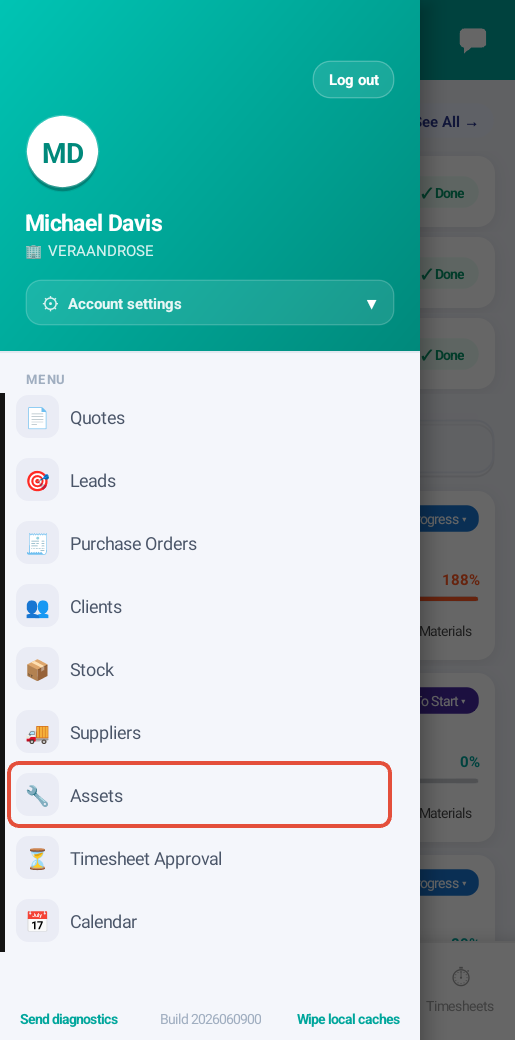
The mobile assets dashboard can be accessed by tapping Assets in the mobile app menu.
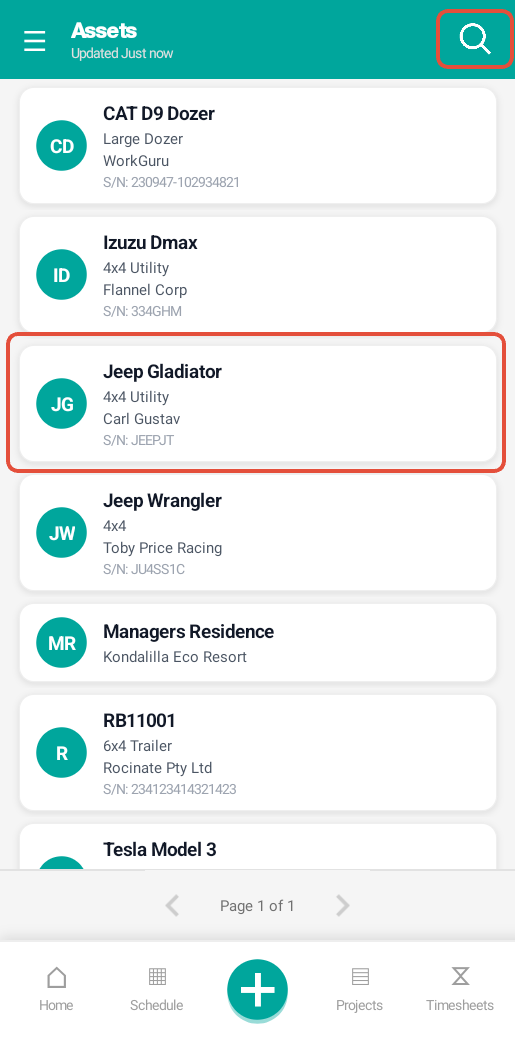
On the mobile assets dashboard, Search or scroll the list to display assets. Tap on a asset tile will display the asset details.
Asset Details
Overview
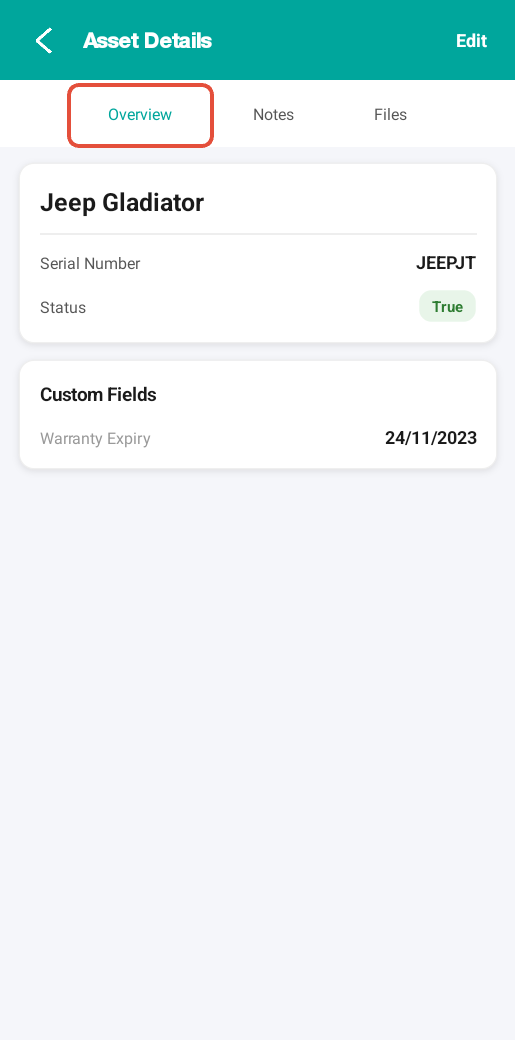
The Overview tab is a summary of the asset details.
Notes
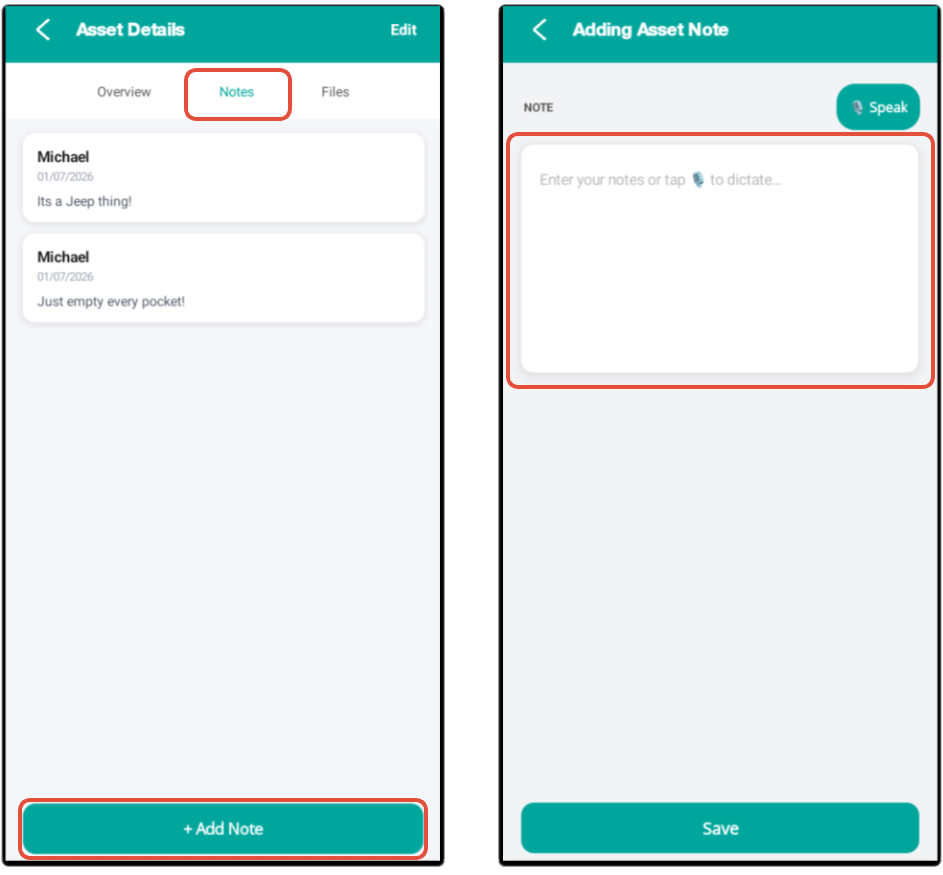
The notes tab allows easy access to review or add asset notes. Tap Add Note to compose a note via typing or tap Speak for voice to text. Tap Save to apply changes.
Files
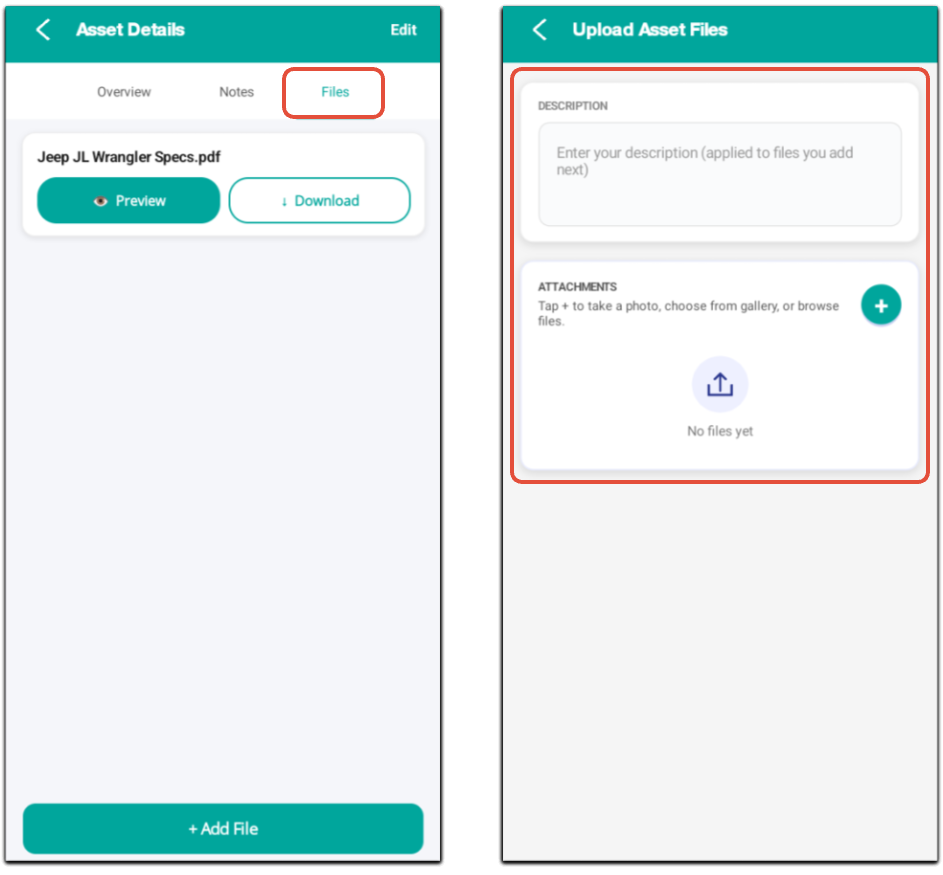
The files tab allows easy access to preview or upload asset files. Enter a Description if required and tap the green Plus icon to choose the upload method from the Add File popup.
- Take a Photo - Launch the device's camera application if available to upload photo's directly to the asset.
- Choose Photo from Gallery - Select exisiting pictures from the device's gallery/camera roll if available.
- Browse Files - Select any file from the device's file system.
Follow your device specific instructions to confirm the upload.
Project Assets
Assets details linked to projects is also available in the Home tab of the project details.
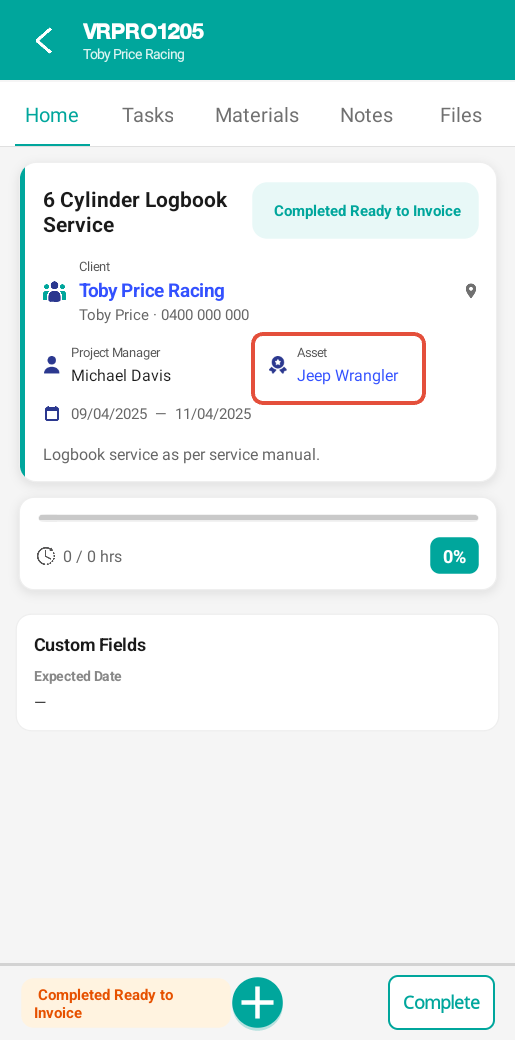
Tapping on the asset will open the asset details displayed across the Overview, Notes and Files tabs, which includes custom fields.
Adding Assets
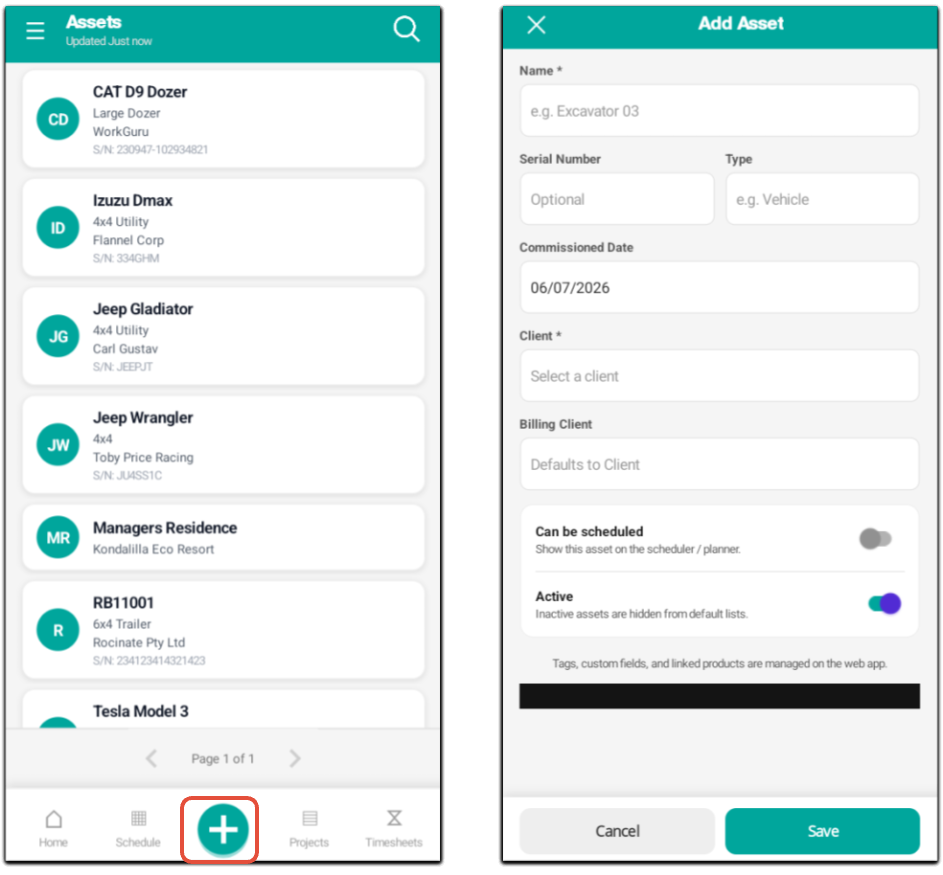
To add a new asset from the mobile app, tap the Plus icon on the footer of the mobile asset dashboard. Add the following fields as required. Mandatory fields are indicated with a *.
- Name - Unique identifier for the asset
- Serial Number - Unique code
- Type - Asset type
- Commissioned Date - Date asset added.
- Client - Asset owner
- Billing Client - Invoice contact
- Can be scheduled - Asset availability tracking, can the asset be checked out on projects.
- Active - Toggle visibility.
Note: Asset custom fields and linked products have to be managed on the web app.
Editing Assets
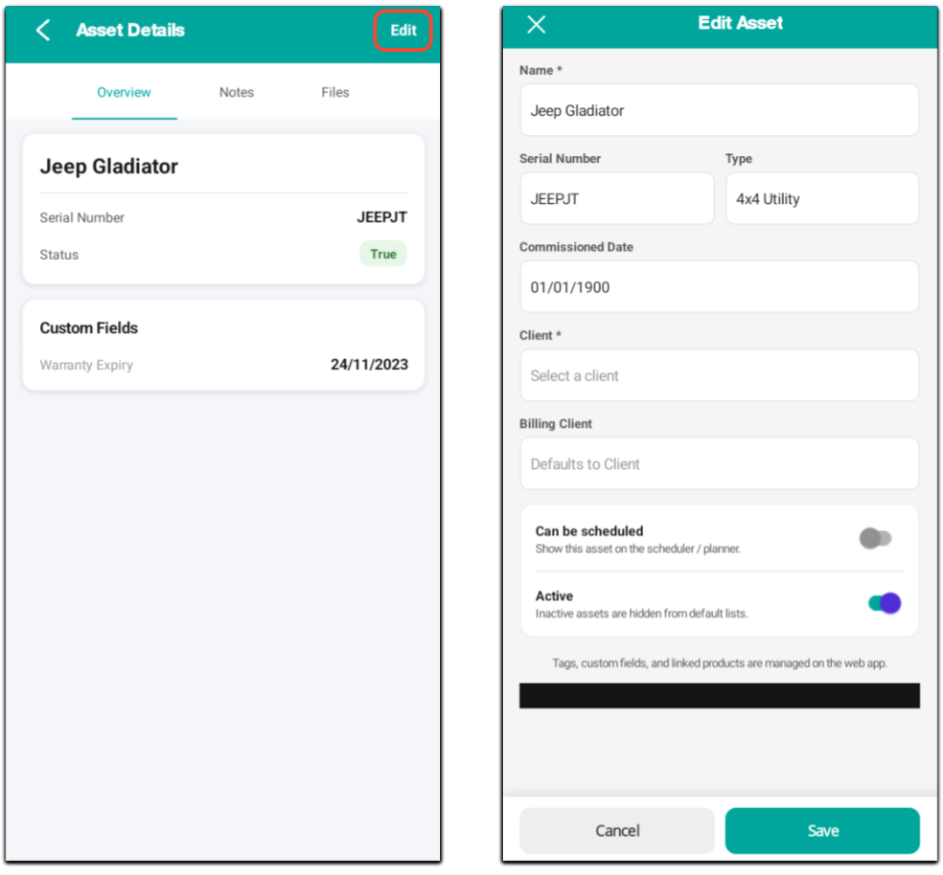
To update asset details, tap Edit in the header. Edit the asset's fields as required:
- Name - Unique identifier for the asset
- Serial Number - Unique code
- Type - Asset type
- Commissioned Date - Date asset added.
- Client - Asset owner
- Billing Client - Invoice contact
- Can be scheduled - Asset availability tracking, can the asset be checked out on projects.
- Active - Toggle visibility.
Note: Asset custom fields and linked products have to be managed on the web app.
Was this article helpful?
That’s Great!
Thank you for your feedback
Sorry! We couldn't be helpful
Thank you for your feedback
Feedback sent
We appreciate your effort and will try to fix the article