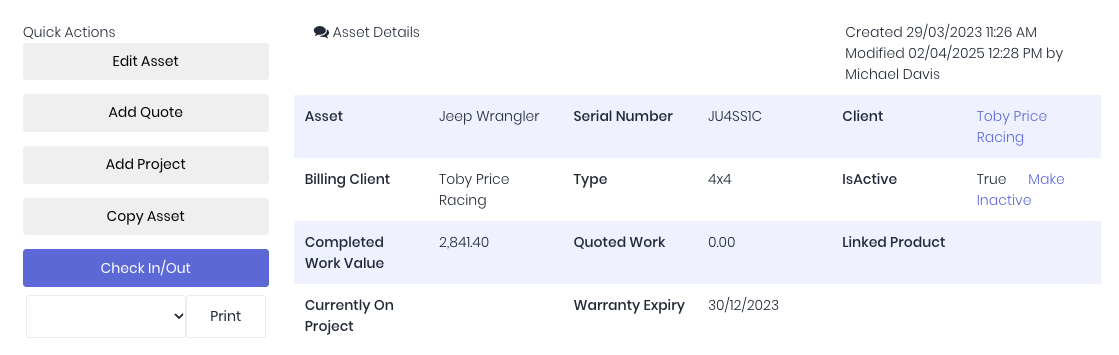
The Check In/Out button on the asset details page can be used to check an asset into or out from usage on a project. This allows you to see exactly where that asset is at any point in time. If the asset has been checked out on a project, the Currently On Project field in the details overview will list the project number and name:
When the Check In/Out button is clicked, a modal popup will appear. For check-out, all fields will be blank. For check-in, the check-out details will be prefilled:
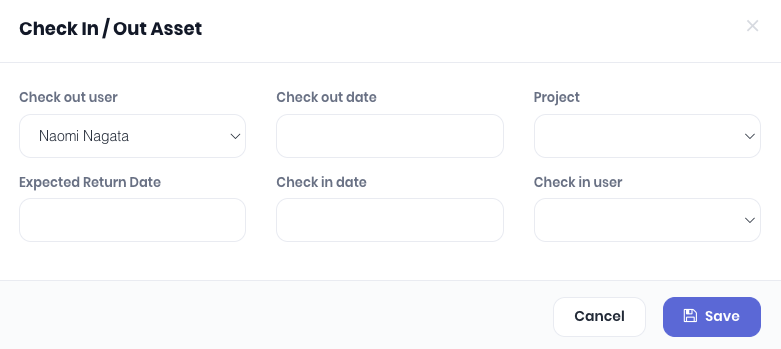
- Check out user: The staff member who is checking out the asset.
- Check out date: The date the asset is being checked out.
- Project: The job on which the asset is being used on/checked out to.
- Expected return date: The date the asset is expected to be returned/checked back in.
- Check in user: The staff member who is checking the asset back in.
Was this article helpful?
That’s Great!
Thank you for your feedback
Sorry! We couldn't be helpful
Thank you for your feedback
Feedback sent
We appreciate your effort and will try to fix the article