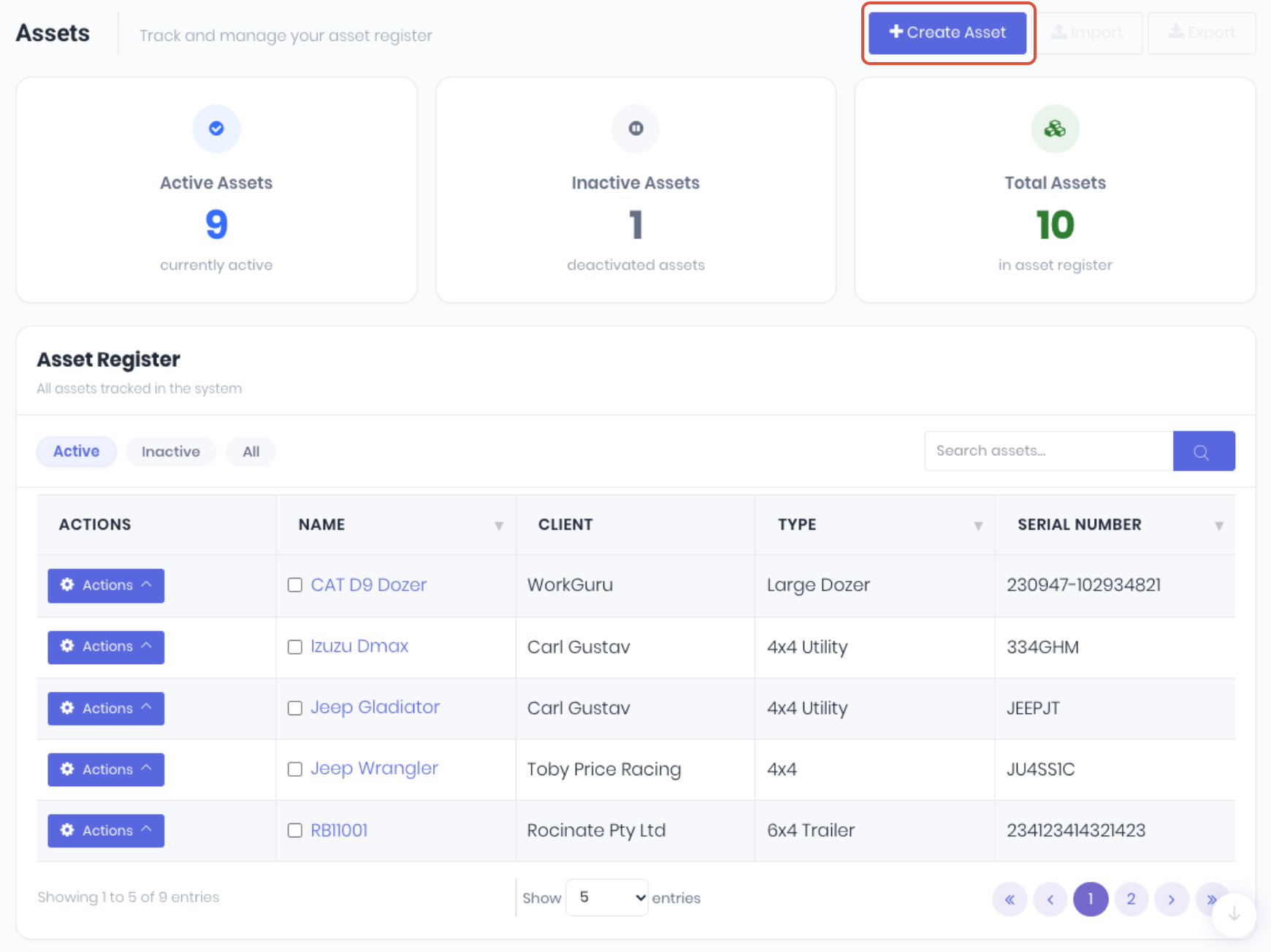
To create a New Asset, start by selecting Assets from the WorkGuru menu located on the left hand side of your screen. From the WorkGuru asset dashboard, click Create Asset
From the new asset screen, fill out the fields. WorkGuru will prompt if required fields are missing.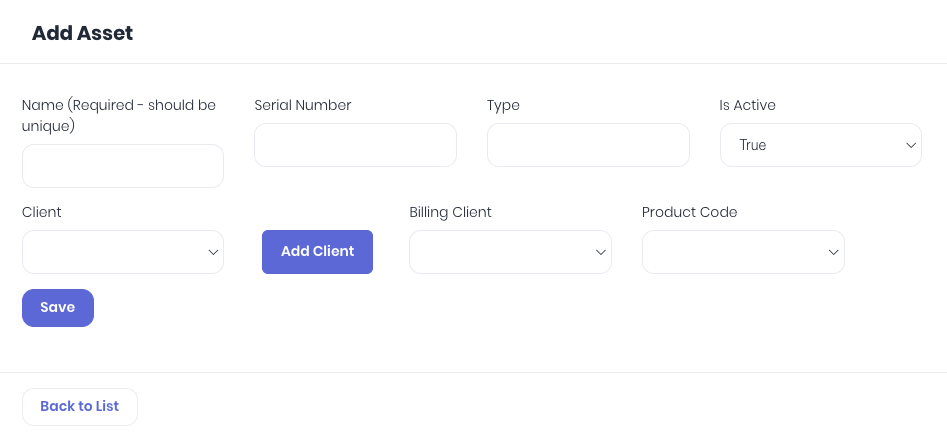
- Name - Name of the asset. Note: Must be unique.
- Serial Number - Identifier for your asset, can be an asset tag etc.
- Type - Type or category of asset.
- Is Active - Toggle asset status.
- Client - Current owner of the asset. Add Client to add a new client not in the dropdown.
- Billing Client - Client that gets invoiced for work done with the asset. Defaults to the selected Client.
- Product Code (Optional) - Only required for Internal Assets. Select a non-stock product to assign the asset to. This allows you to track asset usage of internal assets on projects.
- Custom fields (Optional) - Custom fields assigned to the asset type will appear below the default asset fields.
Once you have finished entering the details of your asset, click Save
Was this article helpful?
That’s Great!
Thank you for your feedback
Sorry! We couldn't be helpful
Thank you for your feedback
Feedback sent
We appreciate your effort and will try to fix the article