The WorkGuru mobile app facilitates quick access to existing supplier details which can then be opened with your devices's default applications. Call, email and navigate directly from the mobile app.
You can also quickly add basic supplier details on the go.
Reviewing Supplier Details
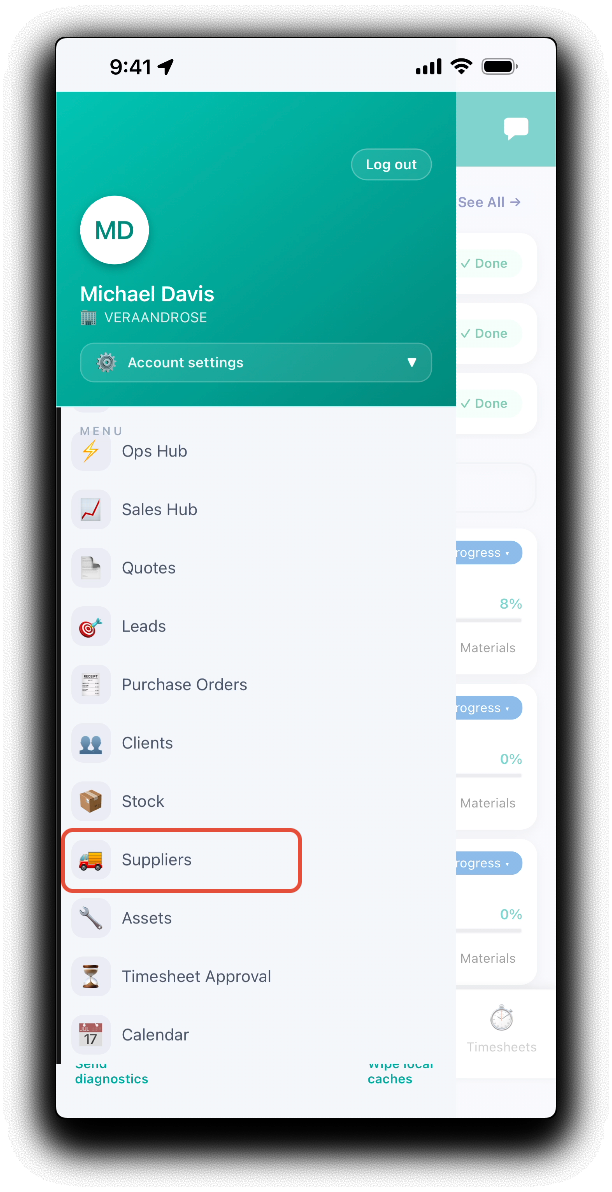
Open the mobile app menu, and tap Suppliers.
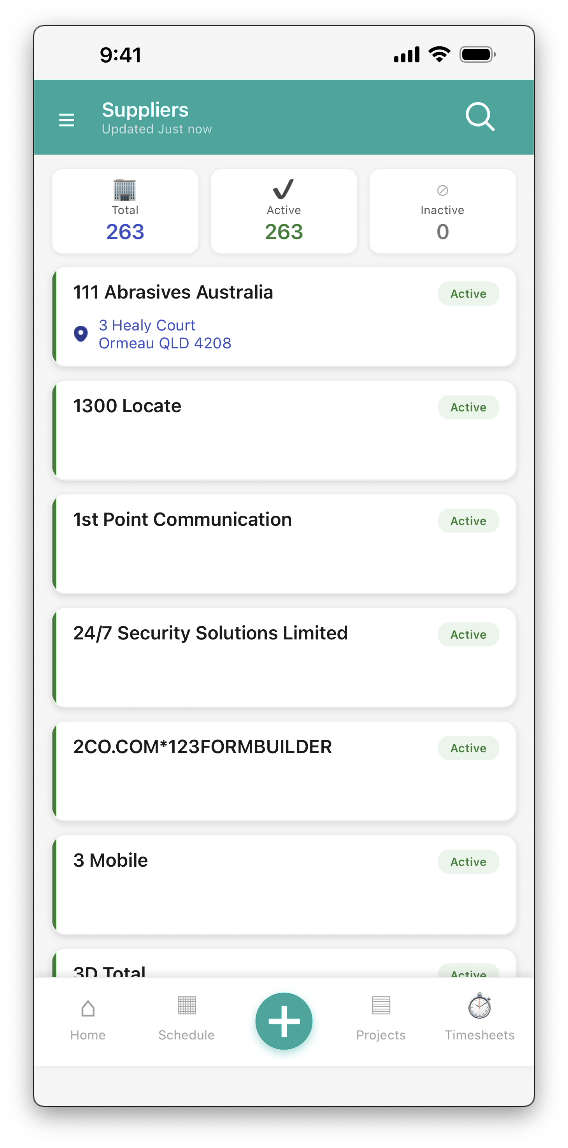
From the mobile supplier dashboard, search for or scroll to display your supplier. Tapping on a supplier tile will display the supplier details. Tap the call icon to call the supplier's default phone number.
Tapping on the supplier details will open the corresponding default application on your device:
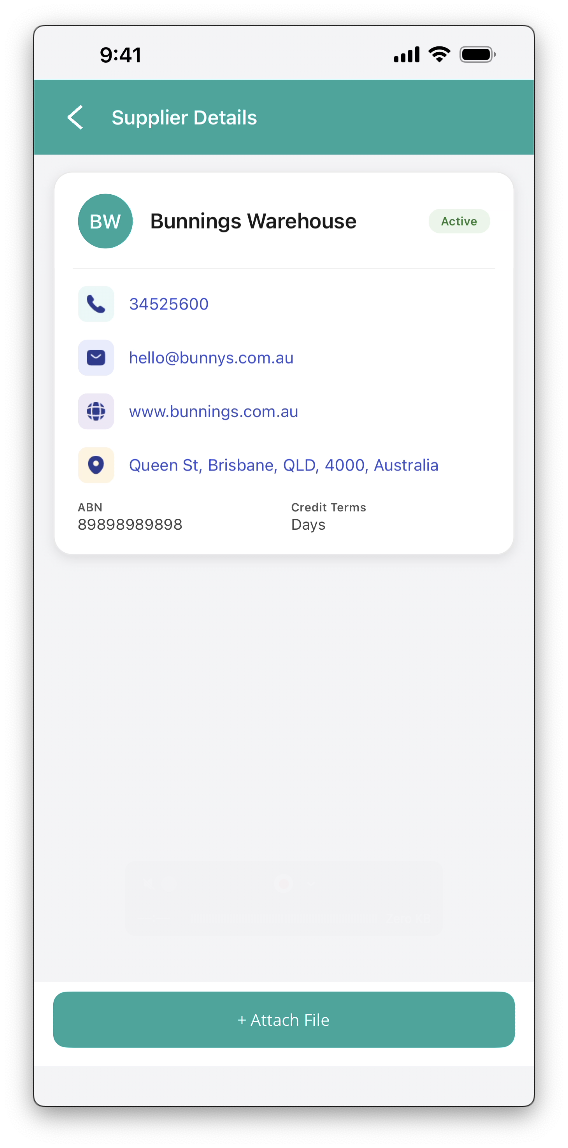
- Phone/Mobile - Calls the number if your device supports this function.
- Email - Launches a new email in your device's default email application
- Addresses - Opens your device's default navigation application
New Suppliers
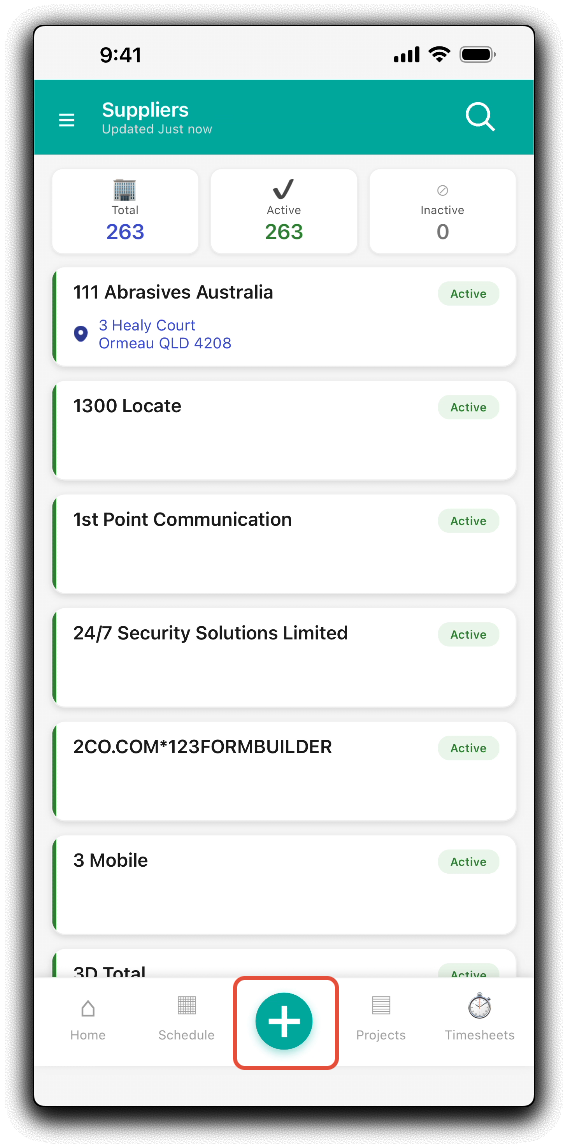
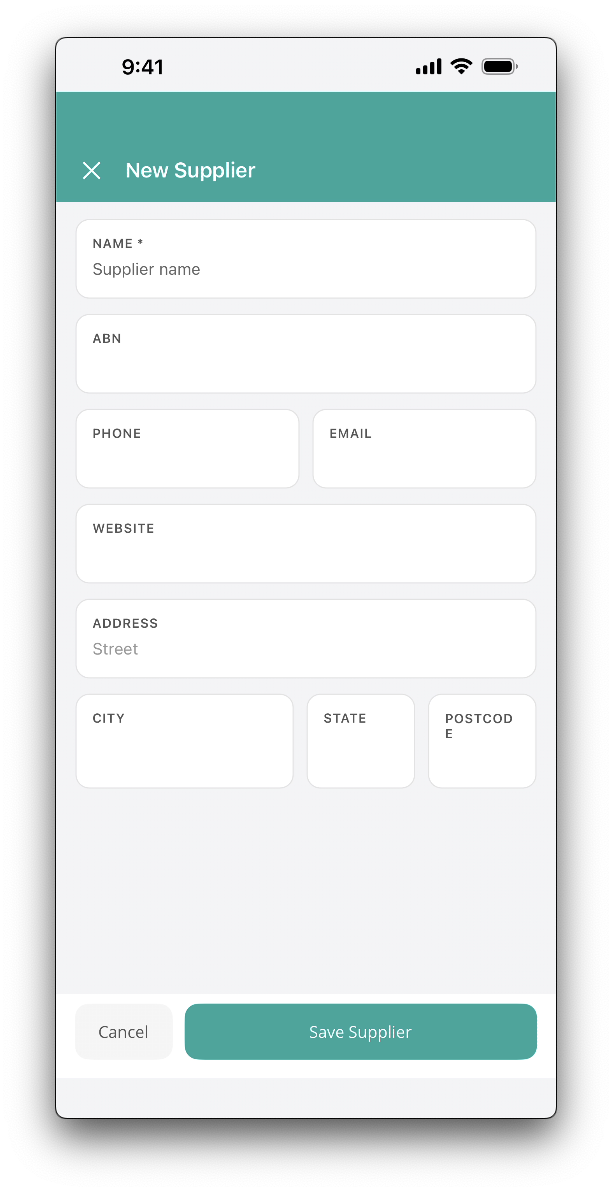
You can also quickly add new suppliers from the mobile supplier dashboard. Tap the green plus icon in the footer.
Add the new supplier's Name, ABN, Phone, Email, Website and Address as required from the new supplier popup. Tap Save Supplier to apply changes. Note: Further details such as address and contacts have to be edited back in the WorkGuru web browser.
Was this article helpful?
That’s Great!
Thank you for your feedback
Sorry! We couldn't be helpful
Thank you for your feedback
Feedback sent
We appreciate your effort and will try to fix the article