The mobile application allows you to manage progress, add actuals and complete production jobs while on the go.
Active production jobs can be accessed by tapping Production Jobs in the mobile app menu to open the mobile production job dashboard.
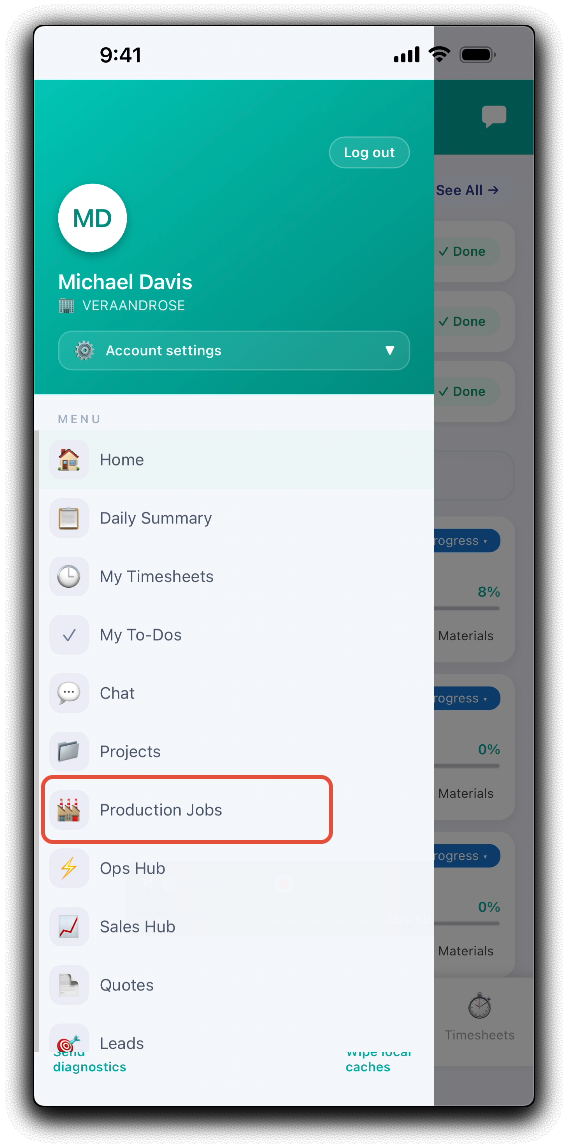
Mobile Production Job Dashboard
On the mobile production jobs dashboard, Search for or scroll the list to display active production jobs Tap on the status widgets to display Total, Overdue and Due This Week lists of production jobs. Tapping on a production job tile will display the production details.
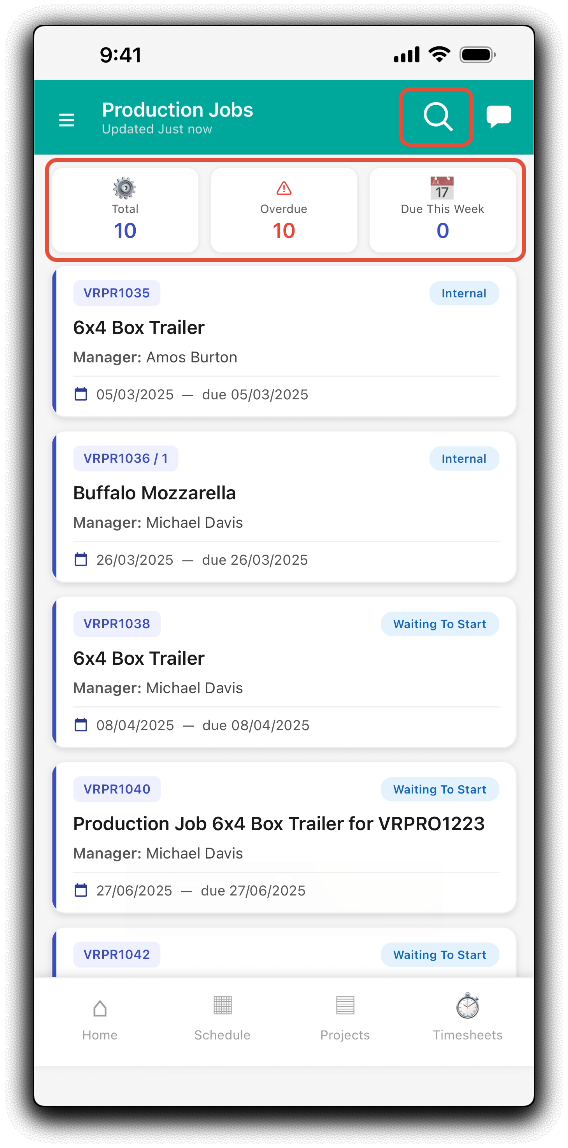
Mobile Production Job Details
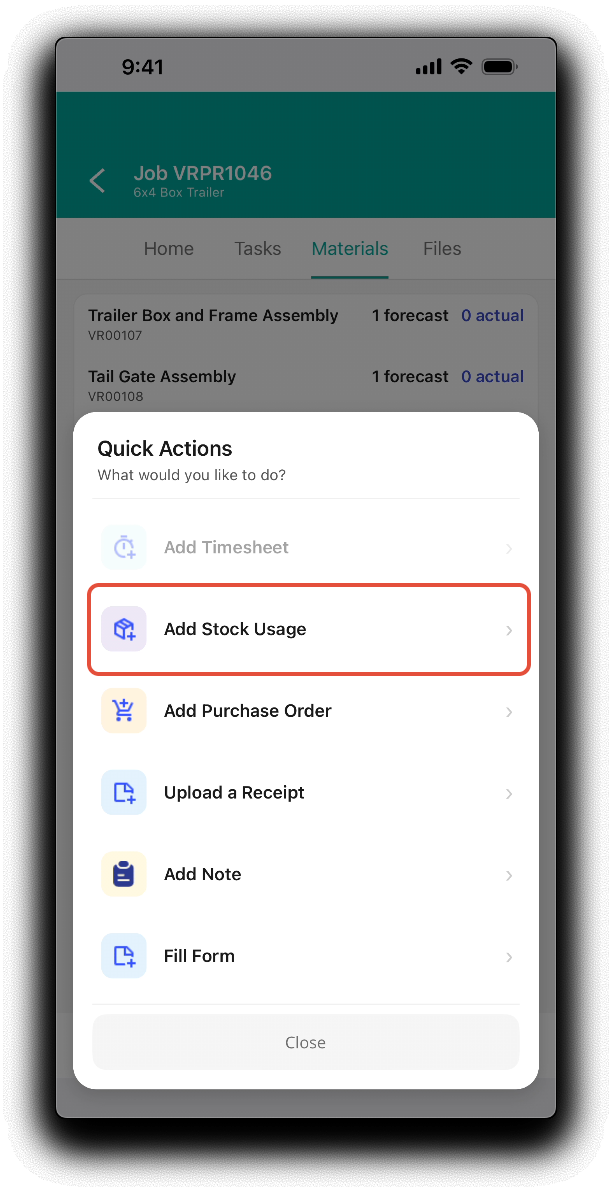
Actuals can be added to the production job by tapping the Plus icon in the footer of a production jobs detail page and selecting options from the Quick Actions menu.
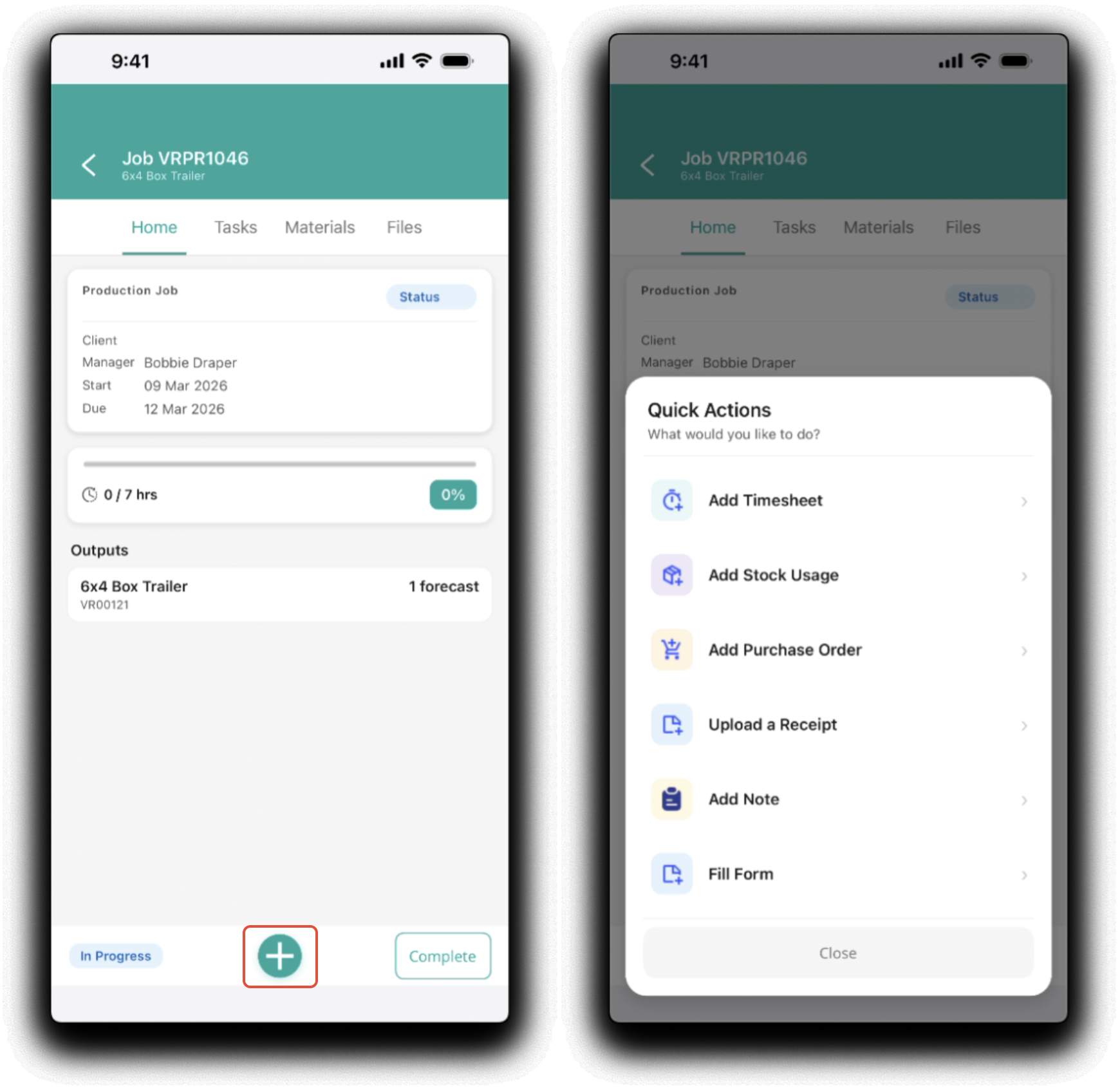
Home
The home tab is a summary of production job details, status and progress. Tap Status to update the production job's status from the dropdown.
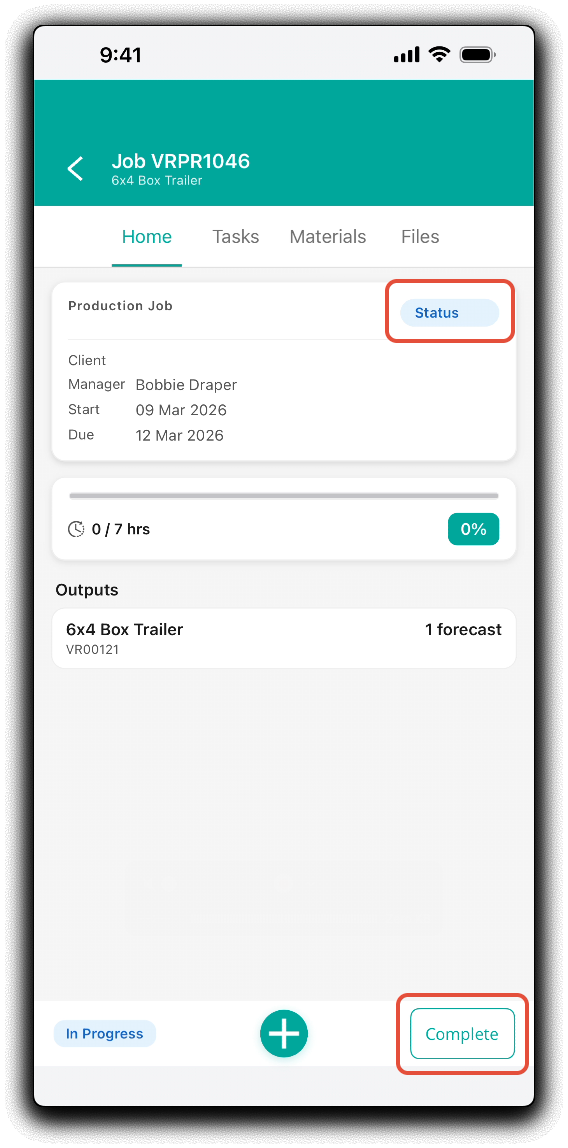
Tap Complete when all the production job is finished.
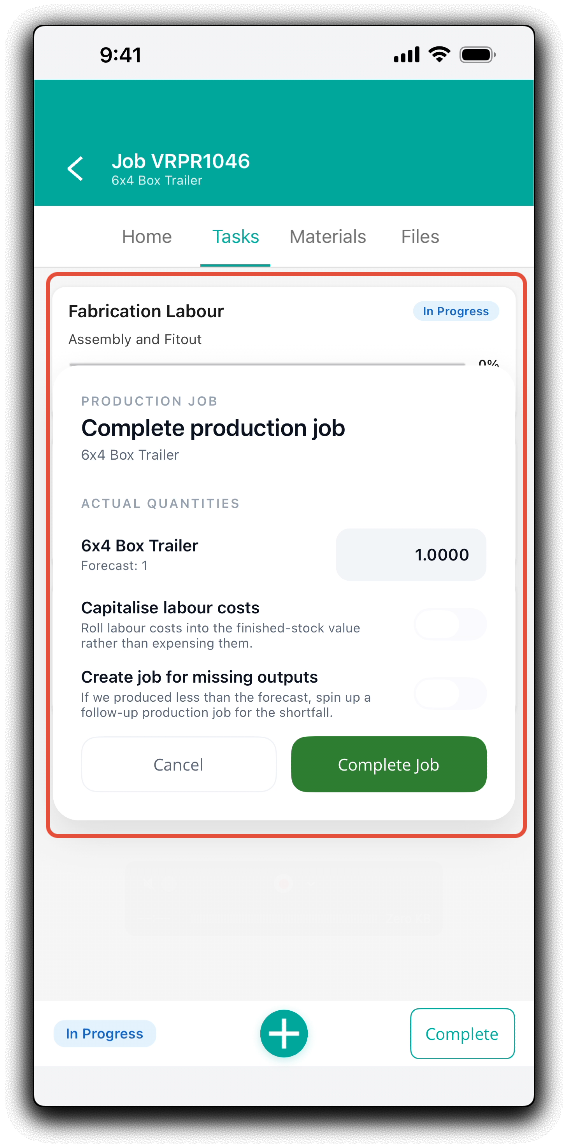
Confirm the following to complete the production job.
- Actual Quantities - Confirm and enter the actual quantity produced to date. You can partially complete larger production jobs if required.
- Capitalise Labour Costs - Decide if you want to capitalize your labour costs. Do you want to include the labour cost component in the stock on hand value? Selecting this option WILL include labour in the output unit cost. Note: This is an accounting workflow question - if unsure please consult your accountant.
- Create Job for Missing Outputs - If you are partially completing output produced to date, select this option to 'backorder' the remaining output and forecast.
Once confirmed, tap Complete Job to finalise production and the output SKU will be moved into stock on hand ready to be used on projects.
Tasks
The tasks tab contains the production job's task details, progress and to-dos.
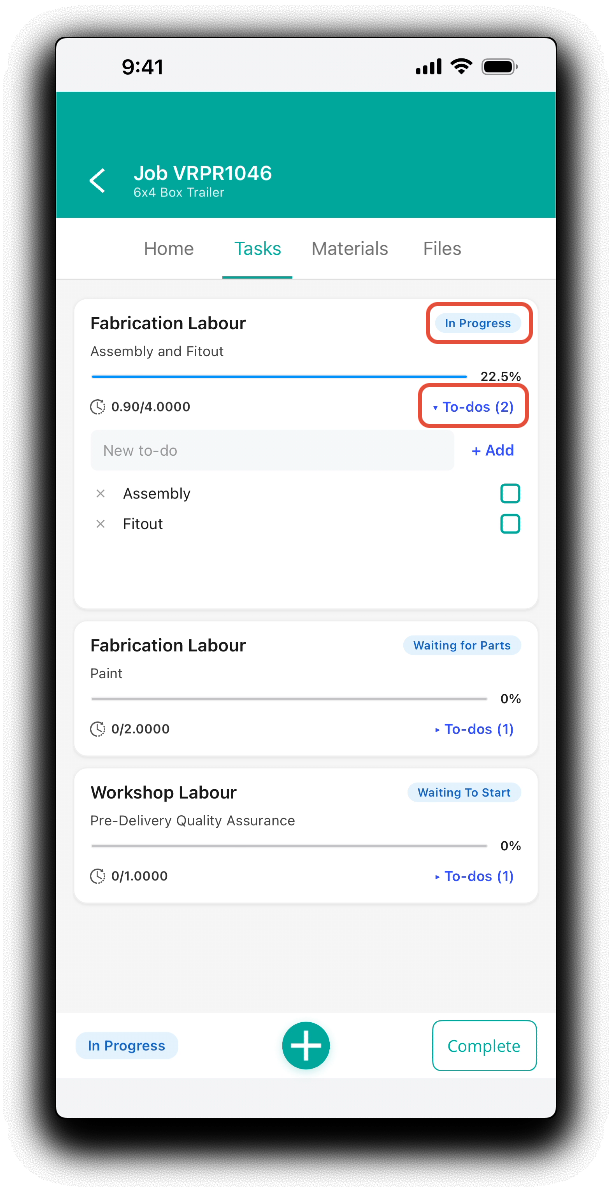
The tasks tab lets you update the following:
- Task Status - Tap to change status from the dropdown. You can complete the task by selecting the Completed Status.
- Task To-Dos - Tap To-dos () to open the to-do list. Add, remove or mark to dos as complete as required.
Materials
The materials tab will display the production job's forecast product bill of materials.
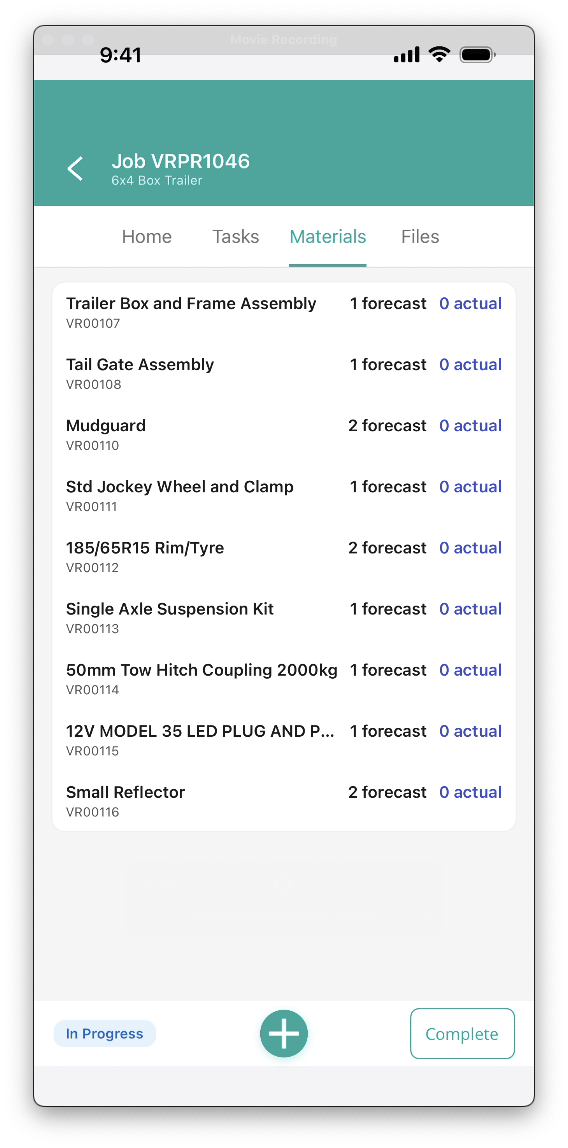
To use stock on the production job, tap the plus in the footer and tap Add Stock Usage.
Add the usage to the production job by either
- Bulk Actions - If the production job has forecast materials or previous usage, use the shortcuts to Use all Forecast or Use all Remaining.
- Add a Product - Search for a product by SKU or name or Scan the product barcode if present. The dropdown list of product results will display available stock on hand in the mobile apps selected warehouse.
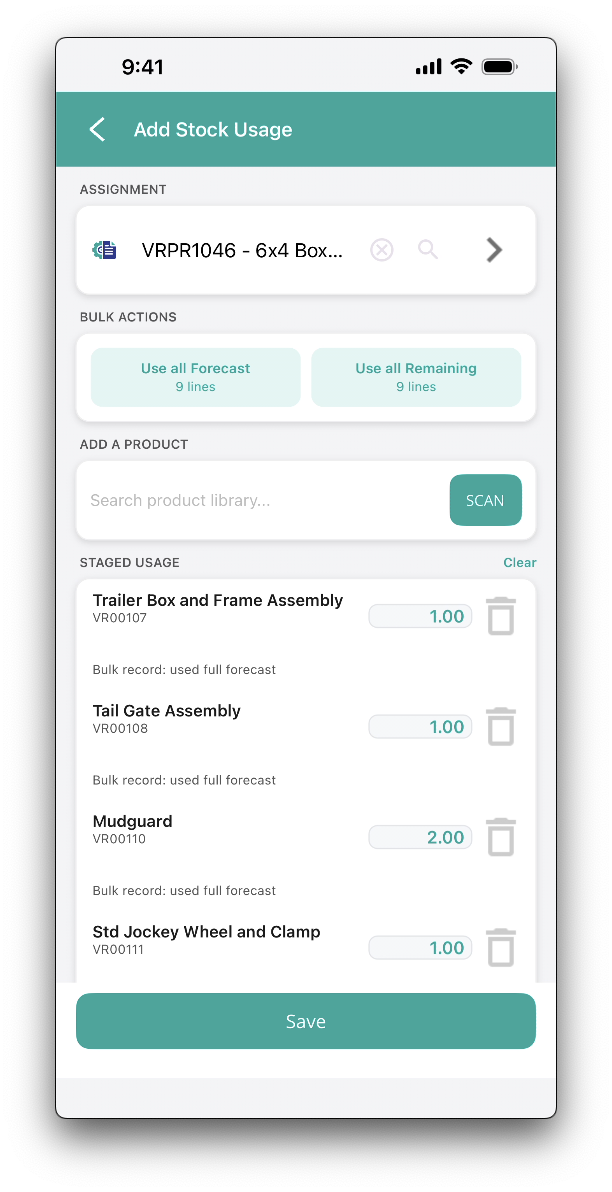
From the Staged Usage section, confirm usage quantities. Tap the Trash icon to remove the product item, or Clear to remove all lines. Tap Save to apply usage.
Notes
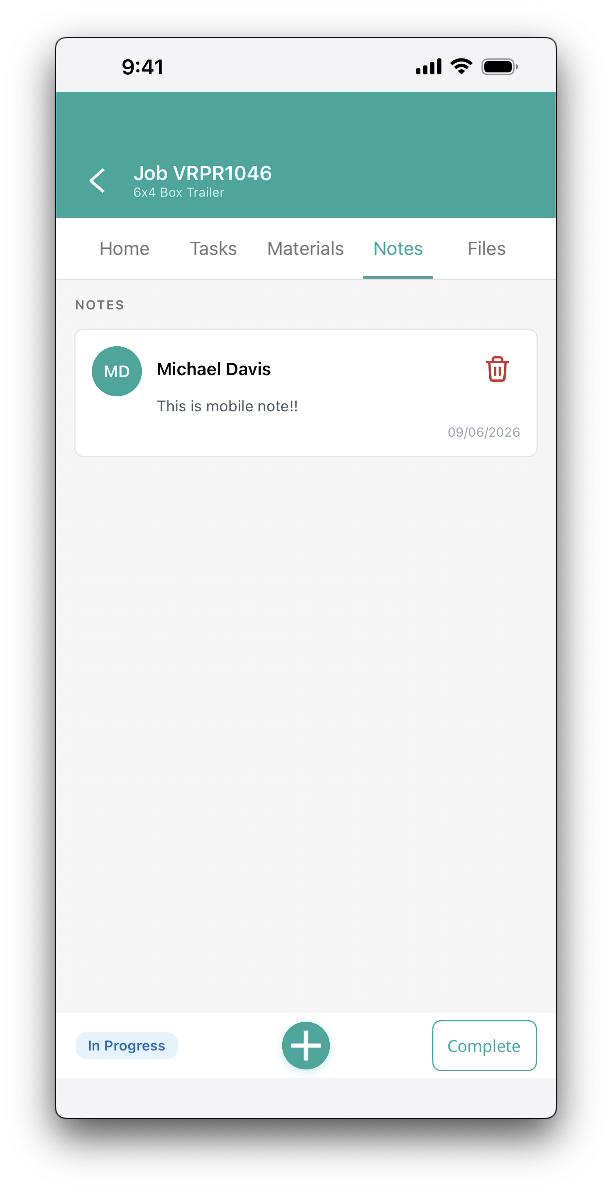
The notes tab allows easy access to read existing or add new notes. You can delete existing notes by tapping the trash icon on each note tile.
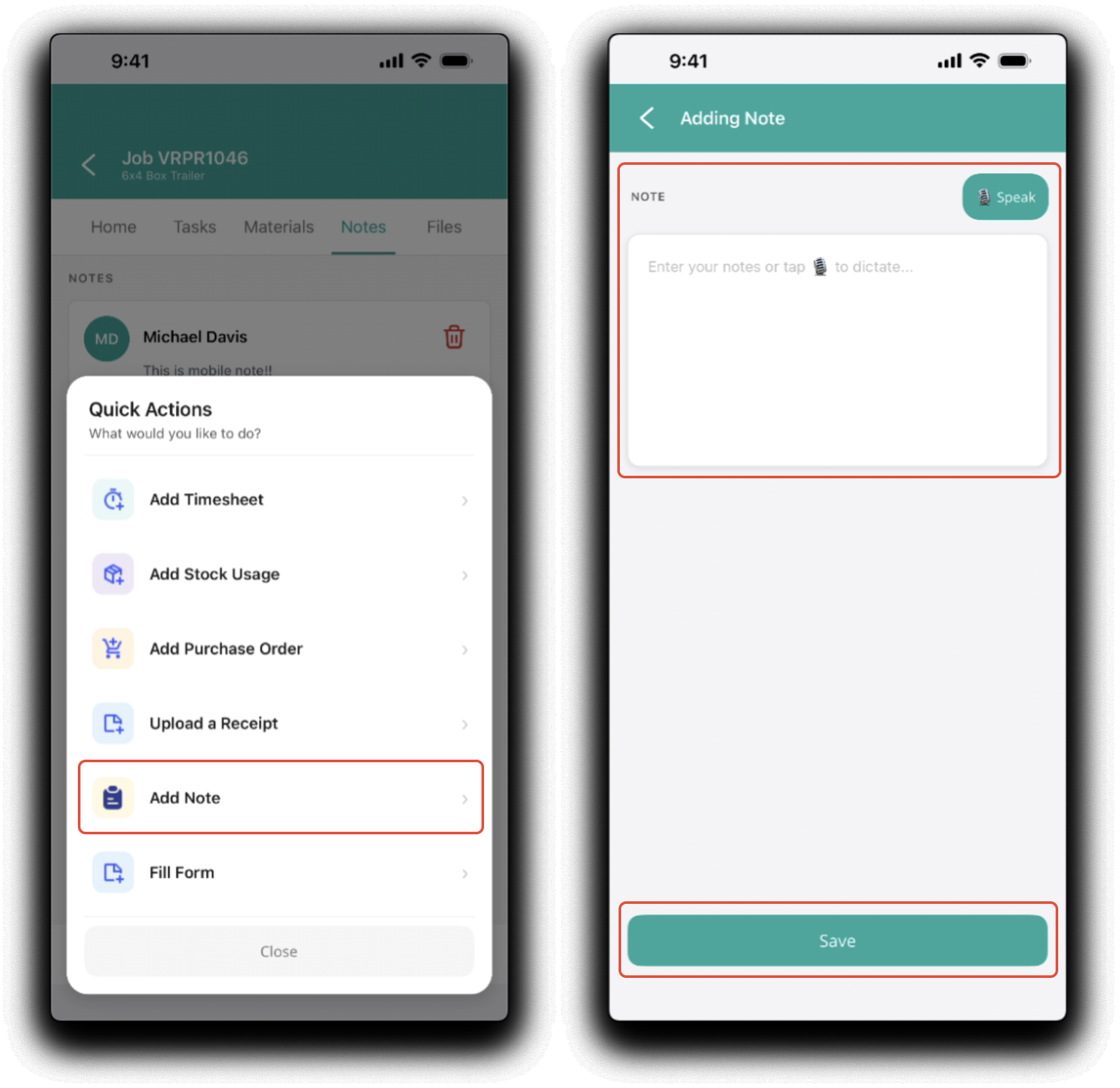
Add a new note by tapping the Plus icon and tapping Add Note in the Quick Actions menu. Enter text via keyboard or tap Speak for entry via speech to text. Tap Save to save note. Note: Hide the keyboard to reveal save button.
Files
The files tab allows easy access to preview, download or add files. You can preview a compatible files type by tapping on the "Eye" icon. Save files to the device by tapping the Download icon. Remove the file by tapping the X.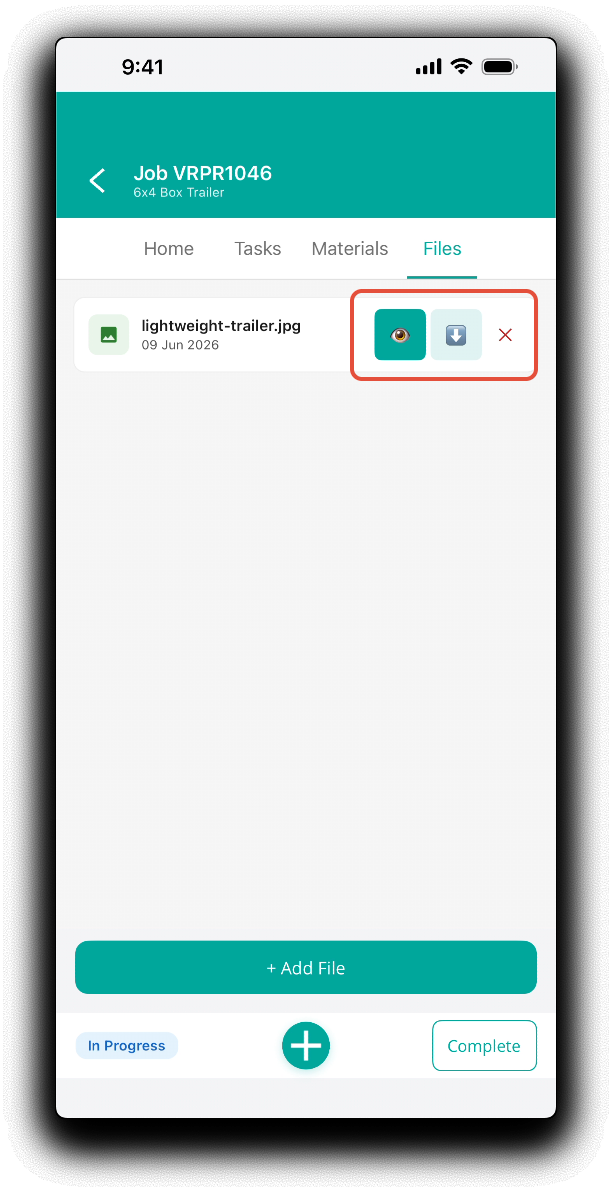
Tap +Add File to upload a file to the production job. Choose the upload method from the Add File popup.
- Take a Photo - Launch the device's camera application if available to upload photo's directly to the production job.
- Choose Photo from Gallery - Select exisiting pictures from the device's gallery/camera roll if available.
- Browse Files - Select any file from the device's file system.
Follow your device specific instructions to confirm the upload.
Was this article helpful?
That’s Great!
Thank you for your feedback
Sorry! We couldn't be helpful
Thank you for your feedback
Feedback sent
We appreciate your effort and will try to fix the article