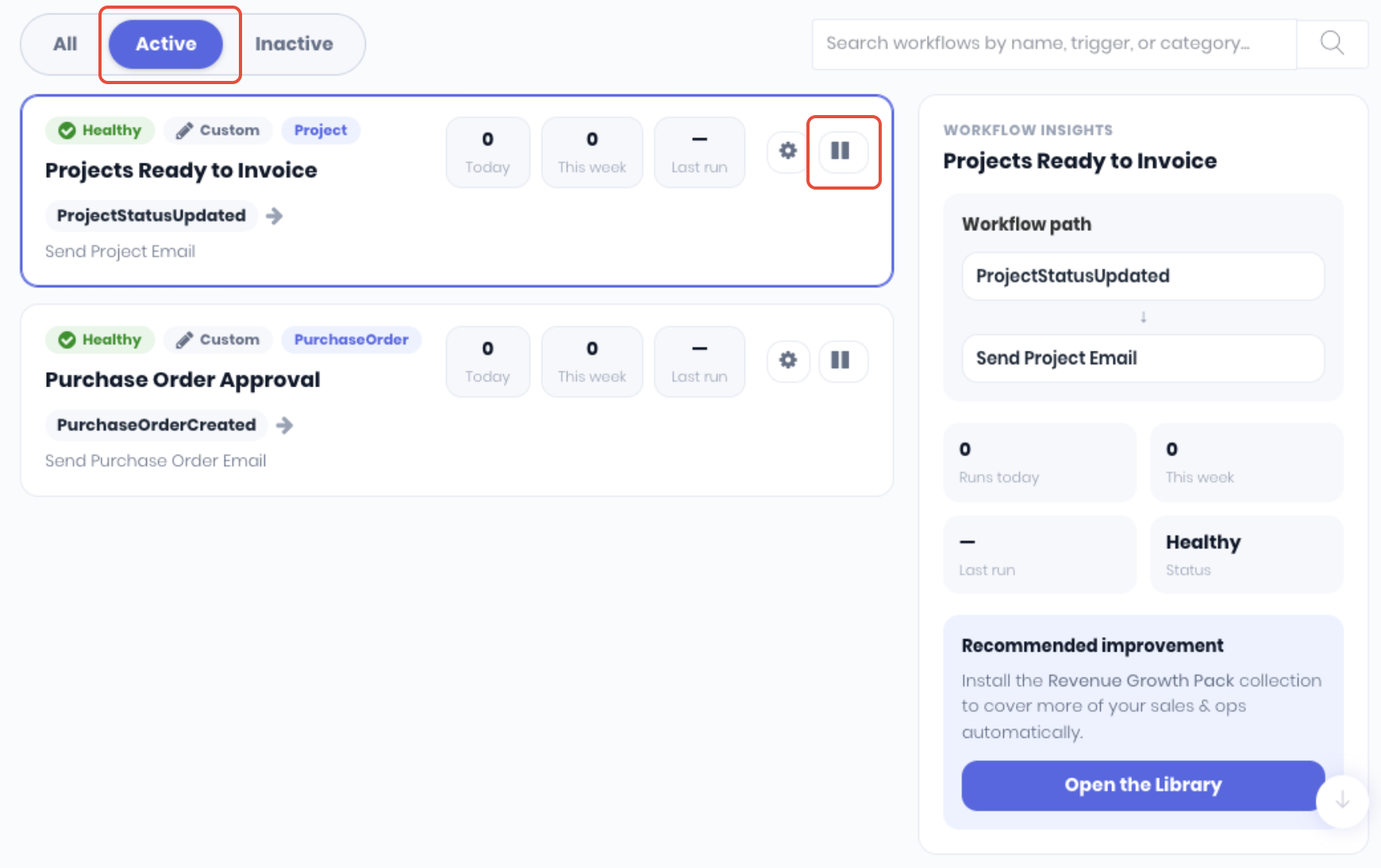
Once a workflow is created and is active, it will run automatically based on it's trigger type. If a workflow is not required temporarily, simply mark the workflow as Inactive by clicking the Pause icon from the workflows dashboard. Click Ok on the confirmation popup and workflow will no longer run.
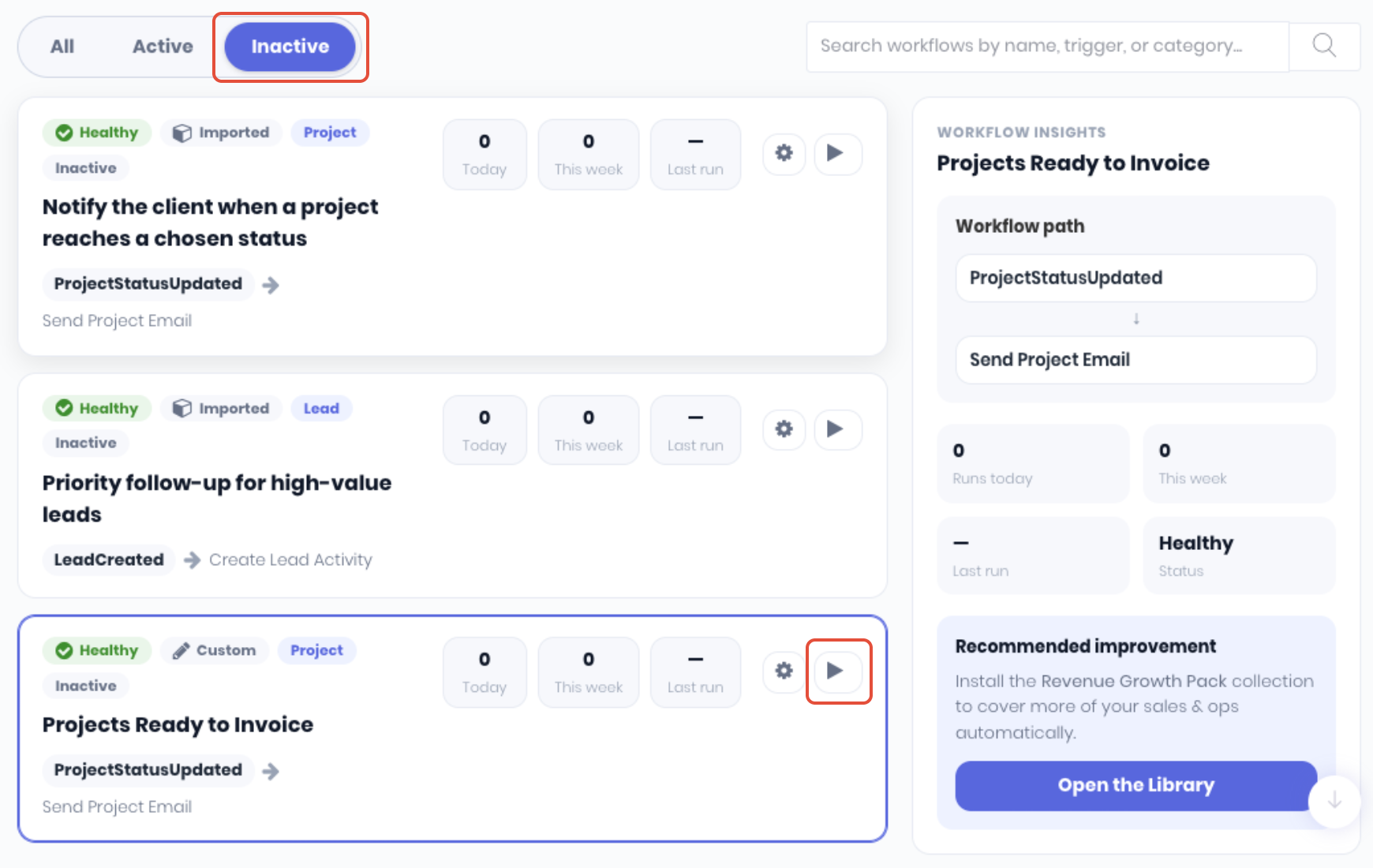
The workflow will now be listed in the Inactive list. When you need to resume the workflow again, simply click the Play icon. Click Ok on the confirmation popup and the workflow is now waiting for its trigger again.
If a workflow is no longer required, it can be deleted completely instead being made inactive.
Was this article helpful?
That’s Great!
Thank you for your feedback
Sorry! We couldn't be helpful
Thank you for your feedback
Feedback sent
We appreciate your effort and will try to fix the article