Once Claude has been successfully connected to WorkGuru, it is ready to start assisting with your queries. Simply ensure that the WorkGuru MCP connection is active and start asking questions like you are talking to a colleague.
Recommended best practices:
- Check before it counts - For anything going to a customer or your accountant, open the record in WorkGuru and look. Treat the assistant as a fast way to find and draft, not the final word on a number.
- Be specific - "Draft a quote for Acme for 12 lengths of 50x50 SHS" works far better than "quote Acme". It doesn't invent prices.
- Say which one - If several records match (three clients called Smith), tell it which, or ask it to list them first.
- Ask it to show its working - "Which job did you get that from?" is a fair question, and it will answer.
Every change the assistant makes appears in the record's audit log as **AI Agent**, with the action it took (for example `create_draft_quote`). Your name stays attached as the person it acted for, so you can always tell an assistant's work from a person's.
Using Claude Chat
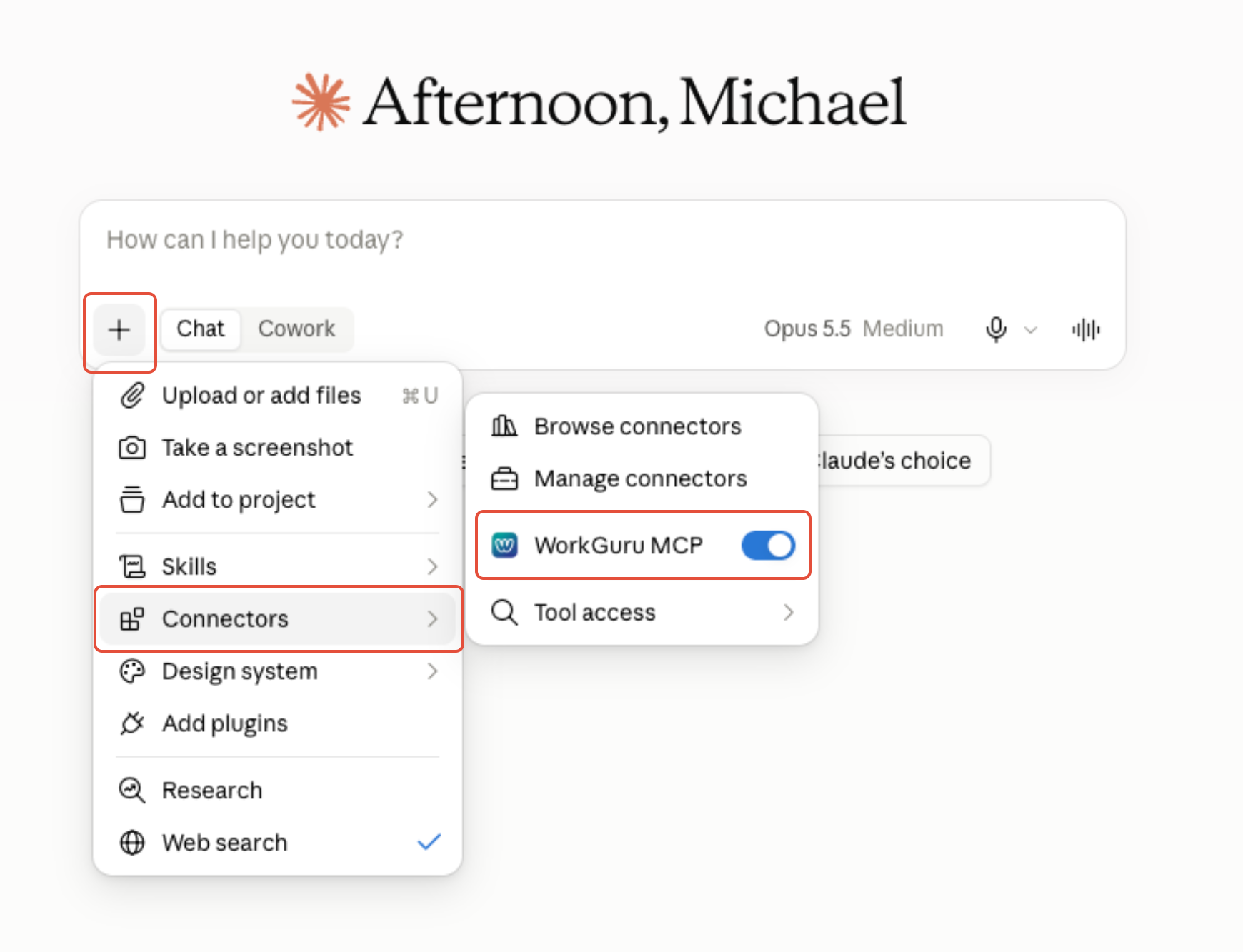
Start a new chat and click the Plus, then Connectors and ensure WorkGuru MCP is enabled.
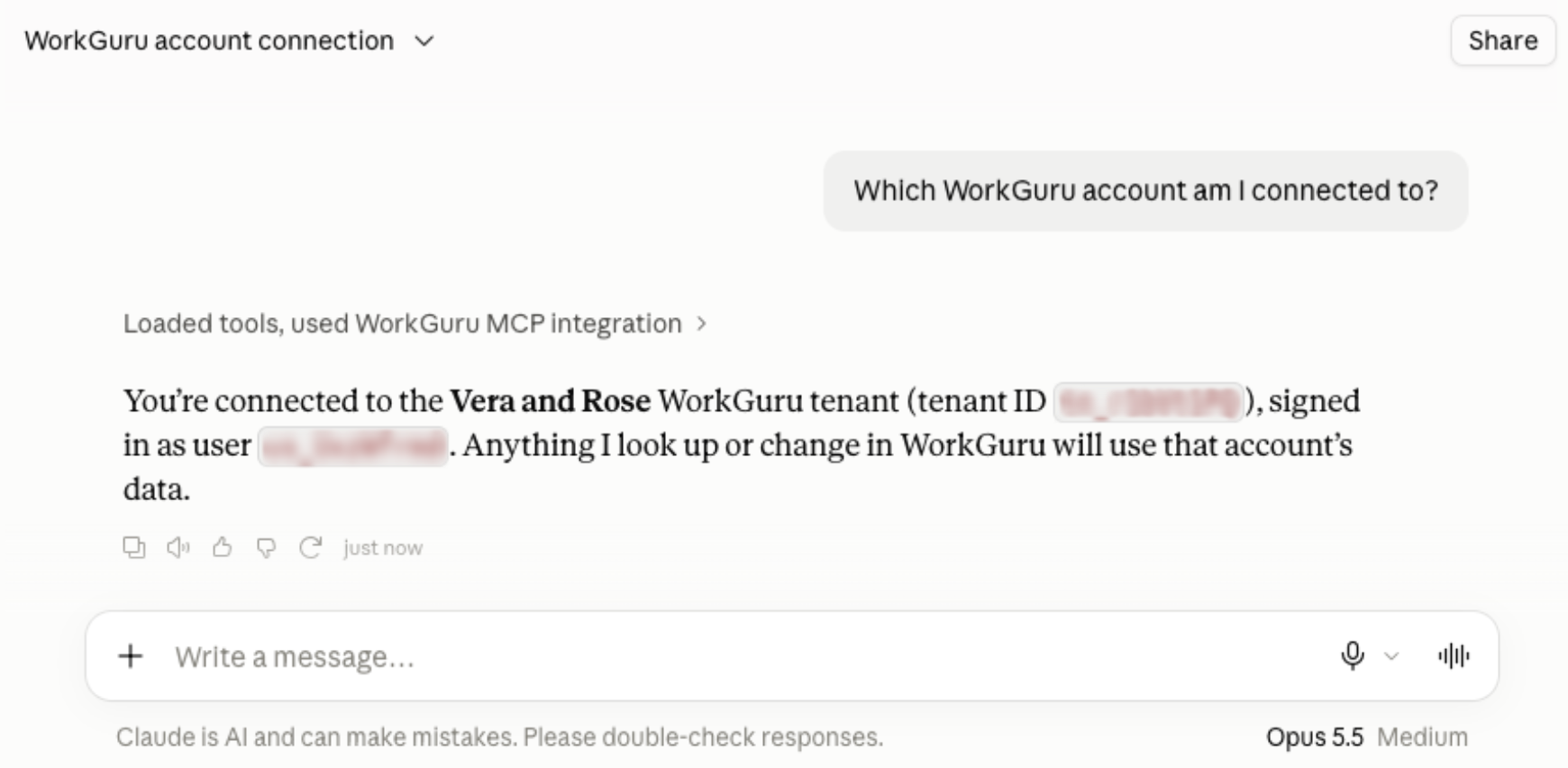
Check the connection by asking Which WorkGuru account am I connected to? Confirm the answer is the correct tenant and user.
Then simply ask what you need, the way you would ask a colleague. For example: "What work have we done that we haven't invoiced yet?"
What the Assistant Can Do
You don't pick tools or set anything up: Claude asks WorkGuru what it can do and gets the list automatically. Each tool needs the same WorkGuru permission as the matching screen, so two people may see different tools.
- Finding things - Look up any record by number or name; search products, clients, suppliers, contacts, staff, quotes, invoices, POs and leads.
- Quoting - Read a quote; draft a quote from a list or a drawing; add or change lines on a draft; issue, revise, email or accept a quote; find quotes needing a follow-up.
- Projects - Get a job's full picture and financials; create a job; add or change tasks and materials; assign staff; change status or due date; add and read notes; find late jobs and unbilled work.
- Stock - Check stock on hand and on order; book stock to a job; receive a delivery; find upcoming shortages.
- Purchasing - Read a PO; draft a PO; approve a draft PO.
- Invoicing - Read an invoice; draft an invoice for a job; approve and email it; see what you're owed.
- Clients, Suppliers & Leads - See a client's full picture and notes; create and update clients, suppliers, contacts and leads; add lead notes.
- Timesheets - Read timesheets; log hours to a job task; find who hasn't filled theirs in.
Note: Reading a drawing or document (`extract_document`) uses AI and counts towards your account's monthly AI credit.
What the Assistant Can't Do
These are deliberate, or related to the users WorkGuru permissions level. If the assistant refuses, it explains why.
- Delete anything - It creates and updates records. Removing one is left to a person in WorkGuru.
- Send without you asking - Quotes, invoices and purchase orders start as drafts. Issuing, approving and emailing are separate steps, and it's told to confirm with you first. Emailing a quote or invoice can't be undone.
- Choose an email address - When it sends a quote or invoice, the address is read from the record in WorkGuru. It can't type one in, and it can't change a client's or contact's email address.
- Edit an issued quote - An issued quote is revised into a new draft, as in WorkGuru. The original is retired, and by default its attachments move to the new revision.
- Approve timesheets - Hours it logs are left unapproved for you to review.
- Rename a job or rewrite its description - It can change a job's status and due date, and add or change individual task and material lines. It can't change a completed or cancelled job.
- Invoice staff-rate jobs - Jobs billed at each person's own rate are invoiced from the job's invoicing page in WorkGuru.
- See more than you can - If you can't see costs or approve invoices in WorkGuru, neither can the assistant on your behalf.
Troubleshooting
- Claude asks for an OAuth Client ID, or says it can't register - Enter `workguru-mcp` as the OAuth Client ID and leave the client secret empty. WorkGuru doesn't let assistants register themselves, so the ID has to be entered.
- Connecting fails with "invalid\_client" - Check the Client ID is exactly `workguru-mcp`. If it is, contact WorkGuru support.
- An error page appears after you sign in, mentioning the redirect - Contact WorkGuru support: Claude's return address isn't registered on our side.
- Your WorkGuru login isn't recognised - You're probably on the wrong region's address. Use the Endpoint shown on your **AI assistant access** page.
- Every request is refused with a message about the Beta - The Beta isn't turned on for your account yet. Contact WorkGuru support.
- Every request is refused saying you aren't allowed to connect an AI assistant - Ensure you have the Use AI Assistants (MCP) permission enabled on your account/role.
- The assistant says it can't do something you expected - It acts with your WorkGuru permissions and the areas you approved. Check with your admin, or disconnect and reconnect to approve more areas. |
- It refuses an action and gives a reason - That's normal. It's protecting a rule WorkGuru enforces, such as not editing an issued quote. Read the reason; it says what to do instead. |
- It worked before and has stopped - In Claude, go to Customise → Connectors, open WorkGuru MCP connector and connect again.
- An error includes a reference - Send that reference to WorkGuru support. It points straight to the details. |
Was this article helpful?
That’s Great!
Thank you for your feedback
Sorry! We couldn't be helpful
Thank you for your feedback
Feedback sent
We appreciate your effort and will try to fix the article