Connecting ChatGPT to WorkGuru via the MCP is straightforward and quickly allows ChatGPT to securely assist with WorkGuru tasks.
Requirements
What You Need | Responsibilities | Notes |
|---|---|---|
Beta program enabled on your WorkGuru tenant. | WorkGuru support | AI assistant access is part of the Beta. Until it's on, every connection is refused |
Use AI Assistants (MCP) permission enabled for approved roles/users | Your WorkGuru admin | Only the Admin role has it enabled by default. Anyone else needs it enabled. |
A ChatGPT account | Your ChatGPT Owner | Any ChatGPT plan that supports custom connectors. It needs developer mode, which is web only on Plus, Pro, Business, Enterprise or Edu. On Business and Enterprise an admin has to turn it on for the workspace first. |
WorkGuru Login | You | Standard login. There's no API key or secret to create. |
Enable WorkGuru MCP Access
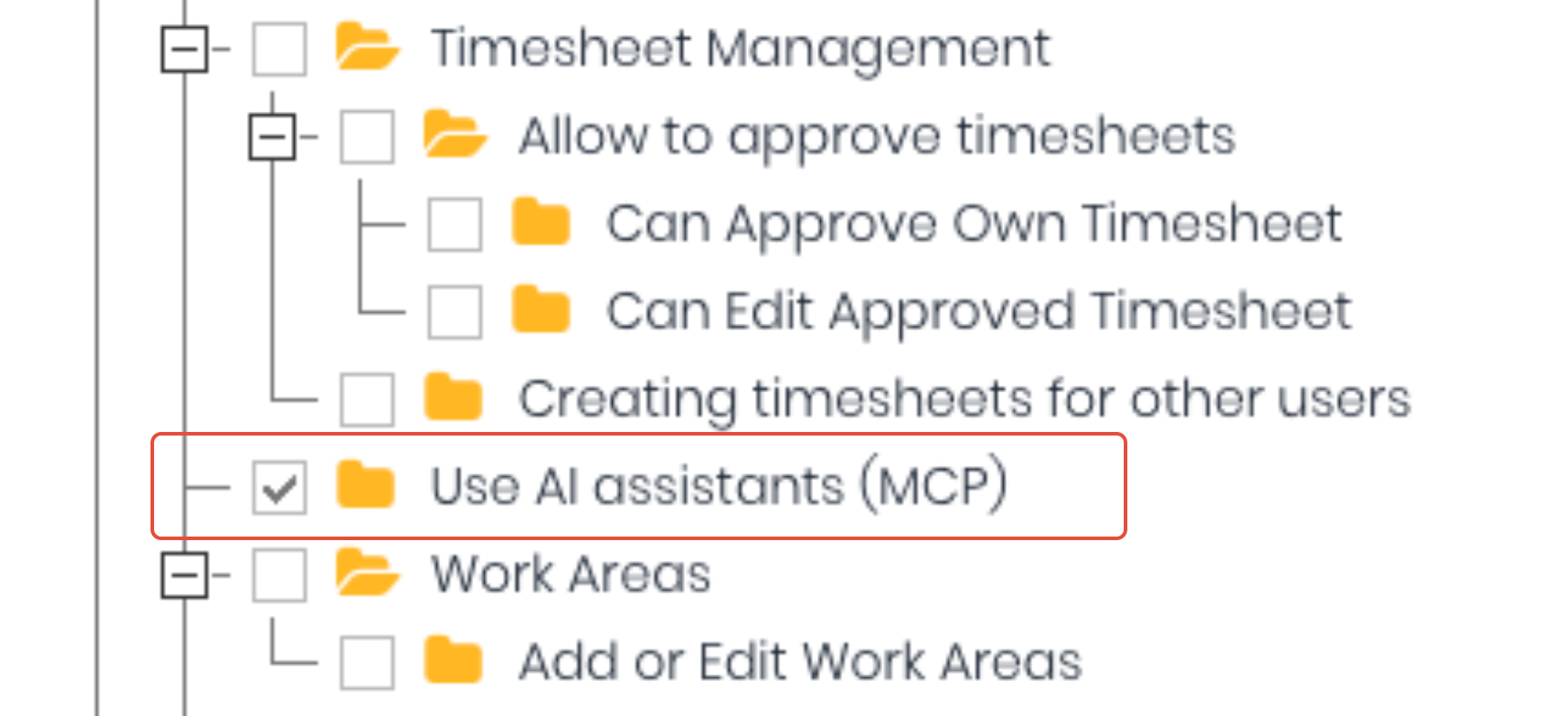
If you haven't already, request to join the MCP Beta by contacting WorkGuru support and ask for AI assistant access to be turned on for your account. Once enabled, choose who can connect. Edit each role that should be allowed and tick the Use AI Assistants (MCP) permission in the Pages tree. Note: The Admin role has it already. Removing it takes effect on the assistant's very next action, so there's nothing to revoke anywhere else.
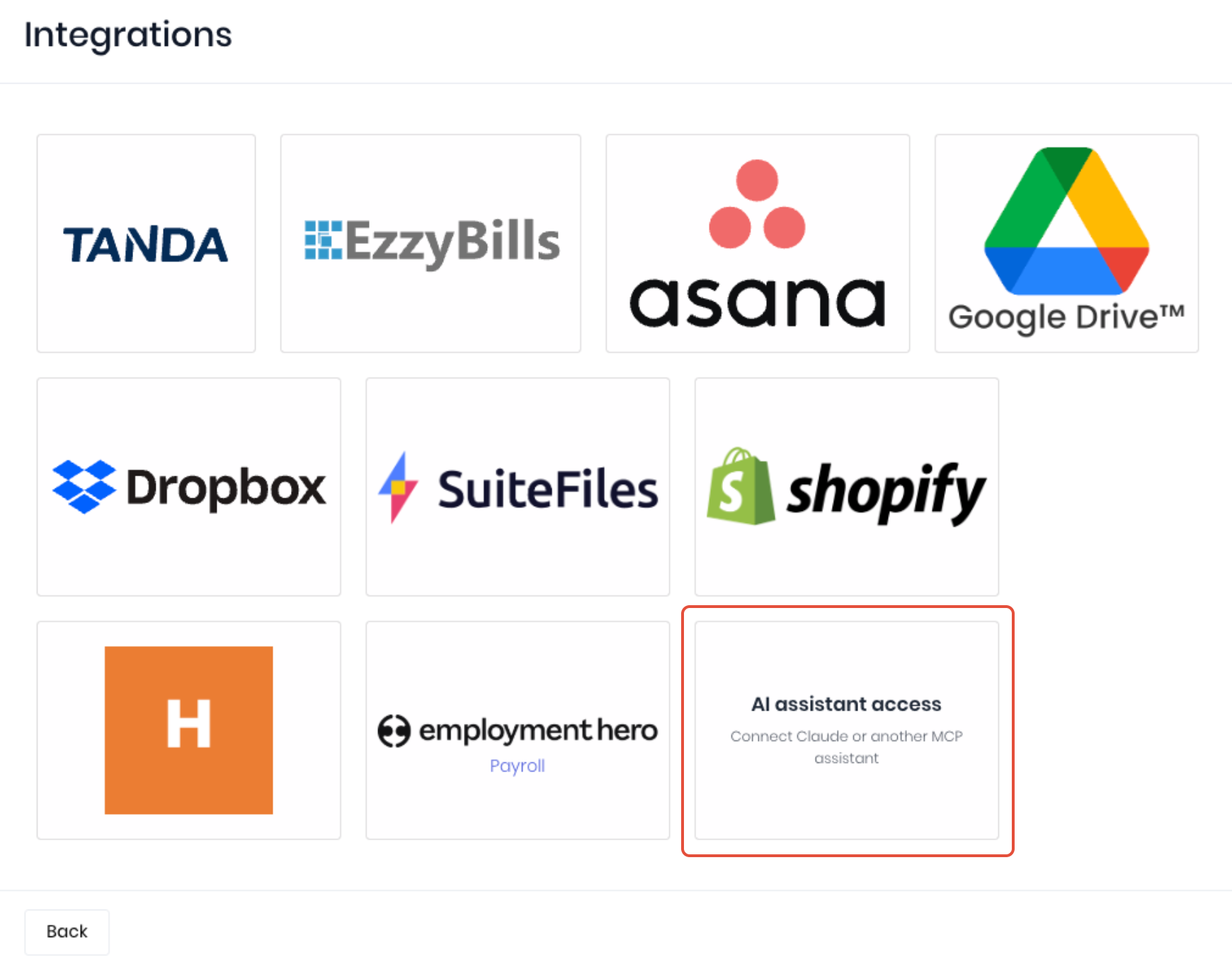
To source the connection information required by ChatGPT, go to the Integrations dashboard and open AI Assistant Access.
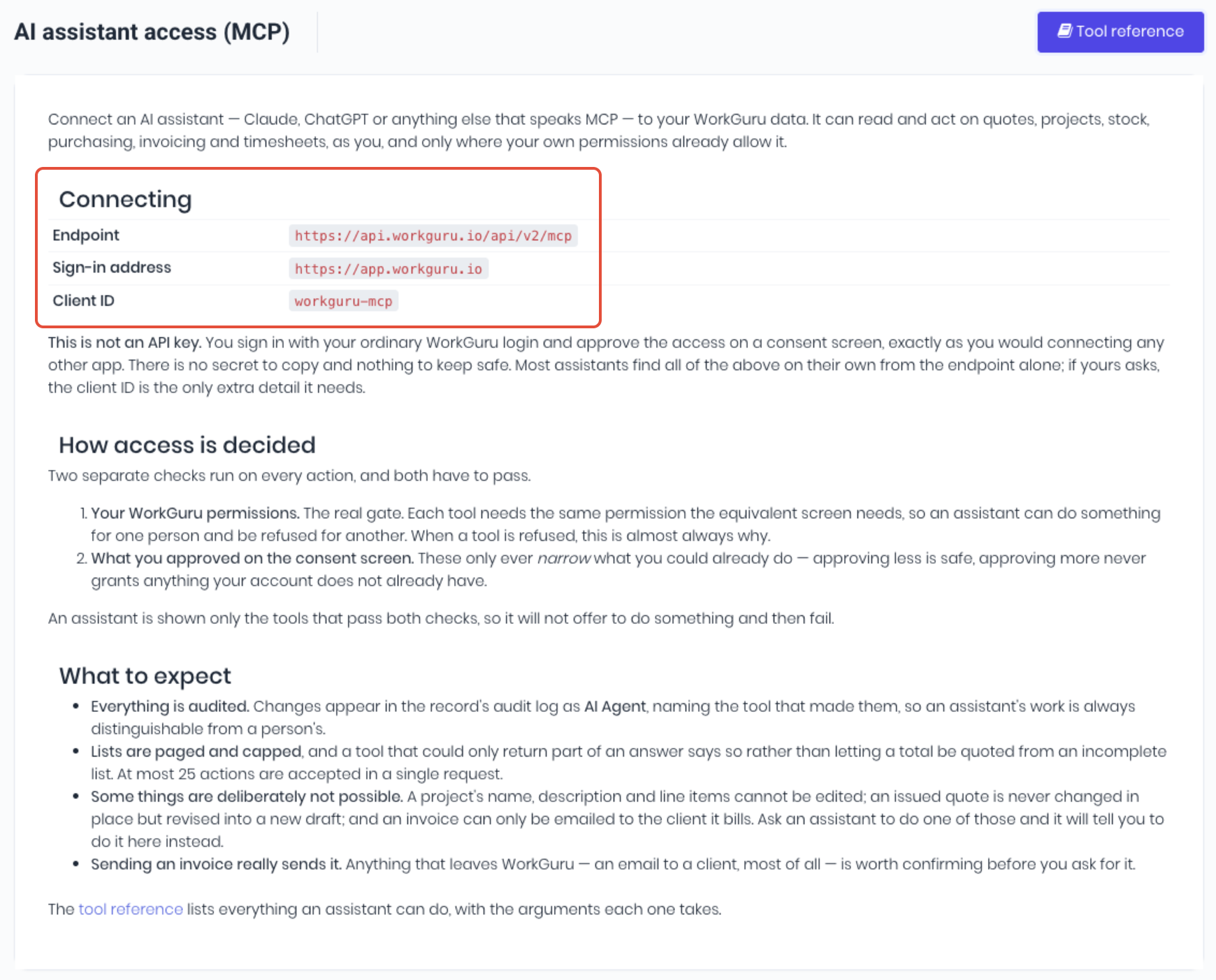
Copy the Endpoint address and the Client ID shown on the AI Assistant Access (MCP) page to use on the ChatGPT side of the connection.
Connect ChatGPT
Once you have the Endpoint and Client ID from WorkGuru, sign in to ChatGPT and add a custom connector:
- Confirm your account or workspace allows you to create a custom MCP app.
- Go to Plugins. (https://chatgpt.com/plugins)
- Select the plus button, then select Add custom MCP server.
- Under New Plugin, Enter the following:
- Name and, optionally, a Description.
- Connection - Workguru https MCP address
- Authentication - OAuth
- Advanced OAuth Settings - Use your own Client ID, enter workguru-mcp with no secret
- Review the risk warning and select the I understand and want to continue checkbox.
- Select Create to add the MCP plugin.
Test the MCP Connection
Check the connection by ensuring the WorkGuru plugin is active and asking Which WorkGuru account am I connected to? Confirm the answer is the correct tenant and user.
Was this article helpful?
That’s Great!
Thank you for your feedback
Sorry! We couldn't be helpful
Thank you for your feedback
Feedback sent
We appreciate your effort and will try to fix the article