Retentions are currently in beta. If you don't see the Retentions settings, contact WorkGuru support to join the beta program.
Create a Retention Product
Before you turn on advanced retentions, you need to create a nonstock retention product first. Every retention line on an invoice uses this product, and takes its name, account and tax code from it. Ask your accountant which account and tax code retention should post to; most businesses use a liability or a receivable account. Note: if you are already using WorkGuru's existing retention workflow, you can use the existing Retentions Held product.
Enable Advanced Retentions
Once the retention product exists. Go to Invoice settings (Administration -> Settings -> Invoice).
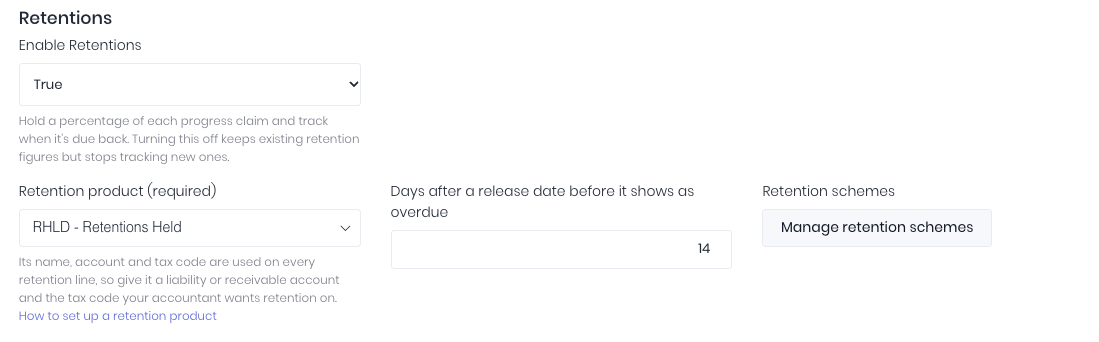
Find the Retentions section. If it isn't there, your account isn't in the beta program yet. Set Enable Retentions to True.
In Retention product (required), choose the product you created. In Days after a release date before it shows as overdue, enter how many days a release can sit unclaimed before it's marked overdue. Leave it blank to use the default of 14 days. Click Save.
Create Retention Schemes
Once the retentions settings are saved, refresh the invoice settings and click Manage Retention Schemes. This lets you create repeatable schemes that can be selected on the relevant projects. You can also create a retention scheme per project without creating pre-set schemes if required.
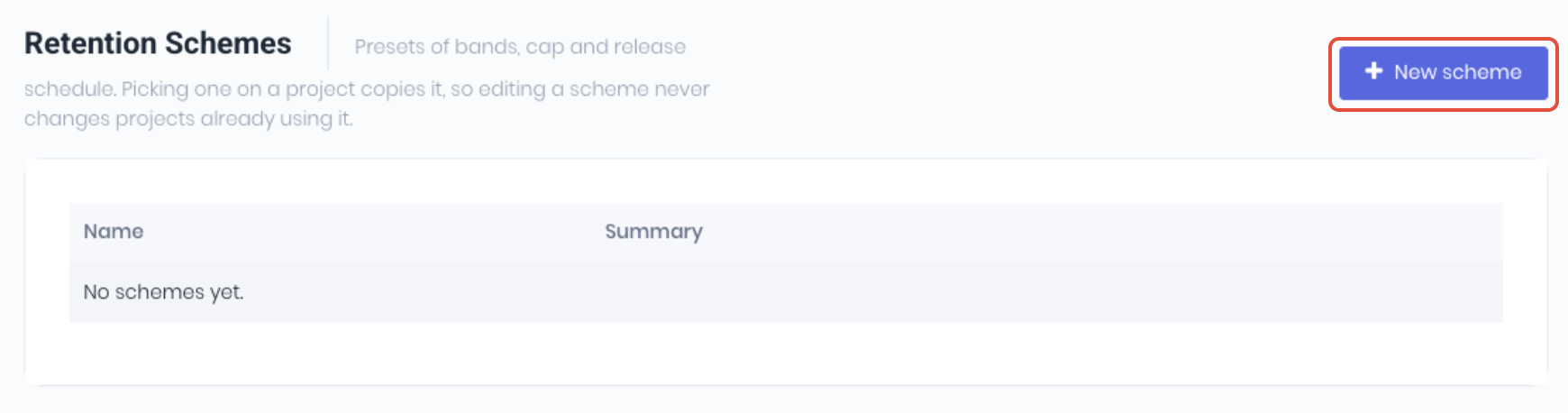
Click New Scheme and complete the New Retention Scheme popup:
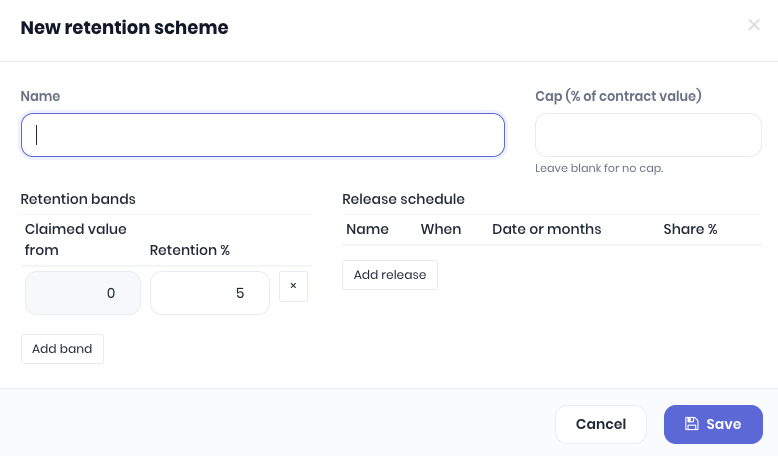
- Name - Retention name (may be specific to a project etc)
- Cap (% of contract value) - When the scheme is copied onto a project, WorkGuru turns this into a dollar cap from the project's value (Optional)
- Retention Bands - Click Add Band for each band:
- Claimed value from - The claimed amount this band starts at. The first band starts at 0.
- Retention % - The percentage held on claims in this band.
- Release Schedule - Click Add Release for each release. Note: The release shares should add up to 100%. WorkGuru warns you if they don't, and refuses a schedule that adds up to more than 100%. Shares like 33.33% three times will round up and count as 100%
- Name - For example Practical completion or End of defects period.
- When - On practical completion, Months after practical completion, or Fixed date.
- Date or months - The date for a fixed-date release, or the number of months for a months-after release.
- Share % - The share of held retention released at this point.
Click Save when complete.
Was this article helpful?
That’s Great!
Thank you for your feedback
Sorry! We couldn't be helpful
Thank you for your feedback
Feedback sent
We appreciate your effort and will try to fix the article