Each project has its own retention terms: the bands, an optional cap, and the release schedule. You can set them when you create the project, or later from the project page. To set terms when creating or editing a project, click the Retention tab on the project's detail page.
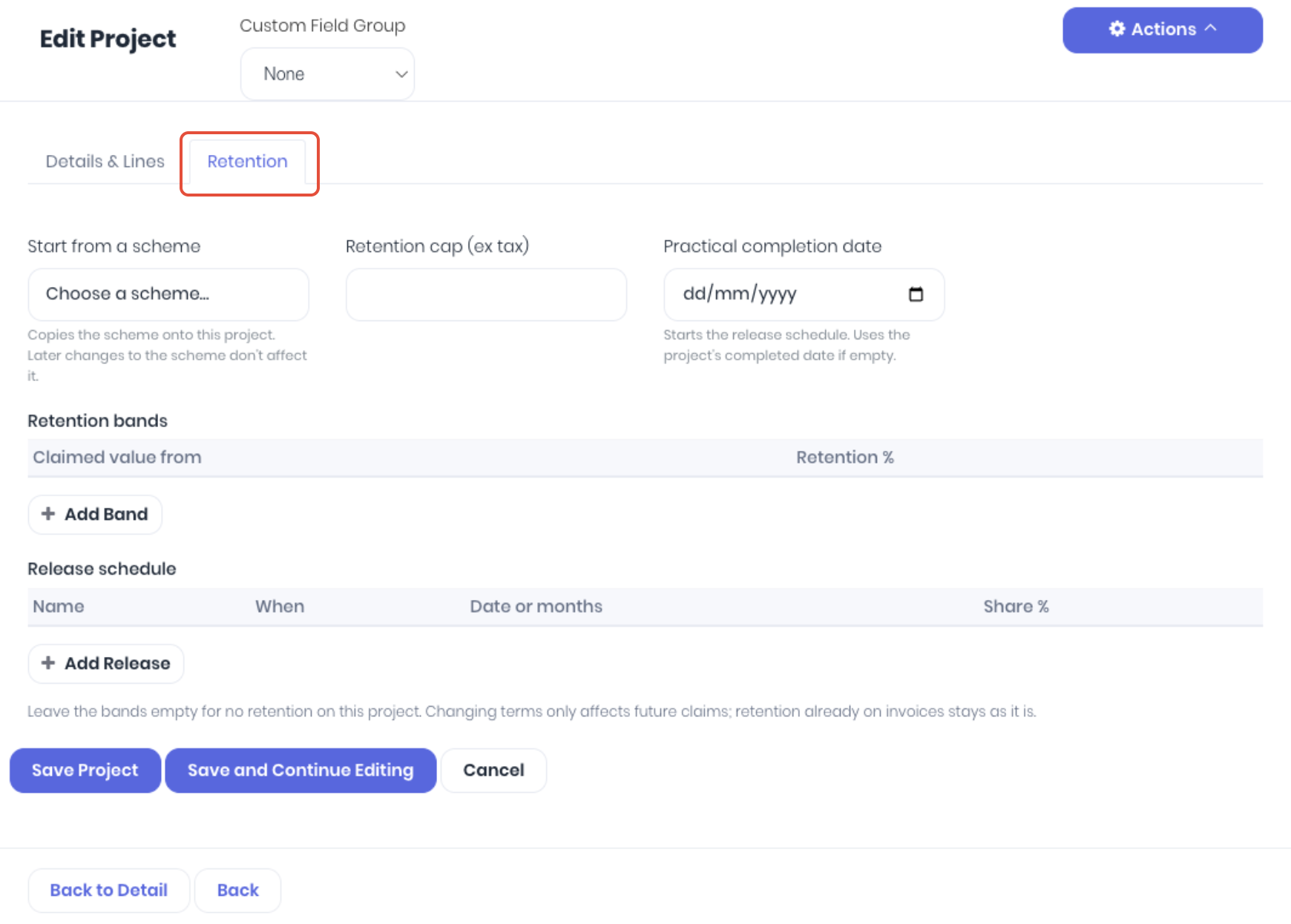
- Start from a scheme - Choose a a pre-setup retention scheme. Its terms are copied in, and you can still change them for this project.
- Retention cap (ex tax) (Optional) -
- Practical completion date (Optional) - The release schedule starts from this date; if it's empty, WorkGuru uses the date the project is marked completed.
- Retention Bands - Click Add Band for each band, or edit the bands populated by the selected scheme.
- Claimed value from - The claimed amount this band starts at. The first band starts at 0.
- Retention % - The percentage held on claims in this band.
- Release Schedule - Click Add Release for each release, or edit the releases populated by the selected scheme. Note: The release shares should add up to 100%. WorkGuru warns you if they don't, and refuses a schedule that adds up to more than 100%. Shares like 33.33% three times will round up and count as 100%
- Name - For example Practical completion or End of defects period.
- When - On practical completion, Months after practical completion, or Fixed date.
- Date or months - The date for a fixed-date release, or the number of months for a months-after release.
- Share % - The share of held retention released at this point.
Click Save Project to apply the retentions to the project.
Was this article helpful?
That’s Great!
Thank you for your feedback
Sorry! We couldn't be helpful
Thank you for your feedback
Feedback sent
We appreciate your effort and will try to fix the article