When you invoice a project with retention terms, WorkGuru adds a Retention line that takes the held amount off the claim. The amount is worked out from the project's bands, what has been claimed so far and the cap, after any discounts and surcharges. You can change it before saving. Retention counts as held once the invoice is approved. Until then it shows as “on draft invoices”. Discounts and surcharges are never worked out on the retention line.
Note: Retention invoices via the mobile application is not currently supported.
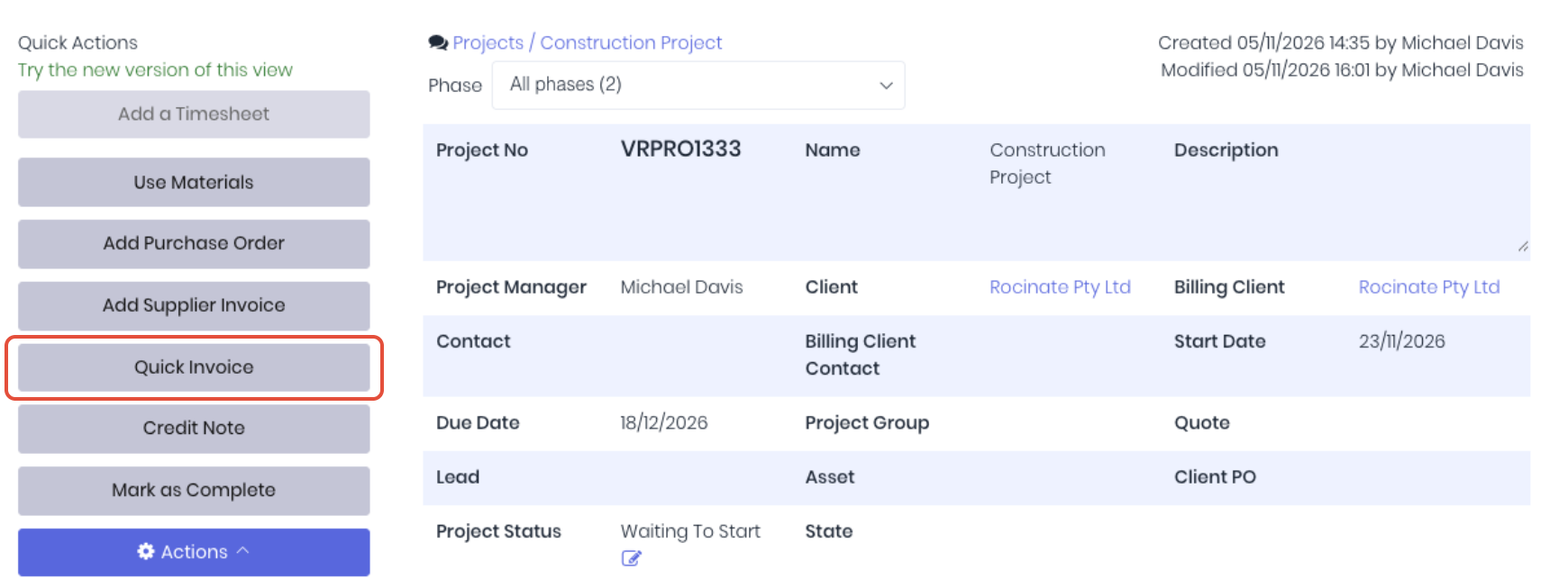
To invoice a project with retention, open the project and raise the invoice as normal as per your invoice schedule.
The Retention row below the invoice lines shows the suggested amount based on the project's retention scheme, claimed to date, held so far and the cap remaining. Check the amount. To change it, type a new Amount; the row is marked Edited. To go back to WorkGuru's figure, click Reset to calculated. To hold no retention on this claim, click the X to remove. To add it back, click Add retention.
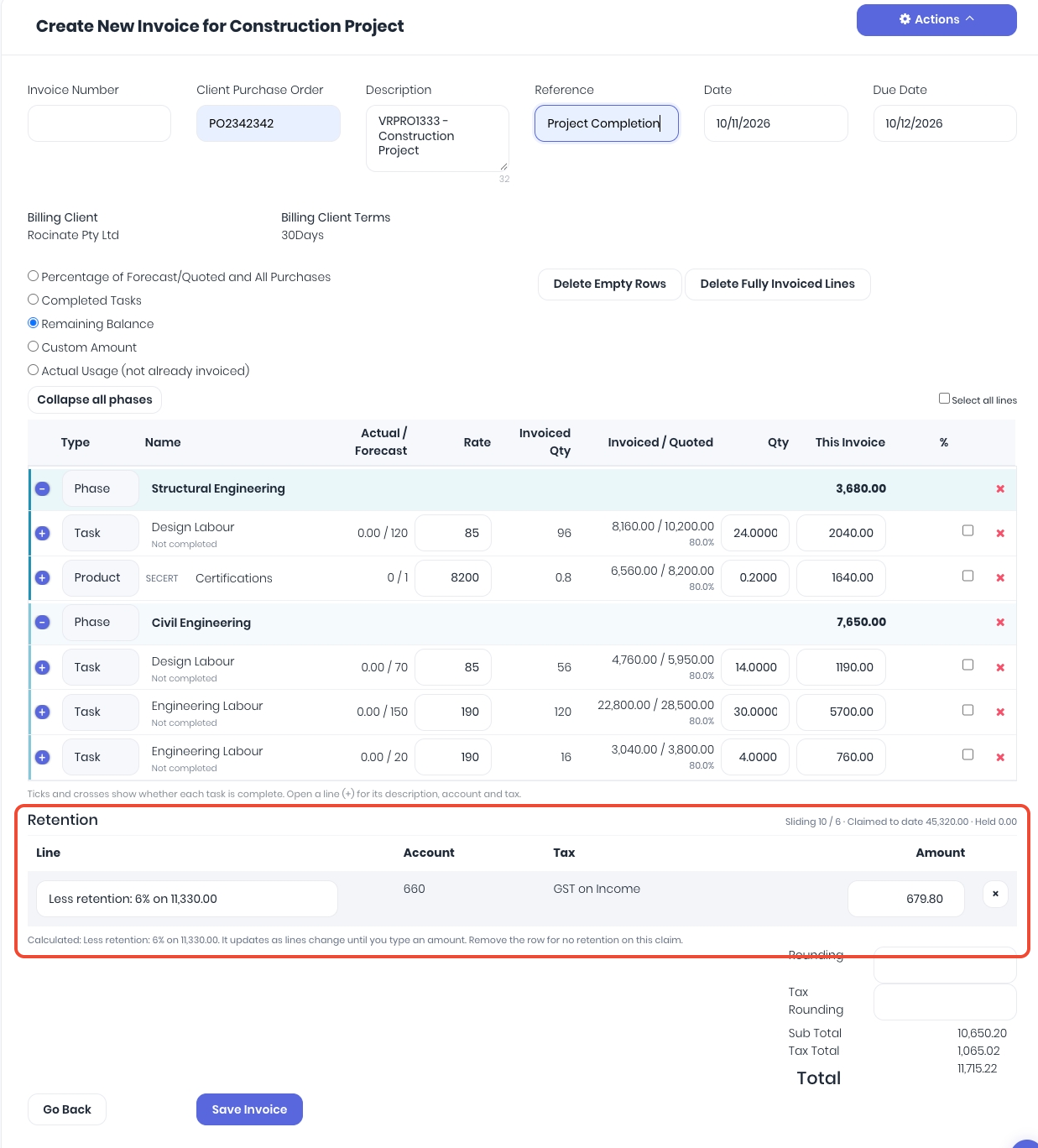
Click Save Invoice create the invoice.
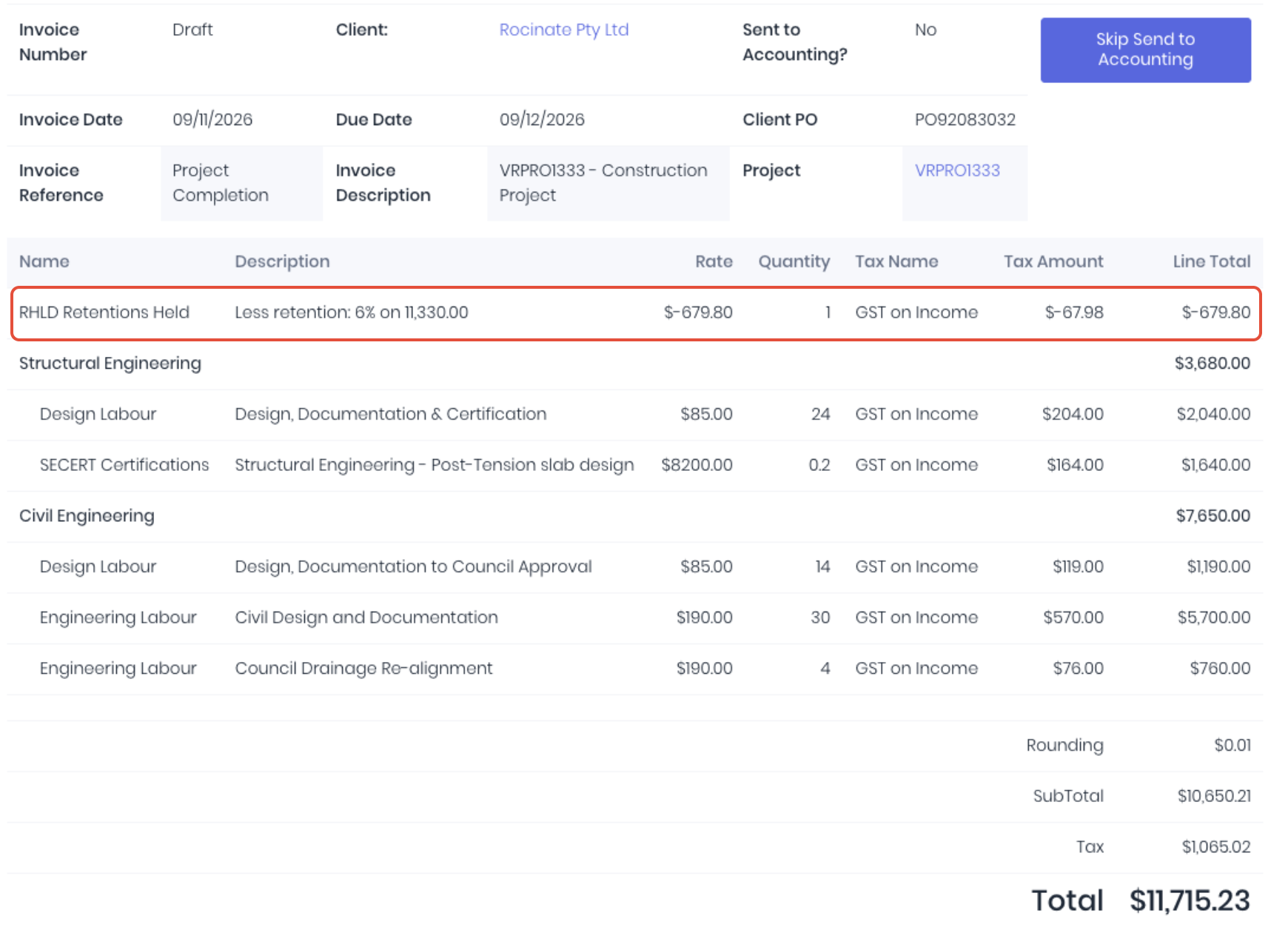
The retention line is an ordinary negative product line on your retention product, so it syncs to your accounting system like any other line. The retention row will appear when you edit a draft invoice with claims for a project with retention. Note: An approved invoice holding retention can't be taken back to draft or deleted if that retention has already been claimed back. Credit or adjust the release invoice first.
When raising project group invoices with retentions, one retention line per project will be created, each worked out on that project's share of the claim.
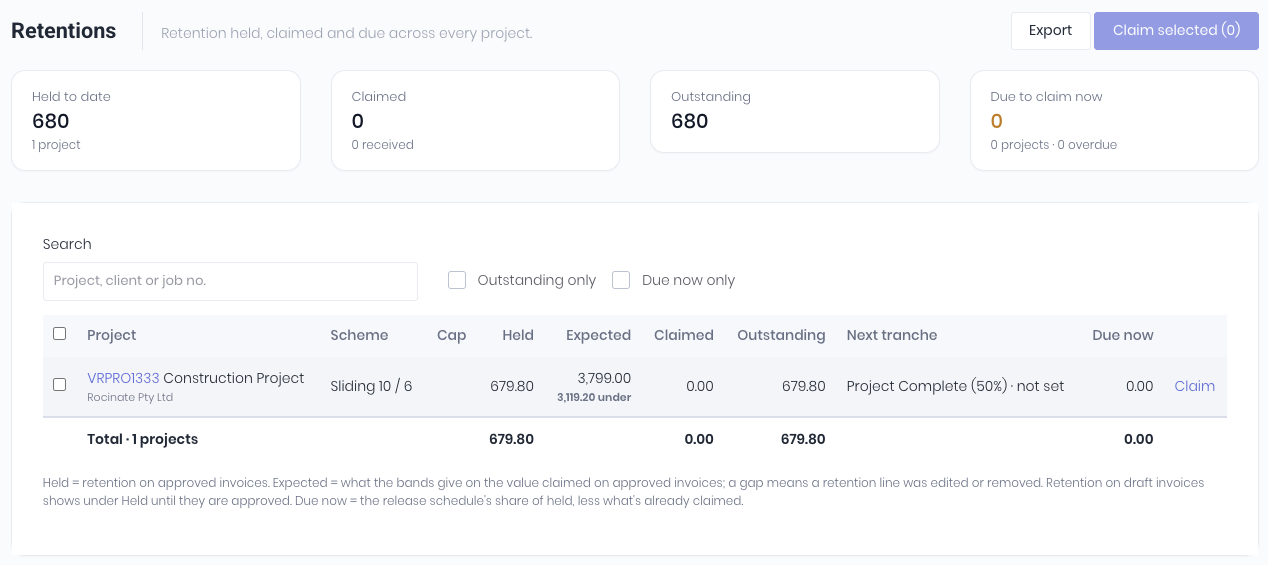
You can then manage your retentions and claim schedule from the retentions dashboard.
Was this article helpful?
That’s Great!
Thank you for your feedback
Sorry! We couldn't be helpful
Thank you for your feedback
Feedback sent
We appreciate your effort and will try to fix the article