The Retentions dashboard shows retention held, claimed and due across every project, so you can see what to claim back and claim it in bulk. Access the dashboard from Retentions in the main menu. You can Search to find projects by job number, project name, client or project group. Tick Outstanding Only to hide projects with nothing left to claim. Tick Due Now only to show only projects with retention due to claim now.
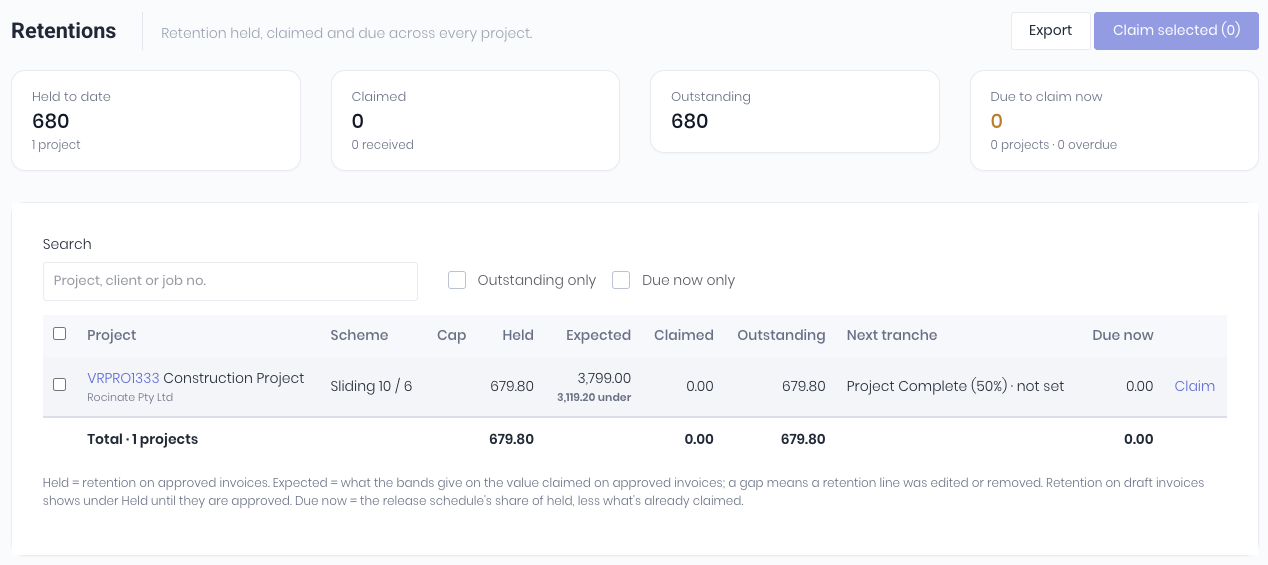
The dashboard widgets display:
- Held to date - Retention held on approved invoices, the number of projects, and any held on draft invoices.
- Claimed - Retention claimed back, and how much has been received.
- Outstanding - Retention still to claim back.
- Due to claim now - Retention past its release date and not yet claimed, with the number of projects and how many are overdue.
The retentions are displayed in the table. Each row is a Project, showing the following details:
- Scheme - Summary of the project's retention band.
- Cap - Retention cap value (if set)
- Held - Retention held on approved invoices.
- Expected - Expected retention total.
- Claimed - Retention value invoiced to date.
- Outstanding - Held minus claimed: retention value you can still claim back.
- Next tranche - Next retention trigger in the project retention scheme schedule.
- Due now - Retention amount due based on project retention scheme schedule.
Note: Projects in a project group are listed together under the group, with a subtotal.
To raise a retention claim from the dashboard, click Claim on the end of the project's row. To raise multiple claims,
use the checkboxes to selec the projects to claim. Note: Tick a project group's box to select its whole group.
Click Claim Selected.
Click Export to download a CSV list of your retentions.
Was this article helpful?
That’s Great!
Thank you for your feedback
Sorry! We couldn't be helpful
Thank you for your feedback
Feedback sent
We appreciate your effort and will try to fix the article