An advanced purchase order allows you to purchase line items from multiple projects and/or for stock on hand centrally on one purchase order. This allows you to streamline the purchasing workflow from across multiple stock orders, projects and production jobs while sending the Supplier one purchase order instead of many. Advanced purchase orders can also be used to purchase a mix of stock items and project items. If a FIFO product is added to an advanced PO without using the project dropdown, it will increase that product's stock on hand on receipt.
- Creating Advanced Purchase Orders
- Project Line Items
- Stock Line Items
- Receiving Advanced Purchase Orders
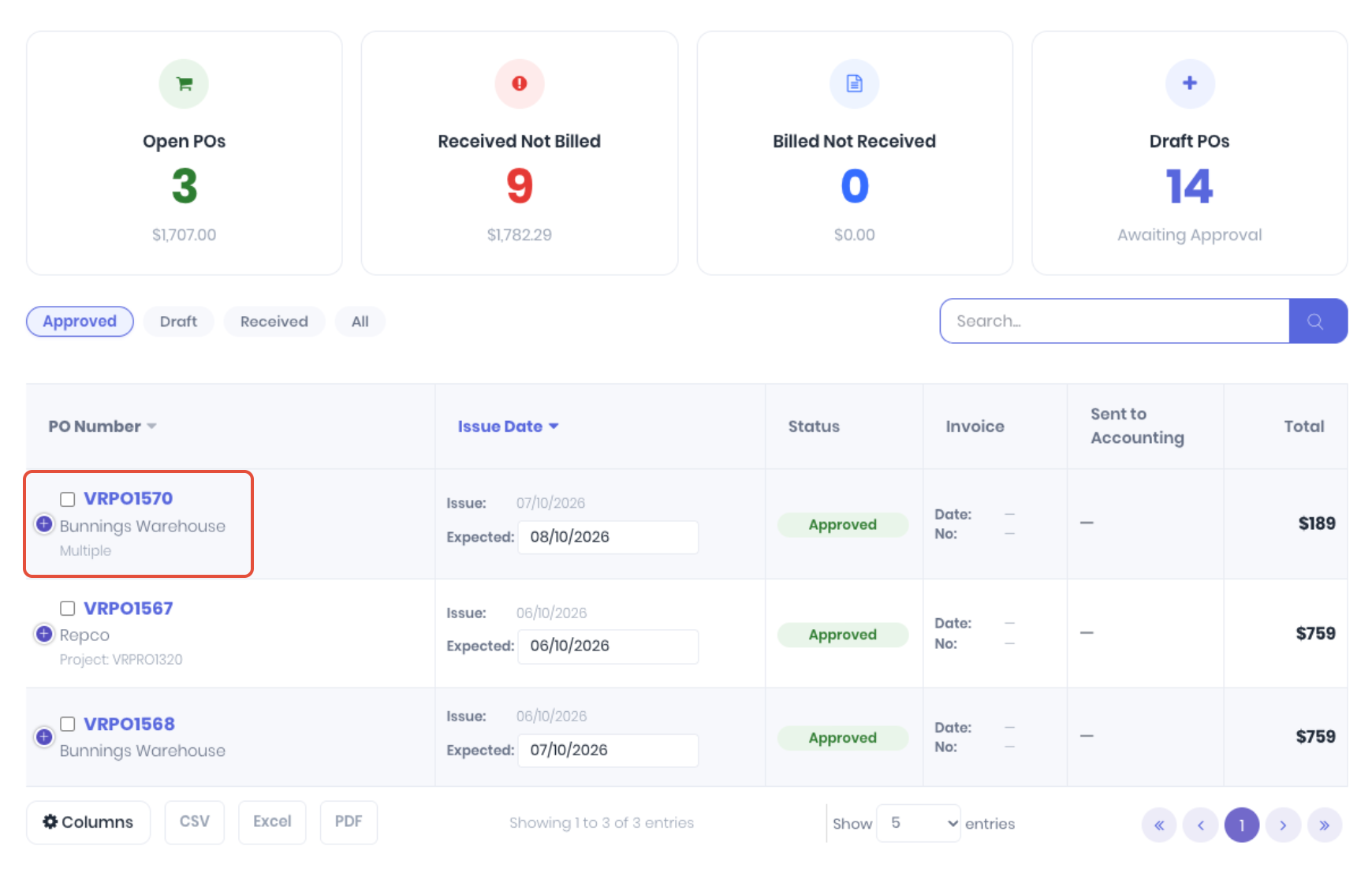
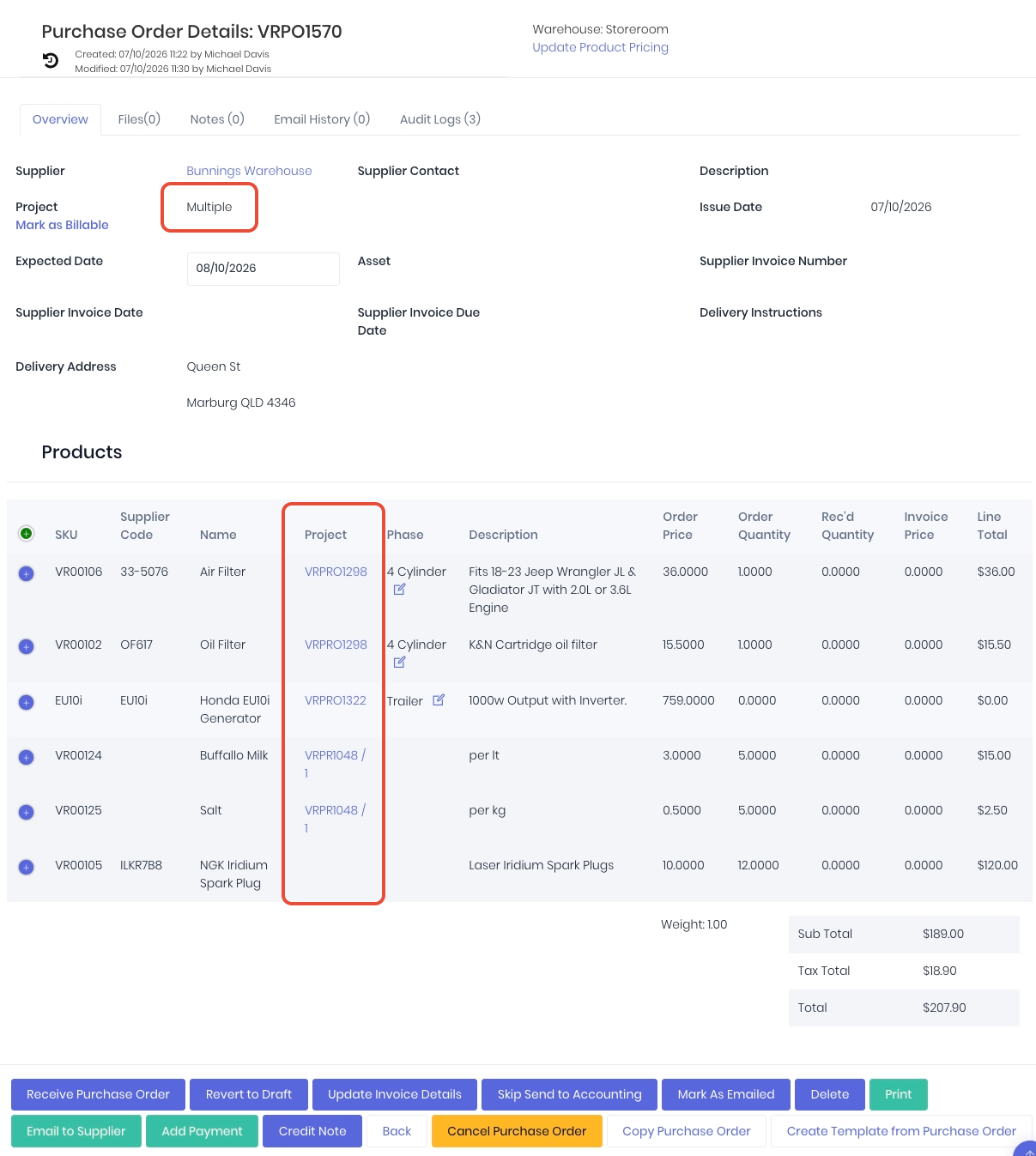
You can identify advanced purchase orders easily in the purchase order dashboard as it will displayed with Multiple in the usual project location.
Creating Advanced Purchase Orders
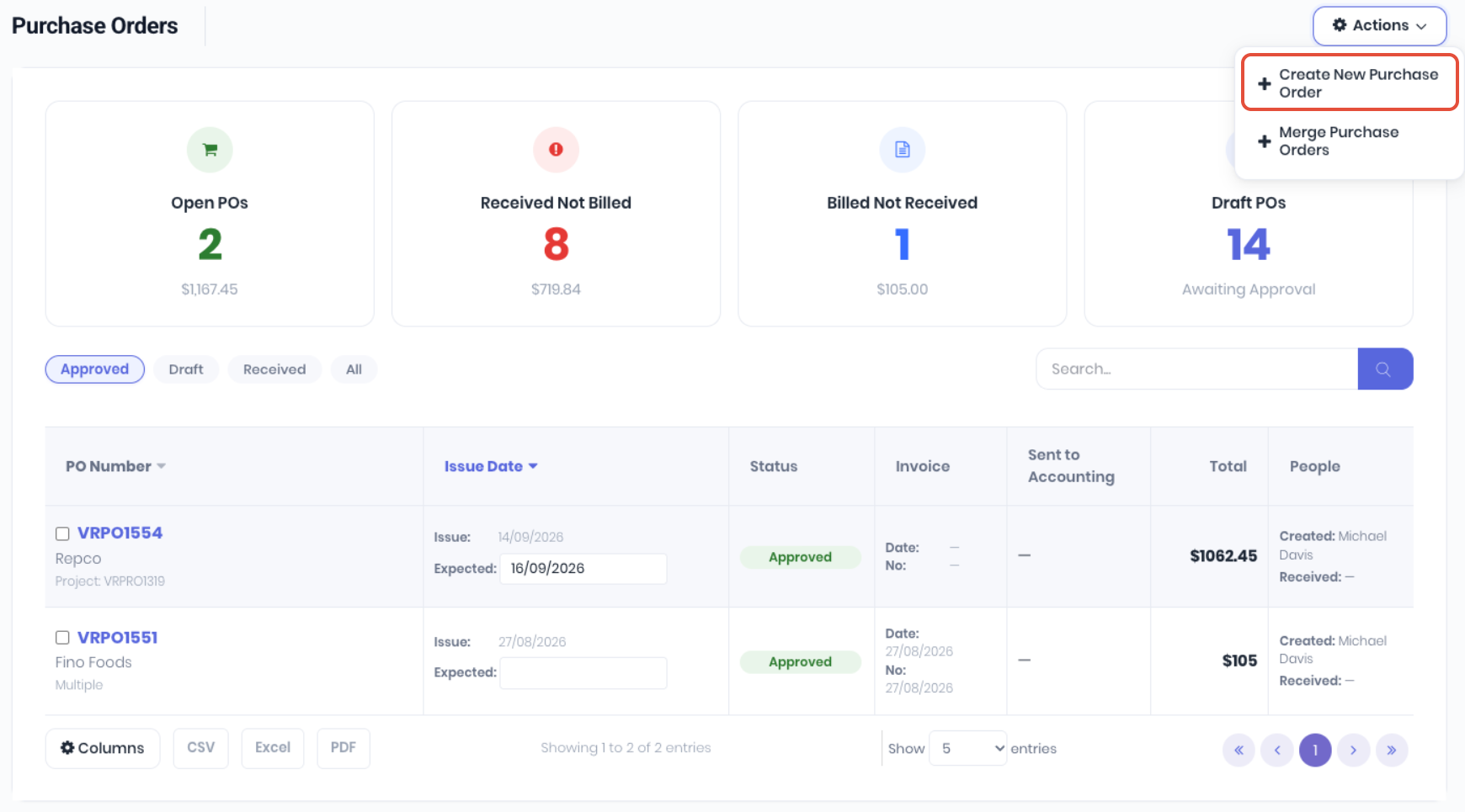
Click New Purchase Order from the purchases menu or Create New Purchase Order from the project dashboard actions button and fill out the new purchase order details. WorkGuru will prompt if you missed any required fields.
Project Line Items
To purchase products for multiple projects, click Advanced Purchase. Note: If you select the purchase order's supplier via the Supplier dropdown BEFORE clicking Advanced Purchase, only products from that supplier will display on the select projects in the advanced purchase options popup.
In the advanced purchase options popup, select the project you want to purchase items for from the Projects dropdown.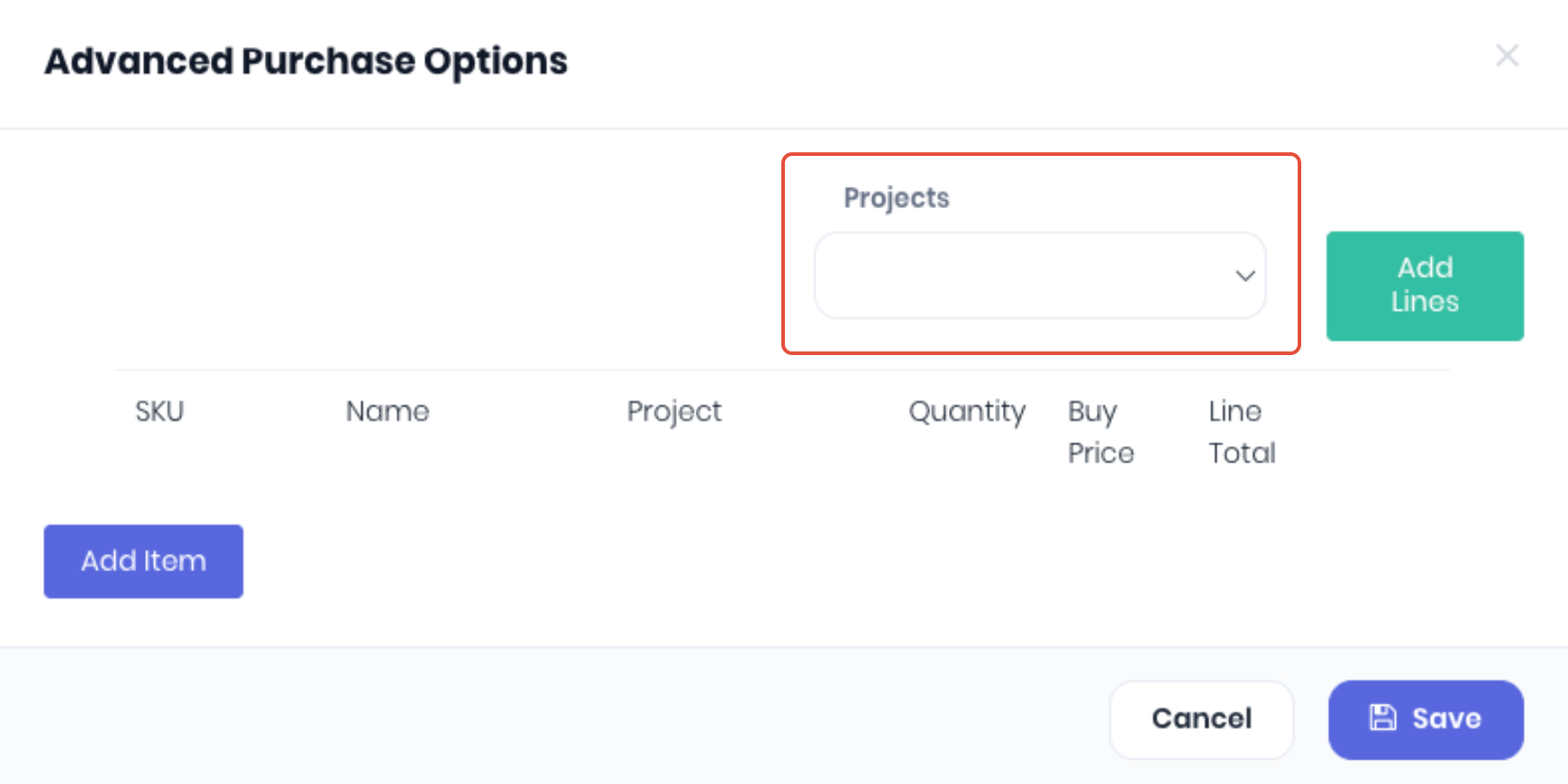
Adding Forecast Products
Click Add Lines if you have forecast line items already on the selected project. If you have pre-selected a supplier on the advanced PO, this will only display product lines that meet the following rules:
- Products on the project that have the selected PO supplier set as the default product supplier.
- Products on the project that have no default product supplier assigned.
NOTE: If you have selected a project and no line items display, it means either:
- That there are no products on that project that have that supplier set as the default product supplier
- The project line items are ad-hoc product lines
From the displayed line items, you do not need to add all the lines if you don't need them. You can remove line items you do not want to add to the advanced order and/or edit the quantities required. Alternatively you can edit quantities after they have been added to the advanced PO. If the selected project contains phases, you can select or update the Phase for each forecast line item as required.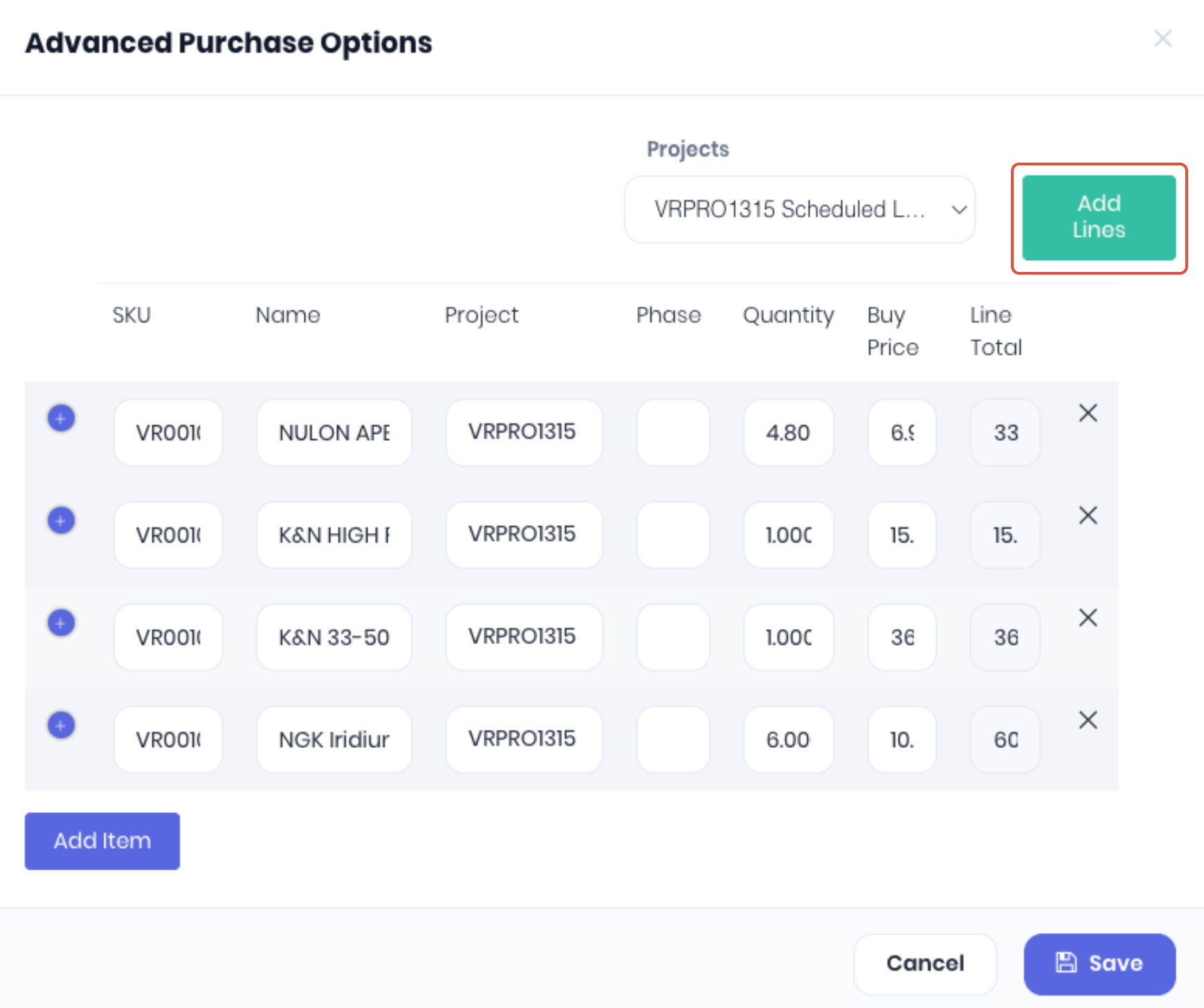
Adding Non-Forecast Products
If the line item you need to purchase is NOT part pf the the project forecast, click the Add Item and search either the Sku and the Name to add the required Quantity to the advanced purchase order for that project. If the selected project contains phases, you can select or update the Phase for each added line item as required. Repeat this Add Item process to purchase multiple products for the selected project.
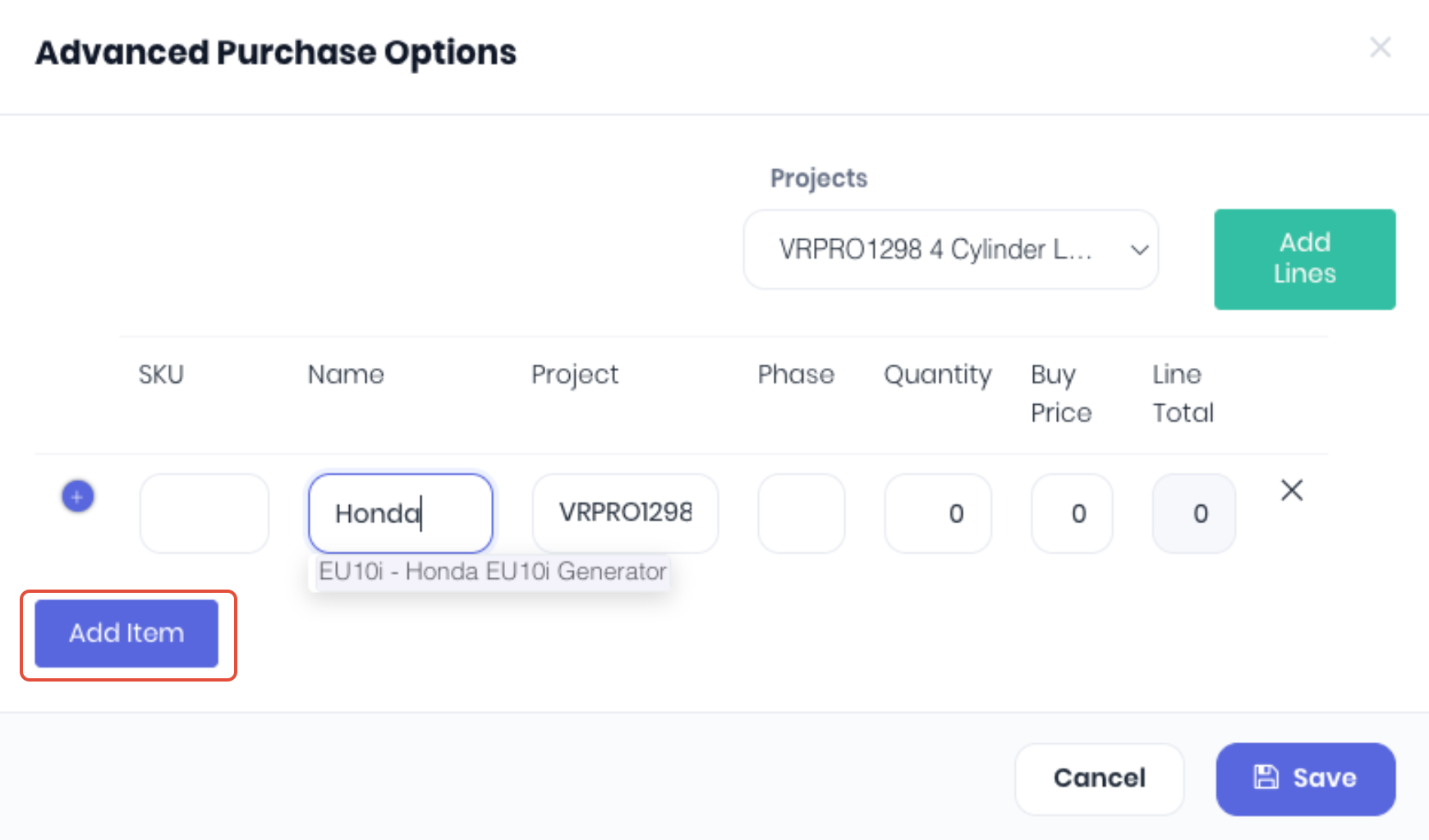
Click Save to add the all line items to the advanced PO. Repeat the process (click Advanced Purchase) for as many projects/production jobs required to combine onto one purchase order for the supplier. The advanced purchase order will display the project or production jobs the line items are assigned to:
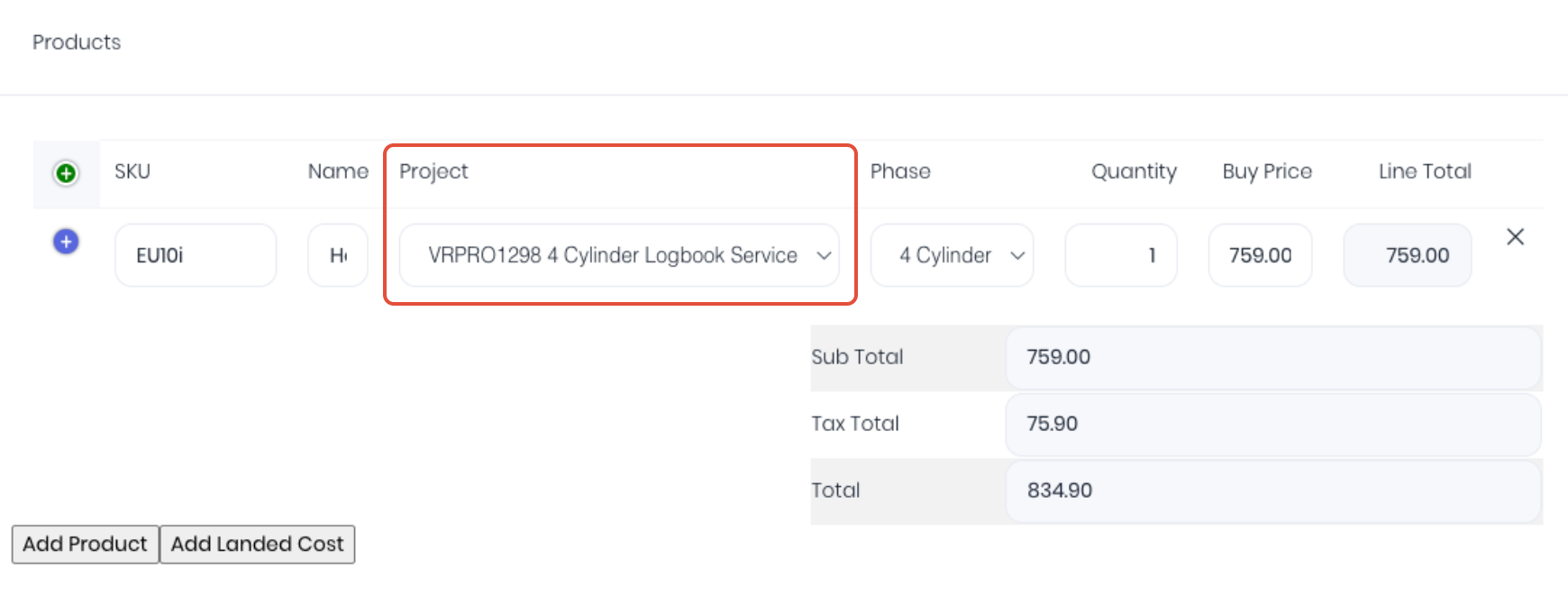
If the incorrect project is assigned you can click on the Project dropdown and select another project.
Stock Line Items
If you need to purchase products for both projects and stock on hand. Use the standard Add Product button on the advanced purchase order to add NonStock or FIFO/Batch/Serial products. Ensure that the project dropdown is Blank, which is how you can identify a stock order line. Stock controlled products (FIFO/Batch/Serial) with no project assignment will increase the stock on hand when received. Landed costs can also be allocated as per a normal stock purchase.
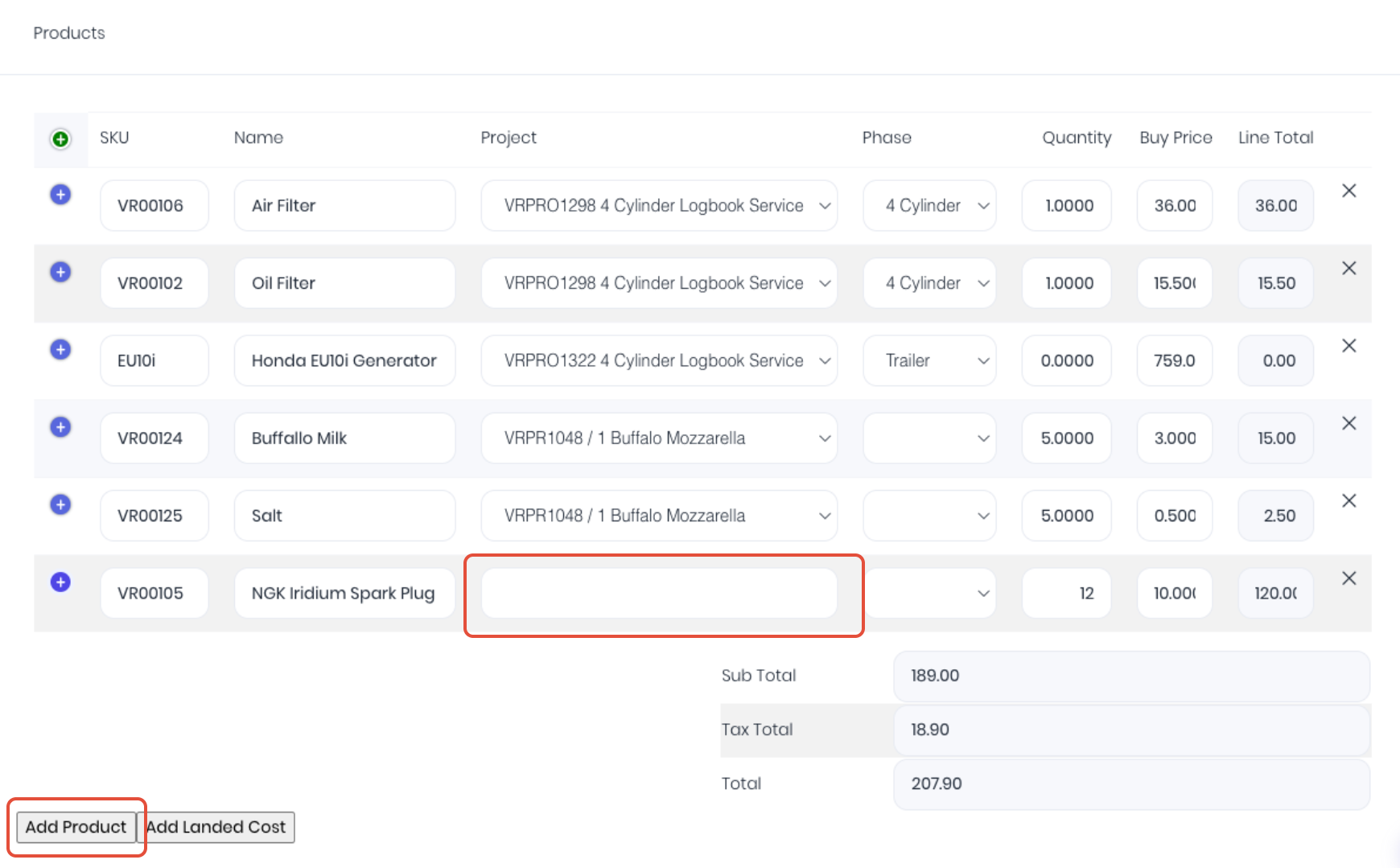
Save and Approve the new PO as per a normal stock order. You can confirm the project and production job assignments from the advanced purchase order details page.
Receiving Advanced Purchase Orders
When you receive and cost the advanced purchase order as per the normal workflow, WorkGuru will automatically update the line items as actuals on each assigned project. WorkGuru will only attribute the value of the advanced purchase order's line items to each of the projects they were raised from, not the total advanced purchase order's value. Stock controlled (FIFO/Batch/Serial) product lines NOT assigned to a project will increase the products stock on hand when the advanced purchase order is receipted.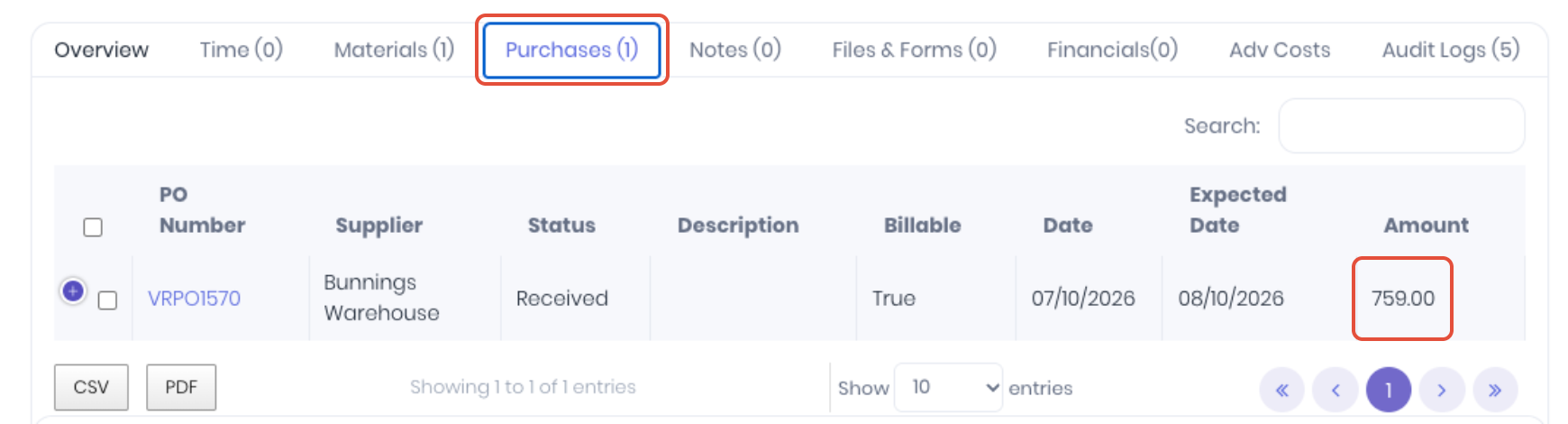
Advanced purchase orders can also be invoiced as a disbursement by marking the purchase order as billable just like a project purchase order. Only the line items in the advanced purchase order will linked to the project will display in the Quick Invoice page. Note: You cannot flag individual line items as billable, it will apply to all lines on all projects/production jobs raised on the advanced purchase order.
Was this article helpful?
That’s Great!
Thank you for your feedback
Sorry! We couldn't be helpful
Thank you for your feedback
Feedback sent
We appreciate your effort and will try to fix the article