If your timesheet workflow requires an approval process, you can centrally manage all the timesheets submitted in a particular project or time period in the WorkGuru timesheet dashboard. Note: The status of the timesheet (draft, submitted, approved etc) does not affect the ability to invoice the timesheet entry if billable.
In order to be able to approve timesheets, the timesheet manger/approver needs to have the Allow to approve timesheets permission enabled on their user account or role.

Daily Timesheets
Approve Timesheets
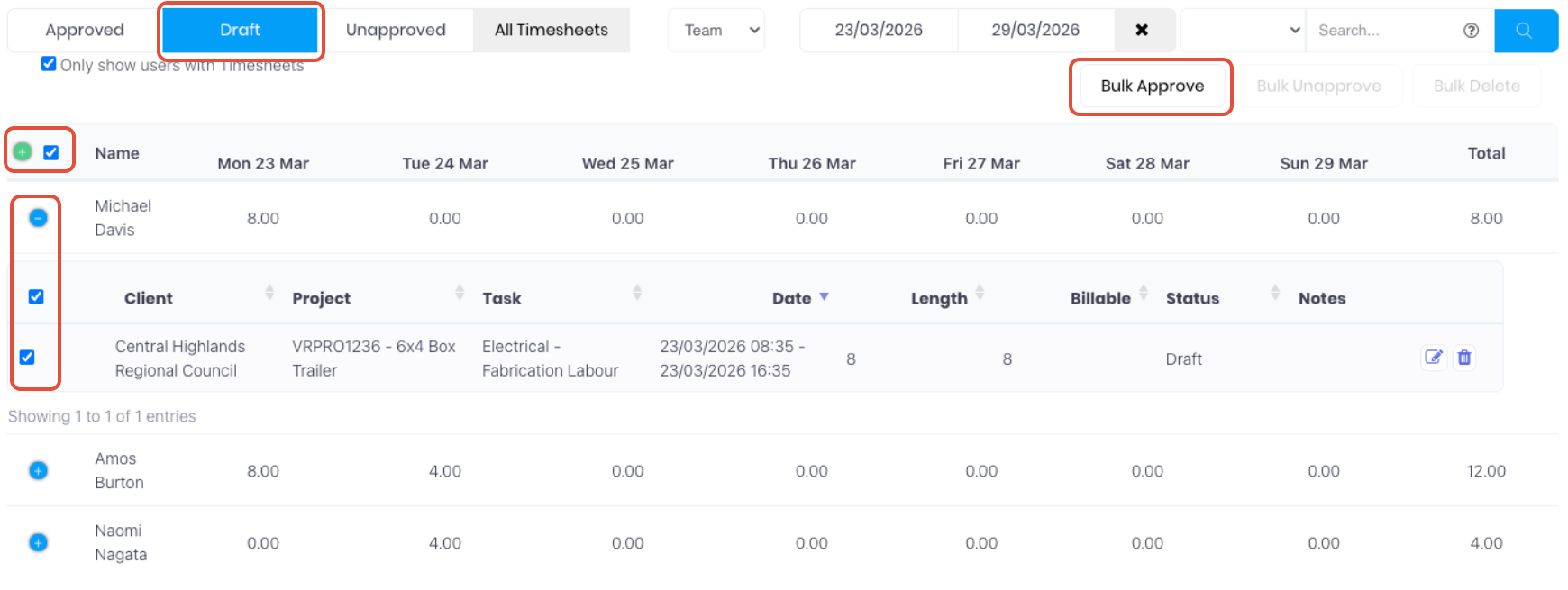
From the timesheet dashboard, the timesheet manager can then approve timesheets in the Draft tab. The list displays to the latest timesheets, using the Date range and the Search field, you can filter timesheets by user, task, client, project, project manager or timesheet note. You can expand all users to review and approve all timesheets by selecting the green plus "+" icon at the start of the timesheet table header. To review and approve a users's individual timesheets, expand the row by clicking the blue plus "+" icon at the start of the user's row. You can approve all or multiple timesheets by selecting the relevant check boxes and clicking Bulk Approve.
Unapprove Timesheets
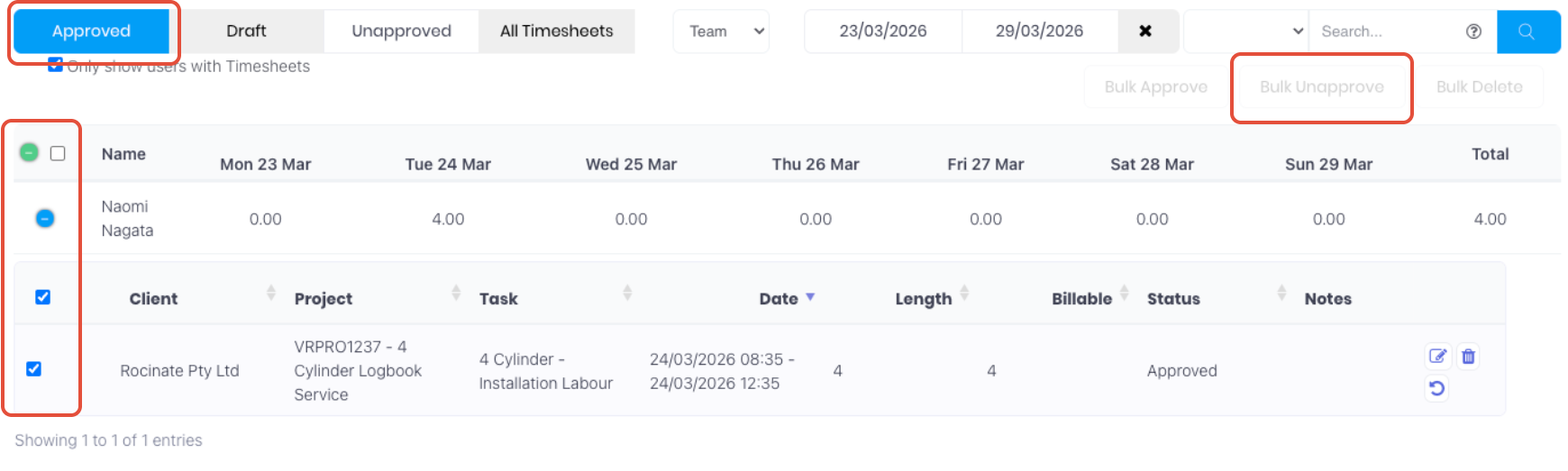
Timesheet approval can be reversed if required. From the timesheet dashboard's Approved tab, the timesheet manager can unapprove the timesheets in bulk or individually by editing each timesheets or. The list displays to the latest timesheets, using the Date range and the Search field, you can filter timesheets by project, user, client or task. You can approve all or multiple timesheets by selecting the relevant check boxes and clicking Bulk UnApprove.
Weekly Timesheets
Approve Timesheets
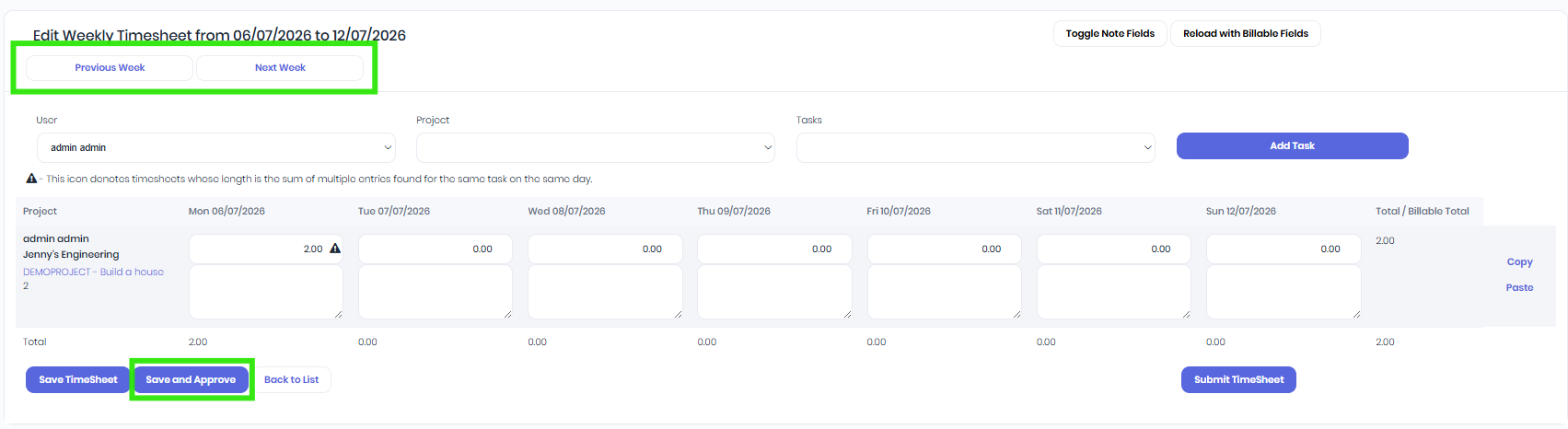
From the timesheet dashboard, the timesheet manager can then approve weekly timesheets by clicking on the Update Weekly Timesheet button on the top-right of the dashboard. This will take you to a page where a timesheet manager can add extra timesheets and importantly, save and approve timesheets by week. Timesheets are approved on a by-week-basis, so if wanting to approve timesheets for another week, use the "Previous Week" or "Next Week" buttons on the top-left of the screen.
Unapprove Timesheets
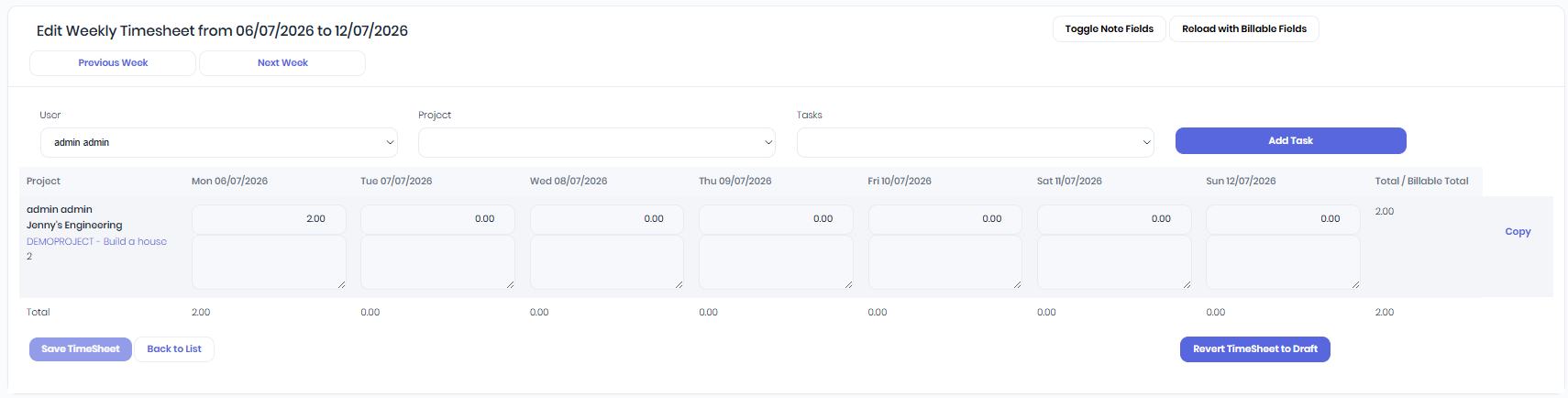
To unapproved an approved weekly timesheet - navigate to the Edit Weekly Timesheet screen as seen above, and hit the "Revert Timesheets To Draft" button, this will revert the weekly timesheet (not a single days timesheet) to draft in order to make adjustments and mark as either saved or saved and approve to finish.
Was this article helpful?
That’s Great!
Thank you for your feedback
Sorry! We couldn't be helpful
Thank you for your feedback
Feedback sent
We appreciate your effort and will try to fix the article