Project Templates can include surcharge and discount lines alongside your standard product and task lines. When a new project is created from the template, these percentage lines are automatically applied, saving you from manually adding them every time.
You can add your existing surcharge and discount templates to a project template from the Actions dropdown on the project templates dashboard (Administration -> Project Templates).
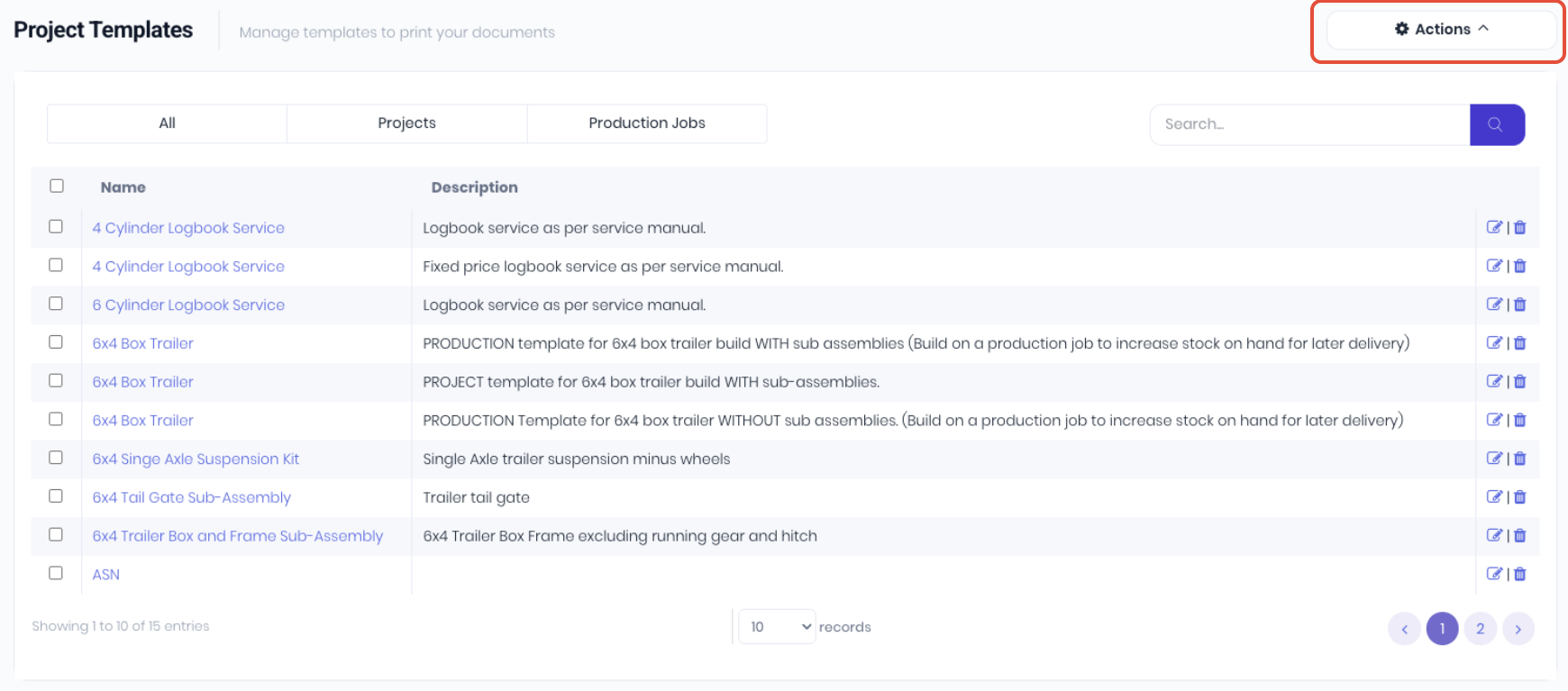
Use the checkboxes to select the templates you want to apply surcharges or discounts and Select Bulk Add Percentage Lines from the Actions menu.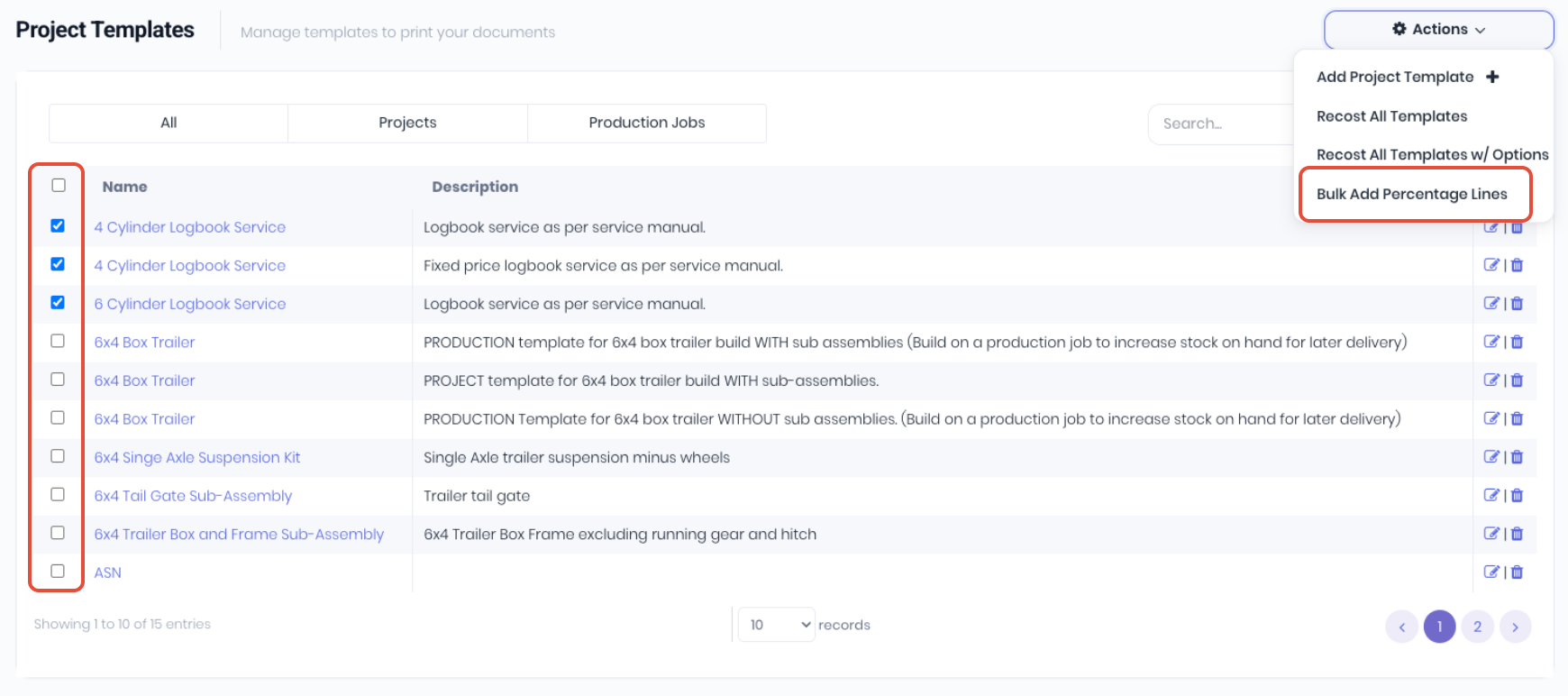
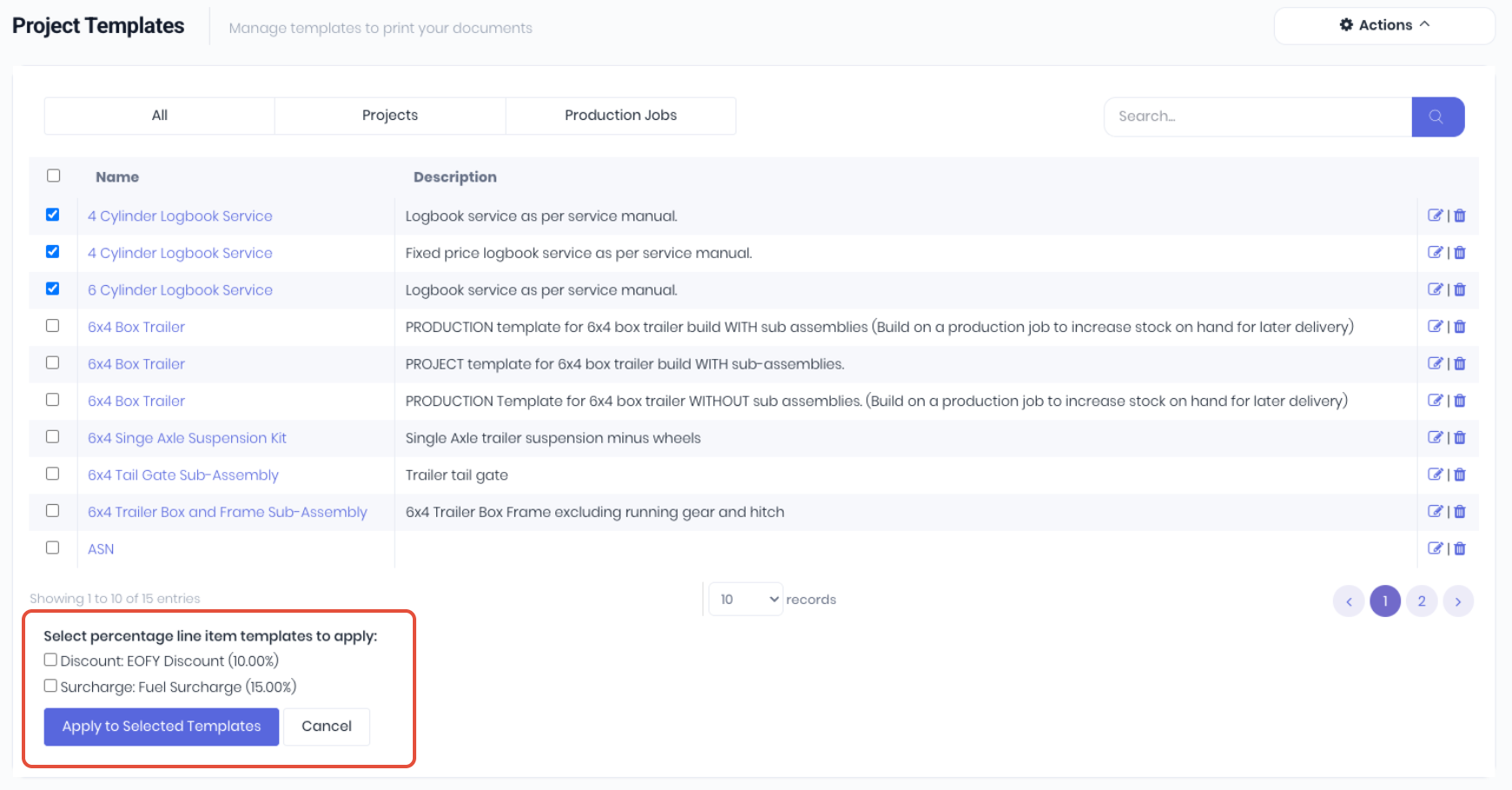
Select the required surcharges or discounts using the check boxes and click Apply to Selected Templates.
Surcharge and discount lines created from a template behave just like manually added lines once they are on the project. You can modify the percentage, change the type, update the tax settings, or remove them entirely without affecting the original template.
Was this article helpful?
That’s Great!
Thank you for your feedback
Sorry! We couldn't be helpful
Thank you for your feedback
Feedback sent
We appreciate your effort and will try to fix the article