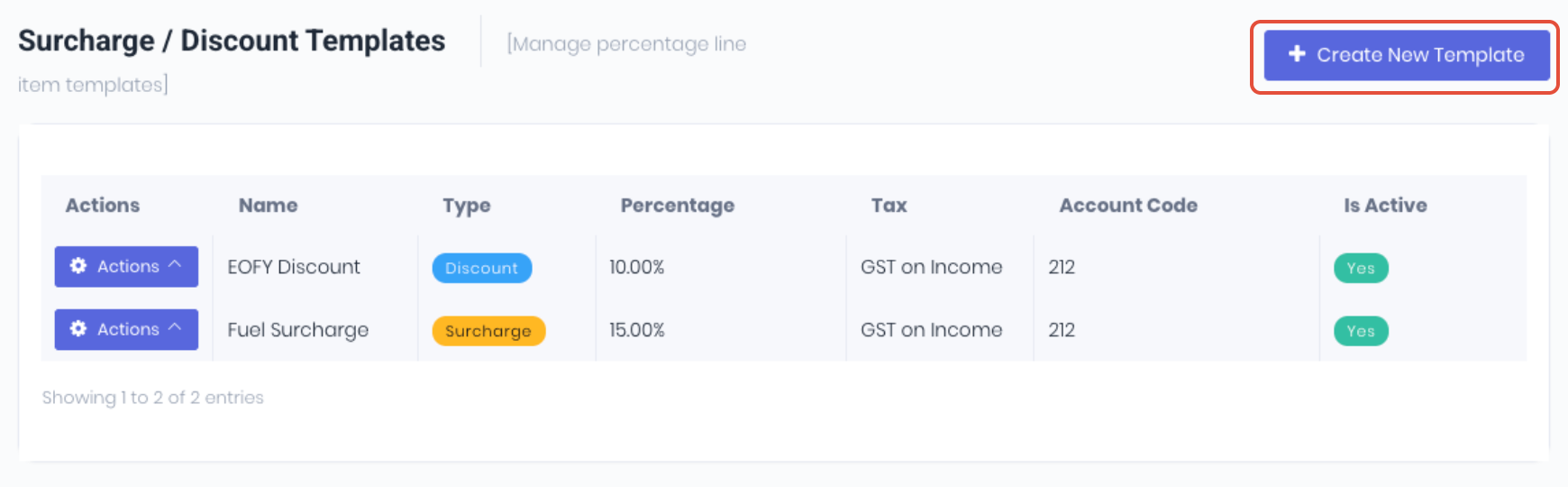
Surcharge and discount templates allow you to create reusable presets that can be quickly applied to Quotes, Projects, Stock Sales, and Invoices. Instead of manually entering a name, percentage, and tax type each time, you can search for and select a saved template. Navigate to Administration → Surcharge / Discount Templates. The templates dashboard lists all existing templates with their type, name, percentage, tax details, account code, and active status.
Creating a New Template
Click the + Create New Template button in the top-right corner. A modal will appear with the following fields:
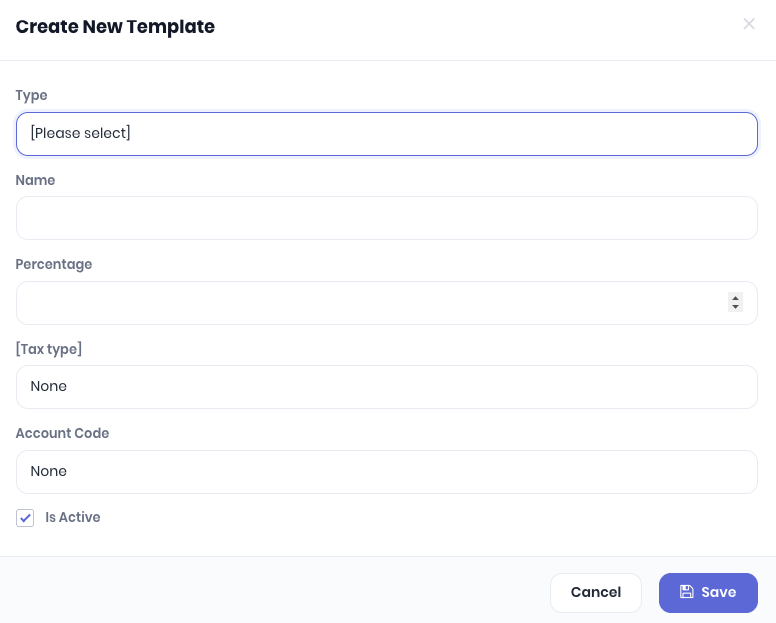
- Type – Select either Surcharge or Discount. Surcharges add to the transaction total; discounts subtract from it.
- Name – A descriptive label for the template, such as “Fuel Levy” or “Early Payment Discount”.
- Percentage – The percentage value to apply against the product and task subtotal (e.g.
5for 5%). - Tax Type – The tax treatment to apply. Select from the tax rates configured in your accounting settings (e.g. “GST on Income”), or “None” if the line is not taxable.
- Account Code – The GL account code for the surcharge or discount. This maps to the revenue or expense account in your accounting integration (Xero, MYOB, or QBO).
- Is Active – When checked, the template appears in the search results when adding surcharges or discounts to transactions. Uncheck to hide the template without deleting it.
Editing a Template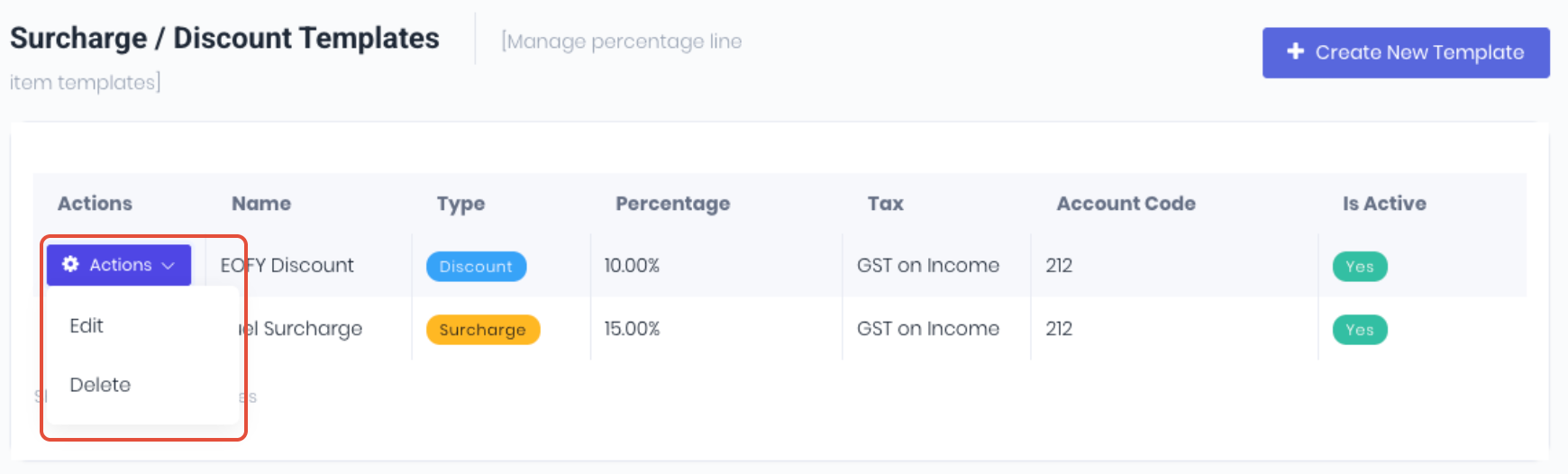
From the templates list, click the Actions button on the row of the template you want to modify, then select Edit. The same modal will appear pre-filled with the current values. Make your changes and click Save.
Deactivating a Template
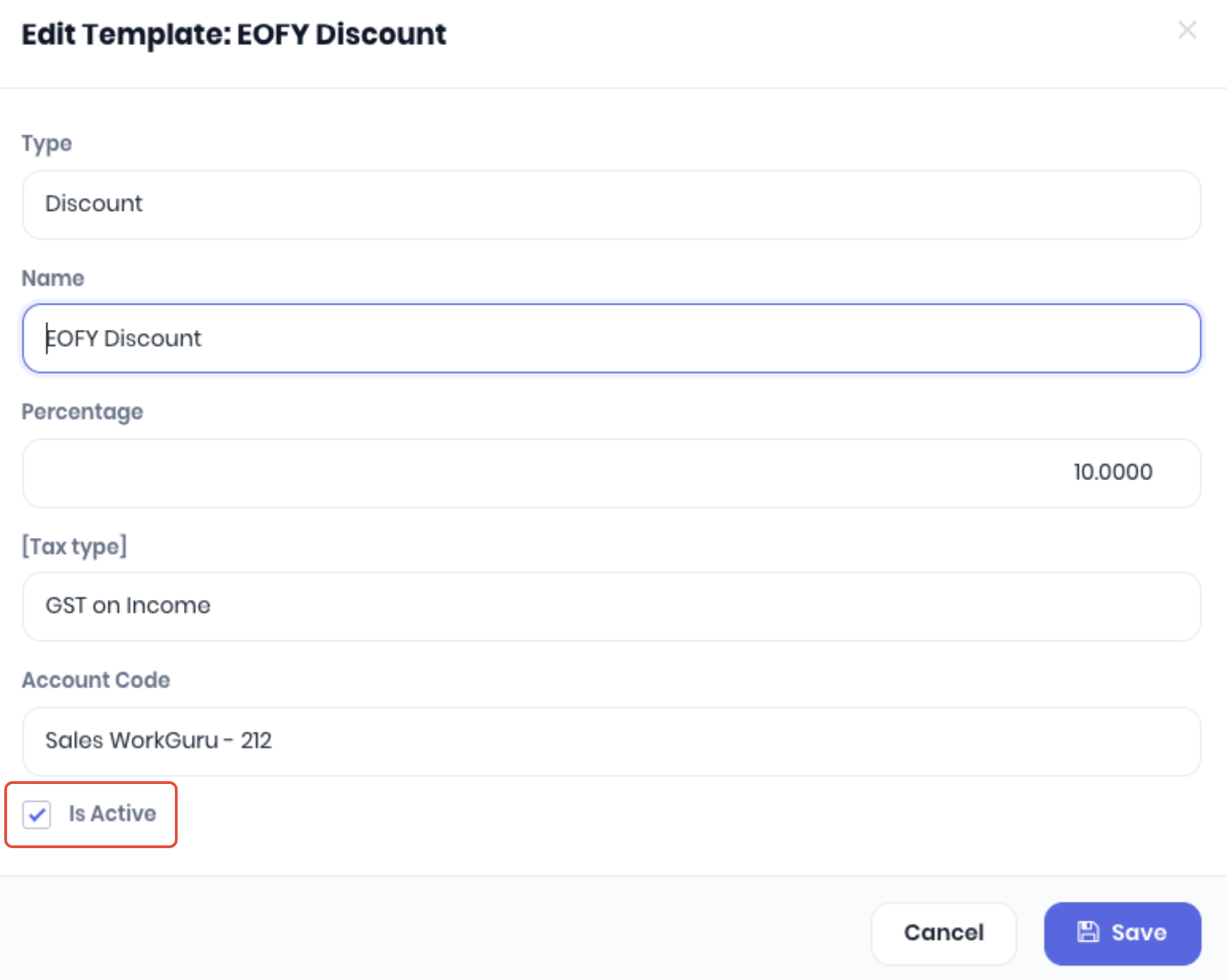
Rather than deleting templates, you can deactivate them. Edit the template and uncheck the Is Active checkbox. Deactivated templates will no longer appear when searching for templates on transaction pages, but any existing lines that were created from the template remain unaffected.
Using Templates on Transactions
When you click Add Surcharge / Discount on a Quote, Project, Stock Sale, or Invoice, a new row is added to the surcharges table. The Name field supports type-ahead search — begin typing and matching active templates will appear in a dropdown. Selecting a template auto-fills the type, name, percentage, tax type, and account code fields.
Was this article helpful?
That’s Great!
Thank you for your feedback
Sorry! We couldn't be helpful
Thank you for your feedback
Feedback sent
We appreciate your effort and will try to fix the article