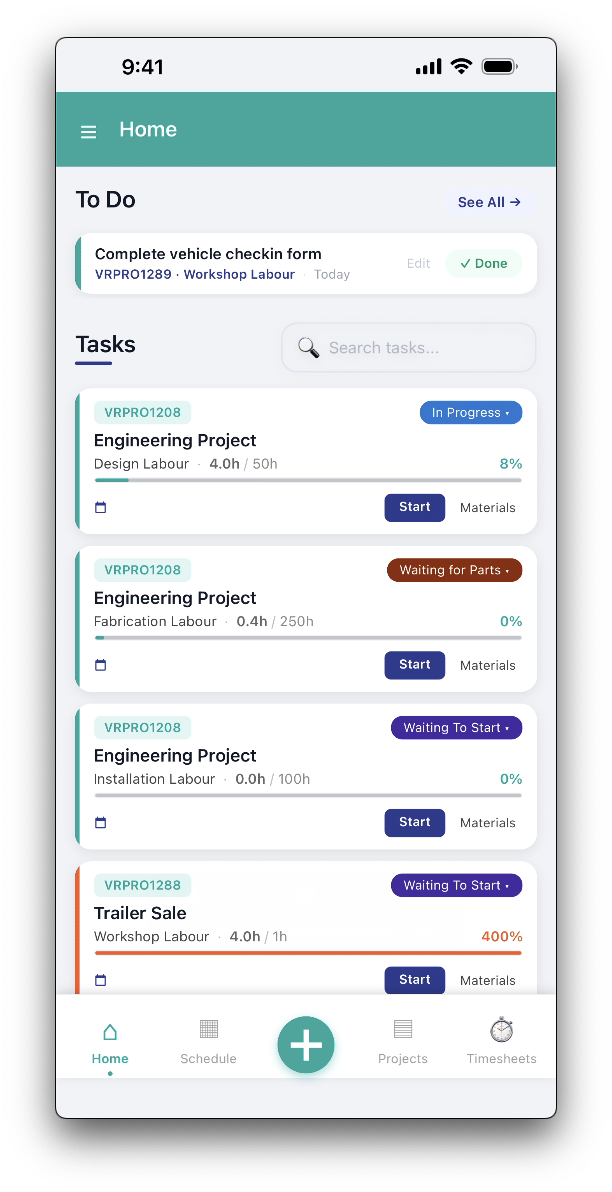
The mobile app is primarily designed to be able to access the most used functionality directly from the home page.
The home page displays the To-Dos and Tasks assigned to the logged in user in schedule order. You simply need to work down the list completing tasks and to-dos.
To-Dos
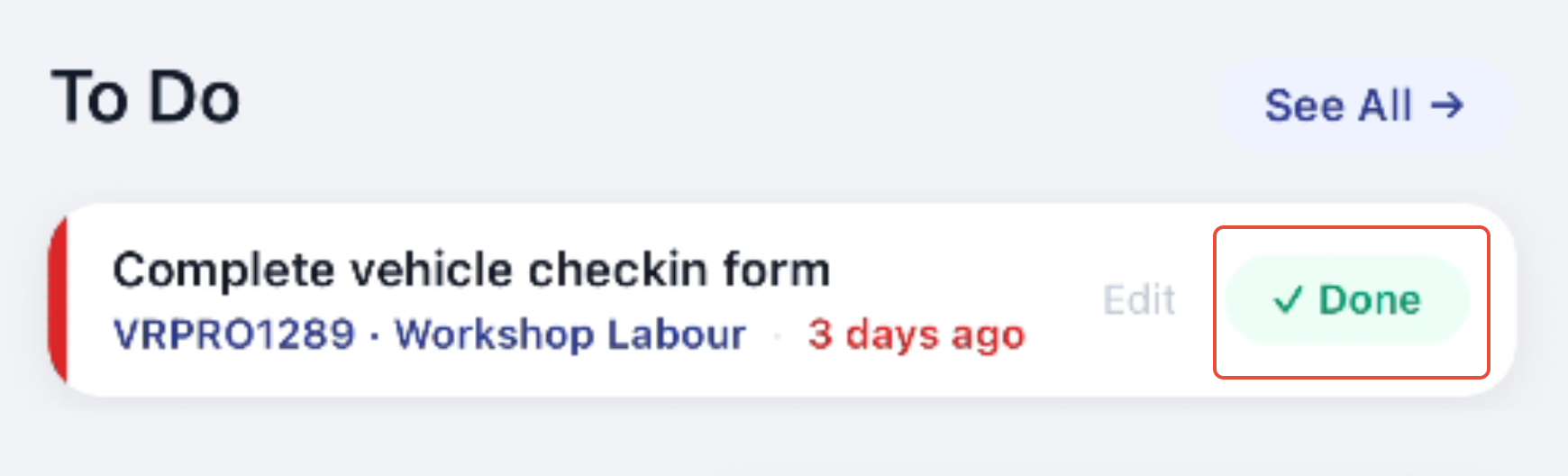
Mark assigned to-dos as complete by tapping on the Done icon. The completed to-do will be removed from the home page.
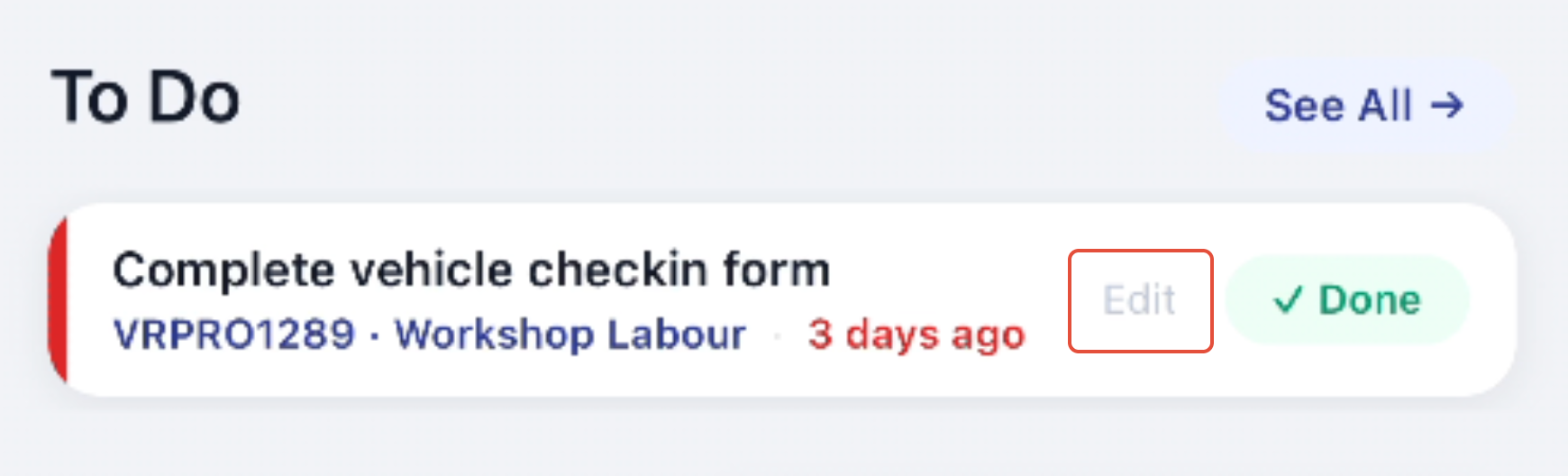
Update assigned to-dos by tapping Edit.
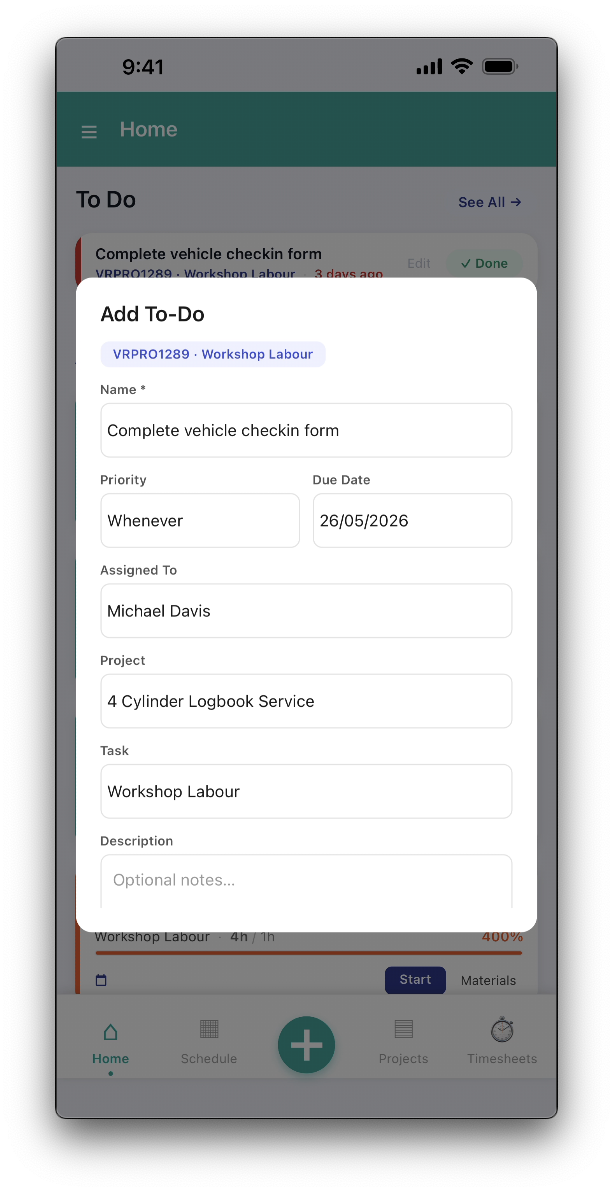
Update fields as required and tap Save to apply changes.
Tasks
Assigned project tasks are displayed in schedule order. Tapping anywhere on the task tile opens the mobile project details page.
Status
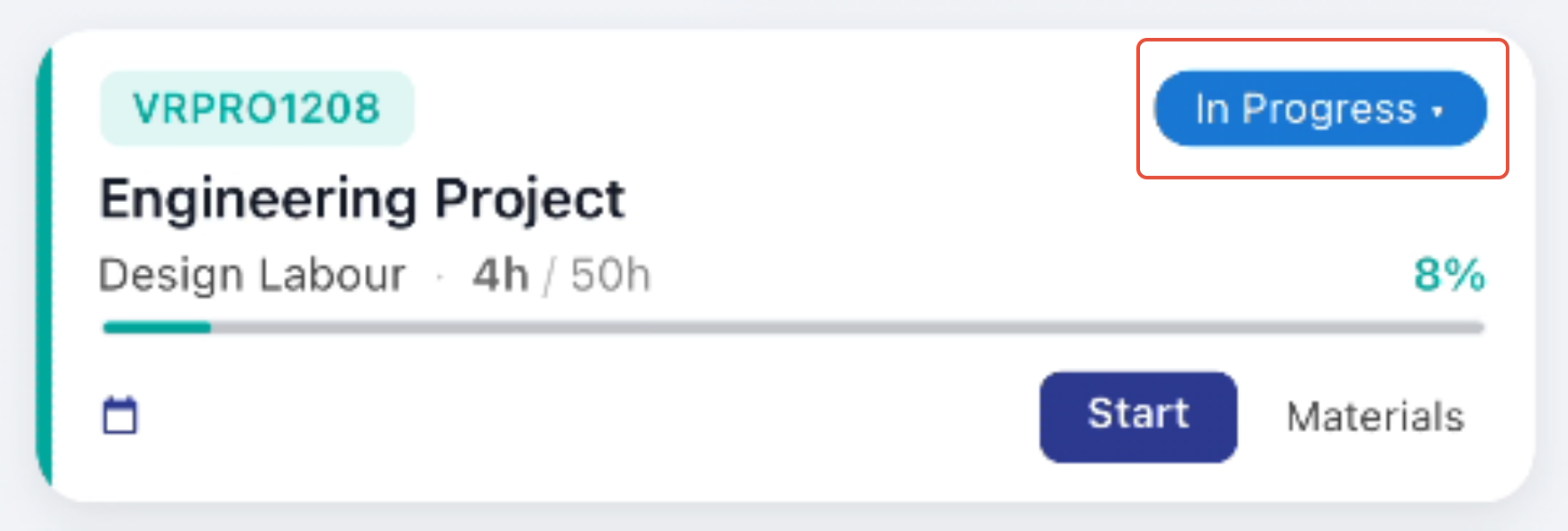
Update task status by tapping on the Status icon.
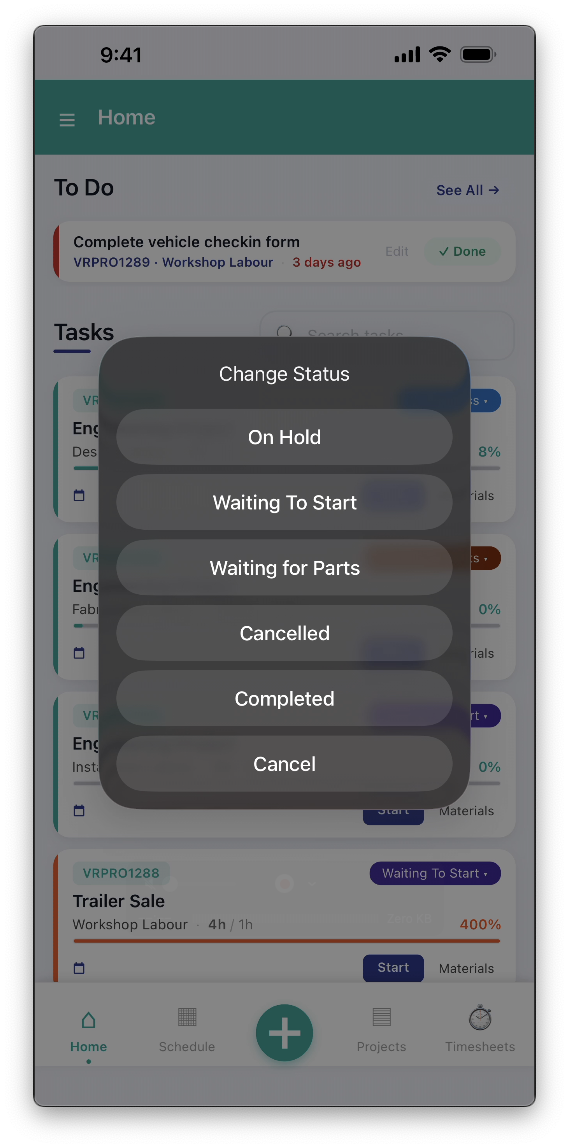
Select the required status from the popup.
Timesheets
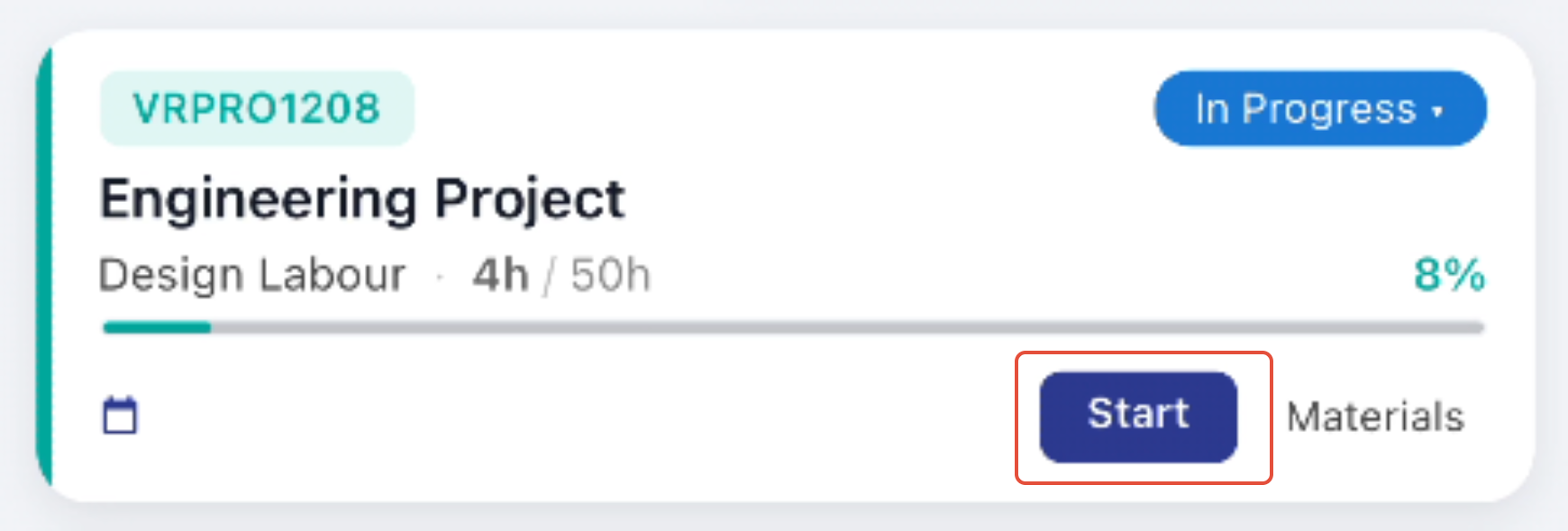
Quickly start a timesheet by tapping Start on the task tile.
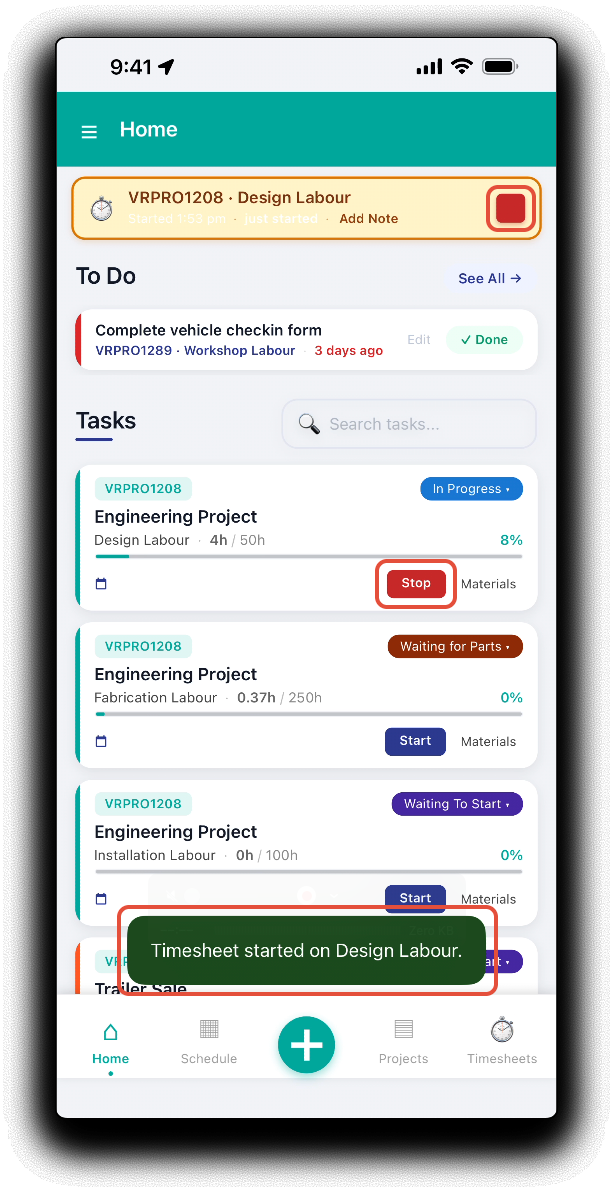
The timesheet will be started on the selected task and displayed on the home page. Stop the timesheet from the timer or the task tile when the task is finished.
Stock Usage
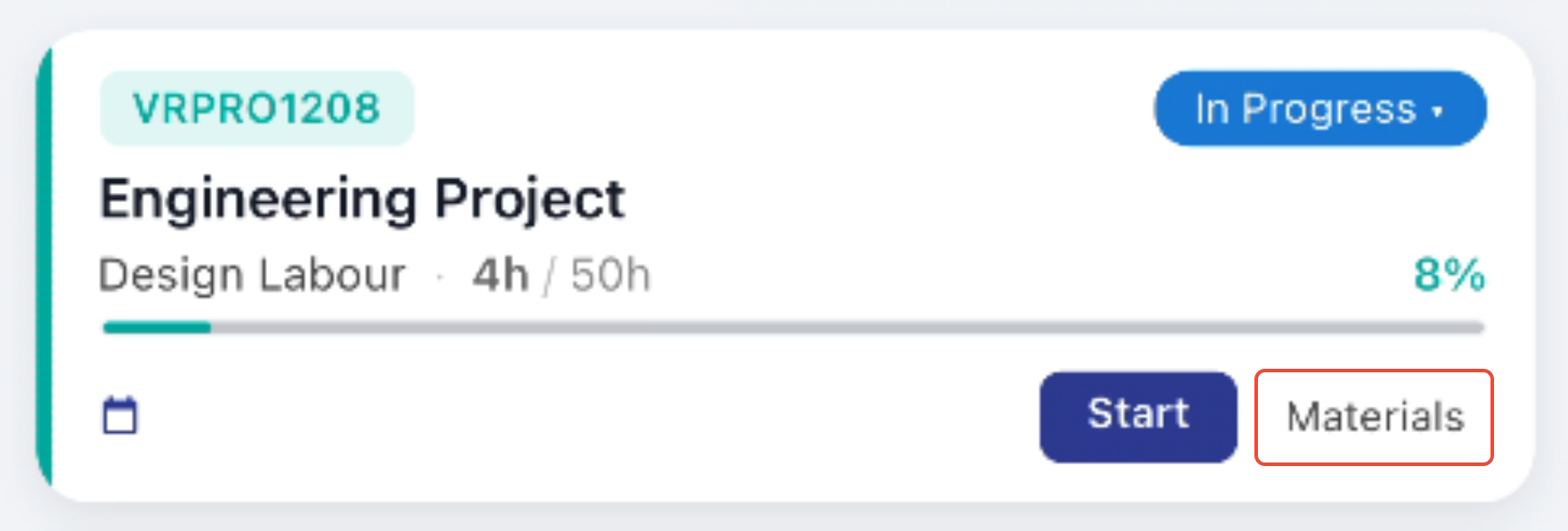
Quickly use materials and services on the project by tapping the Materials on the task tile.
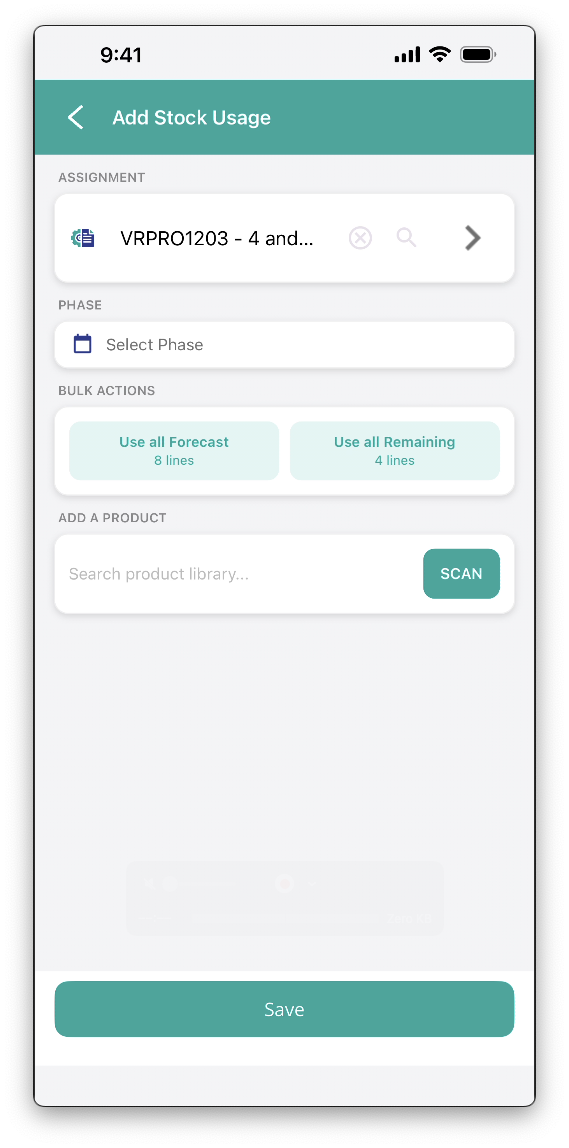
Complete the following fields to use products on the project
- Phase - If the project includes phases, select the relevant phase to assign the usage agains
- Bulk Actions - If the project has forecast materials, use the shortcuts to Use all Forecast or Use all Remaining.
- Add a Product - Search for a product by SKU or name or Scan the product barcode if present. The dropdown list of product results will display available stock on hand in the mobile apps selected warehouse.
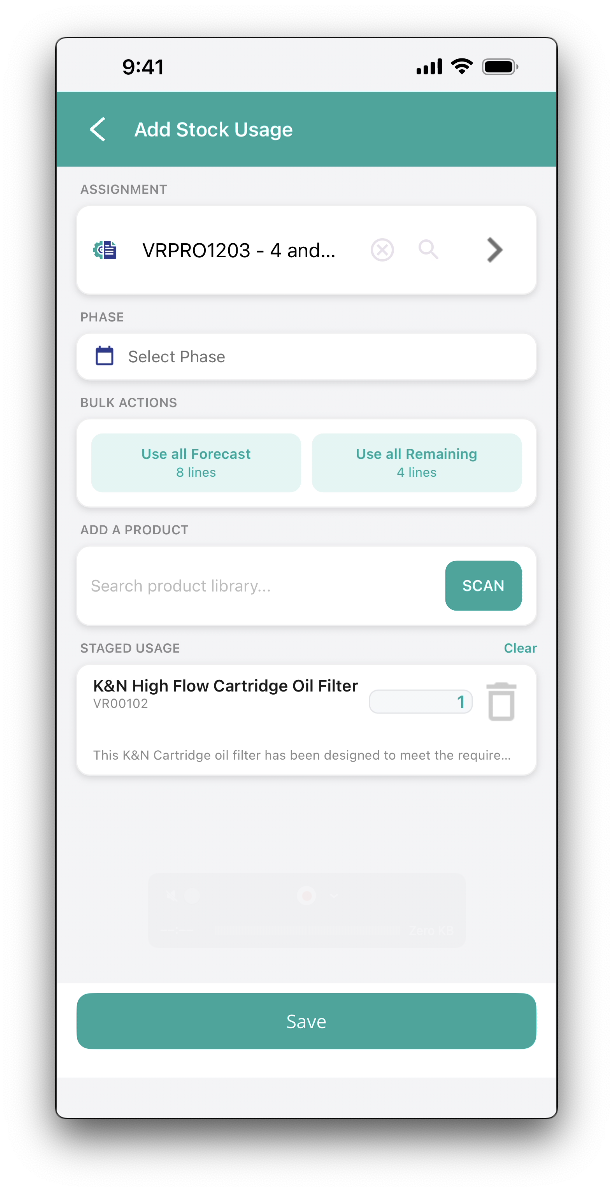
From the Staged Usage section, confirm usage quantities and tap Save to apply usage.
Was this article helpful?
That’s Great!
Thank you for your feedback
Sorry! We couldn't be helpful
Thank you for your feedback
Feedback sent
We appreciate your effort and will try to fix the article