Project chats gives every project in WorkGuru its own private conversation. This ensures the people working on a job can collaborate in one central place, eliminating scattered texts, emails, and phone calls that get lost over time.
Key Features
One Chat Per Project: Each project has a single chat channel. There is no need to create groups manually—the chat belongs directly to the job.
Real-Time Messaging: Messages appear instantly for everyone in the chat while they have WorkGuru open. No page refreshing needed.
Team Privacy: Only people who are members of a project's chat can read or post in it.
Permanent History: The conversation stays with the project. When a new team member joins later, the entire history is right there—not lost in someone's inbox.
Note on Closed Projects: When a project is marked Complete, its chat is closed. The history is saved permanently for reference, but the conversation stops accepting new messages.
Where to Find the Chats Functionality
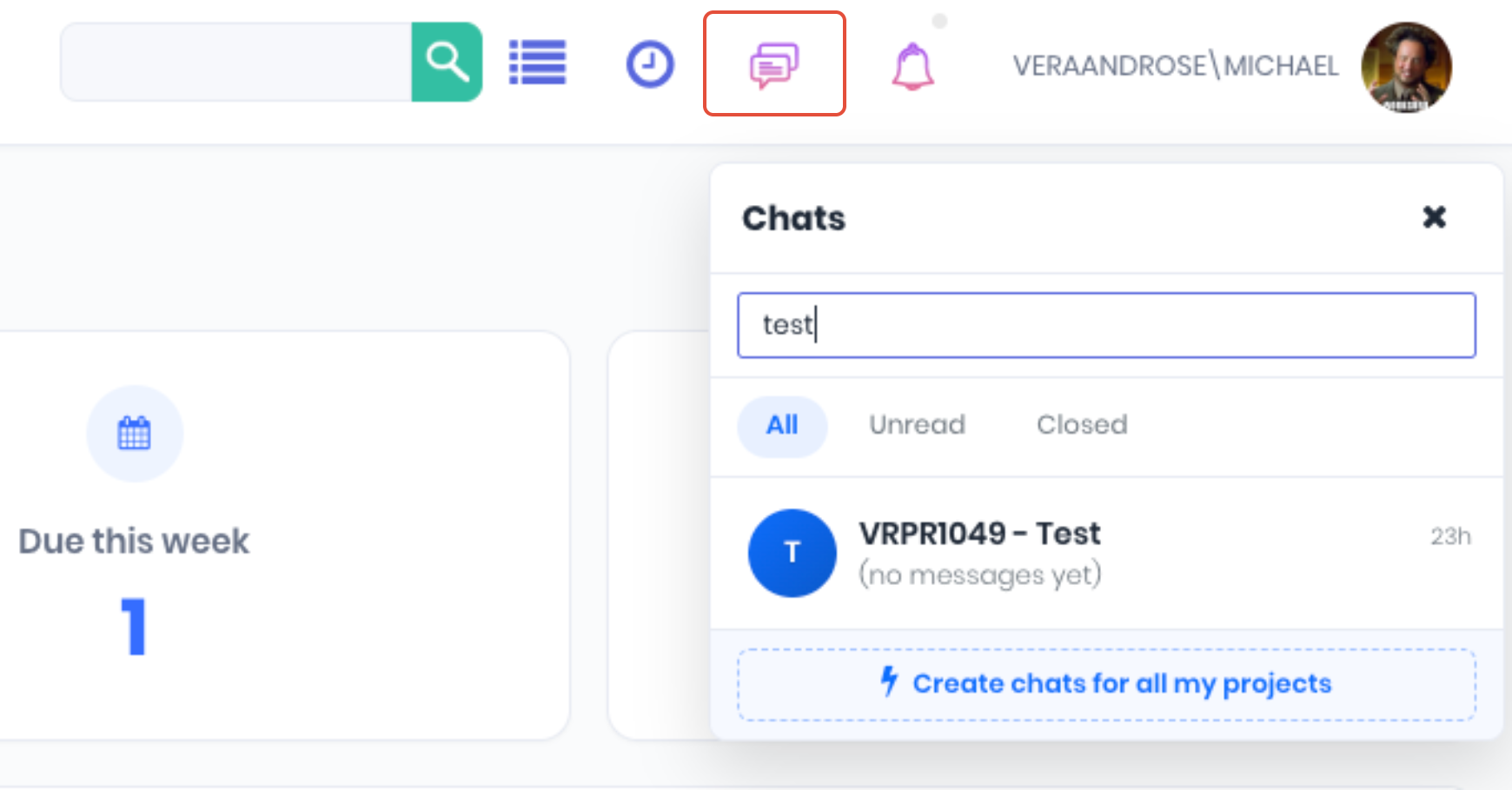
The WorkGuru chats functionality (assuming you have the user permissions) can be found in the page header at the top right of the screen, next to notifications:
 How to Open a Project Chat on a Project
New projects will automatically have chats opened on them and nothing needs to be done for these. For old Projects that existed before the chat functionality was added, you have 2 ways to create a chat:
Individual Existing Projects
From the project's details page, click the Create Chat for this Project button in the Quick Actions menu. This will start the conversation and automatically add everyone assigned to the project - if it is not opened then it will not be available in the chat.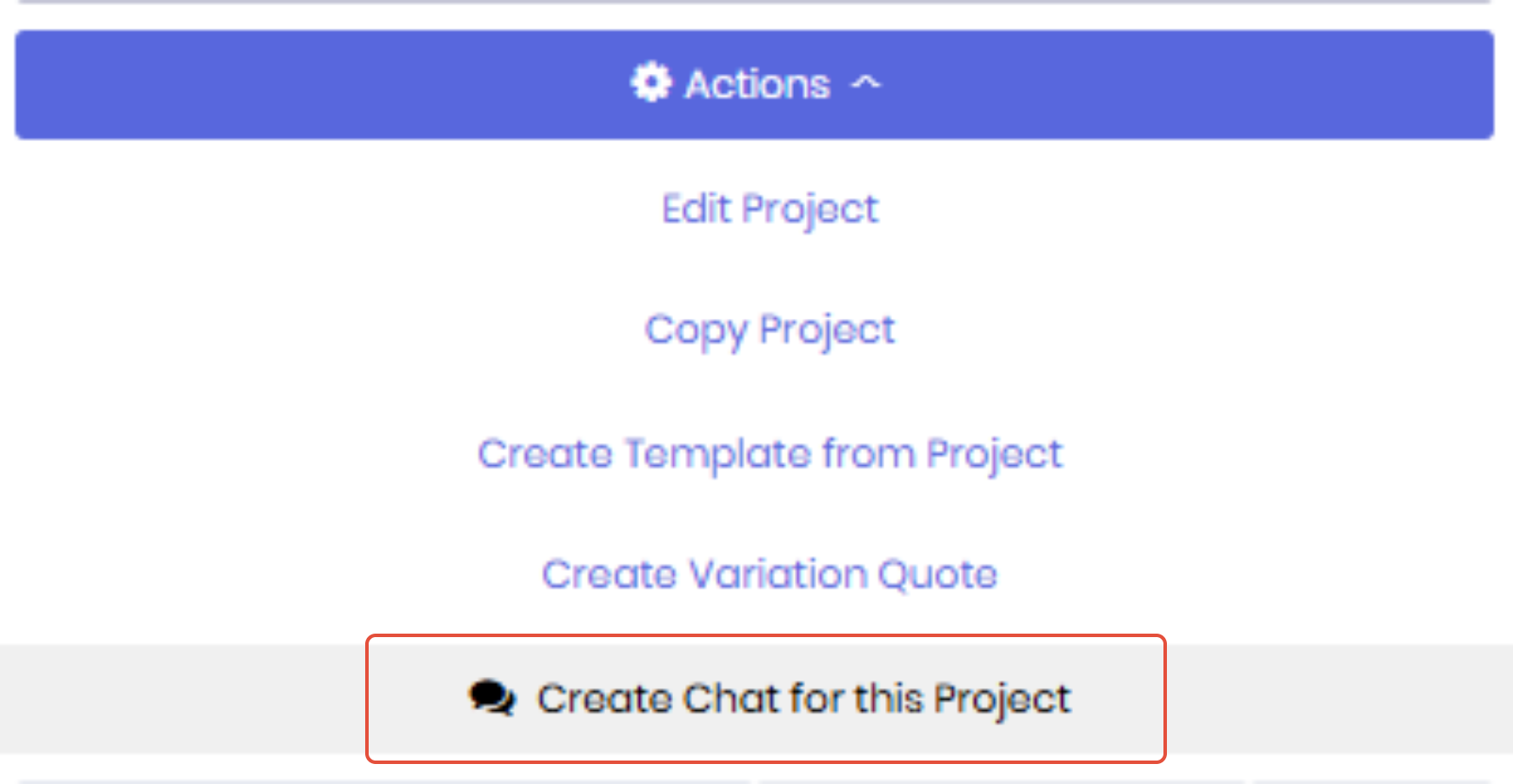
Once this has been done - you can find it in your chats list.
All Existing Projects
To create chats for all open projects (Admin only), navigate to the chats list and click Create chats for all my projects.
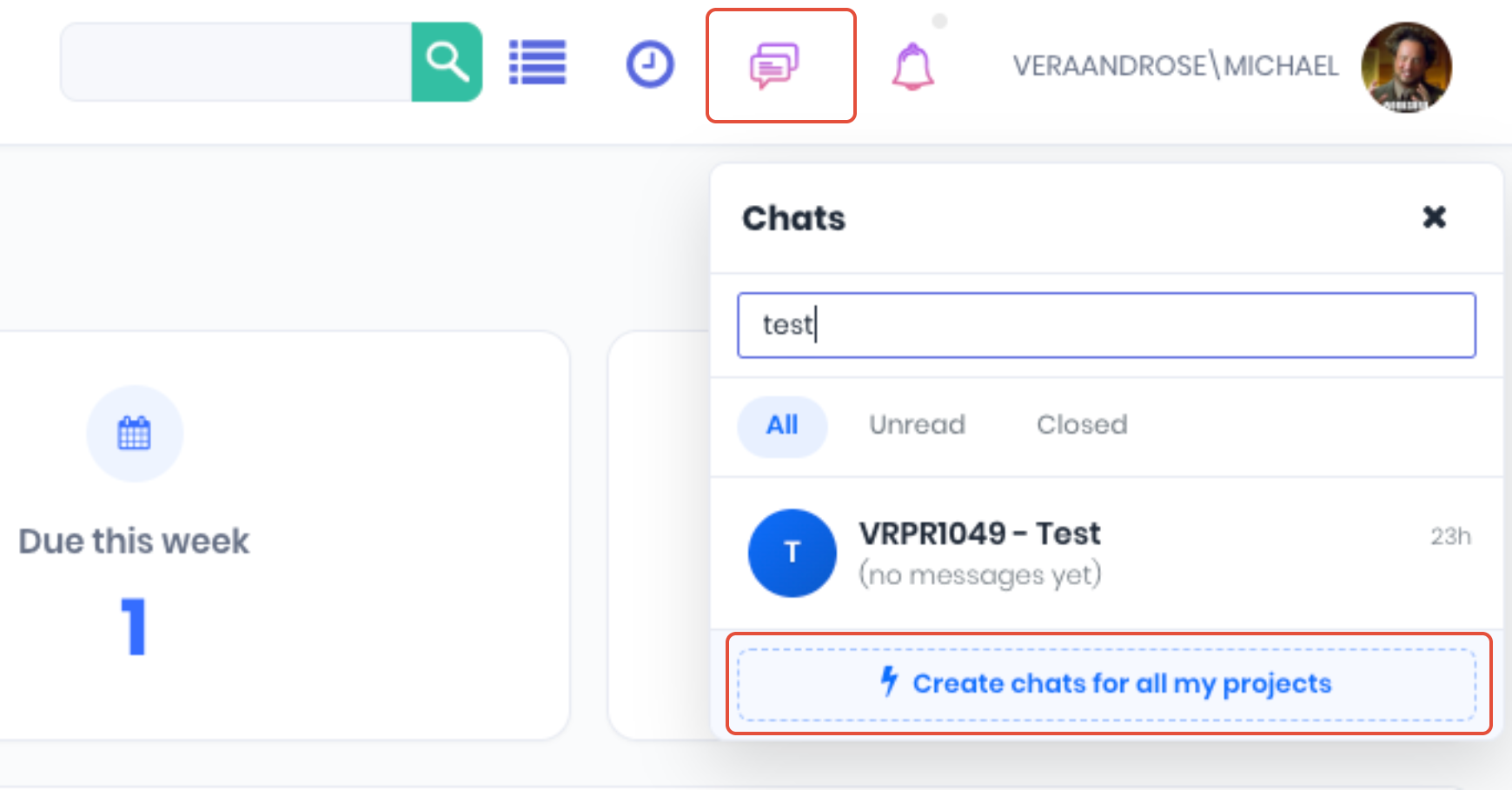
This will create chats for all non-completed projects that do not already have chats open.
The Chat List
You can reach any chat you are a member of from your main Chat List without opening the project page first. Multiple instances of project chats can be open at once on the web app.
Your chat list displays your active conversations, with the most recently active at the top.
Each chat shows a short message preview and an unread count badge.
Opening a chat automatically marks it as read and clears the badge.
Missing the Chat Feature? If you cannot see the chat option anywhere, your user account may lack the required permissions. Please contact a user on your tenancy that has administrator permissions to activate them.
Sending Messages & Files
To Send a Message: Type your message in the text box at the bottom of the chat and press Enter (or click the send button). There is plenty of room for long, detailed updates.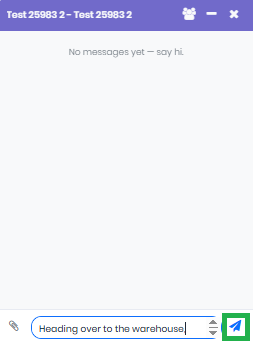
To Attach a File: Use the attachment button to share site photos, PDF specifications, or delivery dockets instantly with the project team.
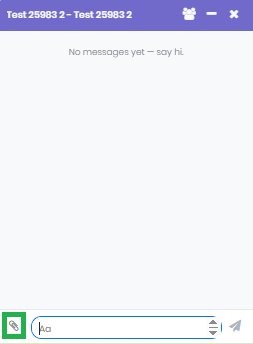
Because these messages are tied to the project record, anyone with access to the job can scroll back months or years from now to see exactly what was decided and why.
Who is in a Project Chat?
Team members are added to a project chat in one of two ways:
Automatically: The project's designated Project Manager and anyone assigned to a task on that project are added automatically. If someone is assigned to a task later, they are added to the chat; if they are unassigned from all tasks on the project, they will drop out automatically.
- Manually: A Project Manager or Administrator can manually add team members who aren't assigned to tasks but still need to be kept in the loop.
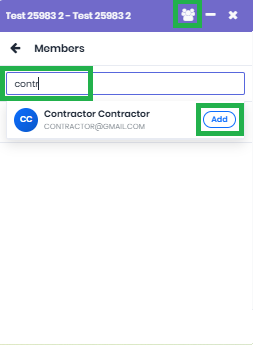
Managing Members
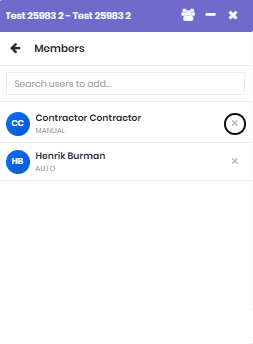
If you are the Project Manager or an Administrator, you can manage manual memberships. You can only manually remove people who were added manually. You cannot manually remove someone who is tied to the project automatically (like a task assignee). To remove an automatic member, you must unassign them from their tasks on the project page first.
Was this article helpful?
That’s Great!
Thank you for your feedback
Sorry! We couldn't be helpful
Thank you for your feedback
Feedback sent
We appreciate your effort and will try to fix the article