As a WorkGuru administrator, you control who has access to Project chats and manage system moderation and data backfills.
Enabling Project Chats
Project chat visibility is controlled by user permissions, which can be configured per role under Administration -> Roles (or assigned to individual users).

Permission definitions:
- Chat - Base permission allows the user to exclusively see chats for projects where they are an automatic or manual added member.
- Can Hide Chat Messages (moderation) - Allows the user to hide inappropriate or irrelevant messages in the project chat.
- Can Join Any Project Chat (admin override) - Can join any chat without being either assigned to a project or manually added. Note: Project managers can manage members of their own assigned projects without needing the global "Join any project chat" permission.
After updating a user's permissions, wait a couple of minutes for the changes to propagate across the platform and please ask them to refresh their browser in WorkGuru for the changes to take effect.
Chat Moderation
If a user posts something inappropriate or incorrect that needs to be restricted, an authorised administrator (with the Hide message permission) can moderate it. Locate the message within the project chat and over over the relevant message. When the word Hide appears, select to hide the message.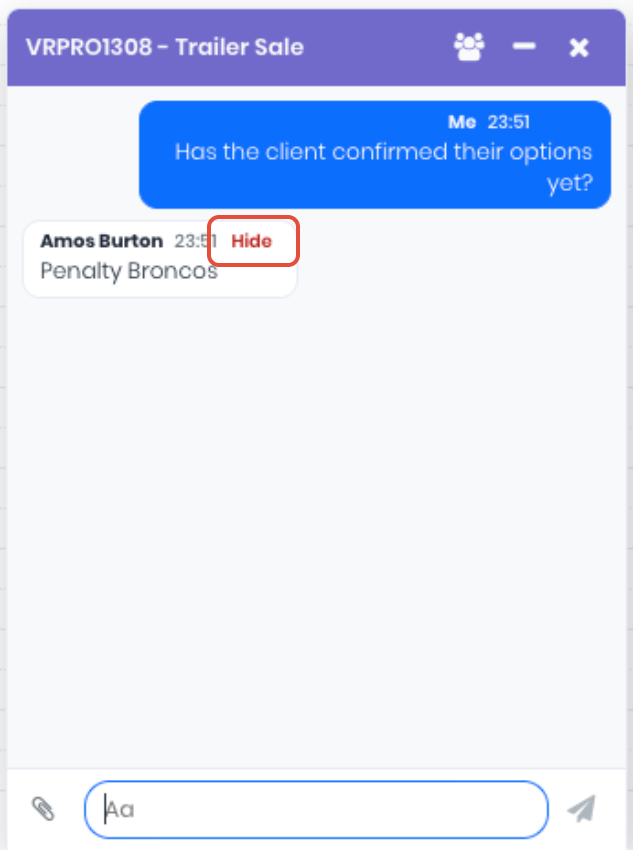
The message text will instantly be replaced with a "Hidden by admin" placeholder for all chat members.
Note: Hiding a message does not permanently delete it from the database record. The original content is retained securely behind the scenes for audit and compliance purposes, but it will no longer be visible in the chat UI.
Enable Chats On Existing Projects
While all brand-new projects get a chat channel automatically, projects that existed before you turned this feature on will not have a chat channel until someone manually opens the project. To prevent your team from having to click "Create Chat" on every single active job, you can run a bulk activation service to enable project chats on all existing active projects. As an administrator, click on the Chats icon in the page header (where you would usually read the chats) and select Create Chats for All of My Projects.
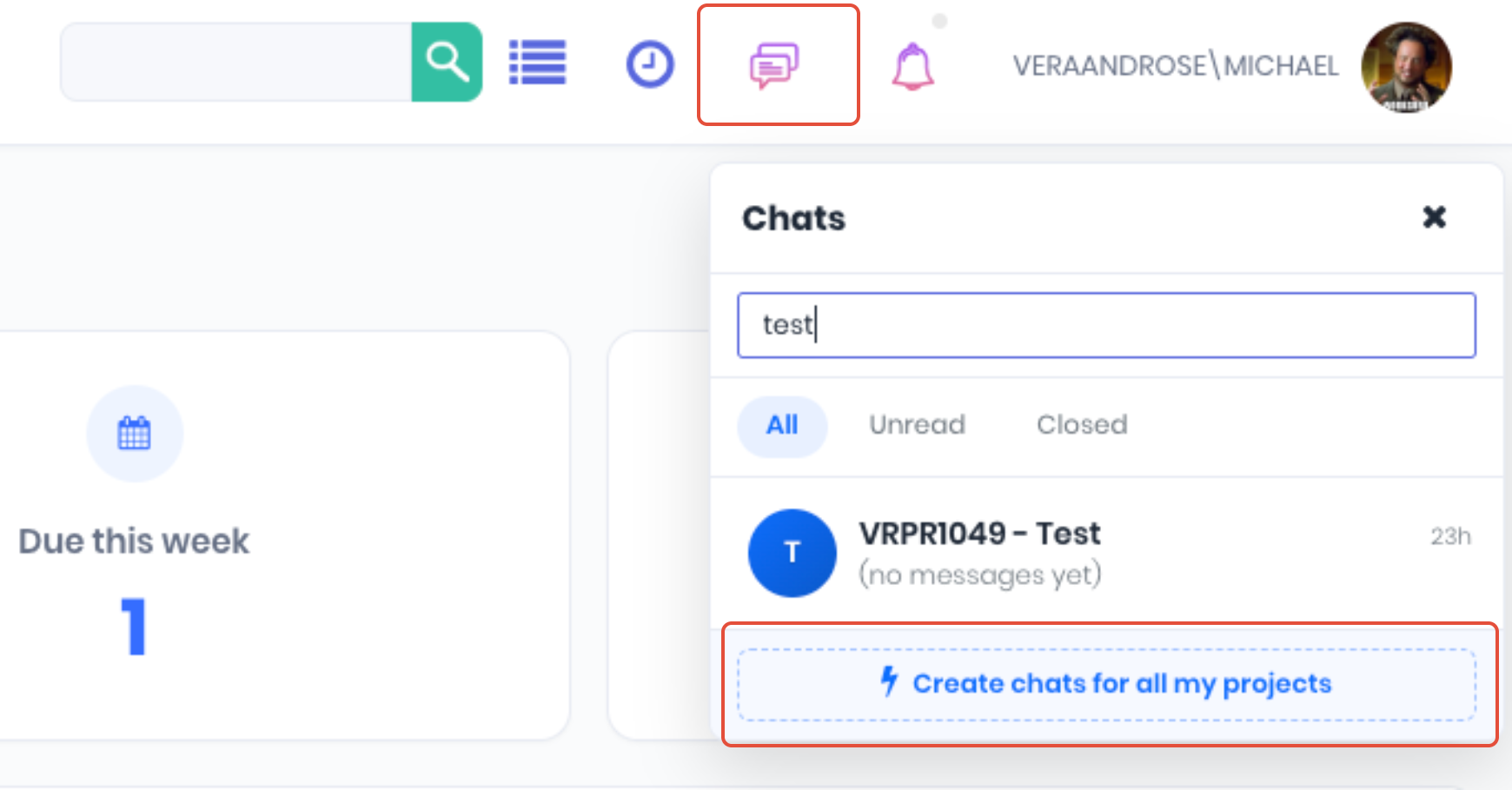
Note: Completed projects are ignored during this bulk backfill process, as closed or archived historical jobs do not require new chat channels.
Was this article helpful?
That’s Great!
Thank you for your feedback
Sorry! We couldn't be helpful
Thank you for your feedback
Feedback sent
We appreciate your effort and will try to fix the article