The WorkGuru Mobile App allows you to quickly add new and manage existing leads while on the go.
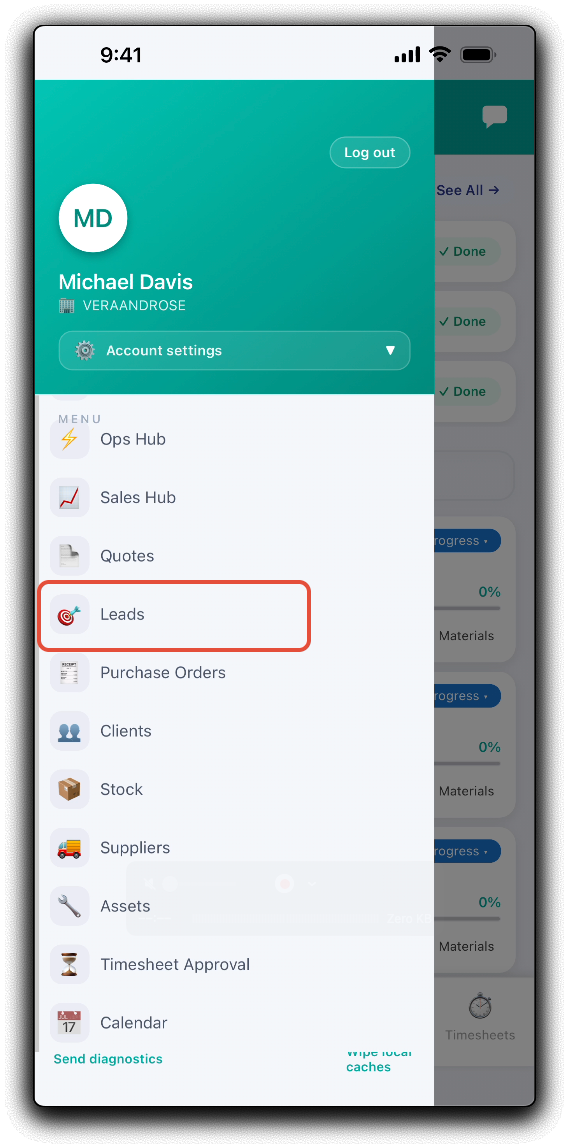
Active leads can be accessed by tapping Leads from the mobile app menu.
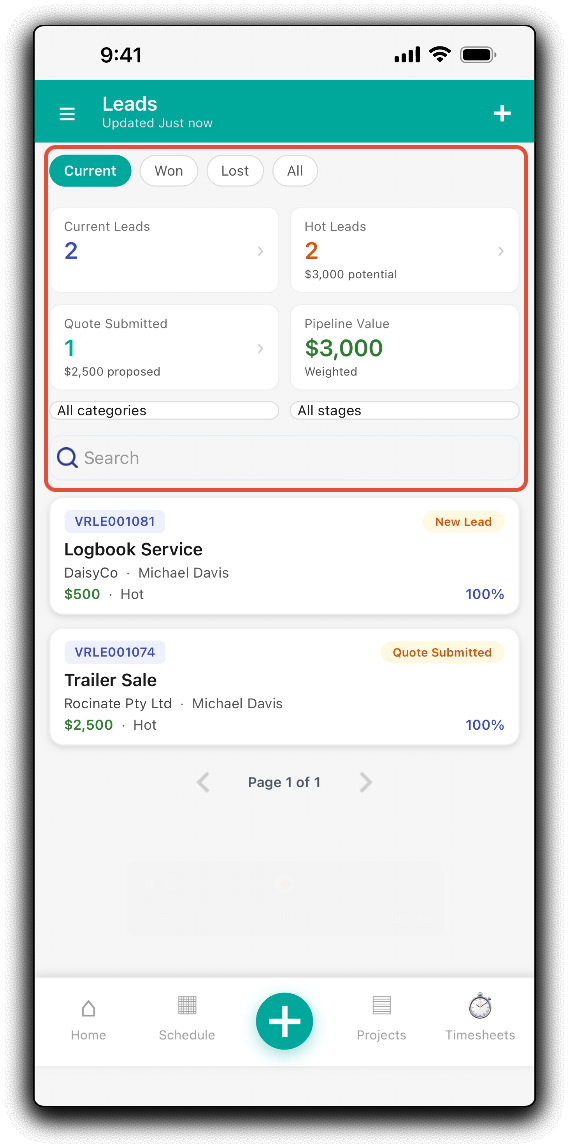
Mobile Leads Dashboard
On the mobile quotes dashboard, tap to filter the list of leads to display by Current, Won, Lost and All. Tap on the status widgets to display Current Leads, Hot Leads, Quote Submitted and Pipeline Value. You can refine the displayed leads further by selecting the required options from the lead Category and Stages drop-downs. Tapping on a lead tile will display the quote details.
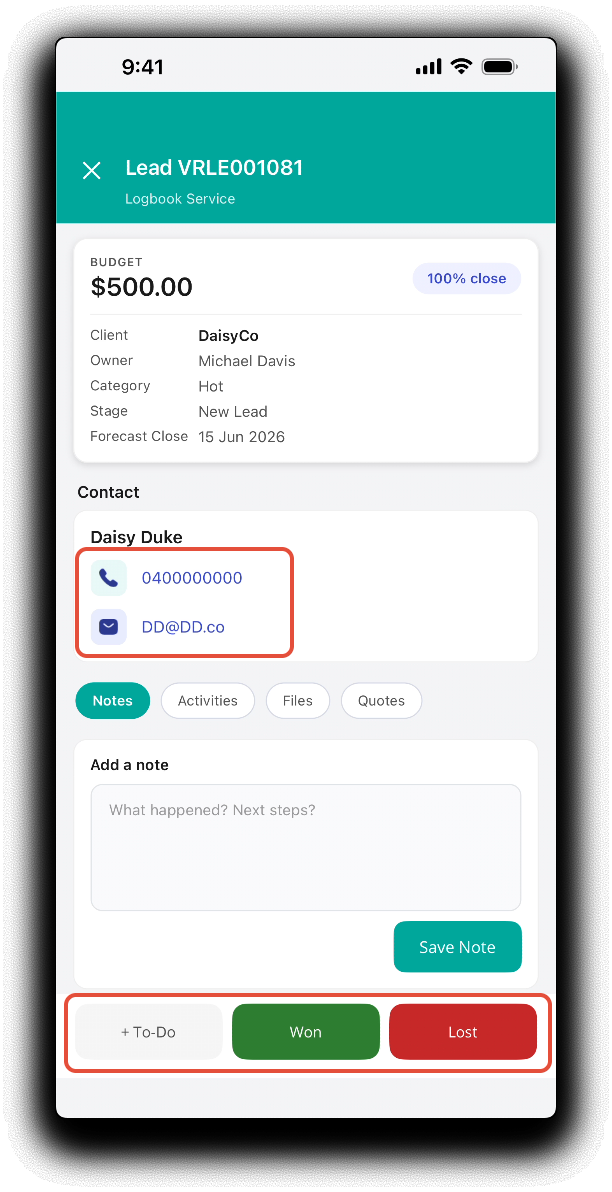
Mobile Lead Details
Review the lead details. Tap on the lead Contact phone number and email address to call or email the lead Contact via your device's default applications.
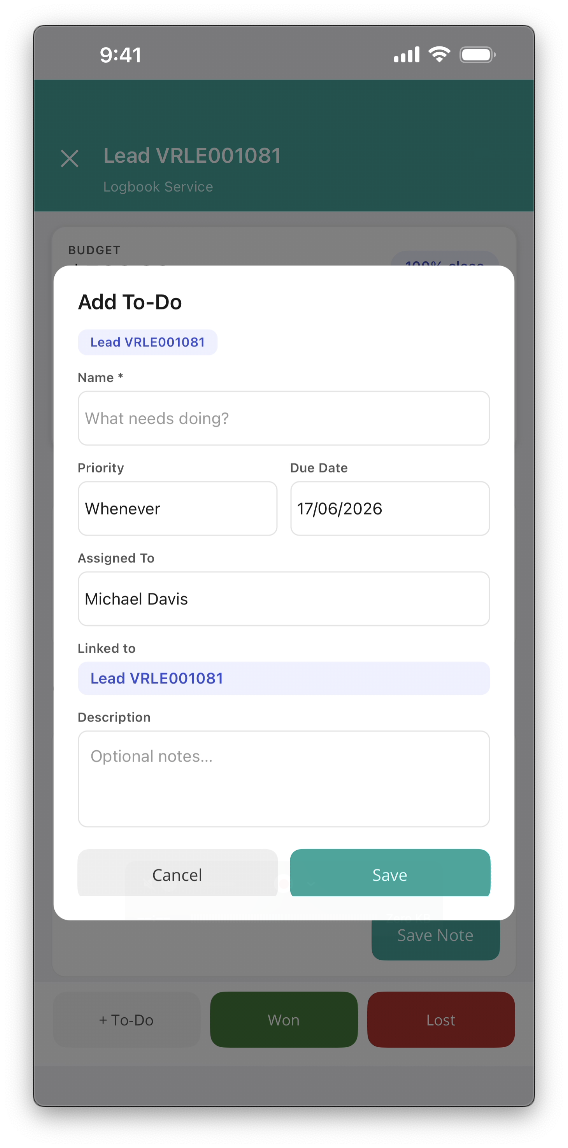
From the lead details footer, tap +To Do to associate a to-do with the lead.
Tap Won or Lost to mark the lead as won or lost. Confirm on the pop-up.
Notes
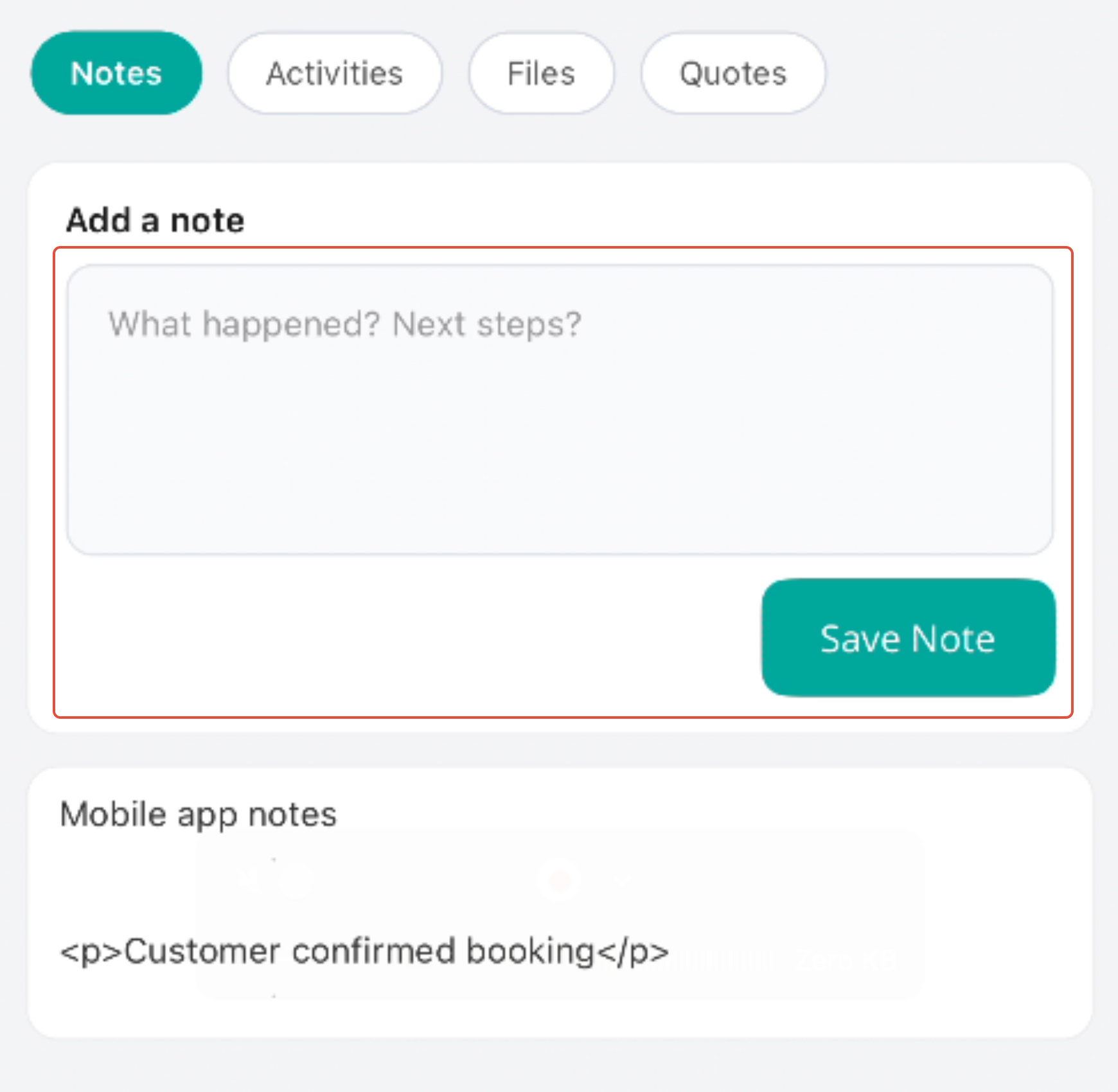
In the Notes tab, scroll to review existing or add notes assigned to the lead. Tap Save Note to apply.
Activities
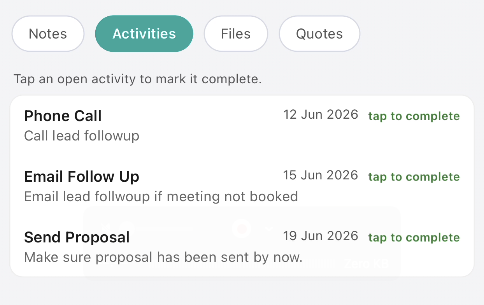
In the Activities tab, review and mark lead activities complete by tapping Tap to Complete.
Files
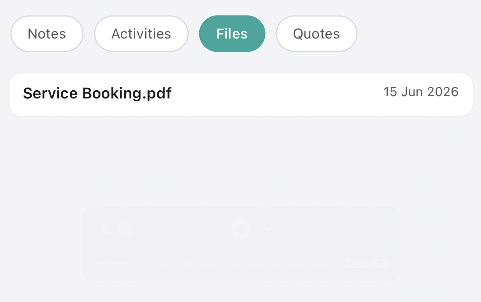
In the Files tab, preview or download files assigned to the leads.
Quotes
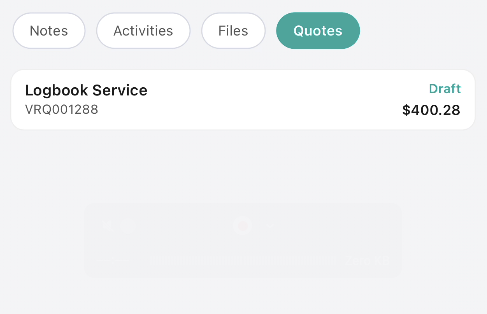
In the Quotes tab, review quotes assigned to the lead.
New Leads
You can also quickly add a lead via the app while on the go with the Mobile App. From the mobile Leads dashboard, tap the Plus in the footer will take you directly to the new lead.
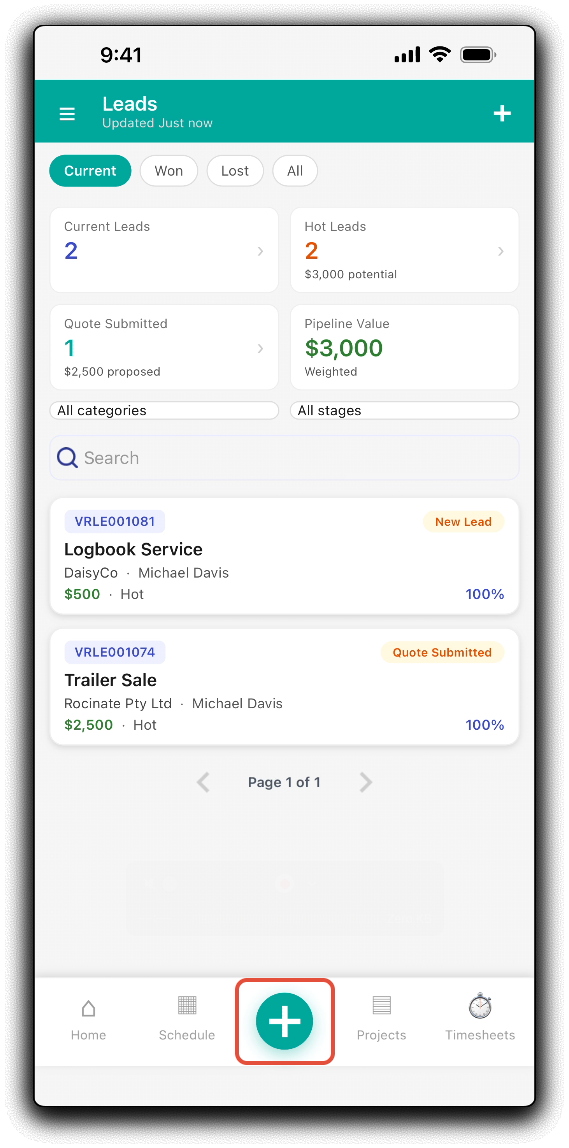
Fill out the required forms on the new lead:
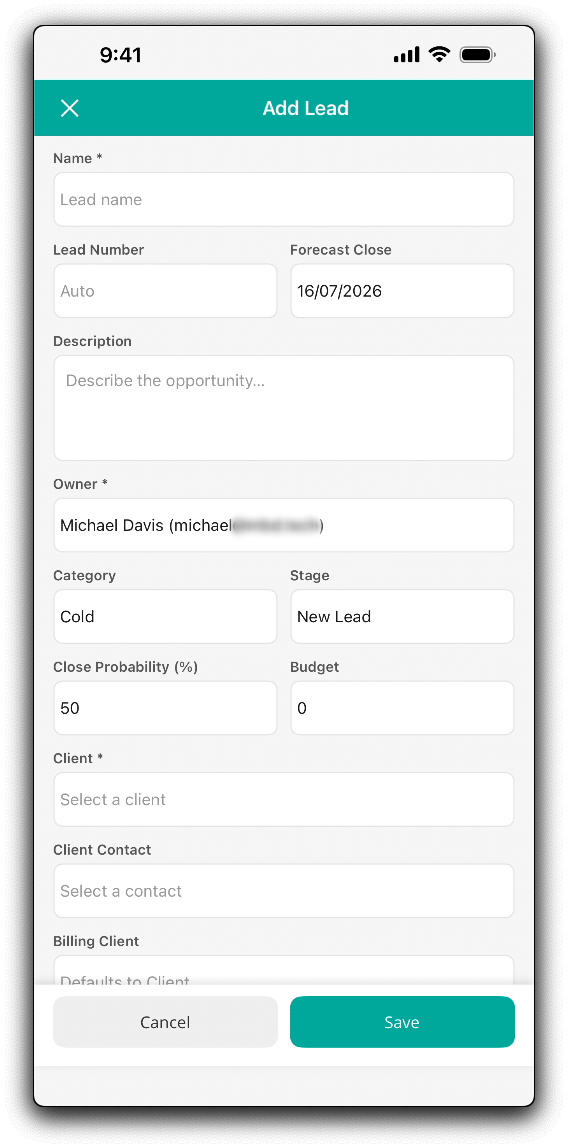
- Name - Identify the lead with a name. Note, this name will also default as the quote and project name.
- Lead Number - Leave blank by default or specify a unique reference
- Forecast Close - Estimated date for quote acceptance. Used for pipeline reporting.
- Description - Details of the lead
- Owner - WorkGuru user responsible for the lead. Useful for KPI reporting.
- Category - Select lead category from dropdown.
- Stage - Select lead stage from dropdown
- Close Probability - Percentage likely to accept the issued quote/proposal by the forecast close date.
- Budget - Estimated or provided client budget.
- Client - Select the lead client from the dropdown list
- Client Contact - Primary lead contact of the selected client.
- Billing Client - Select the billing lead client from the drop-down, will default to the selected client.
- Billing Client Contact - Billing contact of the selected billing client.
Tap Save to create the new lead.
Was this article helpful?
That’s Great!
Thank you for your feedback
Sorry! We couldn't be helpful
Thank you for your feedback
Feedback sent
We appreciate your effort and will try to fix the article