WorkGuru forms allow you to define a sign off workflow when completing forms using signing and due date functions. You can assign who is responsible for specific fields and the specific order in the signing hierarchy the form needs to be completed in. The form will automatically handle all the notifications to alternate signers as required.
Setting Up Signing Workflows
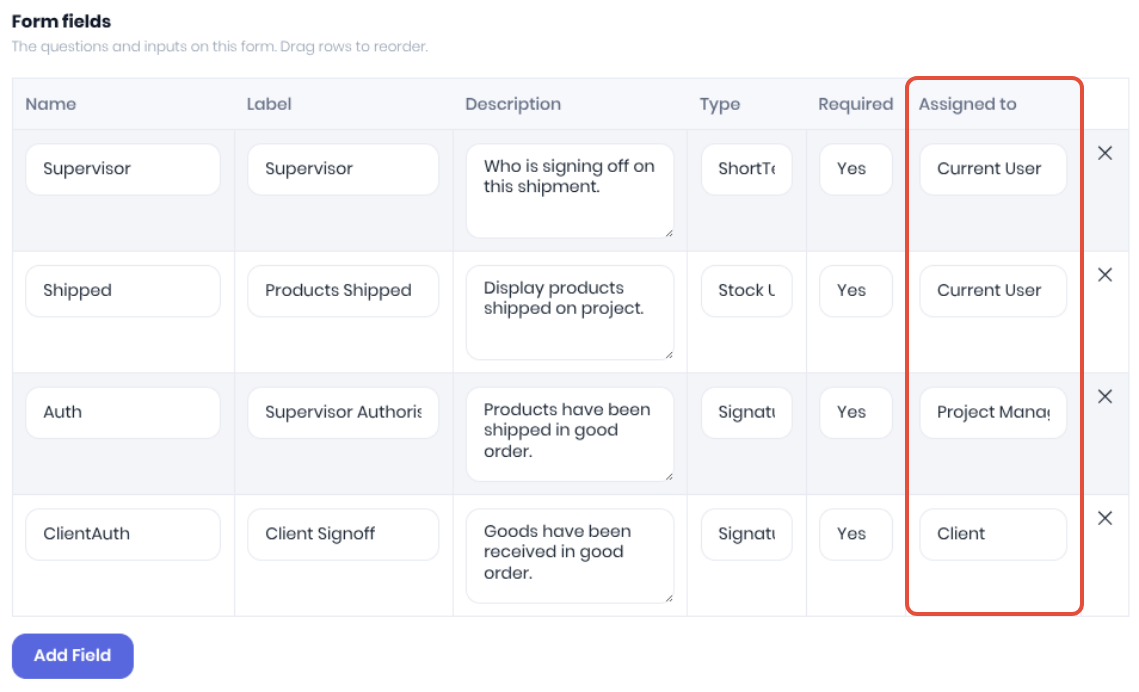
To setup a form with a signing workflow, add your Form Fields as normal but ensure the required signer is selected from the dropdown in the Assigned To field. The assigned signer will determine which email address is used to notify them they have a form to review and compete:
- Current User - The current internal WorkGuru user who initiated the form completion.
- Project Manger - Internal WorkGuru user assigned as manager on the project.
- Client - External signer
- Client Contact - External signer
- Billing Client - External signer
- Billing Client Contact - External signer
- Assigned Staff Member - Specific internal WorkGuru user assigned to complete the form.
In the Signing & Due Dates section of the form, drag and drop the signers to set the required signing order.
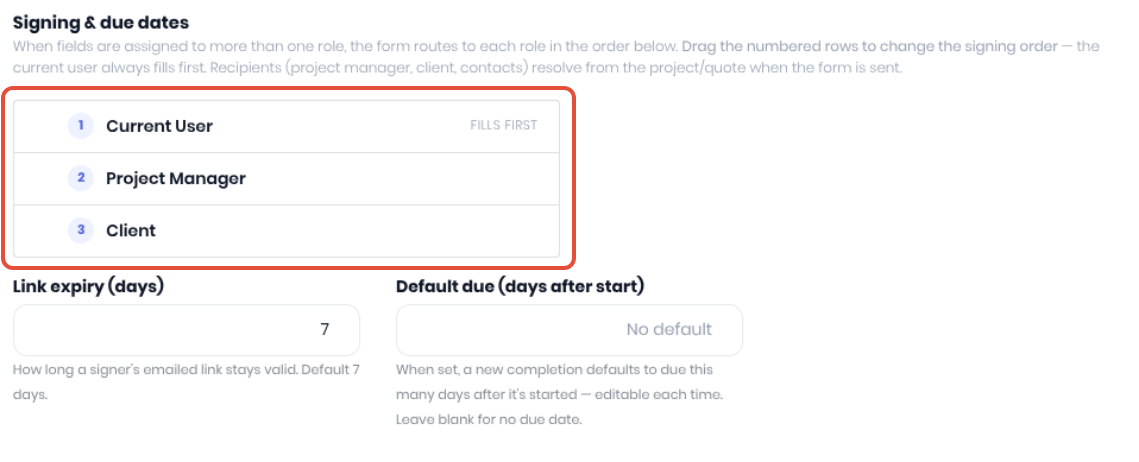
The due dates let you manage the content of the signing notifications WorkGuru will send to the other signers.
- Link Expiry (Days) - How long a signer's emailed link stays valid. Default 7 days.
- Default Due (Days after start) - When set, a new completion defaults to due this many days after it's started. Leave blank for no due date. Expired forms will display in the Forms Command Centre.
Displaying Signing Workflows
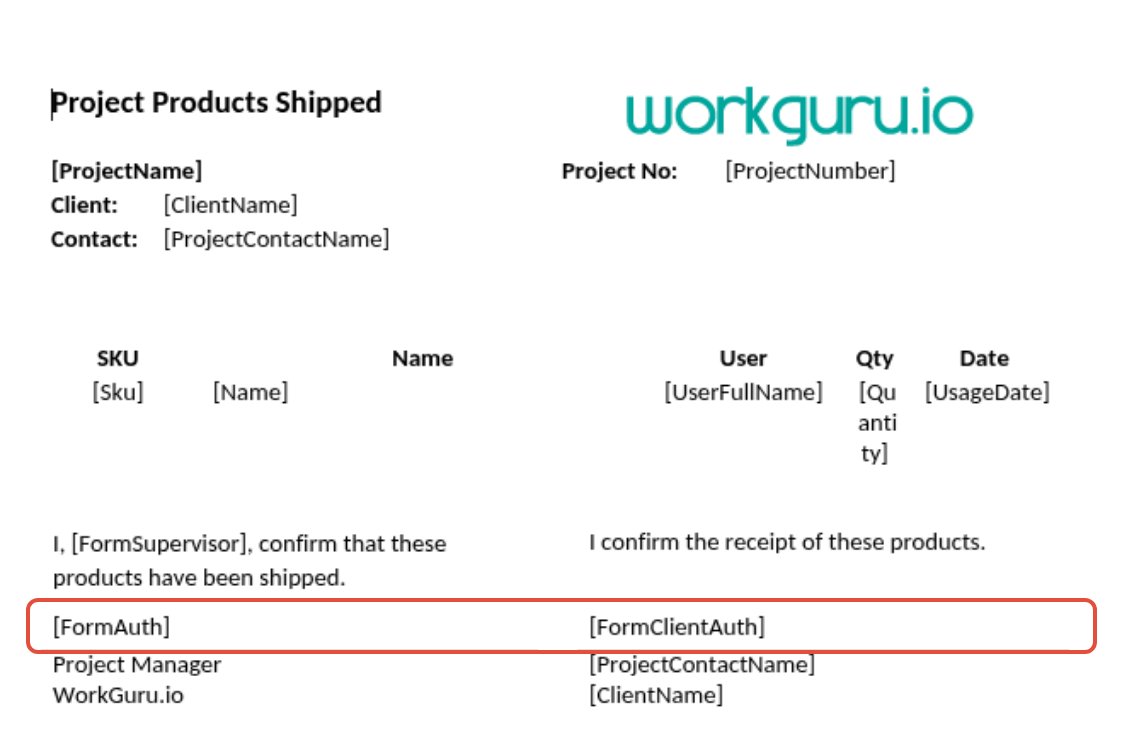
There is no specific document template requirements to display form output. Layout your form document template as per normal requirements. The only difference is the form will NOT be completed as a document until the last signer has completed their fields.
Completing Forms with Signing Workflows
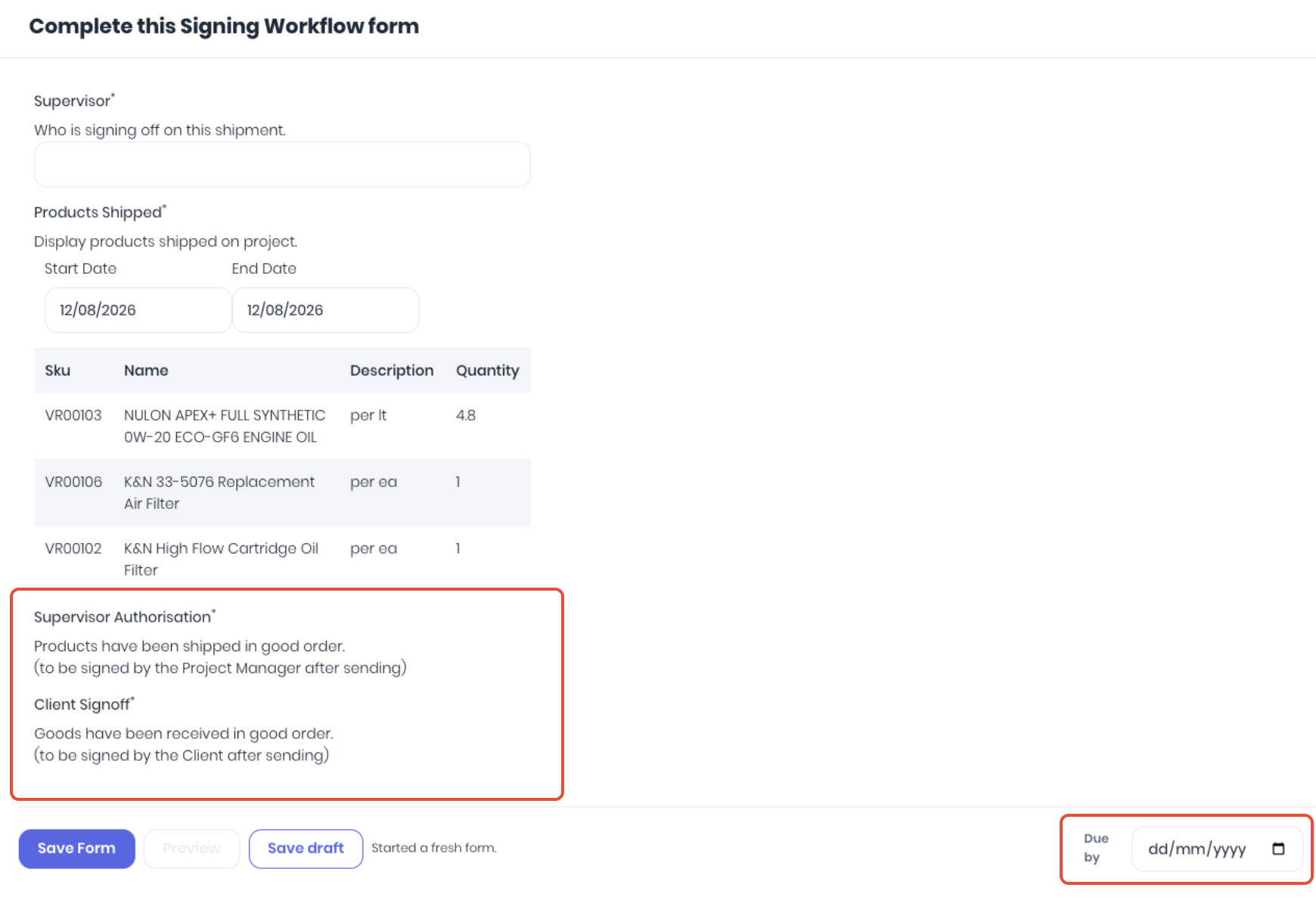
When completing forms with signing workflows in place, the form fields assigned to other users will not be available to fill. Complete the available fields and click Save Form. You can also over-ride the default Due By date if required before saving.
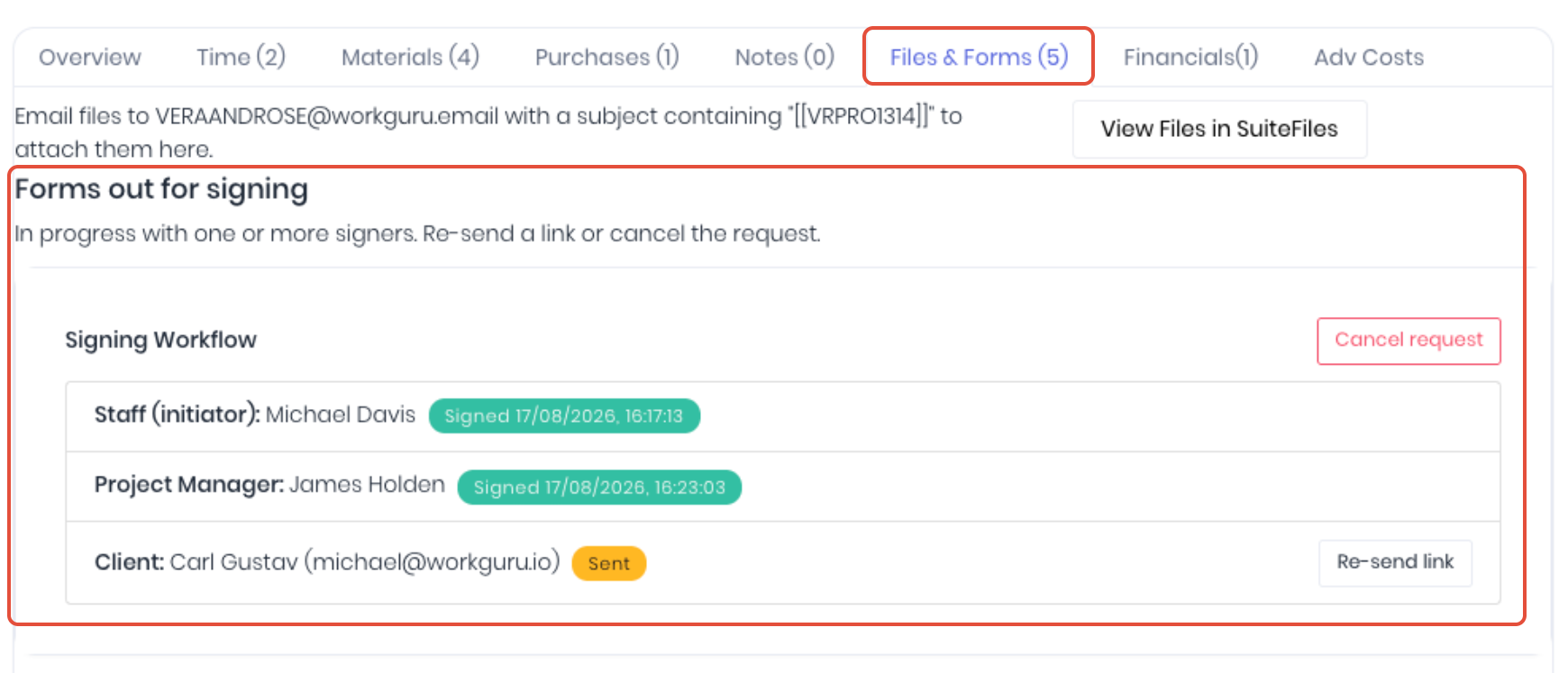
Unlike a normal form, it is not finalised until the last signer has completed the form. The form will instead display in the project's Files & Forms tab with the form's signing progress. You can cancel the signing by clicking Cancel Request, or re-send signing links by clicking Re-Send Link.
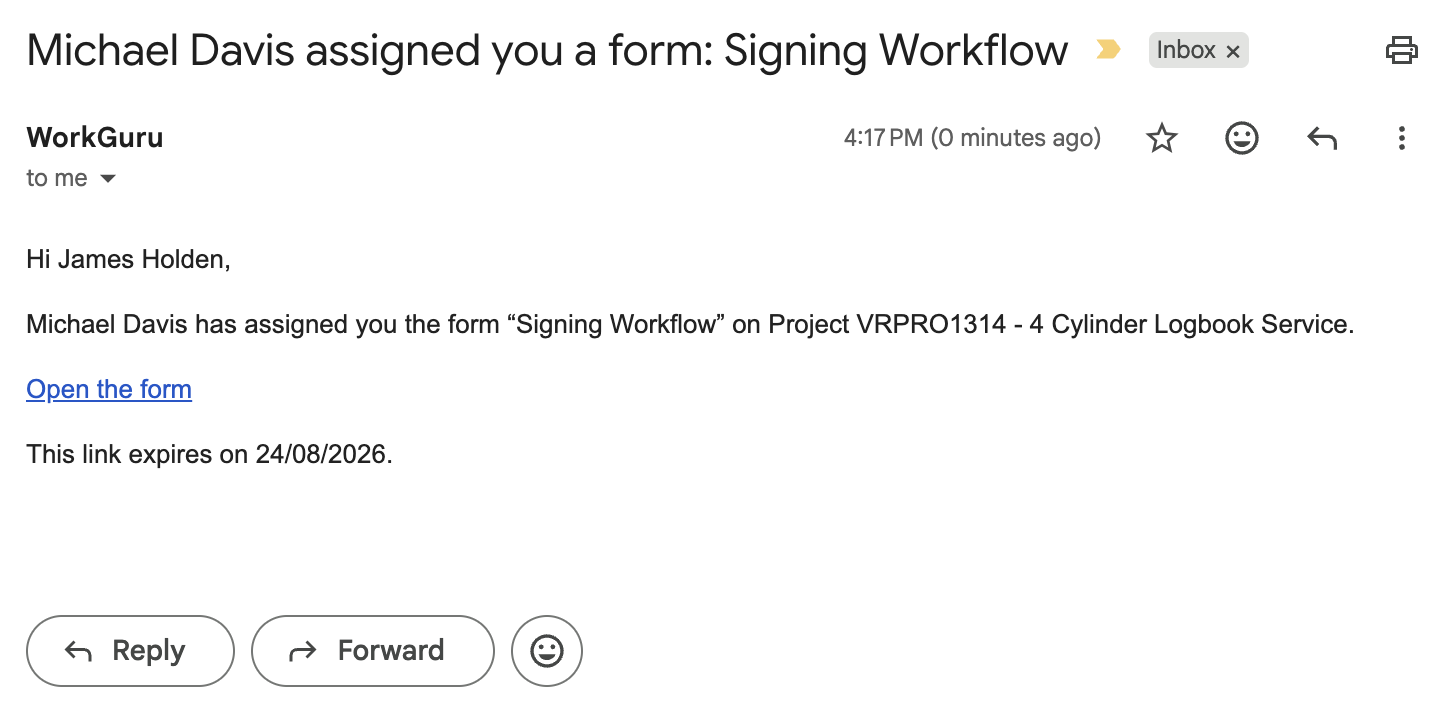
Once an assigned signer has completed their fields and clicked Save Form, the next user in the signing workflow will be notified both via email for both internal and external signers:
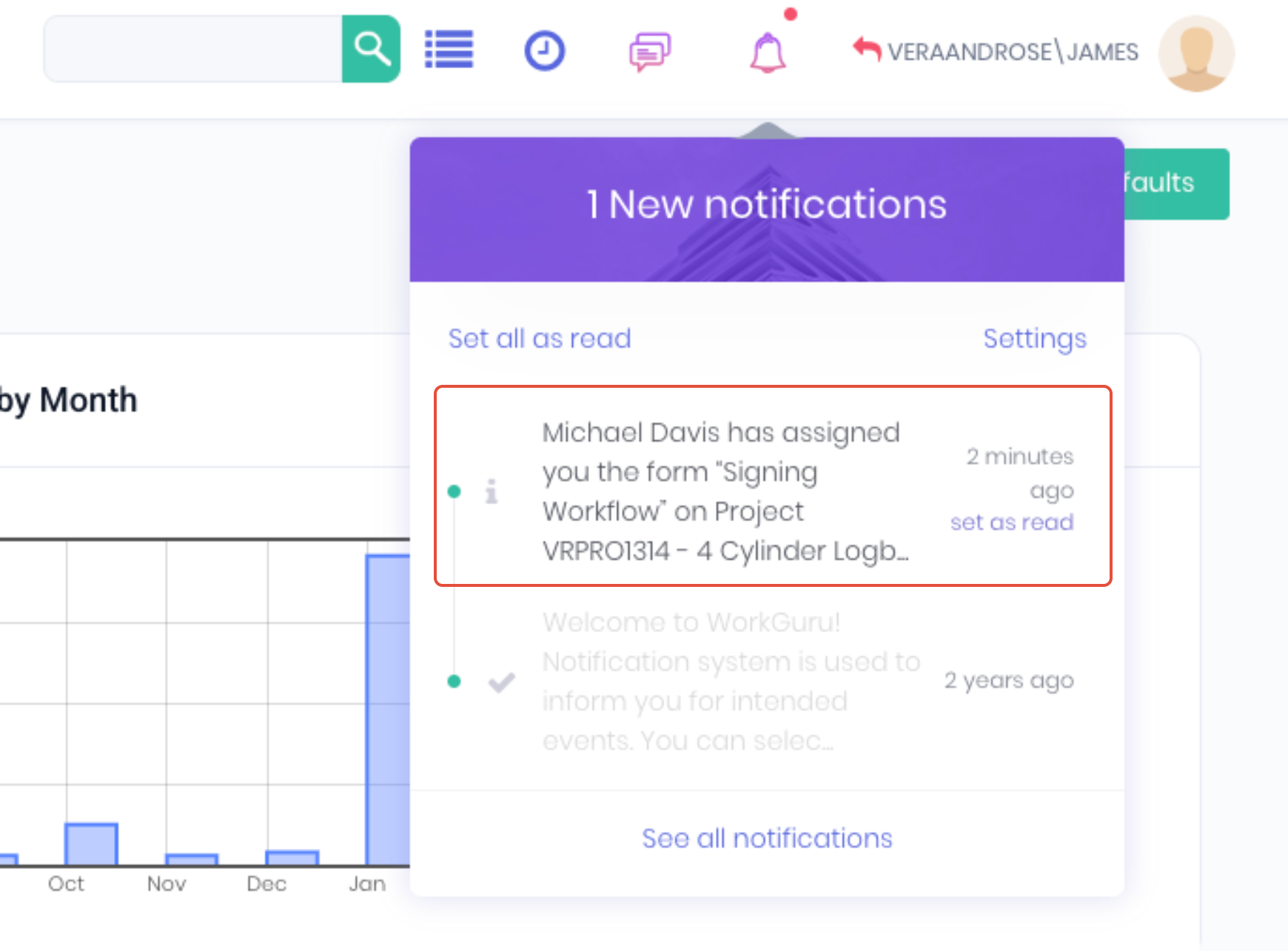
and via in-app notifications if they are an internal signer:
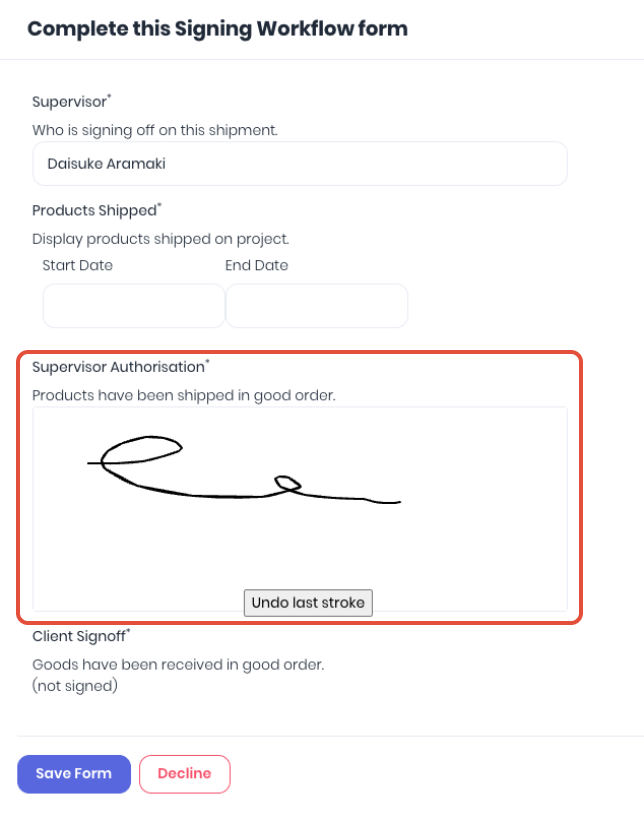
The next signer will view the form completed to date, and prompted to complete their assigned fields. A signer can formally decline signing the form by clicking Decline. Saving the form will then either finalise the form or notify the next signer in the workflow. Note: Internal signers are required to log into WorkGuru login to complete the form, external signers do not.
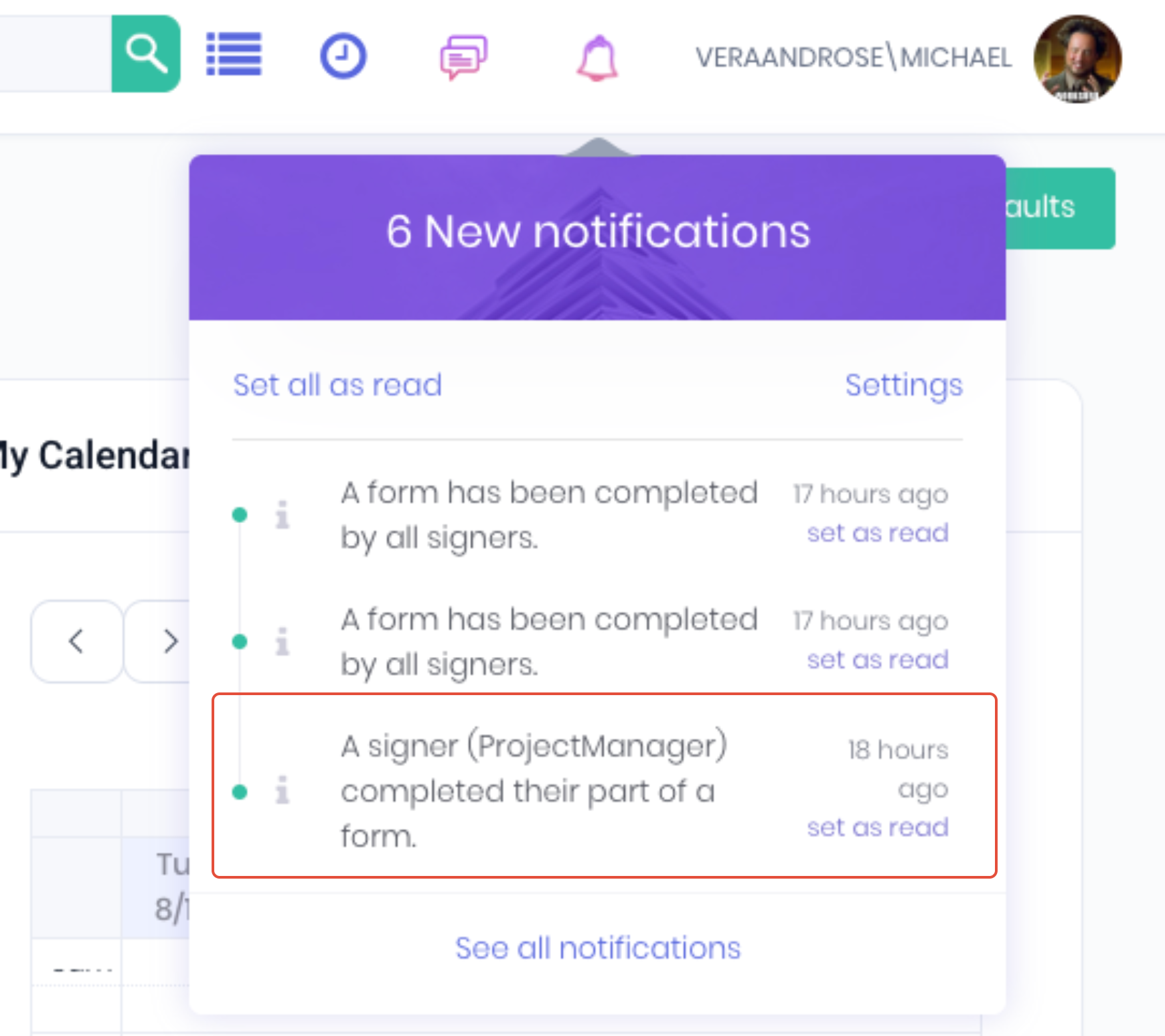
As the form is being completed in order by the relevant signers, the form's intiator (current user) will be notified of the completion of each signer.
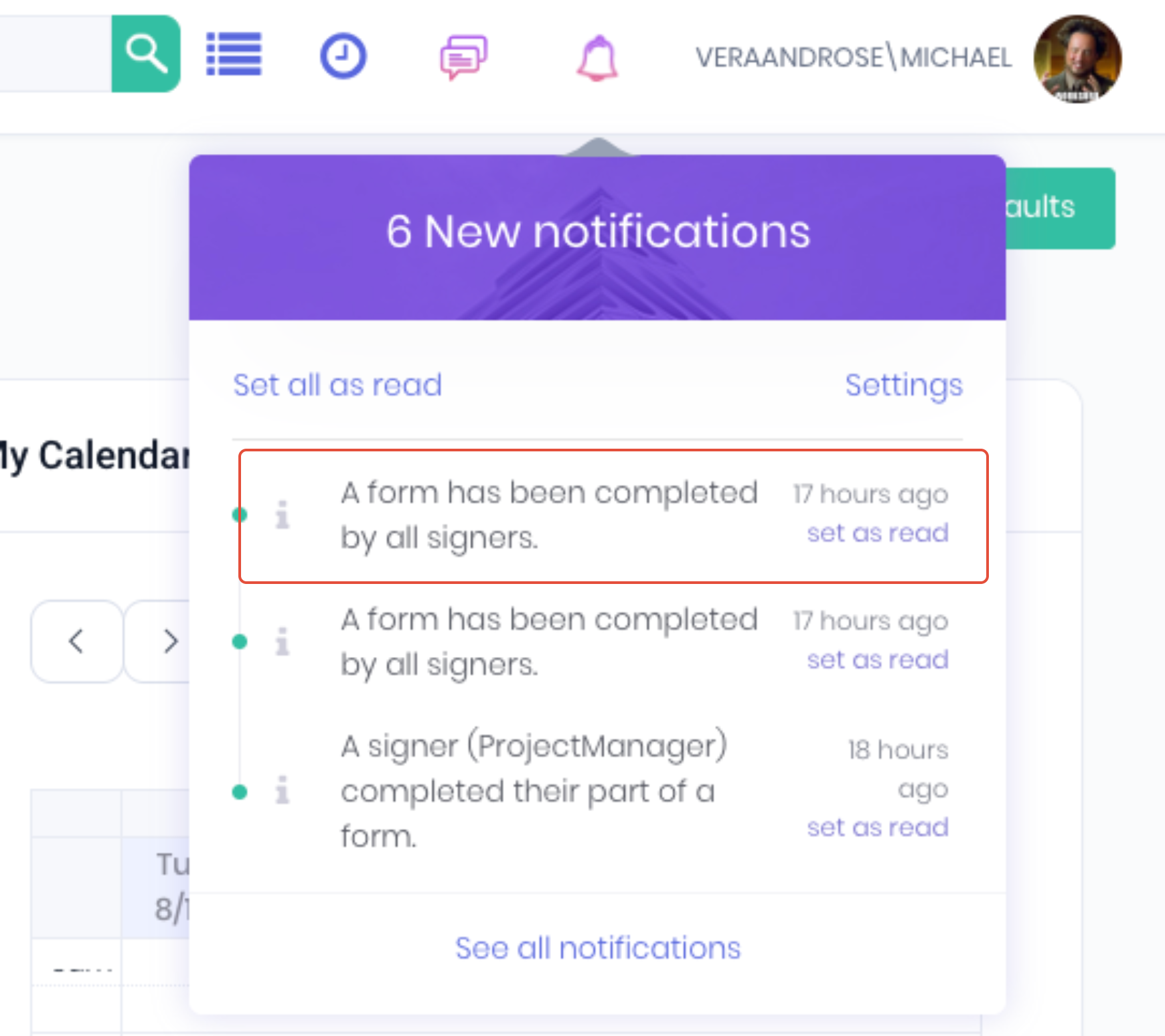
Once the form is completed and saved by the final signer in the workflow, the form's initiator (current user) will be notified all users have completed the form.
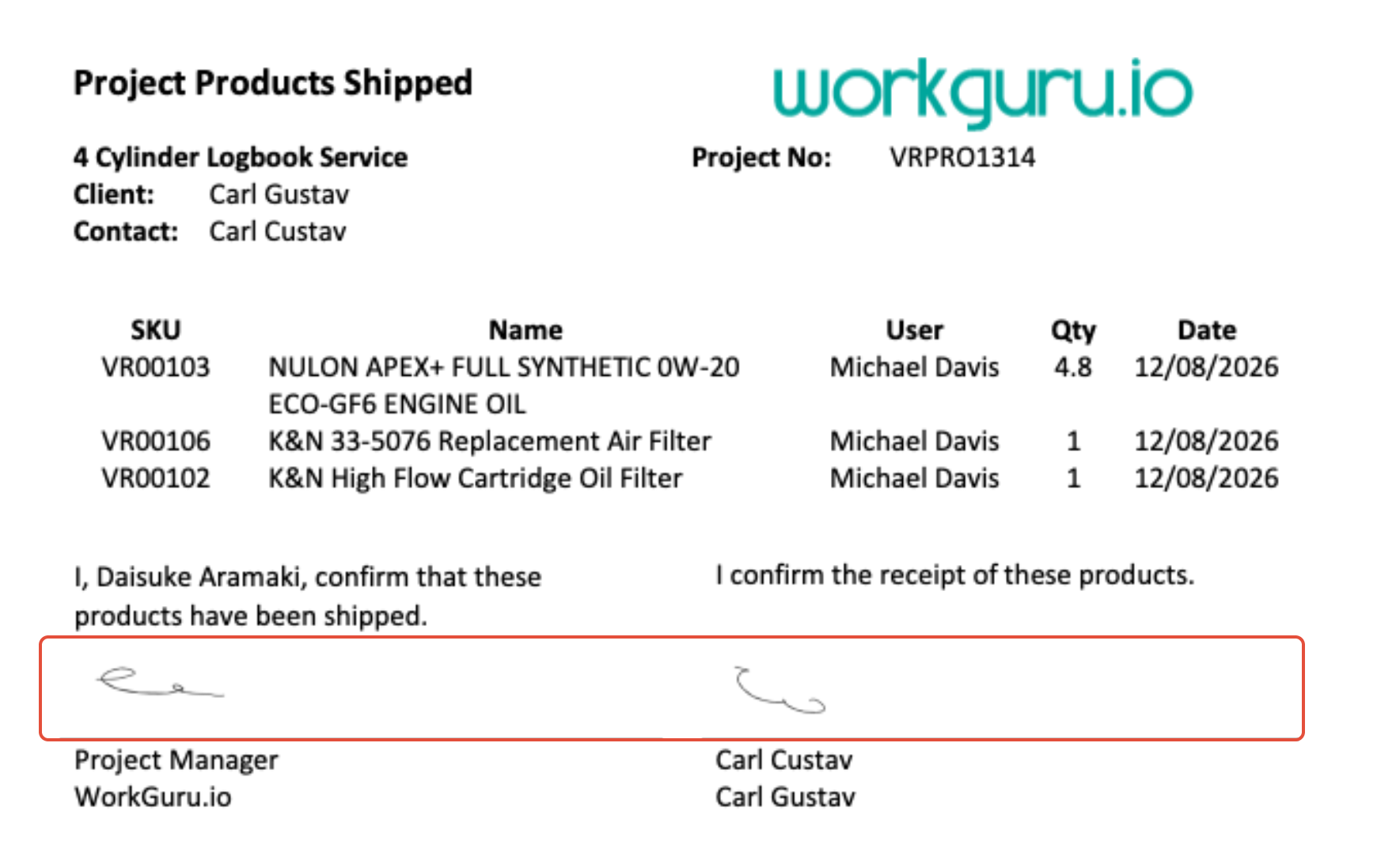
The form will then be finalised and display all fields as per the form document template layout in the relevant Files & Forms tab.
Was this article helpful?
That’s Great!
Thank you for your feedback
Sorry! We couldn't be helpful
Thank you for your feedback
Feedback sent
We appreciate your effort and will try to fix the article