WorkGuru forms allow you to control your forms completion workflow using conditional logic to show or hide fields based on prior responses. Based on the logic rules assigned to the form, fields can be hidden or shown when completing the form and on the completed form's document template. The logic requires a specific setup of document template merge fields to control how the conditional fields are displayed.
Setting Up Conditional Logic
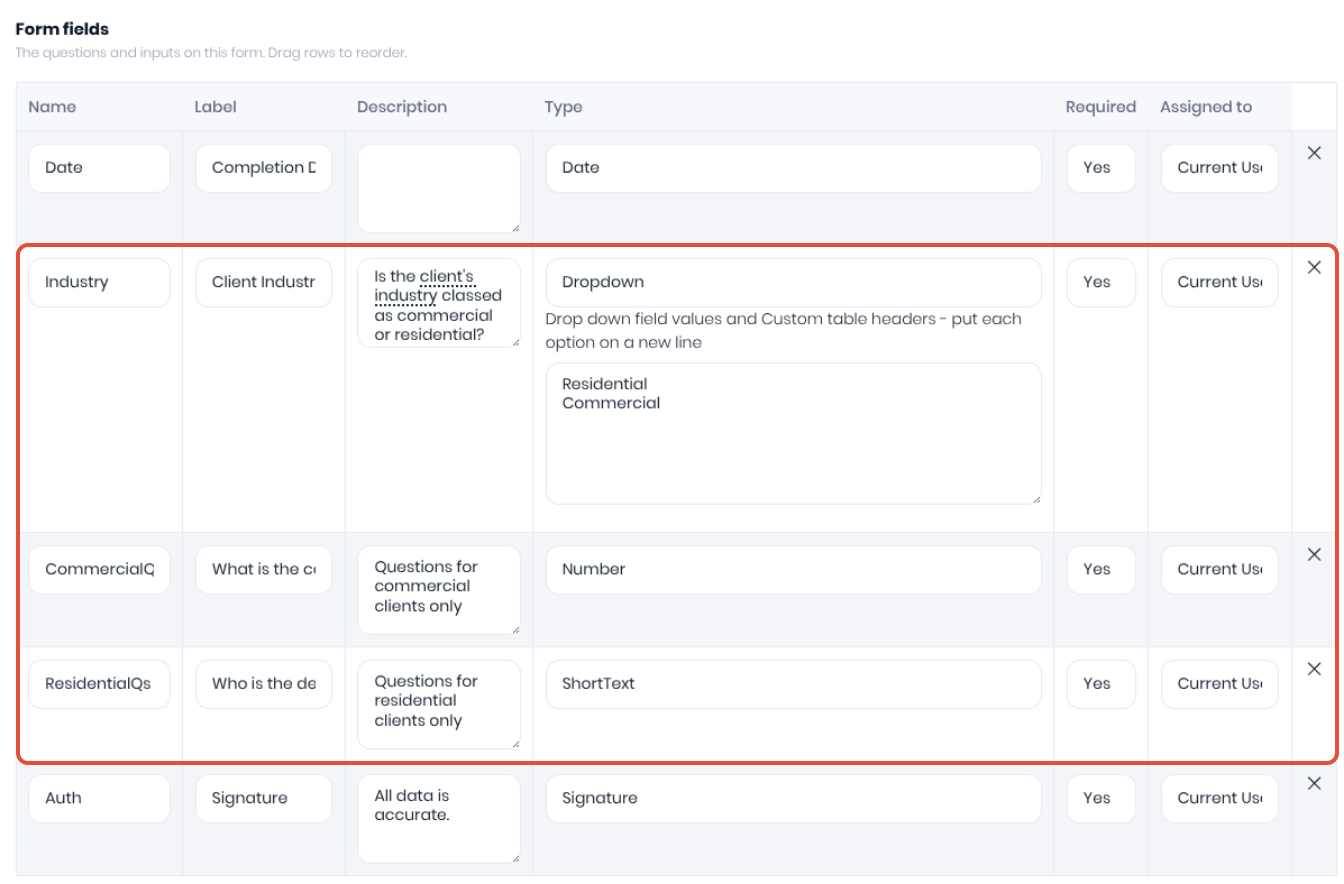
To control which fields are shown or hidden when completing a form, ensure you've added ALL Form Fields with ALL available options to your form setup.
In the Conditional Logic section of the form, click Add Rule and enter the required logic.
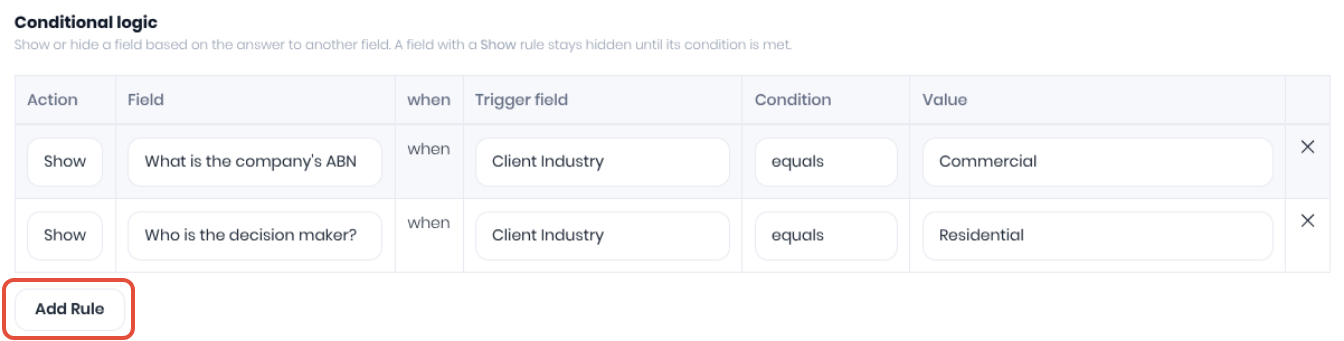
Multiple rules can be added to the control which field and can be shown or hidden based on the Value entered into the. Note: A field with a Show rule always stays hidden until the condition is met. There is no need to add a corresponding Hide rule.
- Action - Core logic, Show or Hide the Field based on the Trigger Field, Condition and Value.
- Field - Select the Field Label from the dropdown that you want to show or hide.
- Trigger Field - Select the Field Label from the dropdown that determines if the selected Field is shown or hidden
- Condition - Select the required logic to be used with the values entered into the trigger field: equals, does not equal, is answered, greater than and is less than.
- Value - Enter the text or numerical string used with the Condition and Trigger Field which determines if the selected Field is shown or hidden.
Displaying Conditional Logic
When creating the form's document template, displaying the conditional logic results requires the use of specific merge fields called section headers to control which fields are shown or hidden.
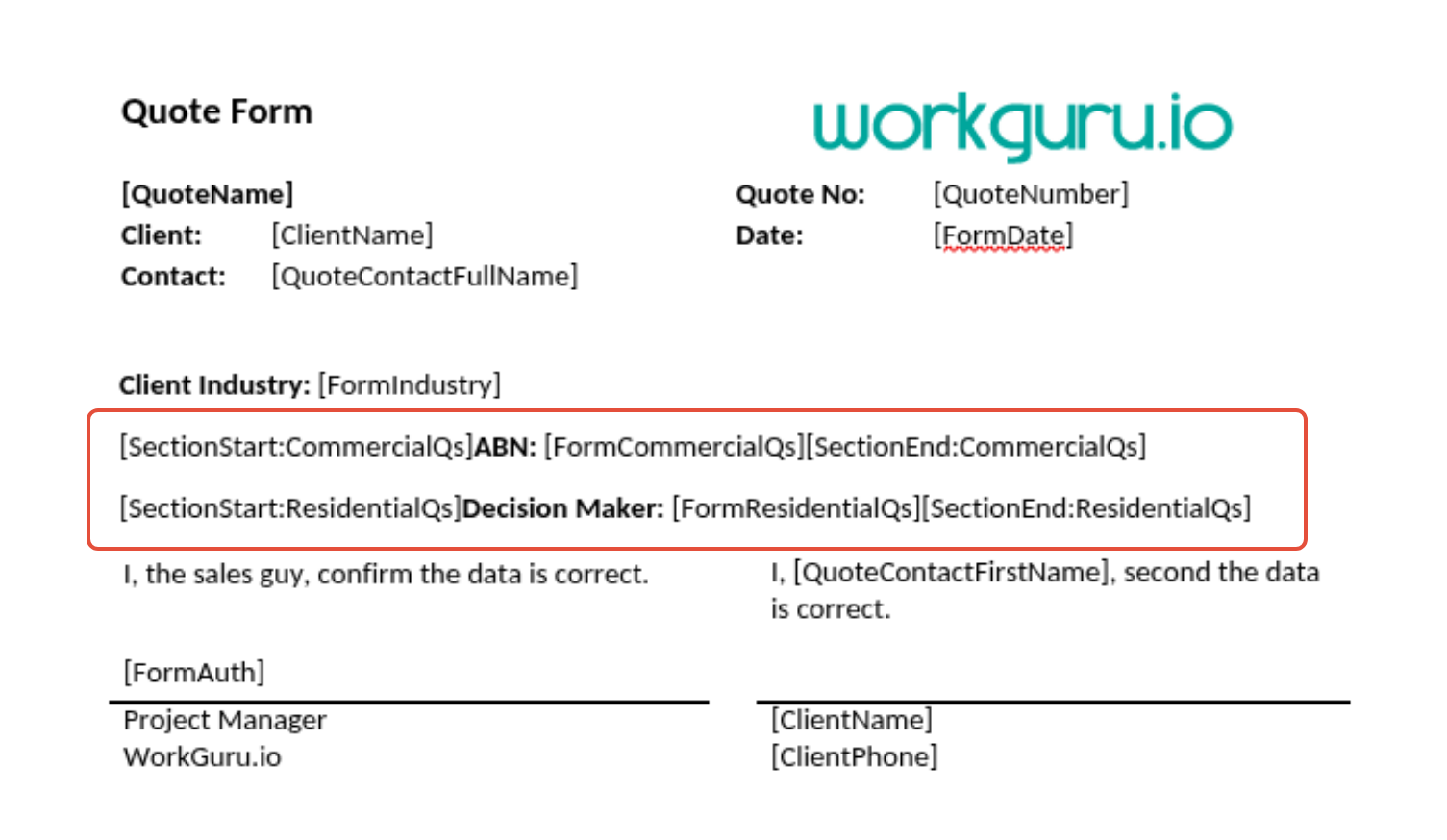
The specific requirements to be able to display the conditional logic results correctly on the form output are:
- Conditional logic output is displayed using section headers to show or hide the content between the start and end of the following section fields:
- [SectionStart:FormFieldName] - Show text after this section only IF condition logic shows this form field Name.
- Displayed Content - Formatted text that is displayed between the section start/end. Can be any required formatted text or form field output in the normal formatting of the form field name pre-fixed by form within squarebrackets. [FormFormFieldName]
- [SectionEnd:FormFieldName] - Show text before this section only IF the condition logic shows this form field Name.
- Ensure all options are included separately in the form document template layout.
Note: It is not currently possible to display form fields that require table output on document templates, such as timesheets, stock usage and custom tables between the section headers when using conditional logic.
Completing Forms Using Conditional Logic
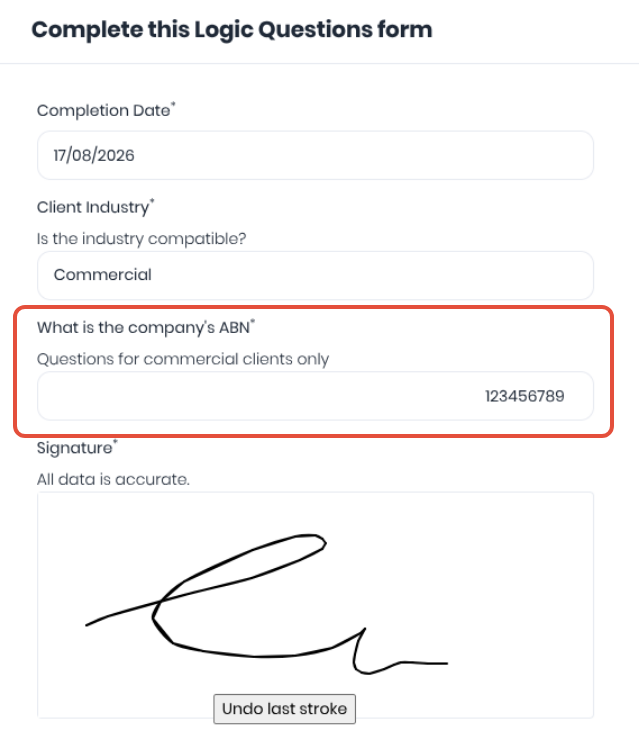
When completing the form, the conditional logic rules will show or hide fields based on the values entered into the trigger field/question:
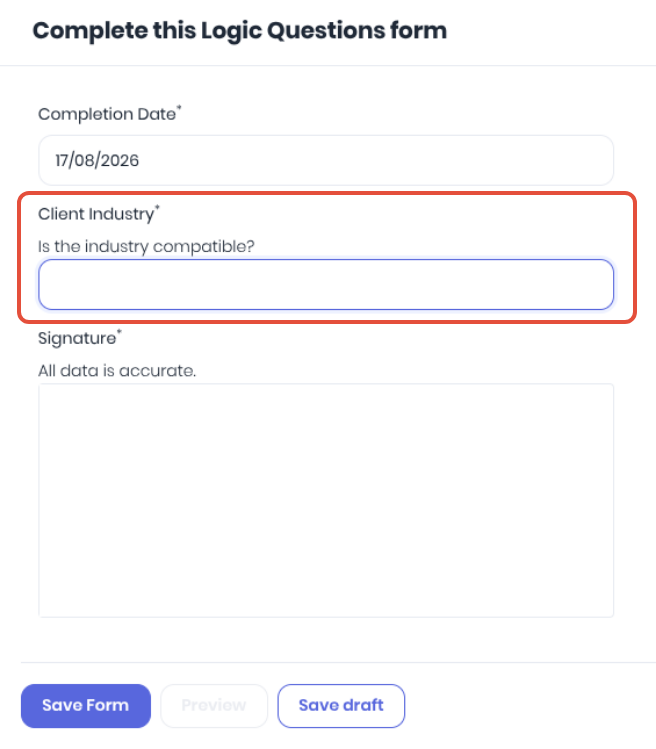
The form will show the fields based on the logic and the rest of the form is completed as normal.
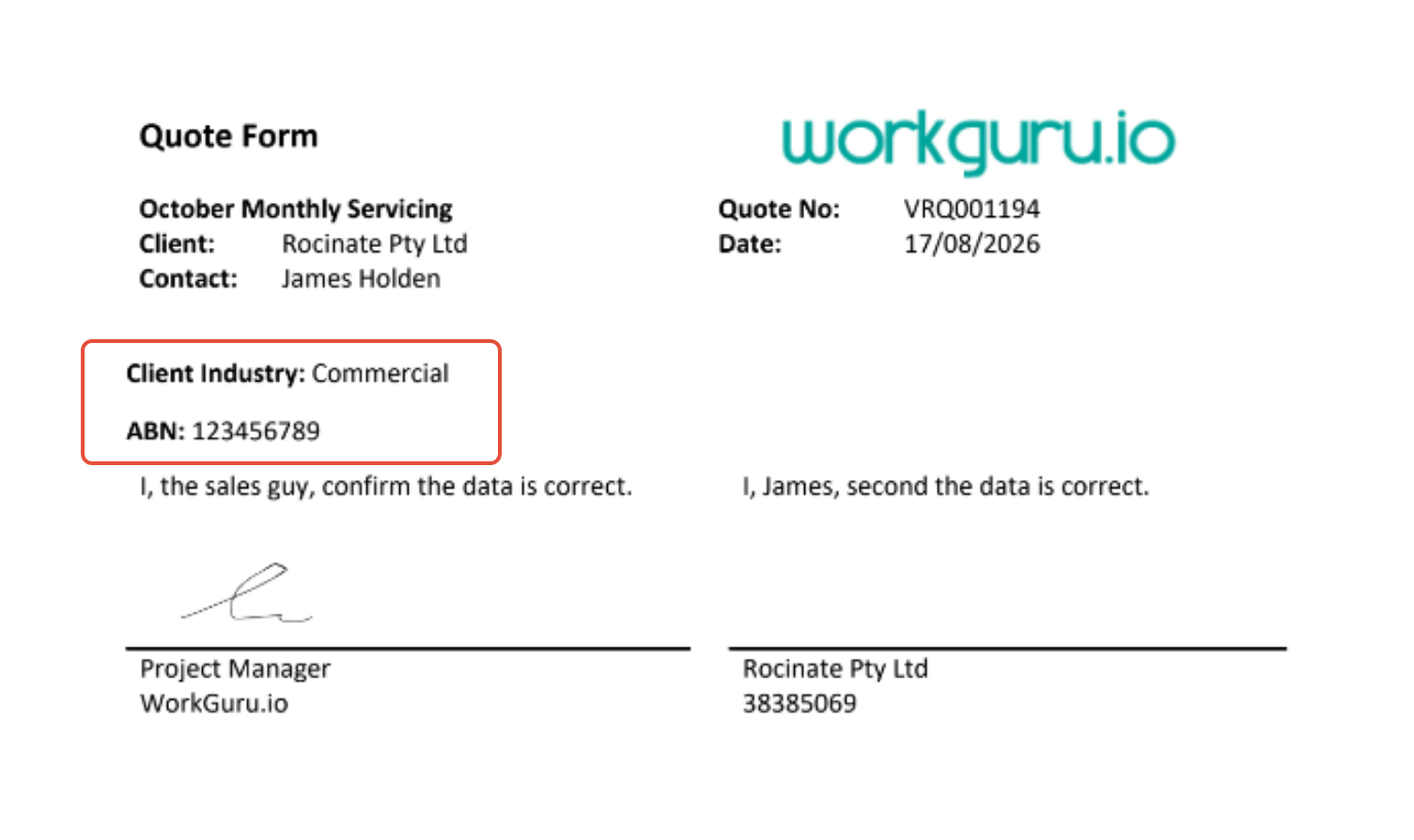
Once the form is saved, only the data captured by the conditional logic will be displayed. The unused fields on the form's document template will remain hidden.
Was this article helpful?
That’s Great!
Thank you for your feedback
Sorry! We couldn't be helpful
Thank you for your feedback
Feedback sent
We appreciate your effort and will try to fix the article