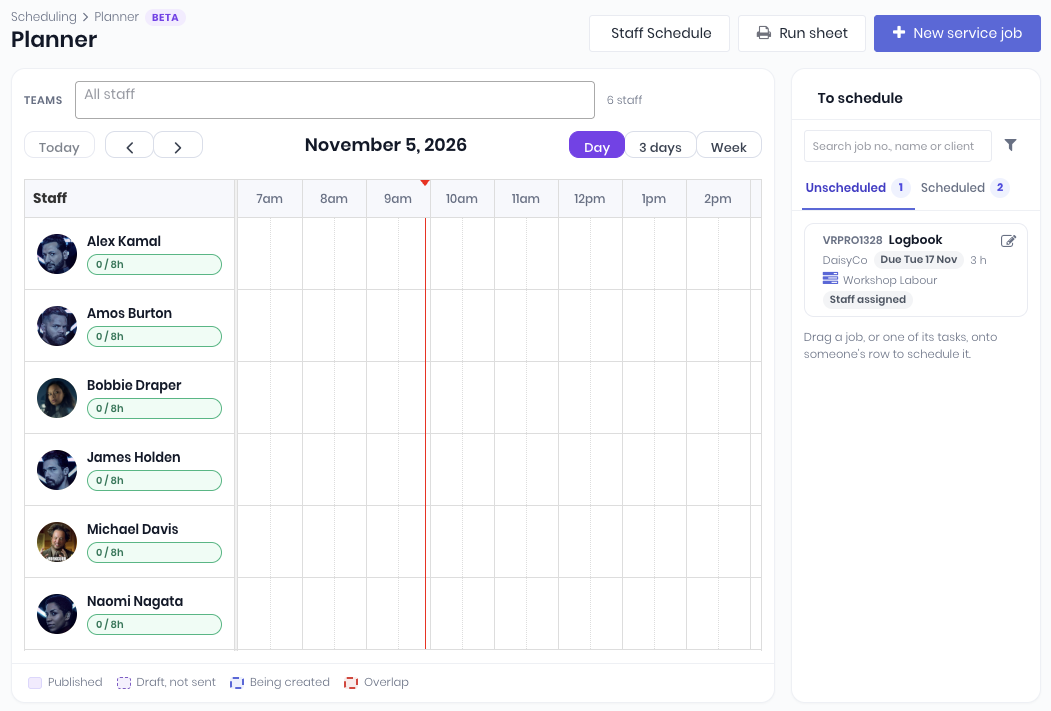
The Planner (Scheduling › Planner) is a drag-and-drop scheduling board in WorkGuru, built for field service and workshop teams. It shows an hourly row for each person on your team, with a “To schedule” list of open jobs waiting to be booked beside it.
The Planner is currently in Beta - please contact WorkGuru Support to join the Beta program.
Planner Settings
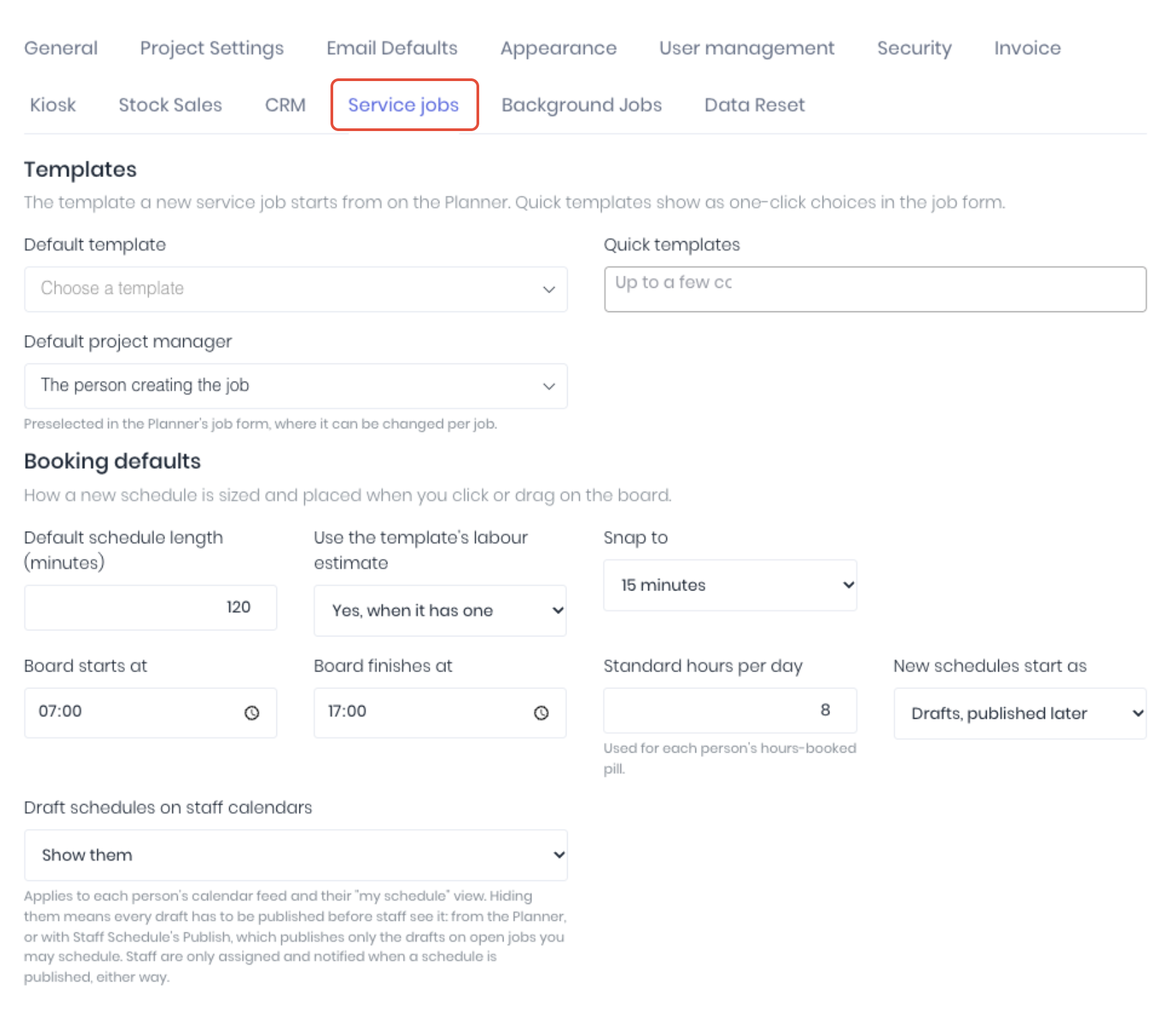
Although the planner can be used immediately, but it is designed to be setup with defaults to speed up job creation and scheduling. To set your job defaults in the Service Jobs settings (Administration -> Settings -> Service Jobs)
Templates
Every Planner job is created from a project template, so set up one template per common job type. Pick the template most new jobs start from, plus a few one-click alternatives. Only project templates are listed. Production job templates don't appear: they're created from elsewhere.
What the Planner uses from a template:
- Tasks and their hours - Each task can be booked to a person; total hours show as the template's labour estimate.
- Products, phases, purchase templates, custom fields, reporting categories - Copied to the new job as on the new-project page.
- Pricing and tax - The job is priced for the chosen client, as on the new-project page.
Setup tips:
- Give each task a realistic hours estimate; it sizes single-click bookings and the job's forecast for unbooked tasks.
- Split work people do separately into separate tasks (for example "Service labour" and "Travel") so each can be booked to a different person.
- Leave staff off template tasks if the Planner should decide who goes. Saving the settings warns: "Templates that assign staff to tasks: … Those people are assigned and notified as soon as a job is created from the template, even if you book someone else."
- Add the template as the default or a quick template.
Not available on the Planner - production job templates, and templates with no tasks when you add bookings ("This template has no tasks, so there's nothing to book time against.").
Booking Defaults
Decide how long a new booking is and how the board looks.
- Booking Length Default- Set the default booking length to minimise double handling.
- Drag across the board - The length you dragged, whatever the defaults say.
- Single click - The template's labour estimate (if turned on and the template has one), otherwise the default length.
- Drop a task from "To schedule" - The default length; resize it afterwards.
- Forecast hours on new jobs - When a job is created on the Planner, each booked task's hours become the time booked on it, with each person counted (two people for 2 hours = 4 hours). Tasks with no booking keep the template's hours. Moving or resizing bookings later doesn't change the job's hours. The job panel shows this as "Job's labour forecast" before you create it.
- Drafts and Publishing- By default new bookings are drafts: nobody is assigned or told until you publish.
- What publishing does - The person is put on the job's task (if not already) and gets a booking notice. Moving, re-siting or cancelling a published booking sends another notice. Drafts send nothing.
- Ways to publish:
- Publish - At the top of the board: publishes the drafts on the rows and days on screen.
- Create & publish or Save & publish in the job panel - Publishes that job's drafts, including its upcoming bookings not shown in the panel. "Create as draft" / "Save changes" keeps them as drafts.
- Drafts left unpublished, with a warning saying why:
- The job is completed, or isn't one you manage (without Can See All Projects);
- The task has been deleted from the job;
- The person is inactive or deleted;
- More than 100 at once: the earliest 100 publish; publish again for the rest.
- On Staff Calendars - With drafts shown, a draft appears in the calendar feed as tentative, titled "Draft - …". With drafts hidden, it stays off the feed and the "my schedule" view until published. The mobile app's calendar doesn't hide drafts yet.
Bookings made on Staff Schedule have no draft step and are unaffected by these settings.
Permissions
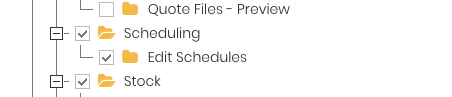
In addition to the service job settings, there are also planner specific permissions available. It is recommended that a "Scheduler" or equivalent role is created to manage planner. The Scheduling and Edit Schedules permissions are available in the Pages tree.
Using the Planner
The planner allows you to both create new or schedule existing jobs on the same page.
Create a New Service Job
Jobs can be created directly from the planner, using project templates and job setting defaults.
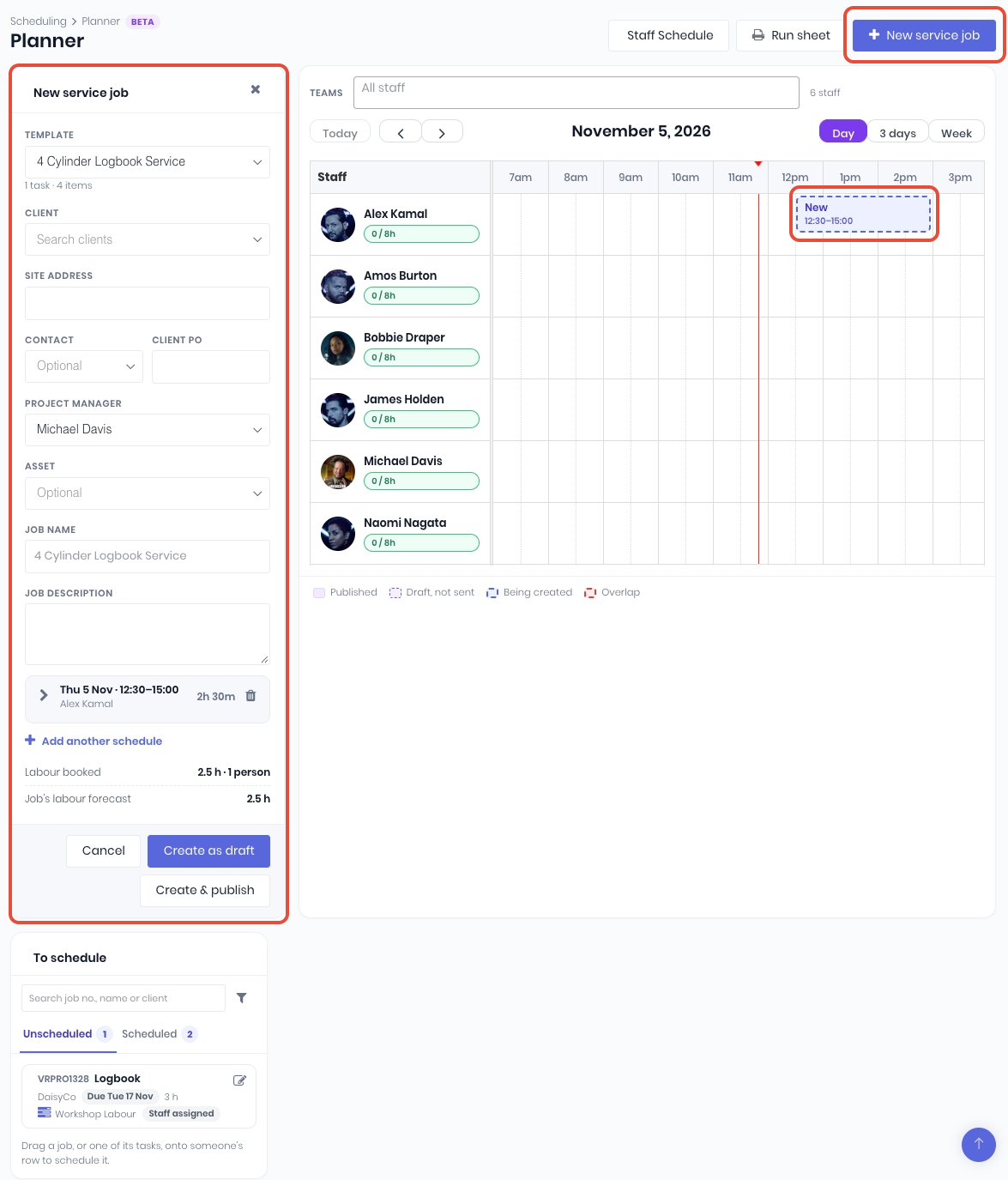
Click New Service Job, or drag across a person's row at the time you want. From the New Service Job pane on the right hand side of the planner:
- Template - Pick the job template (or a quick template)
- Client, Contact, and Site Address - Populated by the selected Client by default.
- Asset (Optional) - Select asset if required
- Job Name/ Job Description - Defaults to the template's.
- Schedule - Drag more slots to add schedules. The same time on another row adds that person. Pick which task each schedule is for.
- Check Labour booked and Job's labour forecast at the bottom of the panel.
Click Create as Draft or Create & Publish.
Book an Existing Service Job
Existing service jobs will display in the To Schedule list the right hand side of the planner. This view is compatible with the calendar of the Staff Schedule. Jobs, once published will be displayed on the staff members calendar and notified in-app and by email, but only if they're subscribed to task assignment notifications.
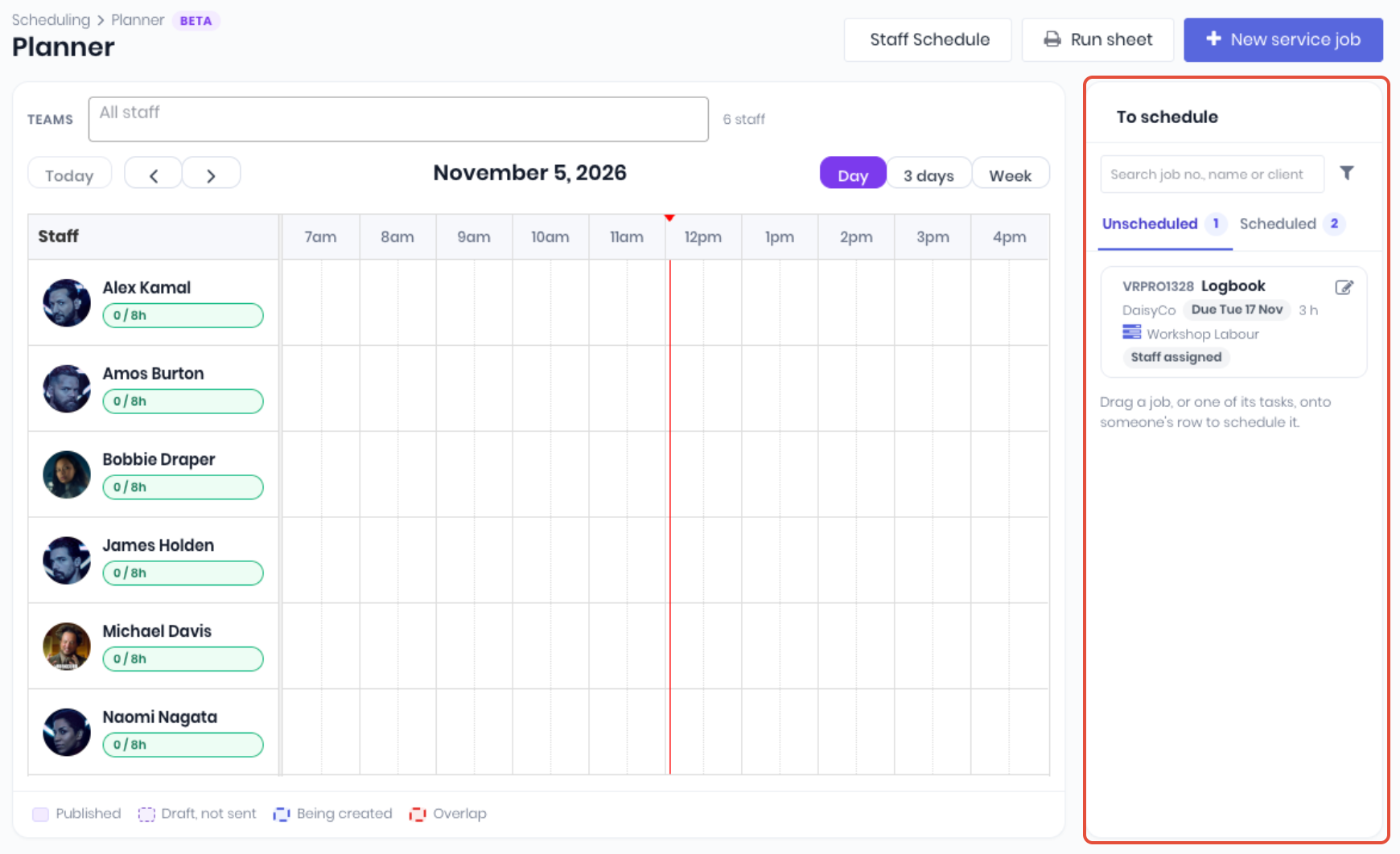
In the To schedule list to the right of the planner, Unscheduled lists open jobs with unfinished tasks and nothing booked; Scheduled lists jobs that have bookings. Expand a job to see its tasks, then drag a task onto a person's row.
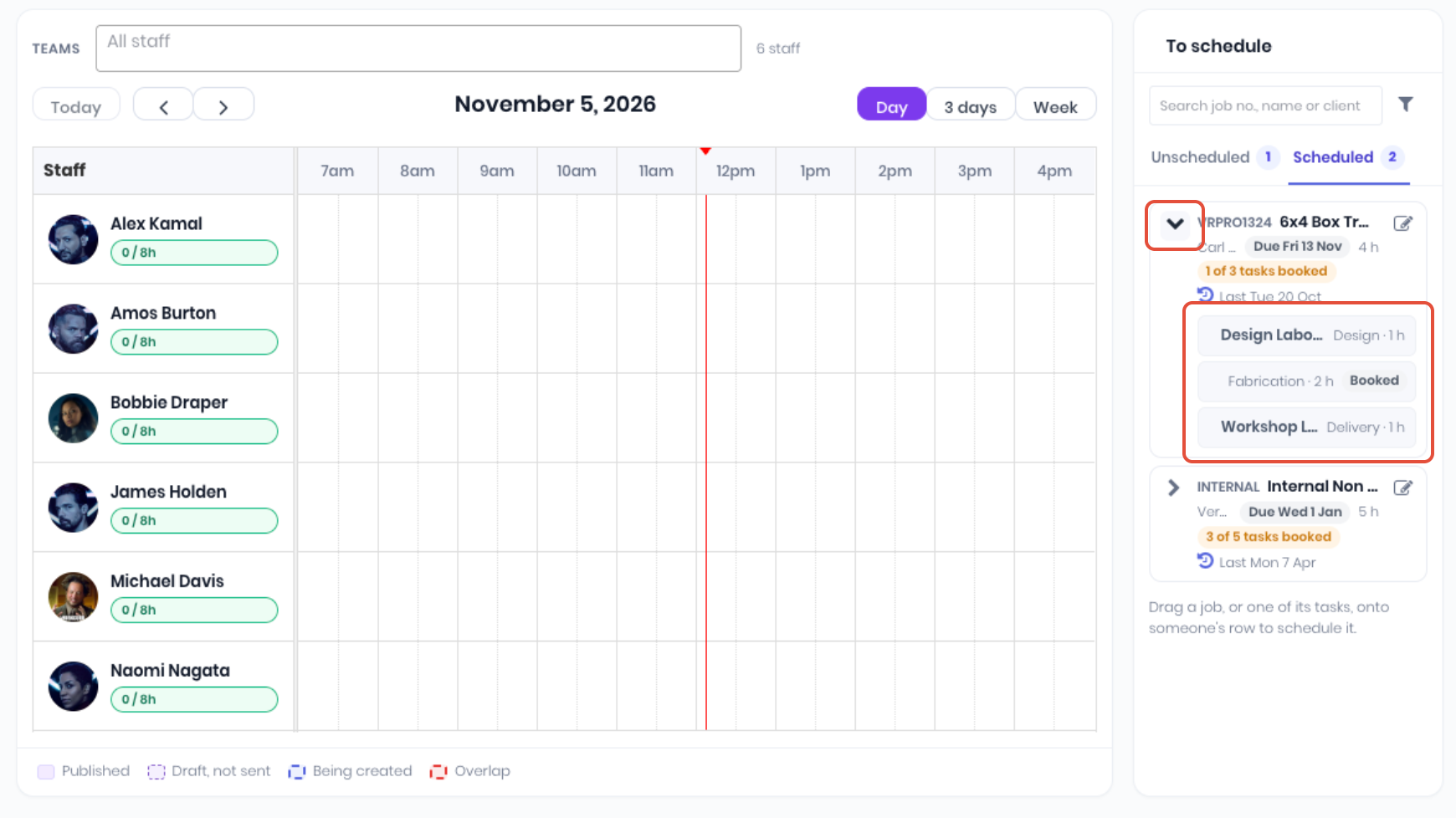
A job with one task left can be dragged directly. Search by job number, name or client, or filter by status, project group, reporting categories and project custom fields.
Managing Jobs on the Planner
You can Search the planner for specific staff and team names and change the planner period displayed using Day, 3 days or Week; Today and the arrows move the dates.
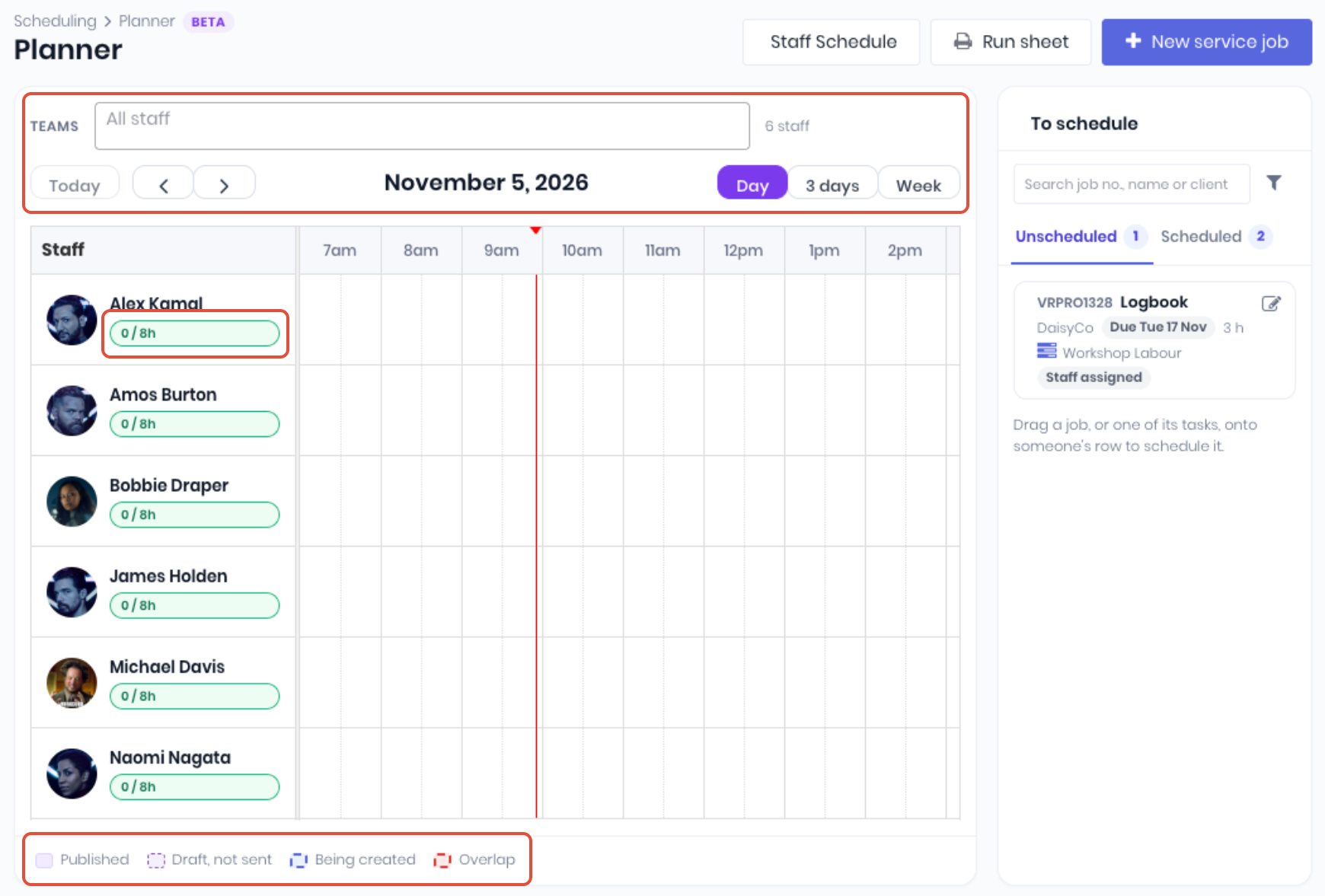
Once jobs are created and published, they can be rescheduled or re-assigned by moving (drag/drop and resize) and removed/cancelled. The legend shows Published, "Draft, not sent", "Being created" and Overlap. Each staff row shows hours booked over capacity for the days on screen (for example 5.5 / 7.5 h). A booking running across days counts only its hours within the days shown.
- Outside the Job's Dates - If a booking falls before the job's start or after its due date, you're asked to Move dates, Keep dates or Cancel. Either way, the task's own start and end widen to fit, so the Gantt shows the work. A job with no start or due date takes the booking's dates without asking.
- Clashes - Booking someone who's already booked is allowed; the board marks the overlap and the panel names the clash.
- Change a Booking - Drag to move it (to another time or person), drag its edge to resize it, or click it for details: open the job (new tab), change the job's status, or remove the booking.
- Edit a Job - Click the edit icon on a job card. The panel shows its upcoming bookings; when there are many, it shows the next ones and says how many more are on the board. Changing the site address there changes it on all upcoming bookings.
- Run Sheet - Prints each person's bookings for the days and teams on screen, with the job's contact, phone and description.
Note: The existing Staff Schedule still works and shows the same bookings. The main difference is the planner works schedules to the hour/calendar only whereas the schedule can do both hourly and Gantt schedules.
Was this article helpful?
That’s Great!
Thank you for your feedback
Sorry! We couldn't be helpful
Thank you for your feedback
Feedback sent
We appreciate your effort and will try to fix the article