Service Jobs settings allows you to set defaults for the Planner.
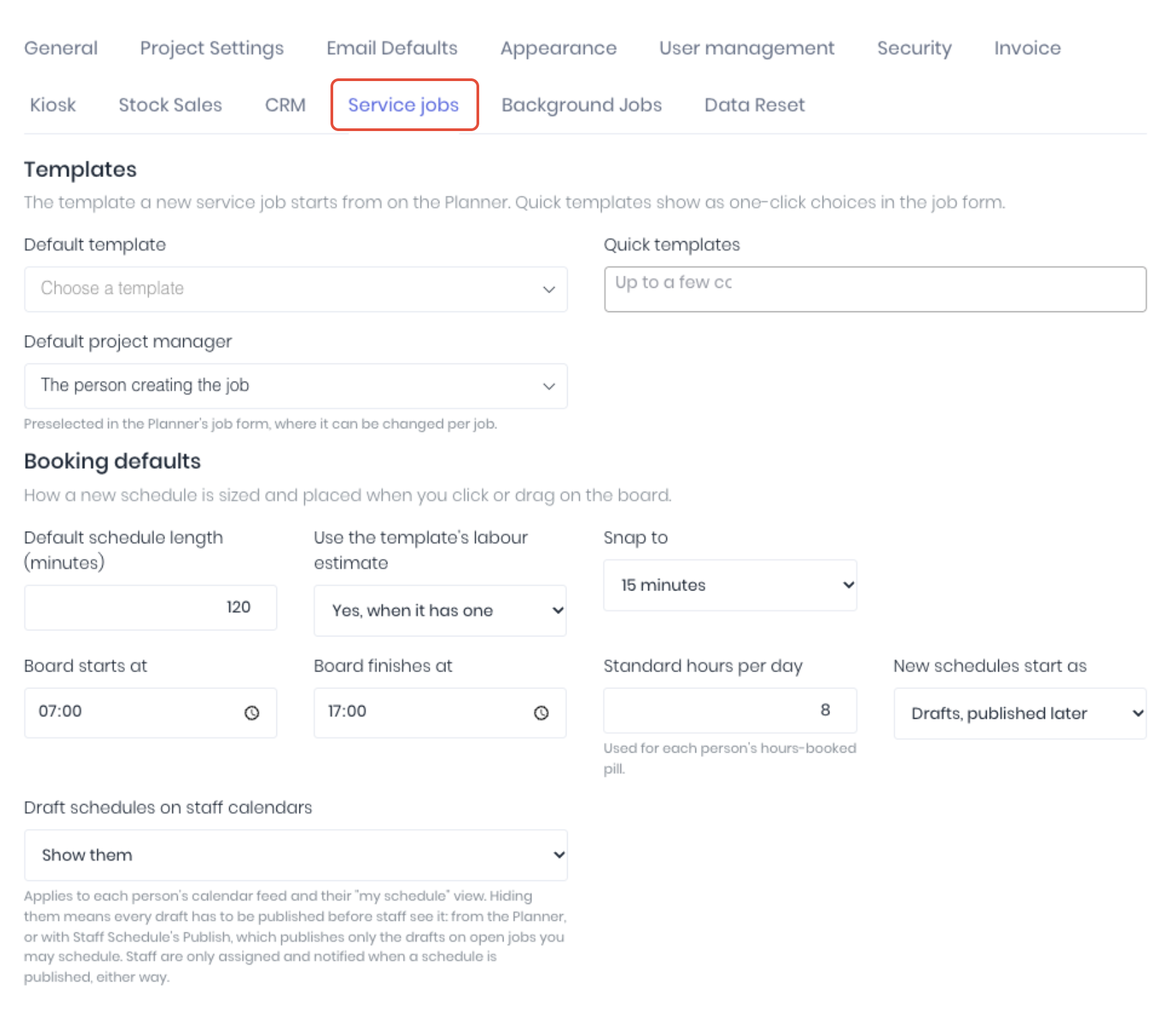
Templates
The template a new service job starts from on the Planner. Quick templates show as one-click choices in the job form.
- Default Template - Preselected when someone clicks "New service job" or drags out a slot on the board
- Quick Templates - Shown as one-click buttons at the top of the job form; pick a few common job types
- Default Project Manager - Preselected as the new job's project manager; can be changed per job
Booking Defaults
How a new schedule is sized and placed when you click or drag on the board.
- Default Schedule Length (Minutes) - Length of a booking made by a single click on the board, or by dropping a task from "To schedule"
- Use the Templates Labour Estimate - On a single click while creating a job, use the template's total labour hours instead of the default length
- Snap To - The step that drags and resizes snap to
- Board Starts At / Board Finishes At - The hours the board shows each day
- Standard Hours Per Day - Each person's capacity on the hours-booked pill (for example 6 / 8 h)
- New Schedules Start As - Default schedule status. Nobody is assigned or told until you publish
- Draft Schedules on Staff Calendars - Show or hide the draft (unpublished) jobs on staff calendars.
Was this article helpful?
That’s Great!
Thank you for your feedback
Sorry! We couldn't be helpful
Thank you for your feedback
Feedback sent
We appreciate your effort and will try to fix the article