You can manage your projects from the project dashboard page (Projects -> Dashboard).
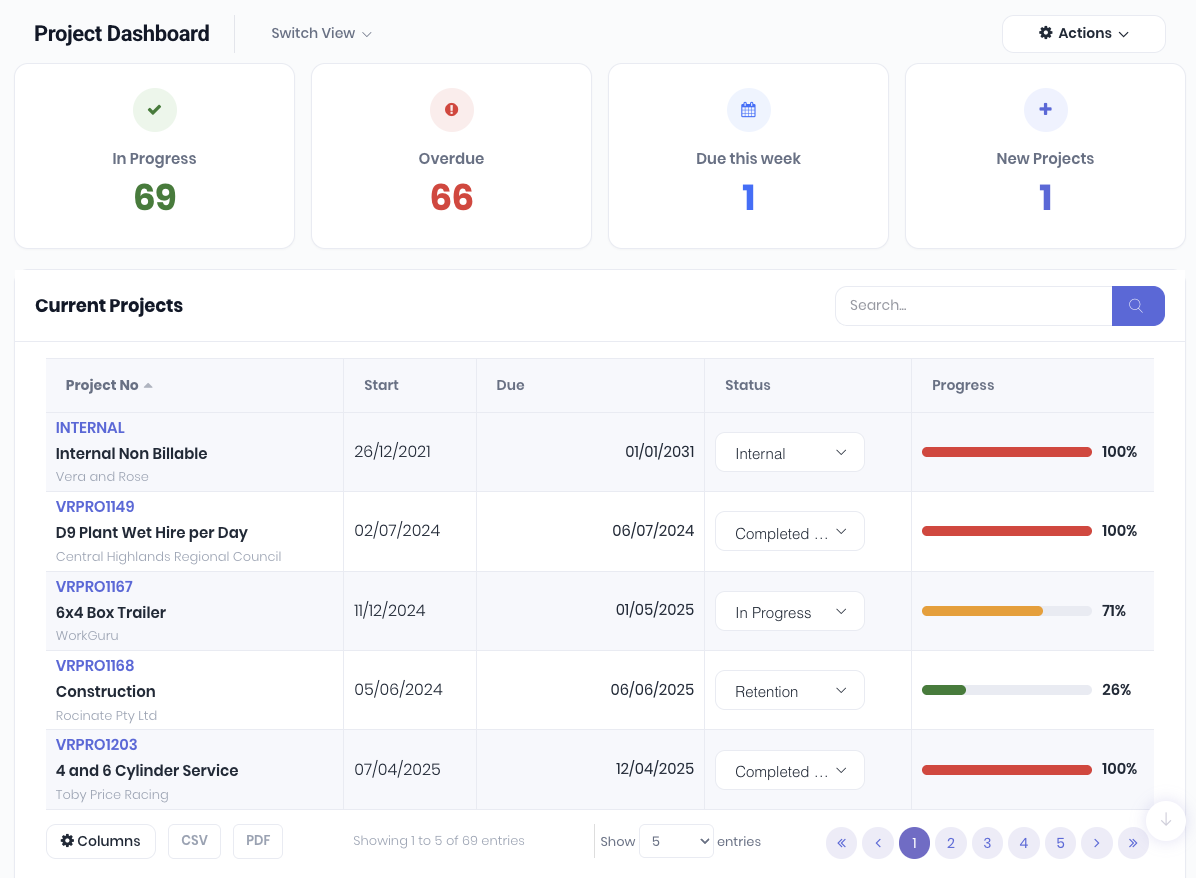
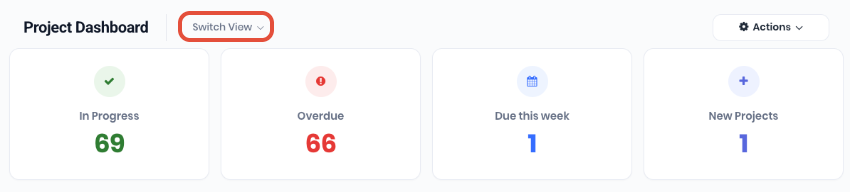
The dashboard displays project counts by In Progress, Overdue, Due this week and New Projects. You can click on each widget to display that subset of projects. Projects can also be displayed in a project or task Kanban view by selecting Project Board or Task Board from the Switch View dropdown.
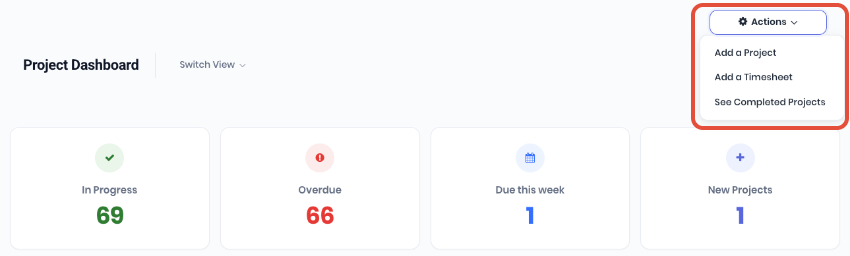
The project dashboard's Actions menu displays shortcuts to Add a Project, Add a Timesheet or See Completed Projects.
You can customise the project list by clicking on the Columns button in the footer to show or hide columns as required. Select the required columns and click Done to apply. Reset Columns resets the client list back to defaults. Clicking off the popup menu will cancel.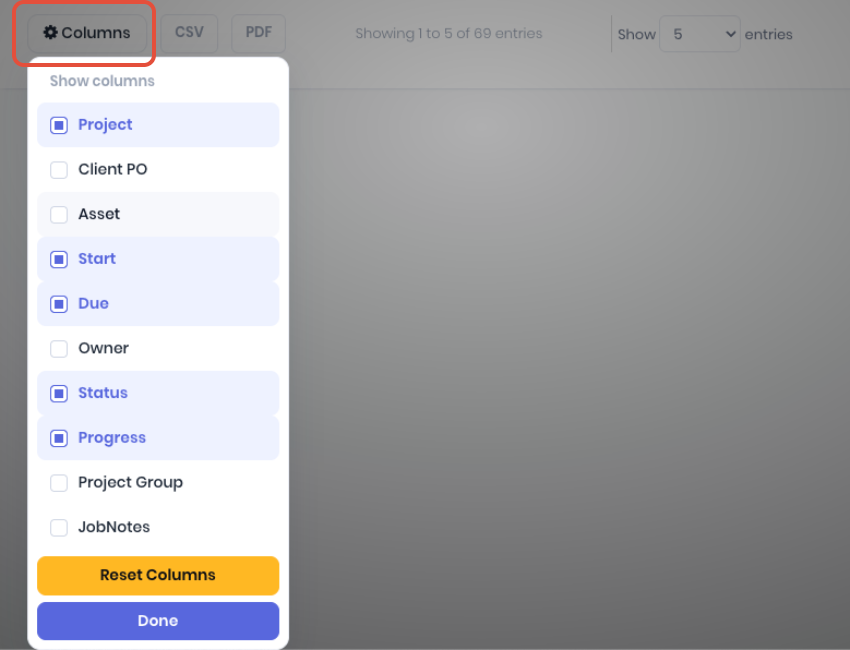
You can sort the Current Projects table by clicking on the table headers. Due date and Status can be edited directly in the table to update projects directly without opening the project details.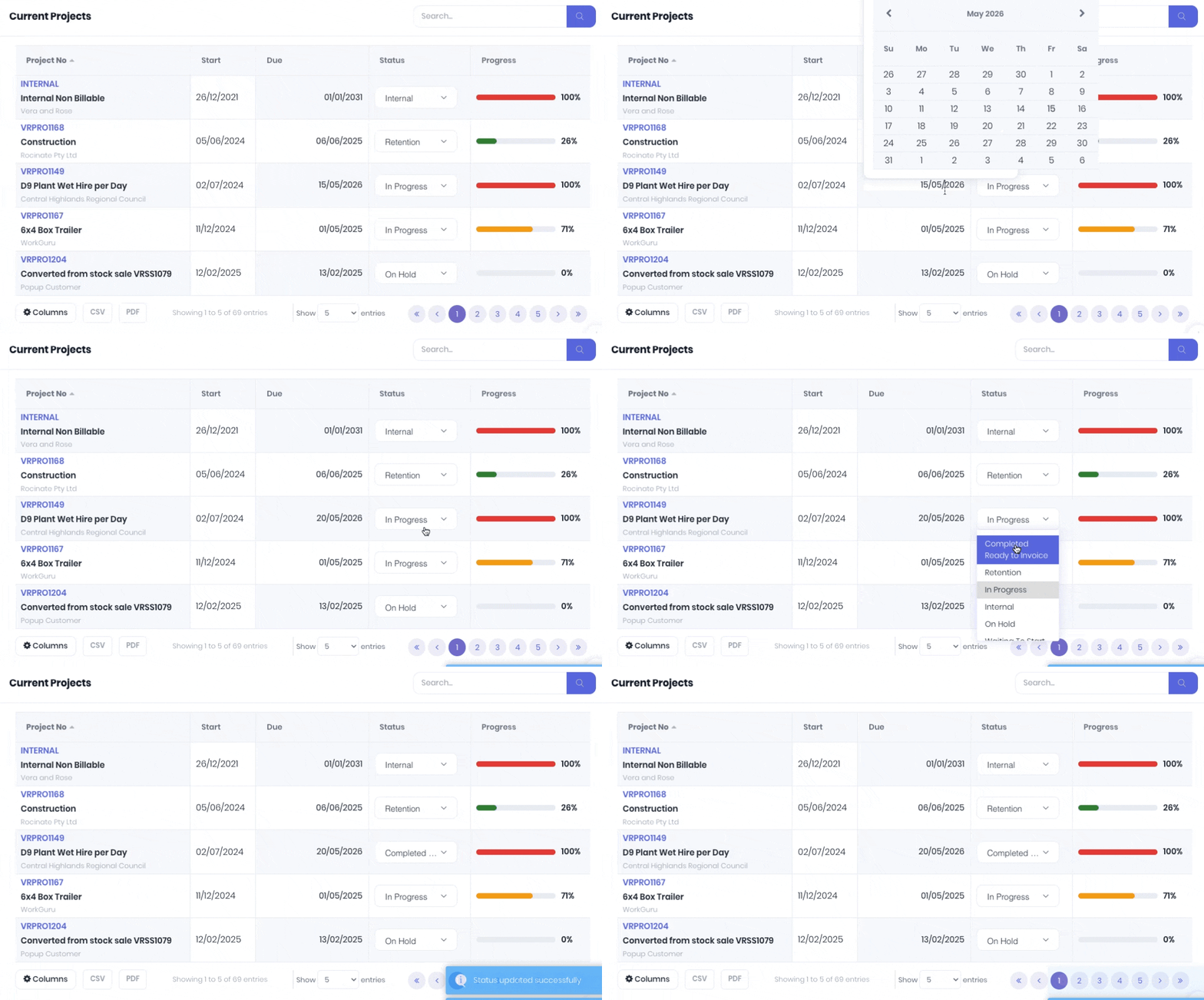 Directly search for a project and open the project details page by clicking on the Project No.
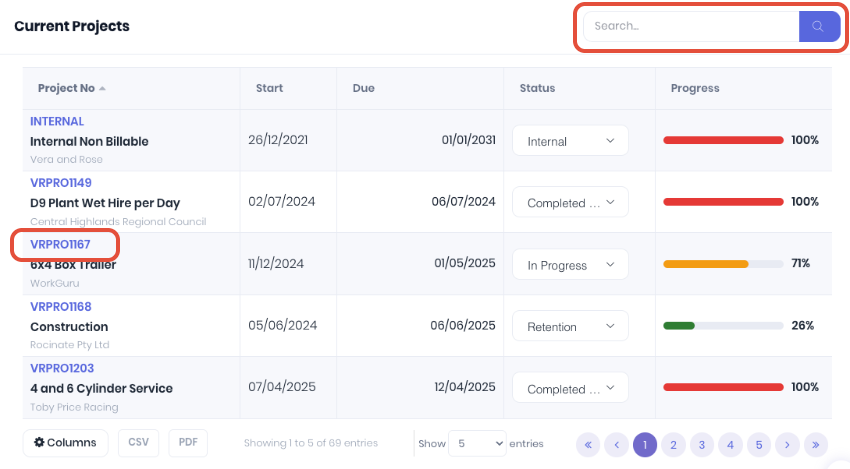
The project details page is the primary location to manage your projects in WorkGuru. As staff are providing project actuals in a timely manner via the mobile or kiosk applications, they will display in real time in the project detail to allow managers to monitor progress and profitability to compare with the quote or forecast and raise the purchase orders and invoices.
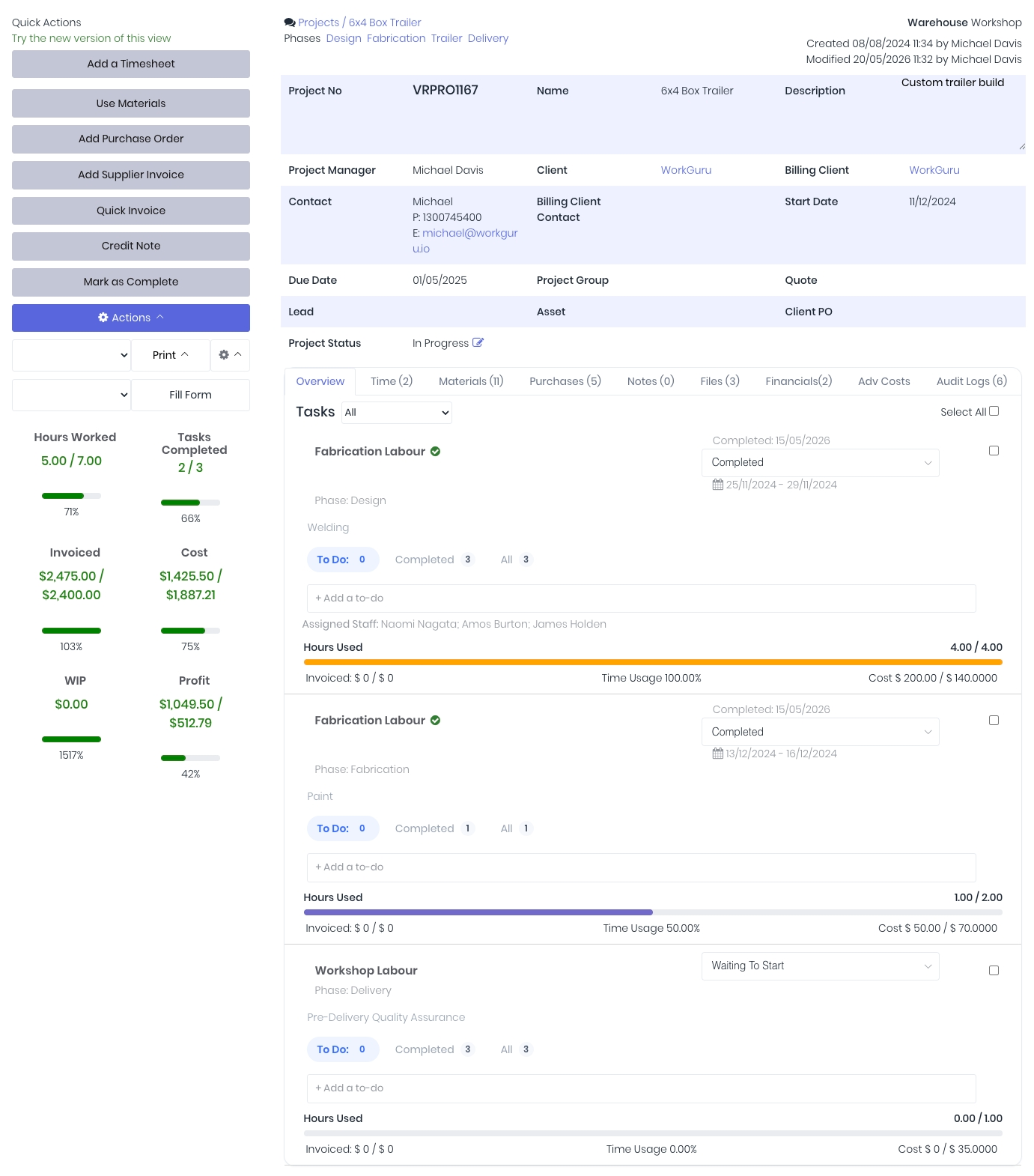
The project detail page is broken up into the following: project information, quick actions, profit and progress widgets and project tabs.
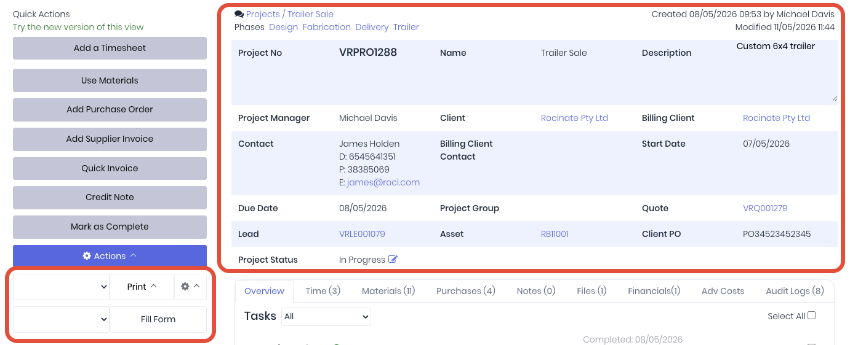
Project Information
- Phases - Allow you to select a project phase to display phase specific details in the profit and progress widgets and project tabs (if present).
- Warehouse - Selected warehouse the project will draw stock from by default.
- Project No - Unique project reference.
- Project Name - Project name.
- Description - Project description.
- Project Manager - Staff member responsible for the project as a project or account manager.
- Client - Project client.
- Billing Client - Invoices raised from the project will be billed to this client.
- Contact - Project contact details.
- Start Date - Date project is scheduled to start.
- Due Date - Date project is scheduled to finish.
- Project Group - Displays the project group name if the project is grouped.
- Quote - Displays the quote number if the project has been created from a quote.
- Lead - Displays the lead number if the project's accepted quote was part of a lead.
- Asset - Displays the asset number if the project is linked to an asset.
- Client PO - Displays the client reference number which authorised/approved the quote or project.
- Project Status - Displays the current project status. The status can be updated inline by clicking the edit icon.
- Print - Select and print project document templates.
- Fill Form - Select and complete project forms.
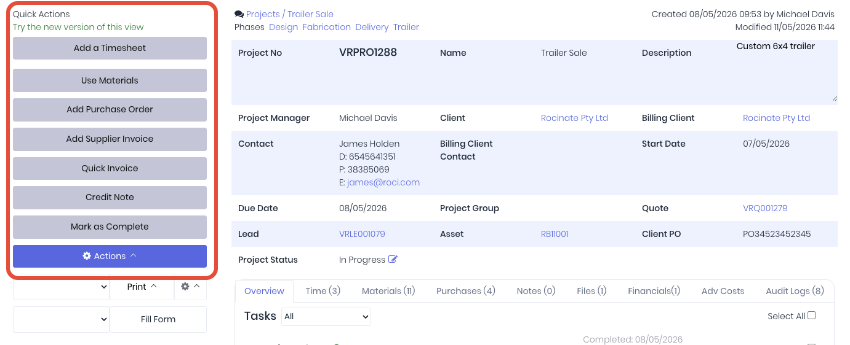
Quick Actions
- Add a Timesheet - Add labour costs to the project via timesheets.
- Use Materials - Use stock on hand from a warehouse's inventory or track a non-stock expense on the project.
- Add Purchase Order - Raise a project purchase order to a project.
- Add Supplier Invoice - Quick way to add an ad-hoc suppliers invoice to the project that wasn't raised formally via a purchase order
- Quick Invoice - Raise invoices based on the project's billable lines
- Credit Note - Raise client credit notes to refund invoiced lines.
- Mark as complete - Close off and archive the project.
- Actions
- Edit Project - Make changes to the project.
- Copy Project - Copy project details and line items to a new project.
- Create Template from Project - Create a template using the project's line items.
- Create Variation Quote - Create a variation quote linked to the project.
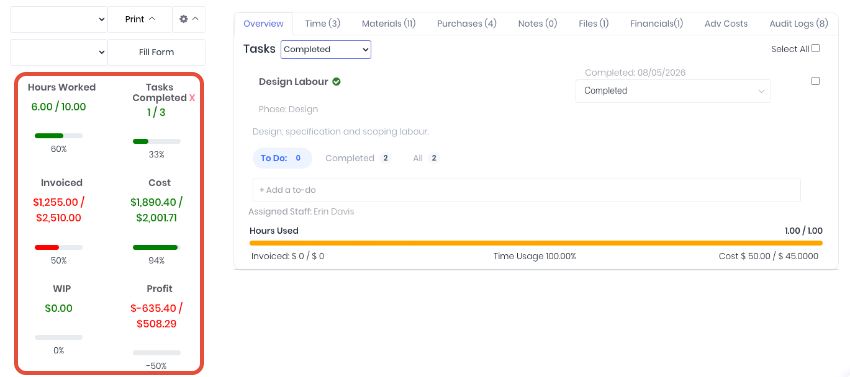
Profit and Progress Widgets - Actual vs forecast widgets can be temporarily hidden by clicking the red x. Widgets will reload on page refresh.
- Hours Worked - Hours based on timesheets.
- Tasks Completed - Project progress based on milestones (task) completion, not based on time.
- Invoiced - Amount invoiced vs forecast billable line items.
- Cost- Actual cost. Hover over the widget to popup a cost breakdown by the following actuals:
- Timesheets
- Material/Stock usage
- Purchase orders.
- Supplier credit notes.
- WIP - Value of un-billed billable actuals.
- Profit - Actual profit calculated from invoiced value minus actual cost.
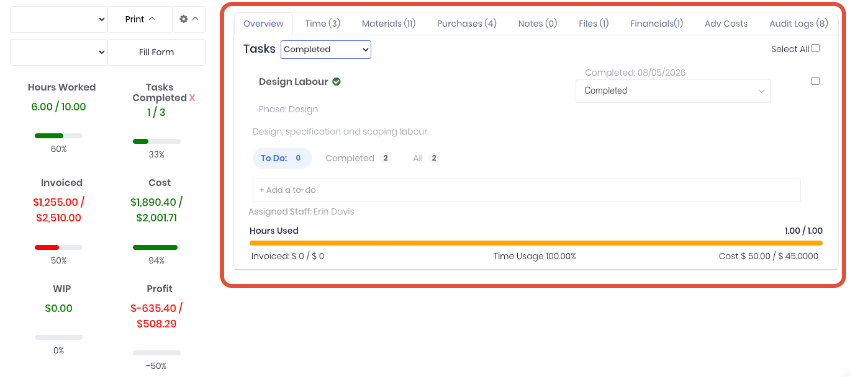
Project Tabs
- Overview - Individual task and todo progress and completion and bulk complete/incomplete tasks functionality. Task status can be changed direclty in the tab.
- Time - List of timesheets added to the project
- Materials - Material actual vs forecast summary and usage breakdown.
- Purchases - List of purchase orders allocated to the project.
The Purchases tab on a project features bulk management for billable statuses. Use the checkboxes on each purchase order row along with the new Update Billable button to change multiple purchase orders to billable or non-billable in a single action, eliminating the need to open each record individually.
This feature is automatically accessible to any user with existing permissions to add or edit purchase orders.
- Notes - Notes added to the project.
- Files - Files added to the project.
- Financials - Displays project financials
- Invoices
- Credit notes
- Billable line summary
- Adv Costs - Displays combined costing details of duplicate line items.
- SKU
- Name of Material
- Project Phase (if applicable)
- How many have been used
- How many have been received via PO/not received via PO
- Total Cost
- Serial or Batch material (if applicable)
- Audit Logs - Project change log displaying historical changes.
Project Details v2
WorkGuru is currently implementing a new version of the Project Details page aimed at tackling speed up page load times for large data sets and showing more details, it is current in an Open Beta so any feedback or issues found are welcome - please send anything you find through to support@workguru.io along with a quick explainer and relevant screenshot so our team can investigate.
To access this new version of the view, click on "Try the new version of this view" on the project details page as highlighted below:
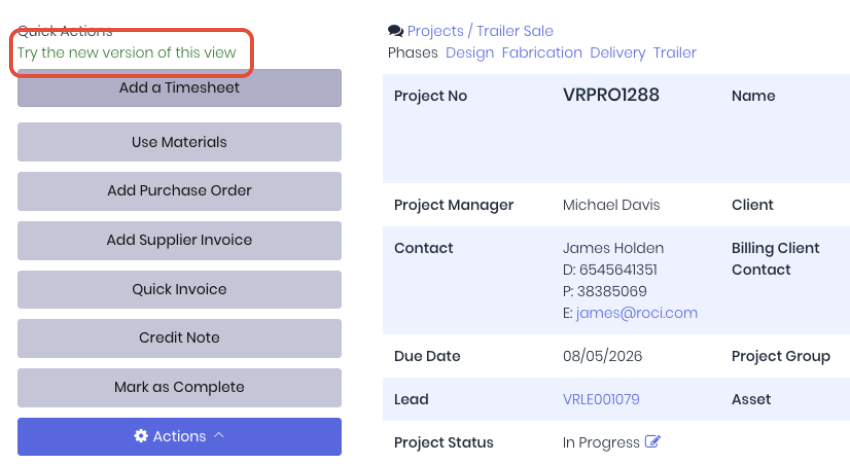
It may take a moment to register and complete the details page swap, so give it a minute or 2 to change over if it doesn't work right away. If you find any issues that impact your ability to action your project, we suggest you go back to the original project details page for a workaround after raising the issue with our team for review.
Was this article helpful?
That’s Great!
Thank you for your feedback
Sorry! We couldn't be helpful
Thank you for your feedback
Feedback sent
We appreciate your effort and will try to fix the article