A template is a saved set of lines and default suppliers you can start an RFQ from, so a package you price often isn't typed in each time.
Create a Template
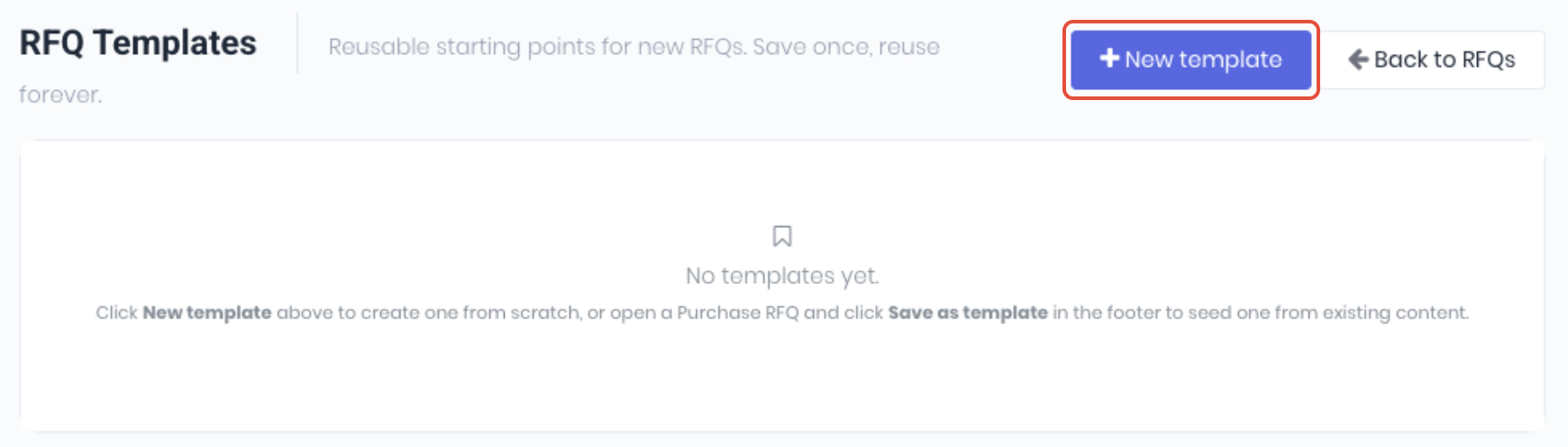
From the RFQ template dashboard (RFQs -> RFQ Templates), click New template.
Template Details
Enter the RFQ template details.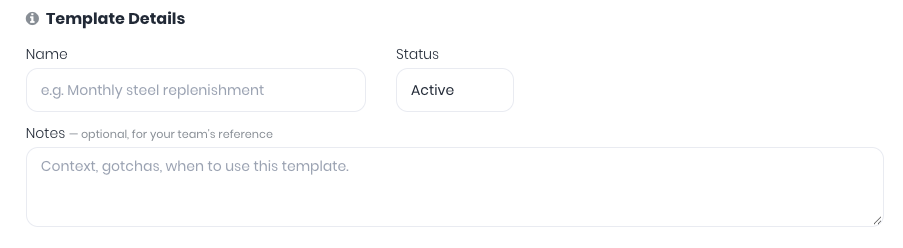
- Name - Enter a name to to identify the RFQ template.
- Status - Toggle the status of the new RFQ template.
- Notes - Notes about the RFQ template.
Default Suppliers
Pick the suppliers who sell the template line items.

- Pick Default Suppliers (Optional) - Search for and pick each supplier. Each one shows linked (they'll get it in WorkGuru), their email address, or no email on file.
Line Items
Each line is one item you want priced: a SKU, a name, an optional description and a quantity. You can pick items from your product catalogue, type them in, or paste a whole list from a spreadsheet. RFQs and RFQ templates use the same line editor.
Add Individual Lines
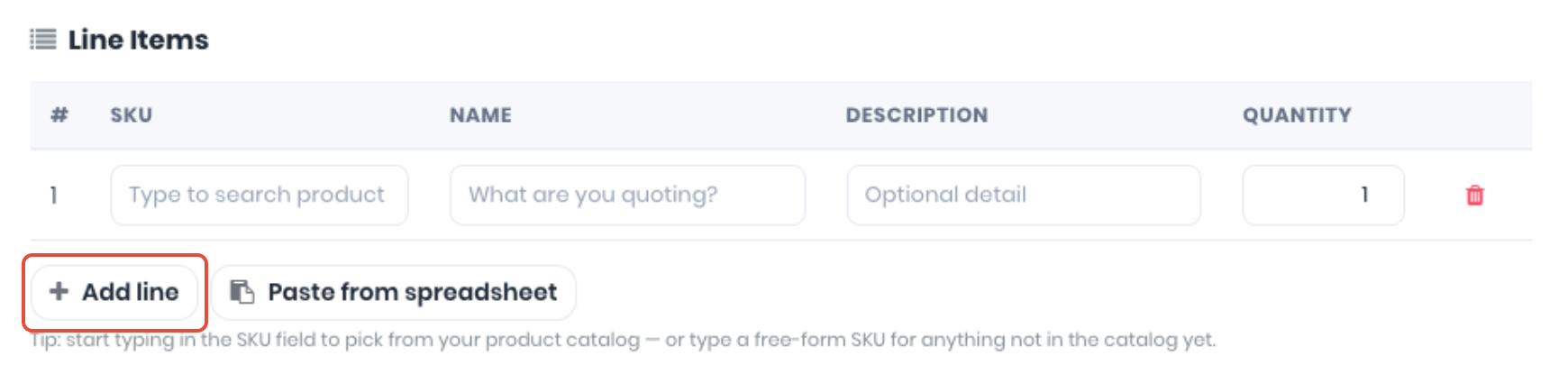
Click Add Line and start typing in SKU. Matching products from your catalogue appear; pick one to fill in its SKU, Name and Description. Update the Quantity for the amount required. For anything not in your catalogue, type a SKU of your own. Enter or check the Name and Description. To remove a line, click the Bin icon at the end of its row.
Add Multiple Lines
Copy a range from Excel / Google Sheets and paste below. Columns can be in any order if you include a header row (e.g. SKU Name Qty Unit). Without a header, the order is SKU, Name, Quantity, Unit, Description. Tabs or commas both work.
Import Column | Headings it Recognises |
|---|---|
SKU | SKU, Code, Part, Part No, Part Number |
Name | Name, Item, Item Name |
Description | Description, Desc |
Quantity | Qty, Quantity, Count |
Unit | Unit, UOM, Unit of Measure |
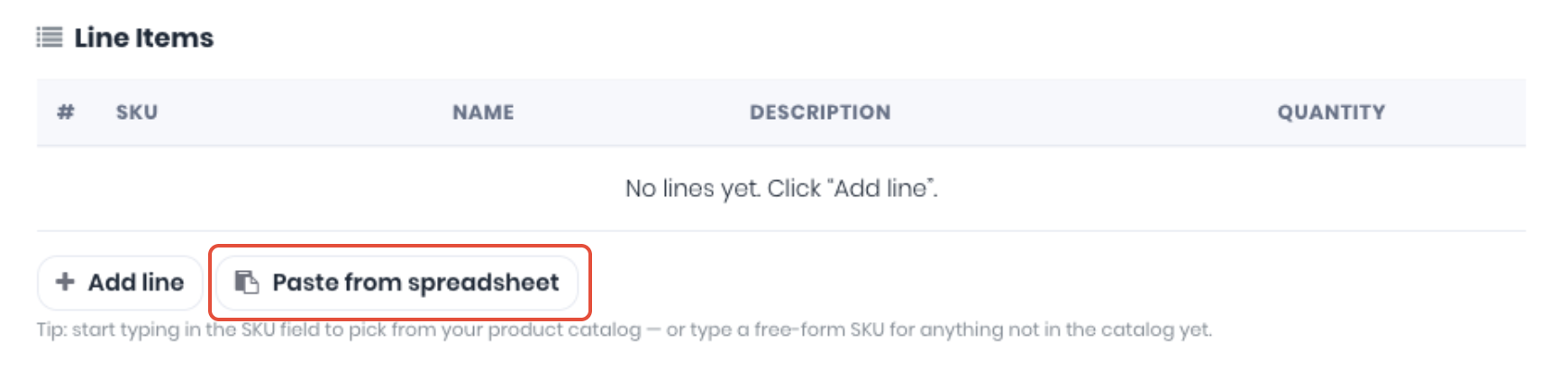
Click Paste from Spreadsheet and paste the data into the box.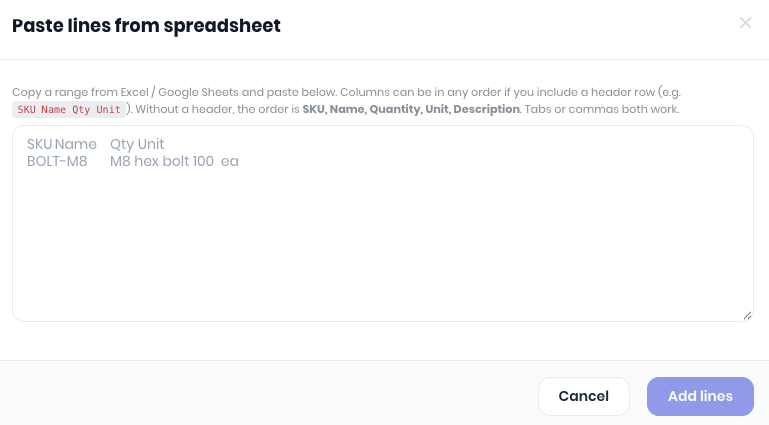
A preview shows how WorkGuru has read your columns, confirm and click Add Lines. Once added, to remove a line, click the Bin icon at the end of its row.
Notes:
- A blank quantity becomes 1, and "1,200" is read as 1200. If a quantity can't be read, WorkGuru tells you which rows to fix and adds nothing until you paste again.
- Rows with no SKU, name or description are skipped.
- Every line needs a quantity above zero before you can save the RFQ.
- A unit you paste is kept and sent to suppliers, but isn't shown in the editor.
Once complete, click Save to complete the RFQ template.
Note: You can also save an existing RFQ as a template. Open it and click Save as Template at the bottom, then give the template a name.
Use a Template
To use a RFQ template, start a new RFQ and in Start from a template, search for and select the template. Click Apply.

The template's lines replace any lines already on the RFQ, and its suppliers are added to any you've already picked. You can change both before sending.
Manage Templates
You can manage your RFQ templates from the RFQ Templates dashboard (RFQs -> RFQ Templates),
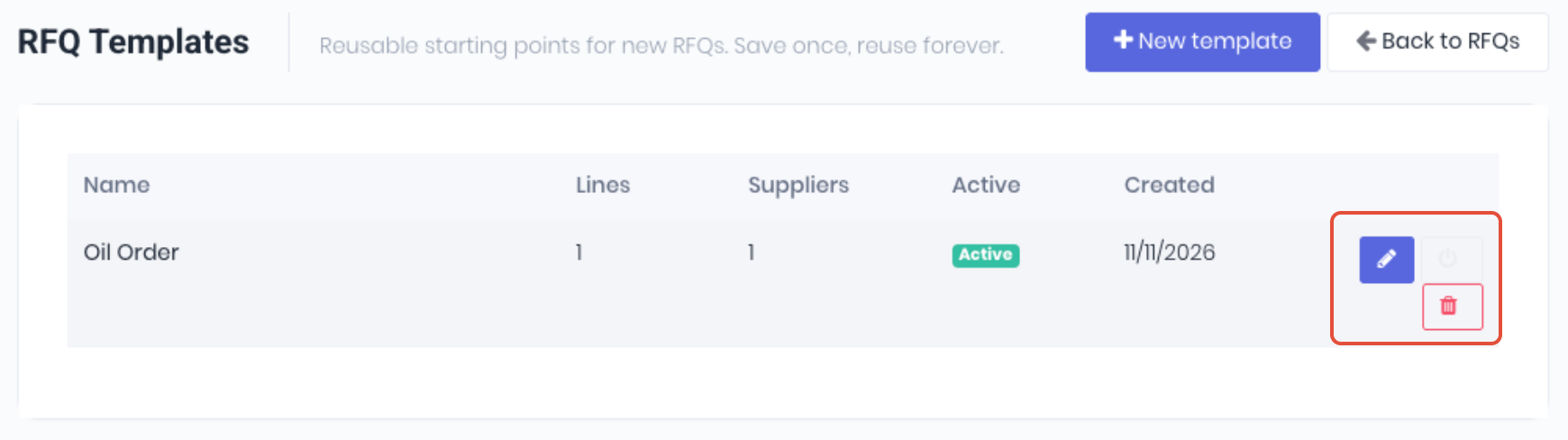
- Pencil icon - to edit a template
- Power icon - Toggle active or inactive
- Bin Icon - Delete it.
Only active templates appear in Start from a template.
Notes:
- Start from a template only appears on a new RFQ, and only once you have at least one active template.
- Changing or deleting a template doesn't change RFQs already made from it.
- Templates don't check quantities. If a template line has a quantity of 0, fix it on the RFQ before saving.
Was this article helpful?
That’s Great!
Thank you for your feedback
Sorry! We couldn't be helpful
Thank you for your feedback
Feedback sent
We appreciate your effort and will try to fix the article