RFQs are currently in beta. If you don't see the RFQs in your menu, contact WorkGuru support to join the beta program. Once it's on, RFQs appears in the main menu, with RFQs, New RFQ and RFQ Templates under it, and the RFQ permissions appear when you edit a role.
RFQ Permissions
Go to Administration > Roles and edit a role. Under RFQs, tick the permissions in the Pages tree the role needs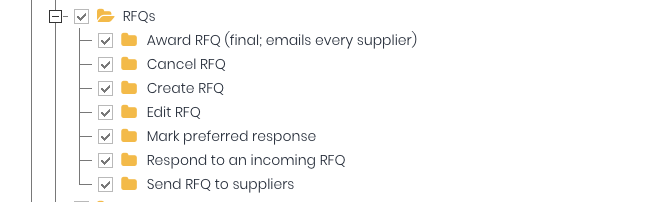
- RFQs- See the RFQs menu, the list, the Compare page, templates, and the RFQs tab on a Lead. Everyone with this permission sees every RFQ in the account.
- Award RFQ (final; emails every supplier) - Award the RFQ.
- Cancel RFQ - Cancel an RFQ.
- Create RFQ - Create new RFQs, duplicate them, and create, edit and delete templates.
- Edit RFQ - Save changes to a draft, upload and remove attachments, and extend the closing date.
- Mark preferred response - Choose the preferred supplier on the Compare page. This is what the quote is built from.
- Respond to an incoming RFQ - Answer RFQs your own customers send you in WorkGuru (see Article 8).
- Send RFQ to suppliers - Send an RFQ, resend it to a supplier, and invite more suppliers after sending.
Setup Supplier Emails
Go to Administration -> Settings and open the Email Defaults tab.
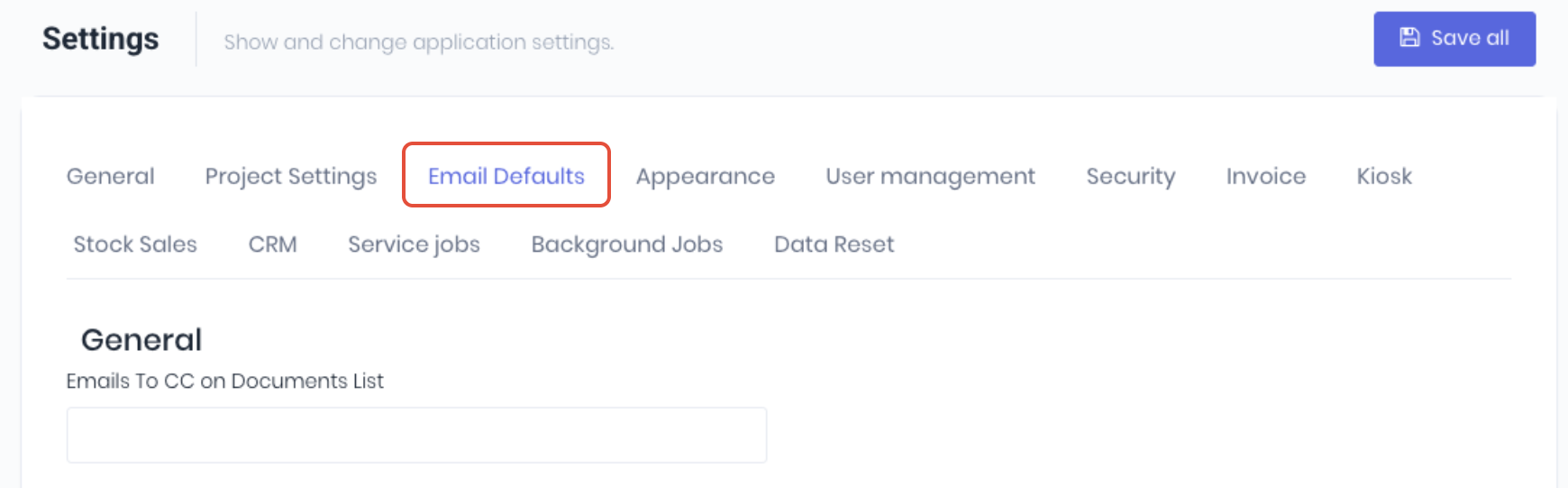
Find Request for Quotes section to setup your email defaults for sending RFQs
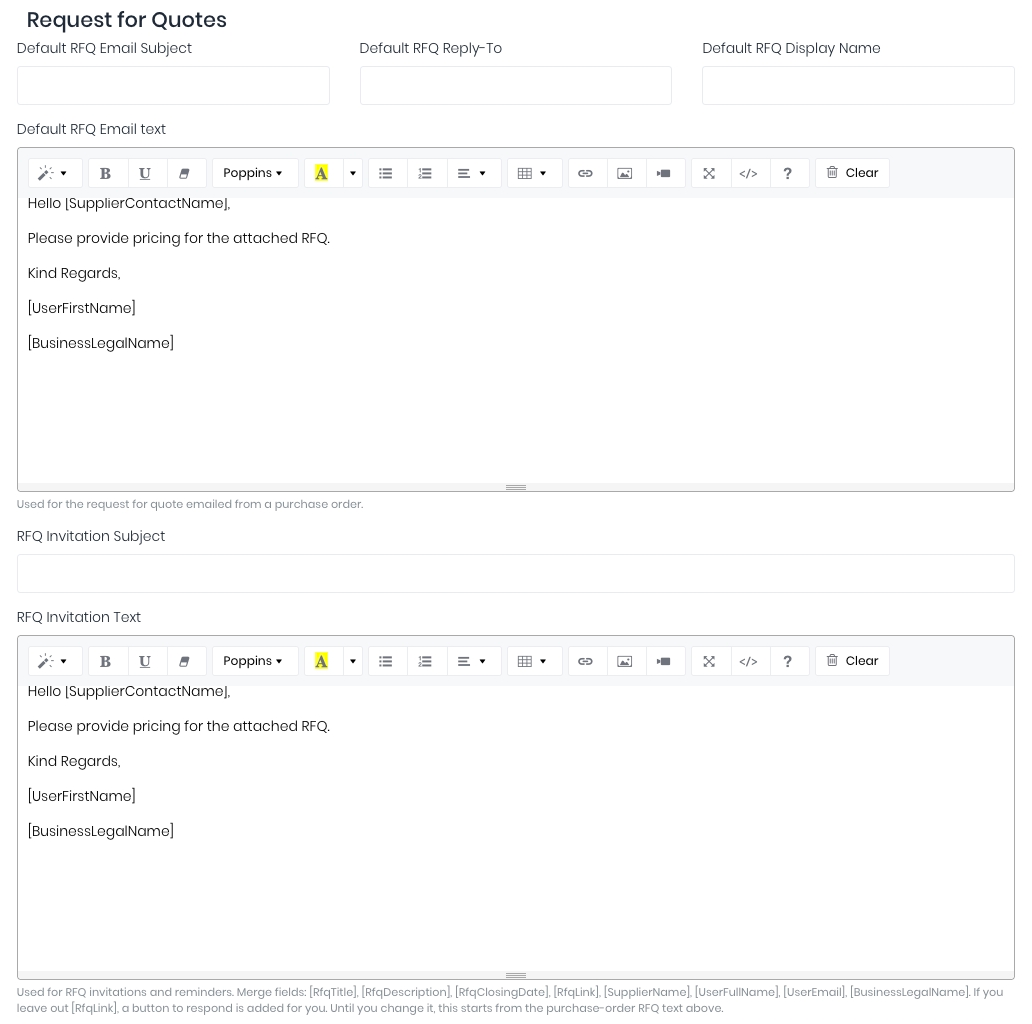
- Default RFQ Display Name - Enter the name suppliers see the email come from. If it's blank, WorkGuru uses your business's legal name, then your account name.
- Default RFQ Reply-To - Enter the address supplier replies should go to. If it's blank, replies go to the RFQ's owner.
- Default
- RFQ Invitation Subject and RFQ Invitation Text - These are used for invitations and reminders. You can use all general and purchase order email fields in addition to the RFQ specific fields: [RfqTitle], [RfqDescription], [RfqClosingDate], [RfqLink]. If you leave out [RfqLink], WorkGuru adds a button for the supplier to respond.
Click Save to apply changes.
Notifications
Each person can choose which RFQ notifications they get in their notification settings:
- Supplier responded to your RFQ
- New RFQ received
- RFQ closing soon
- Supplier accepted your connection invitation.
Notes:
- Edit RFQ permission is needed to upload attachments, even on a new RFQ. Give it to anyone who has Create RFQ.
- Raising a purchase order from an award (Article 11) also needs permission to add purchase orders. Building a quote (Article 12) also needs permission to add quotes.
- The older Default RFQ Email Subject and Default RFQ Email text settings are for the request for quote you can email from a purchase order. The invitation subject uses Default RFQ Email Subject if you leave RFQ Invitation Subject blank.
Was this article helpful?
That’s Great!
Thank you for your feedback
Sorry! We couldn't be helpful
Thank you for your feedback
Feedback sent
We appreciate your effort and will try to fix the article