The RFQs dashboard (RFQs -> RFQs) shows every RFQ in your account: the ones you've sent to suppliers (Purchase) and, if you're a supplier, the ones customers have sent you via WorkGuru Supplier Connect (Sales).
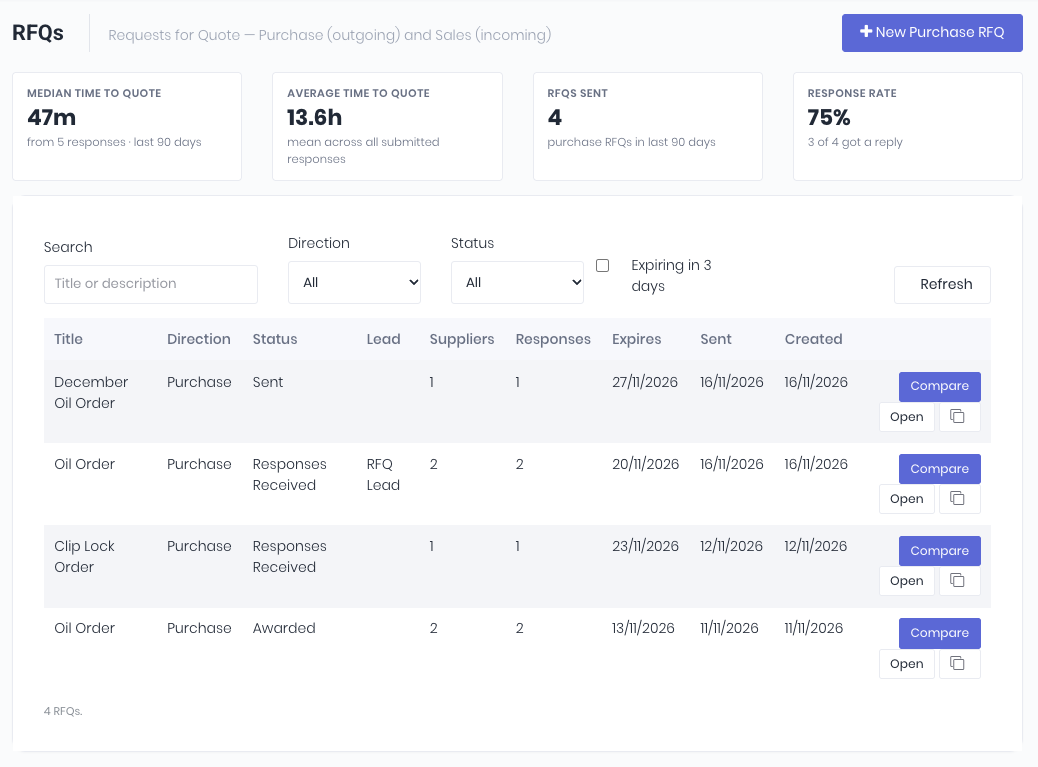
Tiles at the top show how quickly your suppliers respond. and cover RFQs you've sent in the last 90 days.
- Median time to quote - The typical time between sending an RFQ and a supplier submitting a quote.
- Average time to quote - The average of the same, across all submitted quotes.
- RFQs sent - How many RFQs you sent.
- Response rate - The share of those RFQs that got at least one reply.
Search for RFQs by title or description. Filter by Direction (Purchase or Sales) and Status. Tick Expiring in 3 days to see RFQs closing in the next 72 hours. Click Refresh to reload. Available RFQ statuses are:
- Invited - The RFQ has been sent to them.
- Viewed - They've opened their email link.
- Submitted - They've sent a response.
- Declined - They've said they won't quote.
RFQs are displayed with the RFQ's Title, Direction, Status, linked Lead, how many Suppliers it went to, how many Responses came back, and when it Expires, was Sent and was Created. Click Open to edit the RFQ, Compare to view responses and on a sales RFQ, click View to respond. Use the duplicate icon to copy an RFQ as a new draft.
Notes:
- An RFQ past its closing date shows as Expired straight away.
- Responses counts declines as well as quotes.
- The list shows the newest 100 RFQs. Use the search and filters to find older ones.
Was this article helpful?
That’s Great!
Thank you for your feedback
Sorry! We couldn't be helpful
Thank you for your feedback
Feedback sent
We appreciate your effort and will try to fix the article