When receiving a purchase order, you can correctly apply landed costs if they are part of the suppliers invoice. Landed costs can also be tracked if invoiced by a different suppliers.
To add landed costs from the supplier's invoice, open the purchase order's detail page and click either Receive Purchase Order if you are receiving stock as well or Update Invoice Details if you are costing the order without receiving stock.
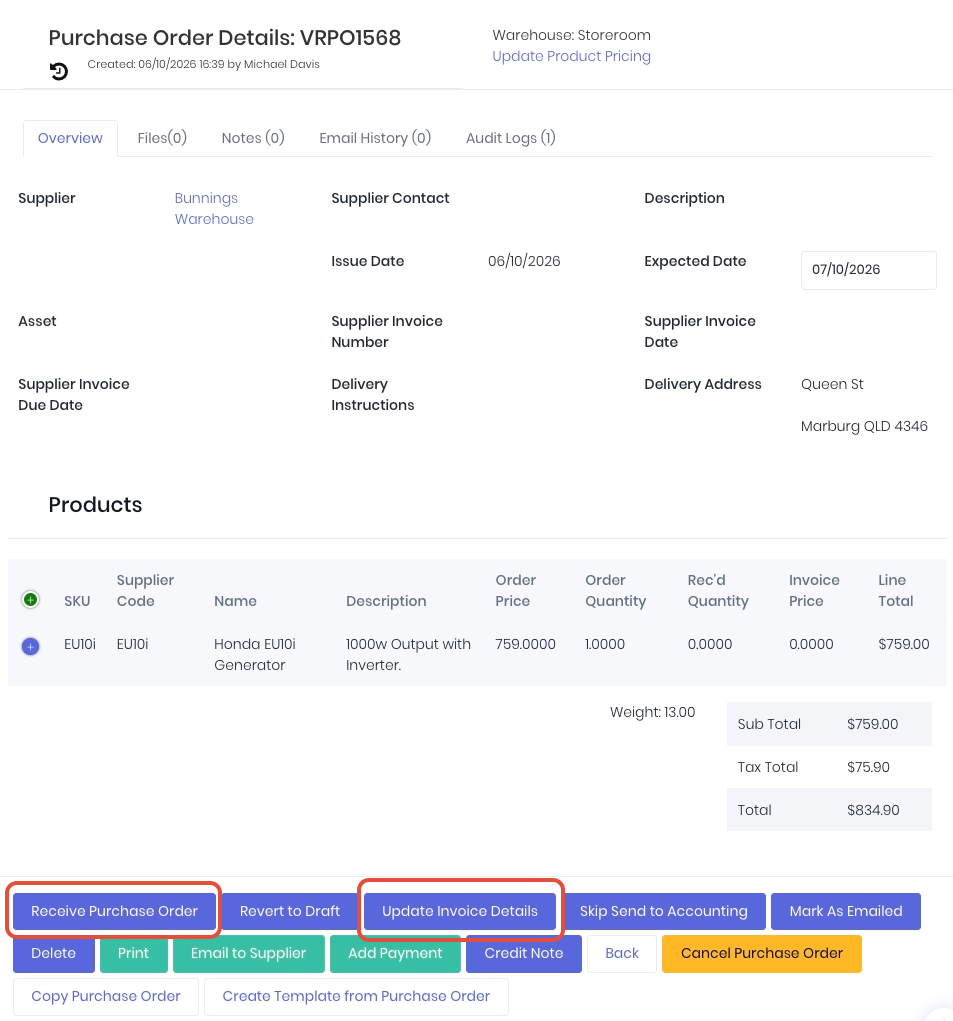
Receive and/or Cost the purchase order as per the the normal process referencing the supplier invoice. Dates, quantities, unit costs etc.
Supplier Landed Costs on a Stock Purchase Order
For a stock order, any landed costs applied will increase the FIFO product's unit cost. Click the Add Landed Cost button above the sub totals to add the landed cost: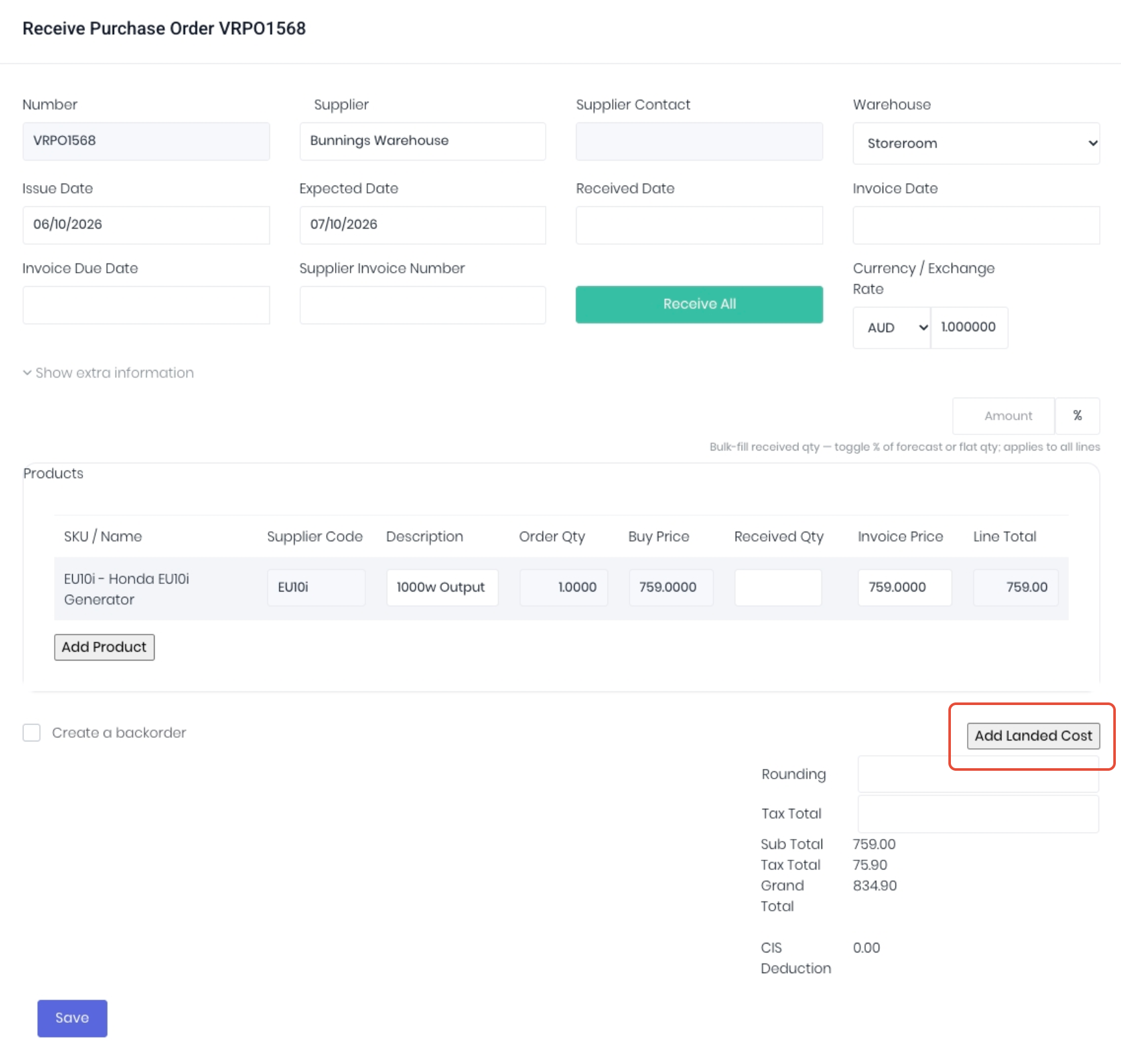
Add the landed cost information to match the supplier invoice. You can enter Adhoc costs or lookup an existing nonstock product in your product database.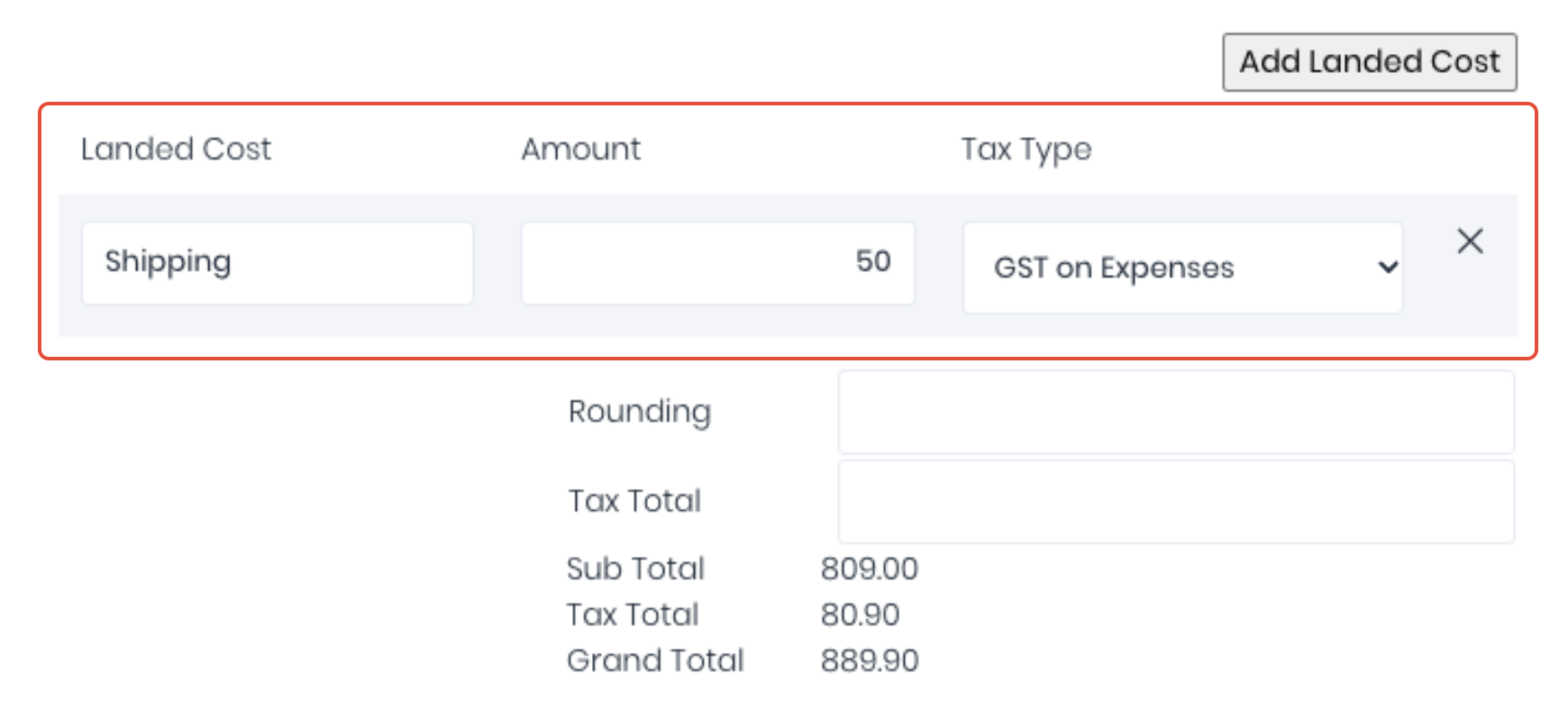
- Landed Cost - Short description of the cost (Surcharge, Shipping etc)
- Amount - Amount charged by the supplier
- Tax Type - Tax component of the landed cost as per the supplier invoice.
You can add multiple landed costs by repeating the process as required to match the supplier invoice exactly. The landed costs will then be attributed across the order's stock controlled line item unit costs weighted by qty and value. You can confirm the final landed unit cost of the relevant products from their stock movement history.
Note: When the invoiced purchase order is sent to your accounting integration, landed cost lines will be always be coded to your nominated inventory general ledger account. This is to correctly track the difference between the product unit cost vs the landed cost when generating cost of goods sold (COGS) when products are used or dispatched. DO NOT recode the landed cost line from inventory to expenses!
Supplier Landed Costs on a Project Purchase Order.
Project purchase orders do not have the option to add a landed cost as the orders line items are treated as a purchase expense on the assigned projects or production jobs. It is still required to track the additional costs on the project purchase order however, as costing an order means matching the values on the supplier invoice exactly. To add a landed cost to a project purchase order, simply click the Add Product and add the cost directly as a line item so the order totals match the supplier invoice and are tracked correctly on the project/production job.
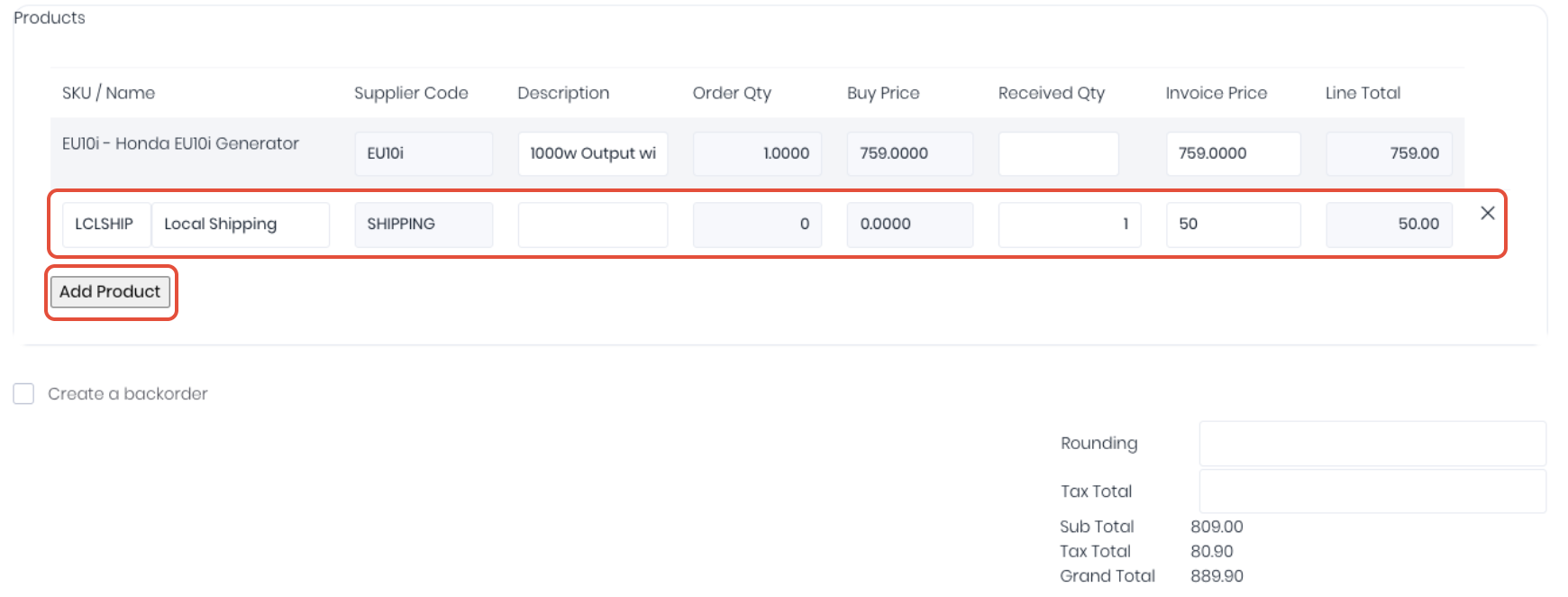
It is recommended you add the common landed costs used on the project purchase orders as non-stock SKU's in your product list to make them easy to add as extra line items as required.
Was this article helpful?
That’s Great!
Thank you for your feedback
Sorry! We couldn't be helpful
Thank you for your feedback
Feedback sent
We appreciate your effort and will try to fix the article