Project purchase orders, differ from stock purchases as they are allocated to a project or production job. When allocated, it is assumed ALL line item costs on that order are being used on that ONE project or production job. The cost of project purchase orders is expensed on the project immediately, negating the administrative overhead of managing stock movements to receive and use the stock.
Note: WorkGuru subscriptions without the inventory module default to project purchase orders.
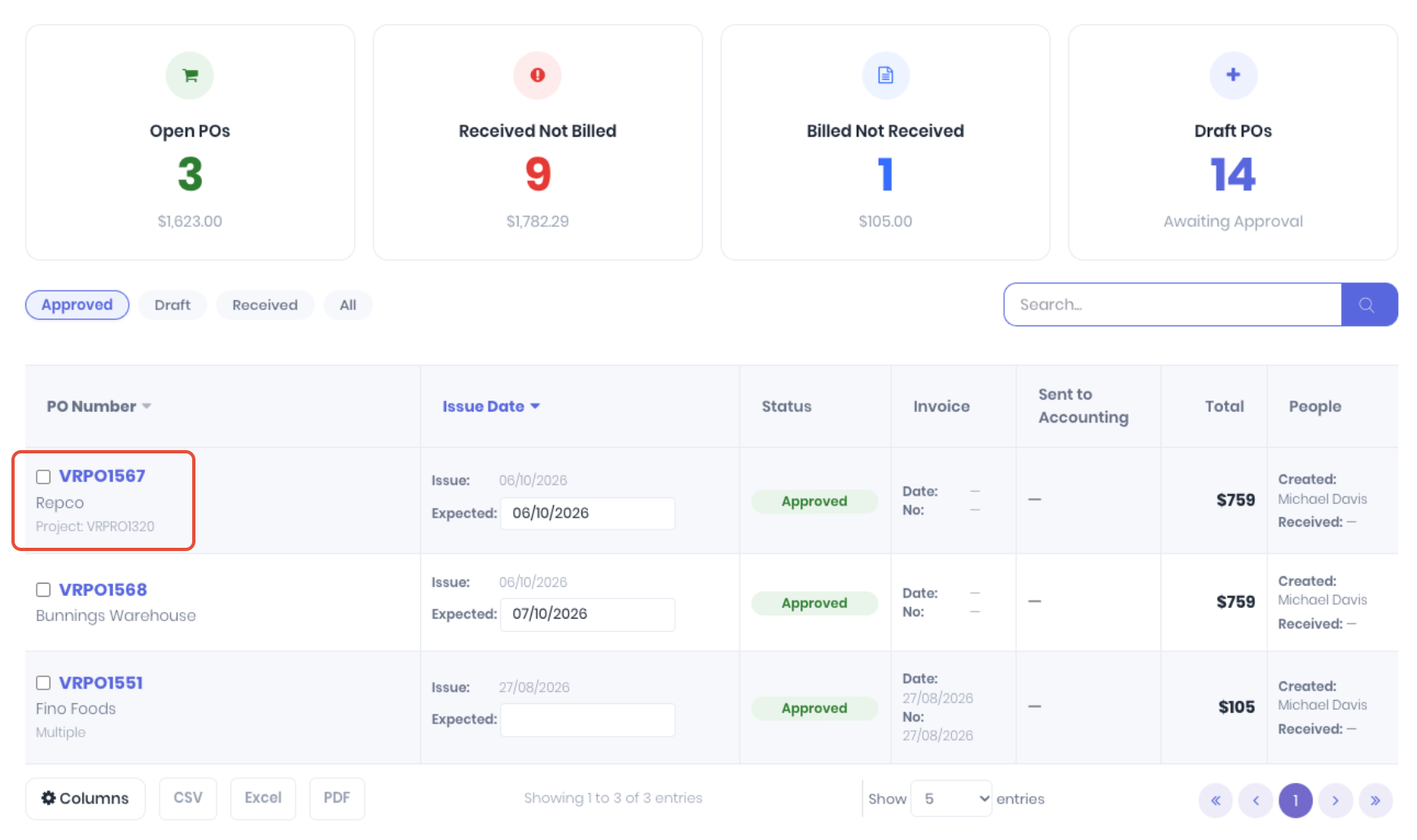
Project purchase orders can be identified on the purchase order dashboard by the project assignment.
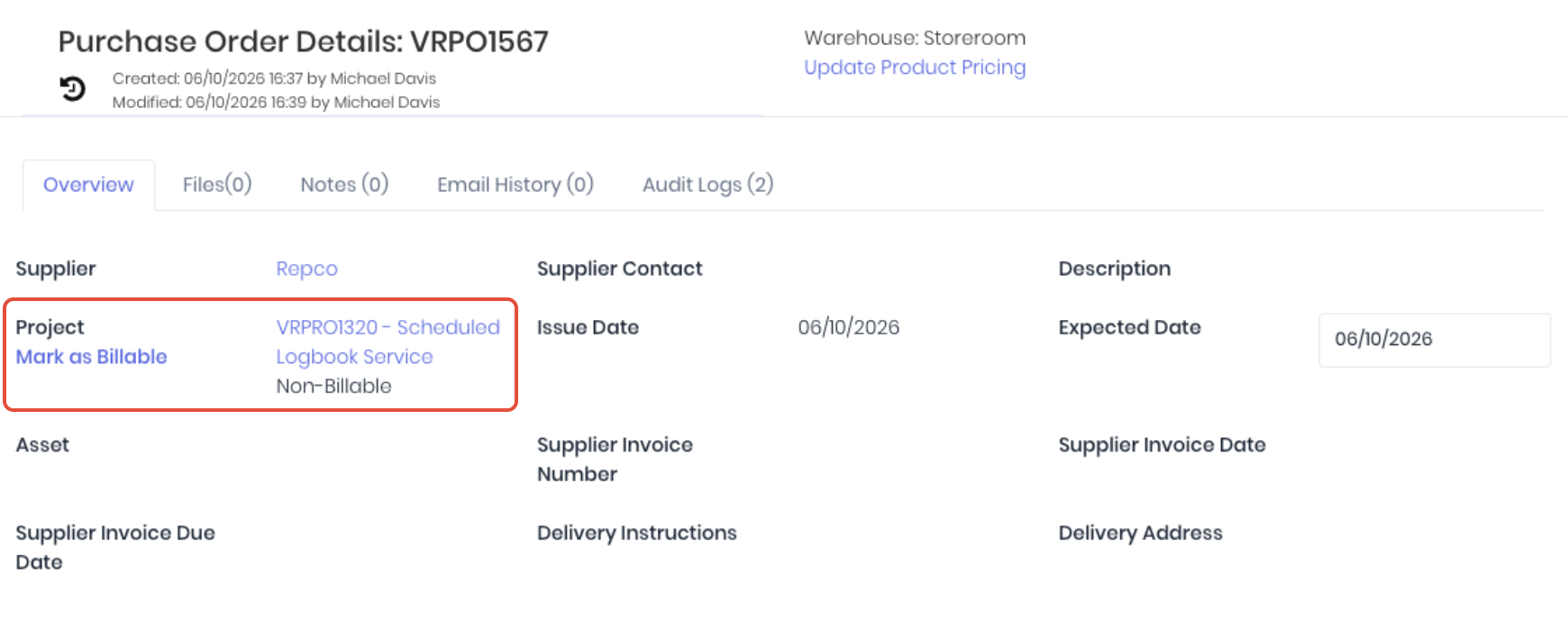
The project details page will also display the allocated project and billable status.
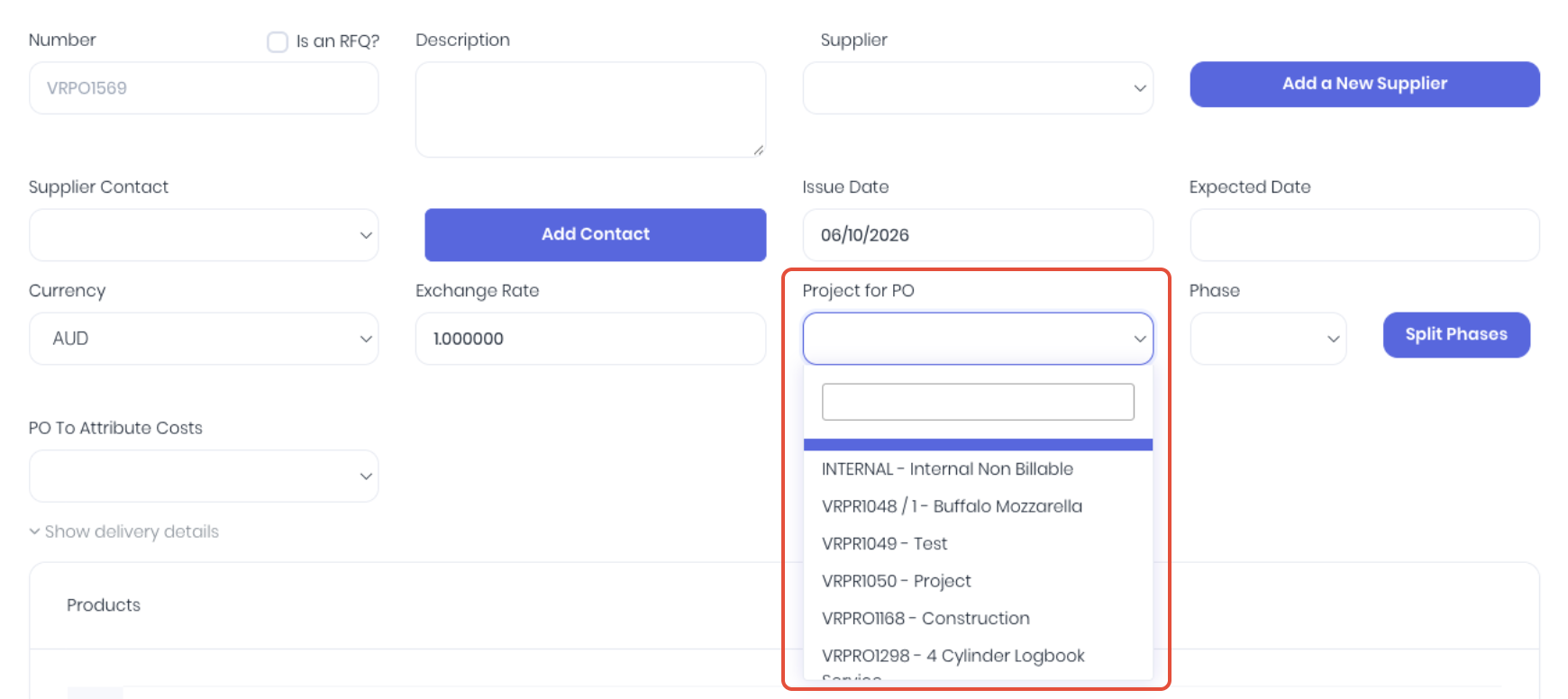
You can raise a new purchase order in WorkGuru from either the purchase order dashboard's actions button or the shortcut from the WorkGuru menu. Alternatively you can also raise a project purchase order directly from the project or production job which will automatically assign the Project for PO field. The difference between a stock purchase order is ensuring the Project for PO field is allocated to a project or a production job. This list is populated by the current active projects and production jobs.
Once a order is allocated to a project, you have the option to mark this order as billable if you want to pass the order costs directly through to the client. Select the Billable tick-box and the project's Quick Invoice page will prompt to invoice the order with a markup. 
You can purchase both stock controlled (FIFO/Batch/Serial) and NonStock products on a project purchase order. However, FIFO products will NOT increase your available stock on hand when received as the entire purchase order's value is expensed immediately on the project. This simplifies the purchasing workflow as it cuts out the steps of receipting the order INTO stock and then having to use the same materials OUT of stock on the project or production job. Due to this, unlike stock orders, project purchase orders do not have a landed cost button. Any landed costs on a supplier invoice needed to be added as a line item using the Add Product button.
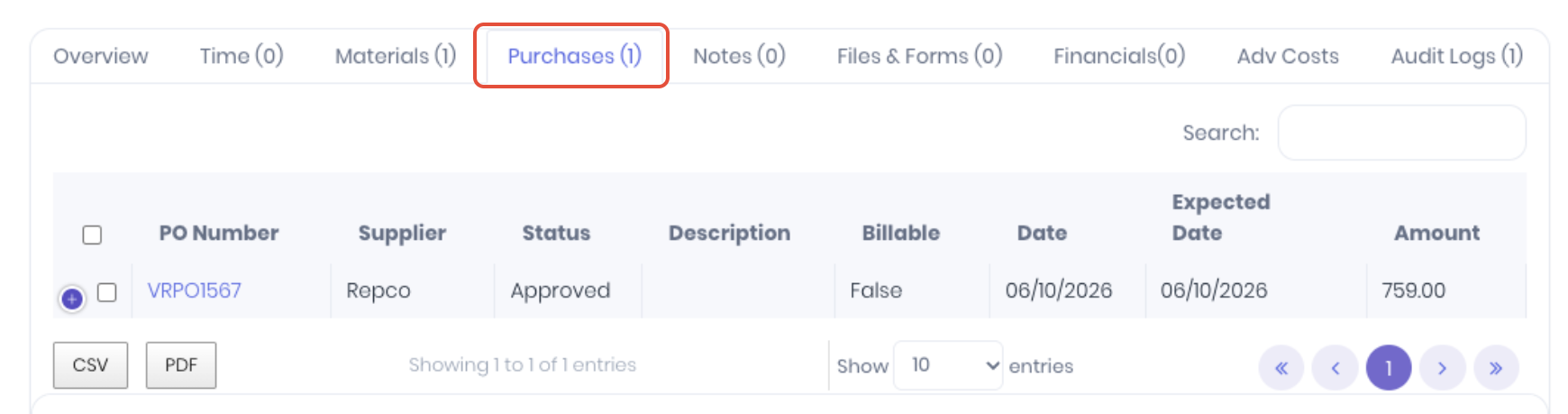
On the allocated project, the project purchase order will be listed in the project's Purchases tab.
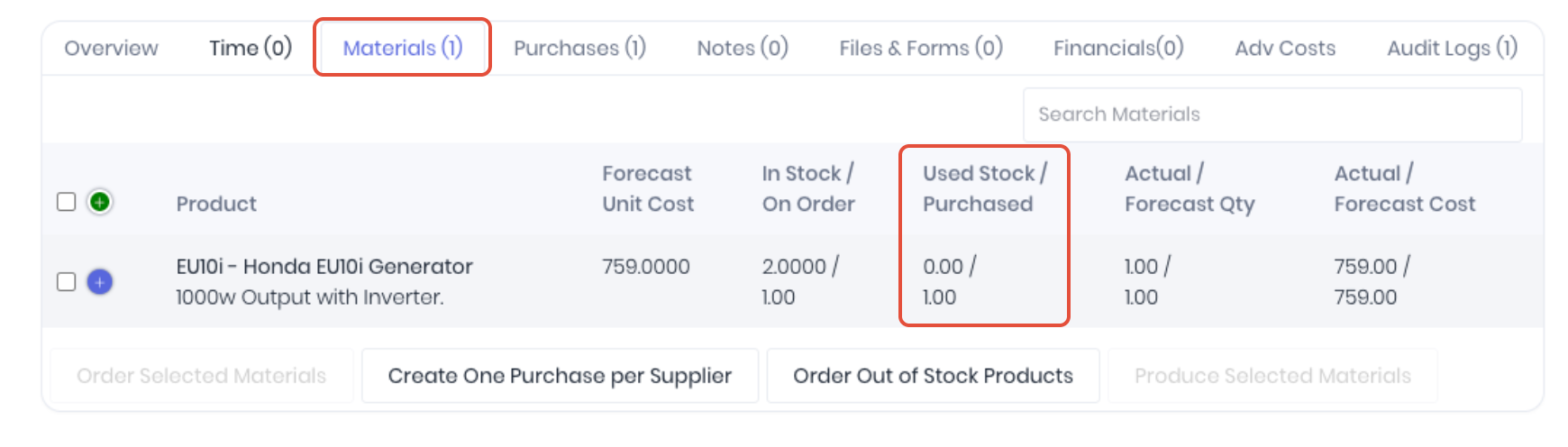
It will also display which order lines have been purchases in the Materials tab.
Was this article helpful?
That’s Great!
Thank you for your feedback
Sorry! We couldn't be helpful
Thank you for your feedback
Feedback sent
We appreciate your effort and will try to fix the article