If a supplier has supplied a different product SKU that is equivalent and functionally the same as the the one you ordered, or extra SKUs not on the original order, you can track this change correctly in WorkGuru when receiving the purchase order. Note: There is no need for an extra step to edit or update the order before receiving it.
From the relevant approved purchase order's detail page, click Receive Purchase Order.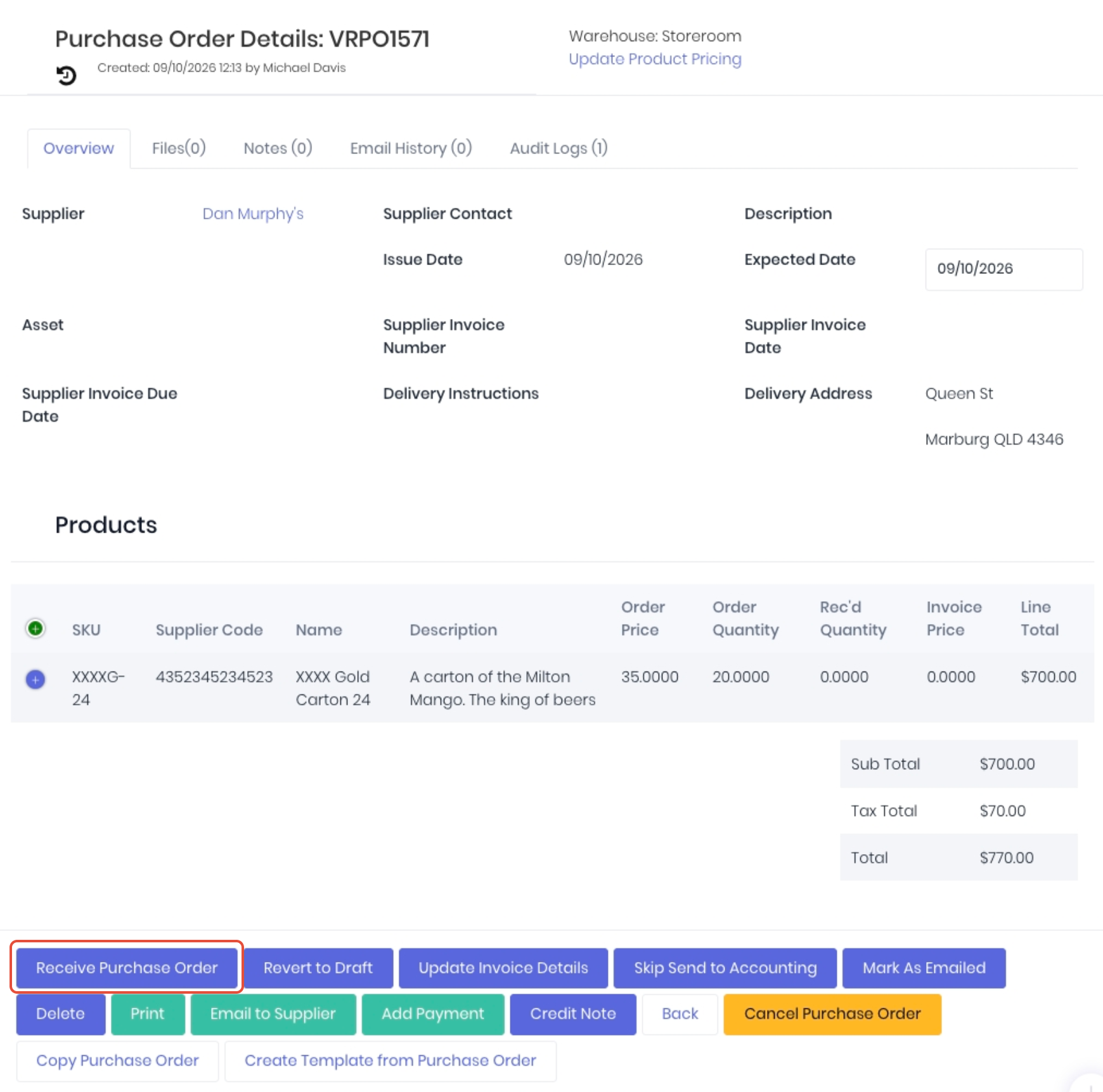
Receiving Substituted Products
When receiving substituted products that you have been invoiced for and are going to accept, you simply tell WorkGuru exactly what is happening:
- Original Ordered SKUs - Enter the Received Qty of 0 as it won't be shipped. As the Received Qty does not match the ordered for this line, WorkGuru will automatically prompt for a backorder - click Cancel when prompted. Confirm the backorder has been cancelled by ensuring the Create a Backorder checkbox is NOT selected.
- Substituted SKUs - Click the Add Product button and search for the substituted SKU or Name. Enter the Received Qty that was shipped. Repeat this process as required.
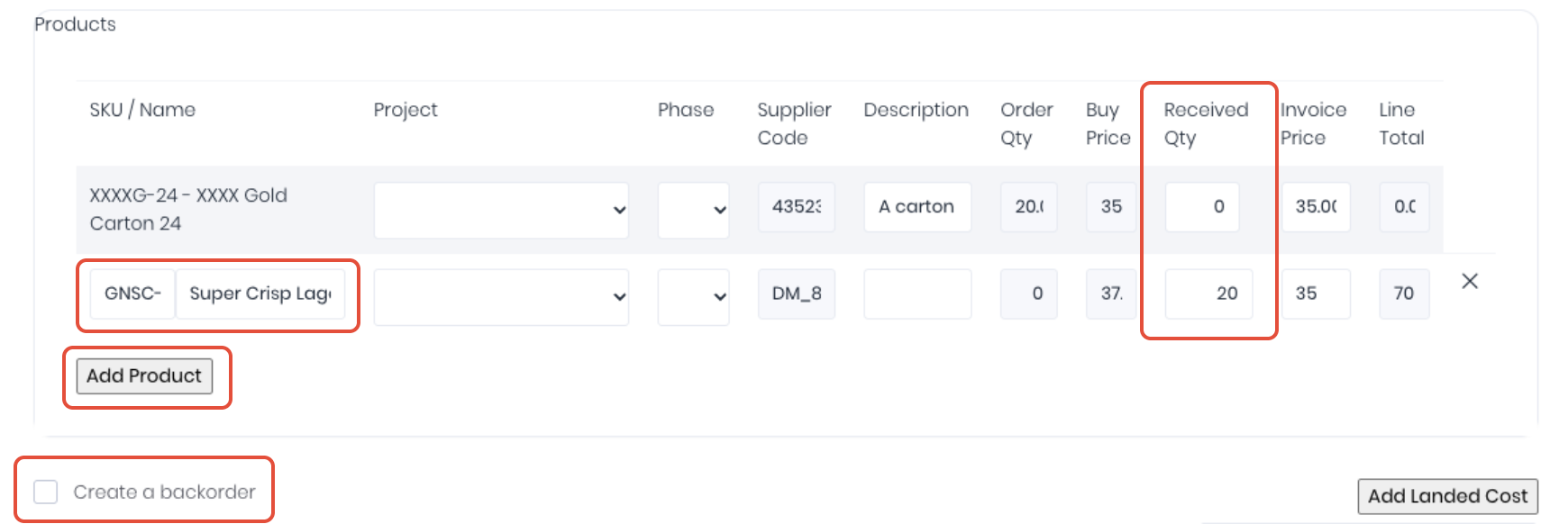
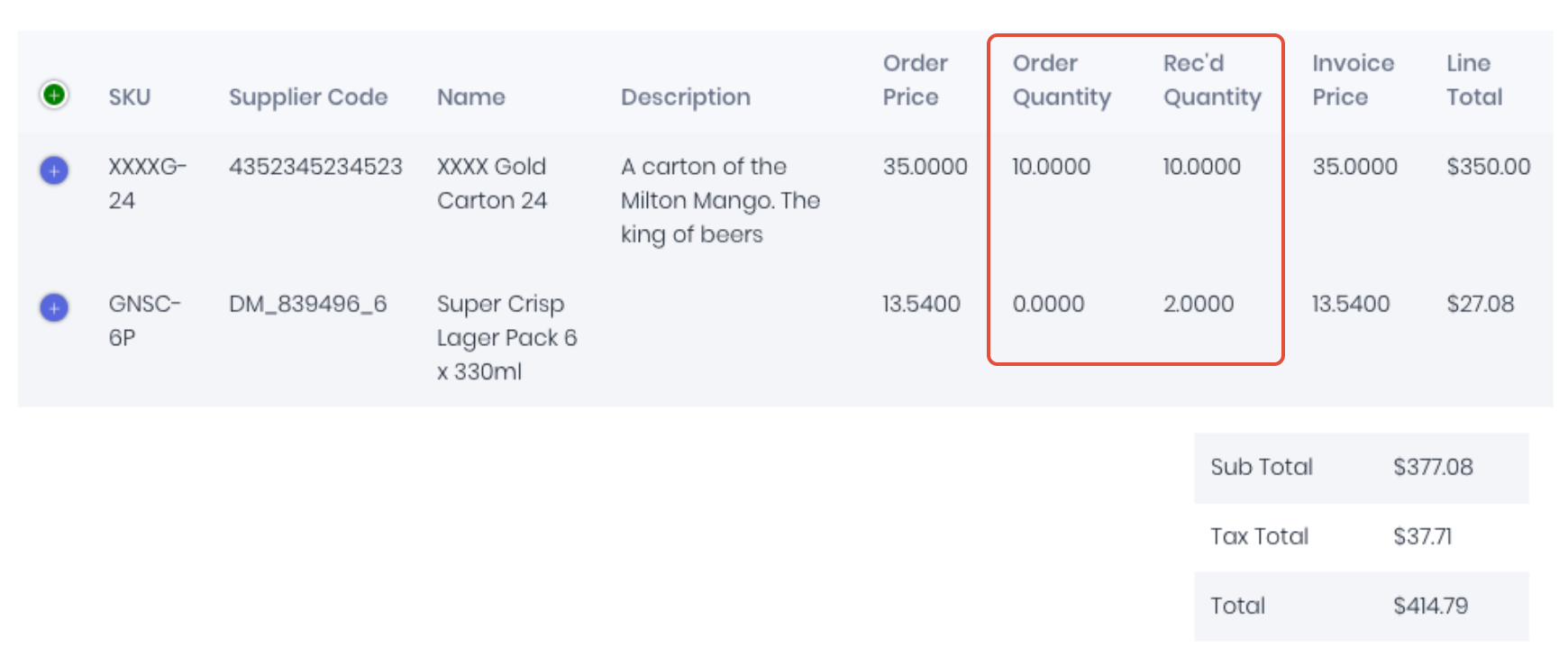
Cost the purchase order normally as per the supplier invoice if you have it. If not, leave the invoice fields blank to complete later. Enter landed costs as required and click Save to receive the substituted products into stock. This process will receive the substituted products correctly without having to edit the purchase order and also retains the full order history. The received purchase order details page will display both what you originally ordered (ordered x, received 0)and what was substituted (ordered 0 and received x).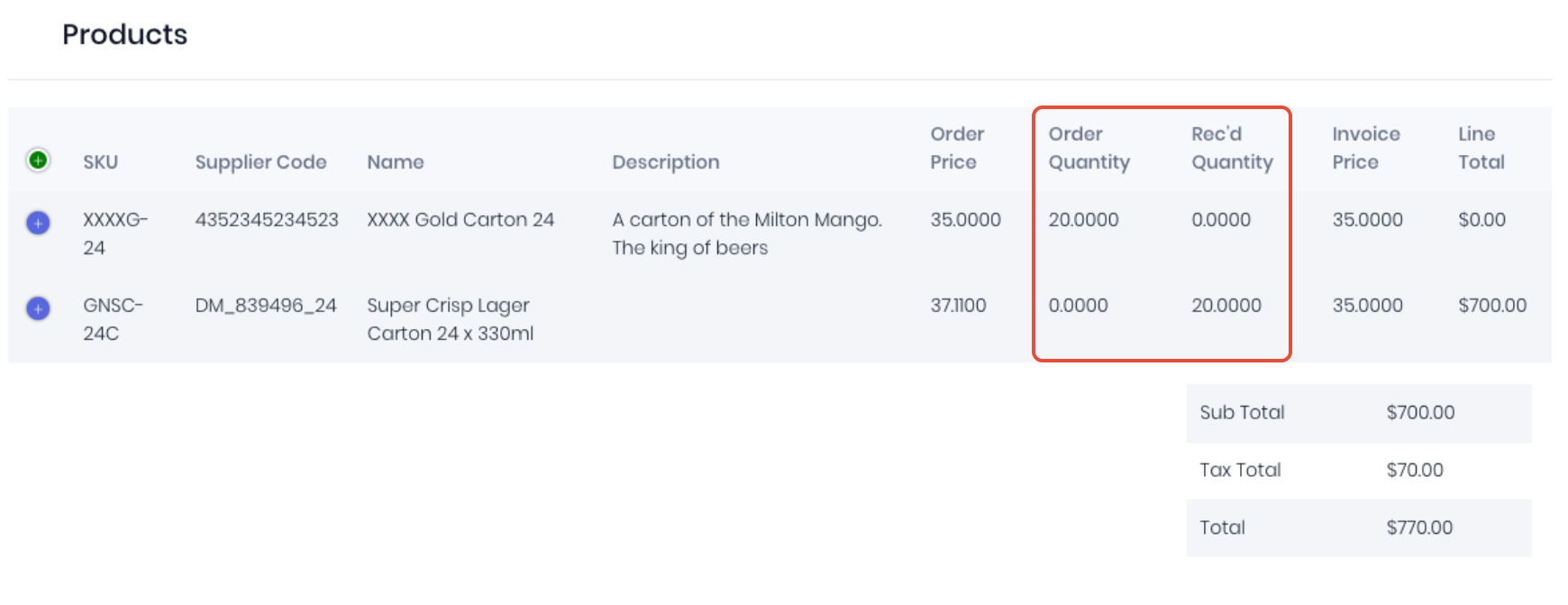
Receiving Extra Products
When receiving extra products that you have been invoiced for and are going to accept, you simply tell WorkGuru exactly what is happening:
- Original Ordered SKUs - Enter the Received Qty as shipped. Fully receive or backorder as required.
- Extra SKUs - Click the Add Product button and search for the extra SKU or Name. Enter the Received Qty that was shipped. Repeat this process as required.
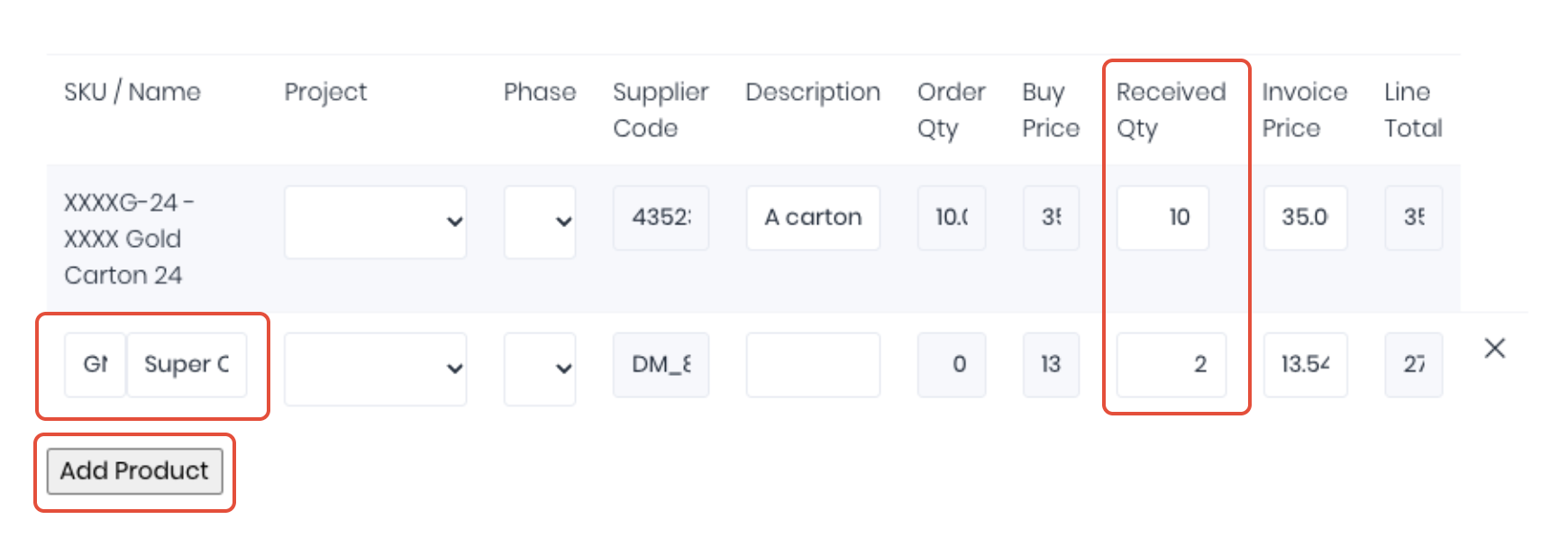
Cost the purchase order normally as per the supplier invoice if you have it. If not, leave the invoice fields blank to complete later. Enter landed costs as required and click Save to receive the original and extra products into stock. This process will receive the extra products correctly without having to edit the purchase order and also retains the full order history. The received purchase order details page will display both what you originally ordered (ordered x, received x)and what was extra (ordered 0 and received x).
Was this article helpful?
That’s Great!
Thank you for your feedback
Sorry! We couldn't be helpful
Thank you for your feedback
Feedback sent
We appreciate your effort and will try to fix the article