Timesheets are managed in WorkGuru from either the Time tab in a project or centrally in the timesheet dashboard.
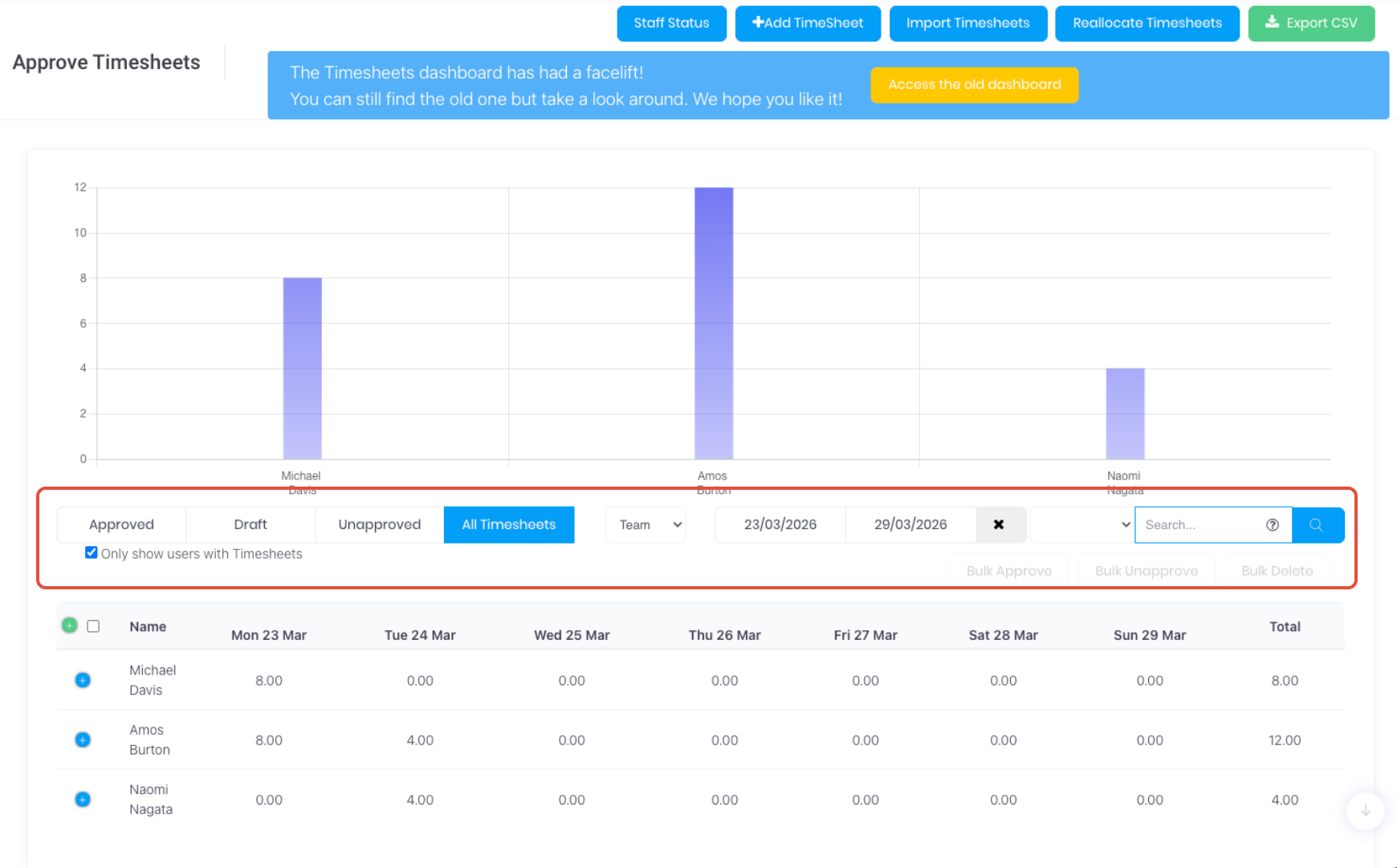
The timesheet dashboard lets you display timesheets based on.
- Status - Allows timesheet managers with sufficient permissions to Edit, Approve, Un-approve and Delete timesheets via the icons at the end of each timesheet row.
- Approved - Timesheets approved by a manager
- Draft - Timesheets not yet submitted or approved
- Unapproved - Timesheets submitted but not approved by a manager
- All Timesheets - Display all timesheets regardless of status
- Team - Display a specific teams timesheets only.
- Start Date and End Date - Displays timesheets added between these dates.
- Search- Search keywords for specific:
- User - Staff name
- Task - Task name or description
- Client - Project client name
- Project - Project name or number
- Project Manager - Project's assigned manager.
- Note - Timesheet notes.
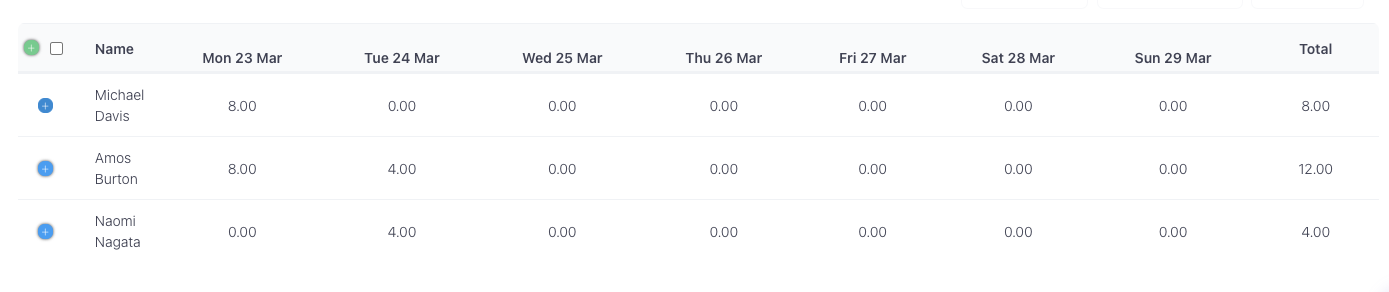
Timesheets will be initially displayed as a daily and weekly summary based on the criteria selected:
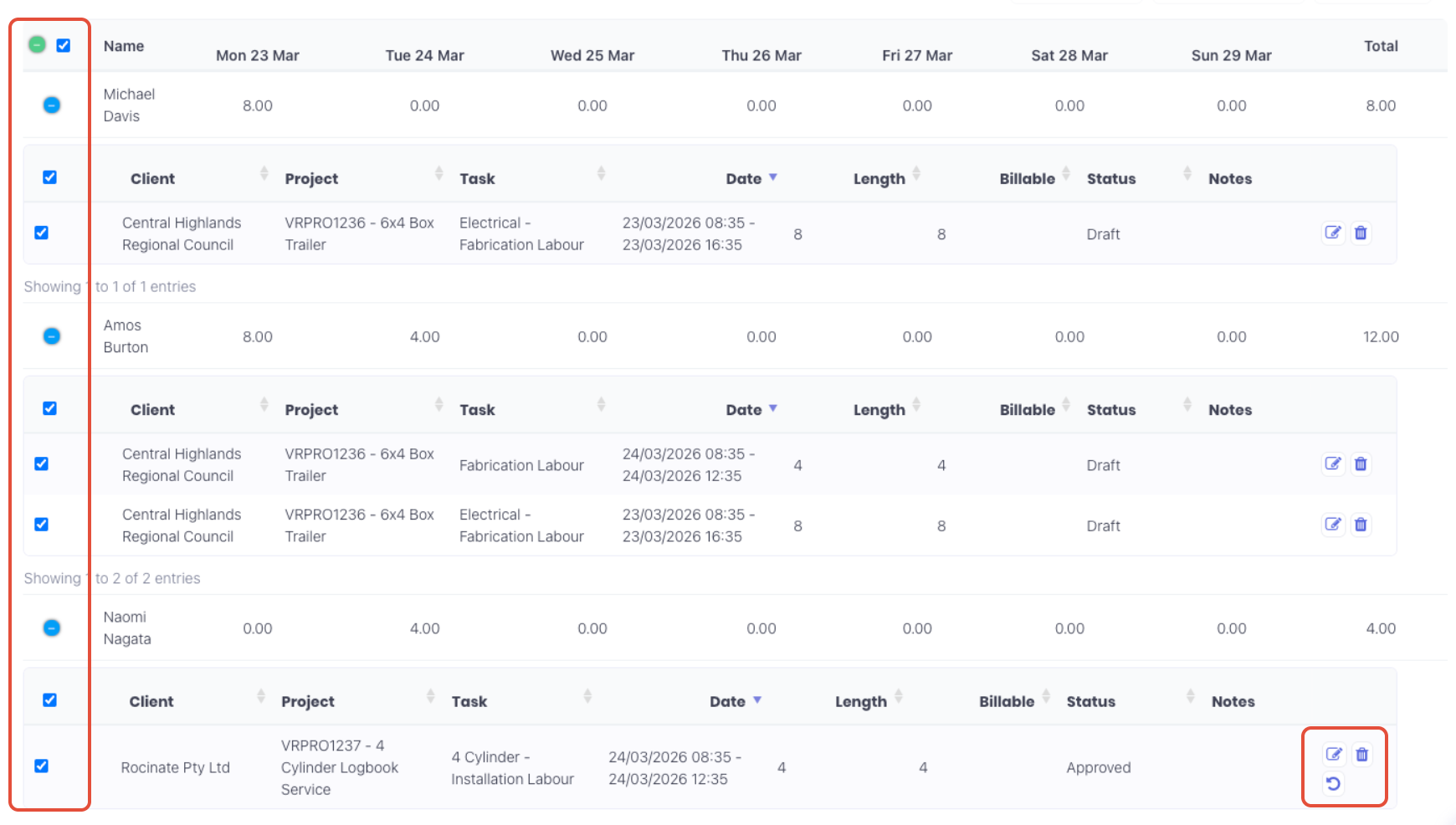
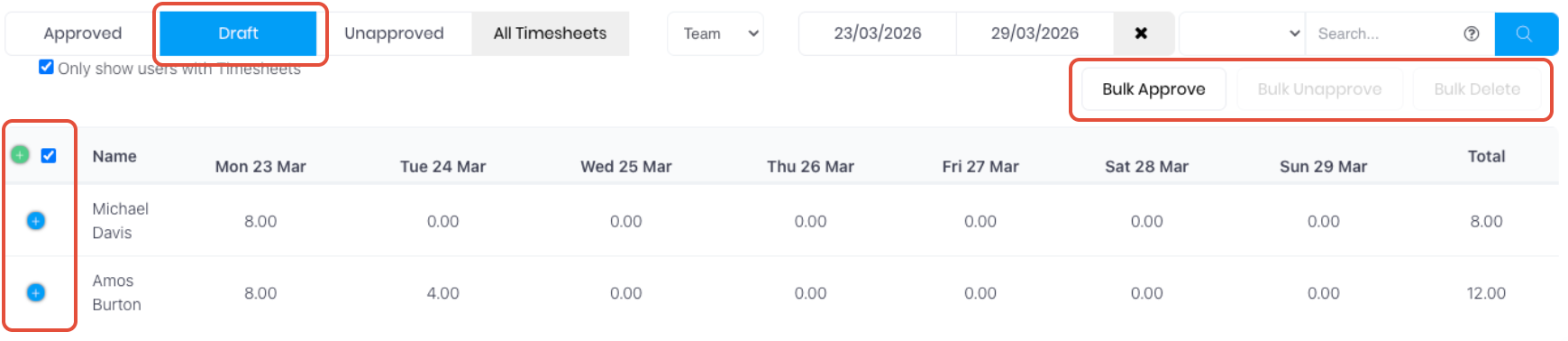
You can view the individual timesheets by expanding each user by clicking the blue plus "+" at the start of each row. Note: You can expand all staff timesheets by clicking the green plus "+" in the table header. Each timesheet can be edited, deleted or reverted to draft (depending on status) using the icons at the end of each row.
Additional timesheet functionality is also available:
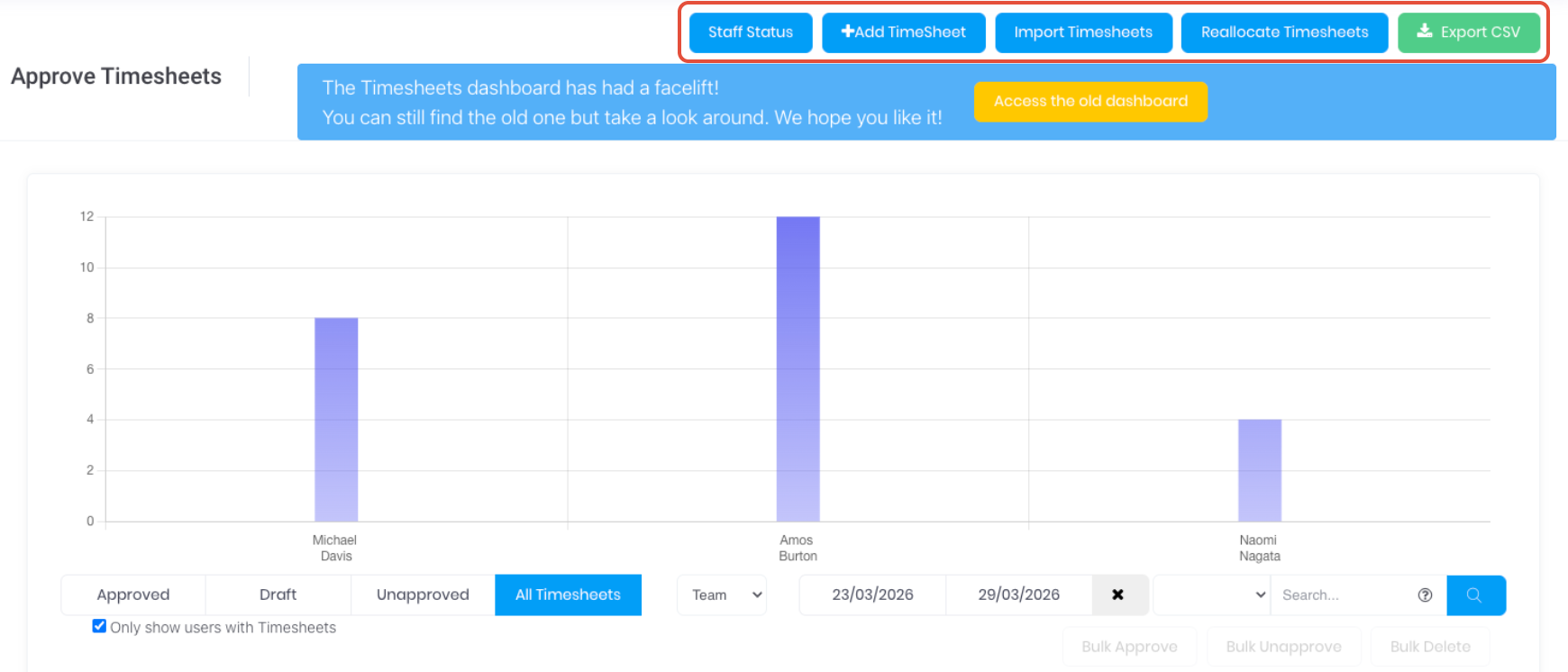
- Staff Status - Display a realtime dashboard of active staff timesheet timers.
- Add Timesheet - Add a timesheet on behalf of staff.
- Import Timesheets - Import timesheets via a csv template from other systems such as a third party timeclock device
- Reallocate Timesheets - Move timesheets between projects.
- Export CSV - Export timesheet results into a csv for import into third party payroll systems.
The Draft and Submitted (Weekly timesheets only) tabs allow timesheet managers to bulk approve and delete timesheets.
Timesheets for a specific project can also be managed directly in the project's Time tab. Project managers with sufficient permissions can Edit and Delete timesheets directly from the project. If the staff members hourly cost or billable rate changes, by default it will apply from the next timesheet that the user submits. However, you can also re-cost their historical timesheets if required by clicking the Recost Timesheets for Project. Note: this function will re-cost ALL timesheets submitted to the project.

Was this article helpful?
That’s Great!
Thank you for your feedback
Sorry! We couldn't be helpful
Thank you for your feedback
Feedback sent
We appreciate your effort and will try to fix the article