As WorkGuru is a first in first out (FIFO) perpetual inventory system, a purchase order contains to elements: the stock movement and the financials (supplier invoice). Though related, these two elements are can be completed completely independently of each other. This allows you can receive your products or services without a supplier invoice.
As WorkGuru transactionally tracks what stock came in on which purchase order and was used on which project, production job or sale, it can correctly update your stock value and cost of goods, even if you are receive the supplier invoice for stock items that are no longer in stock. If you do not use the WorkGuru inventory and stock control module, you inherit that functions best practise workflows with your non-stock project purchasing.
To receive the products or services on purchase order only, enter the following:
- Received Date - Date the items physically arrived at your location.
- Received Qty - Quantity physically received for each line item.
- Received Every Ordered Product - Click Receive All quickly populate the Received Qty with the Ordered Qty if you have confirmed you've physically received everything ordered.
- Received Less Products Than Ordered - Manually enter the Receive Qty field, this will initiate the back order workflow
- Received More or Different Products Than Ordered - If you have received a additional or substituted products to what is ordered, click the Add Product to add the relevant Sku to the order.
It is important that the quantity matches the product quantity physically received.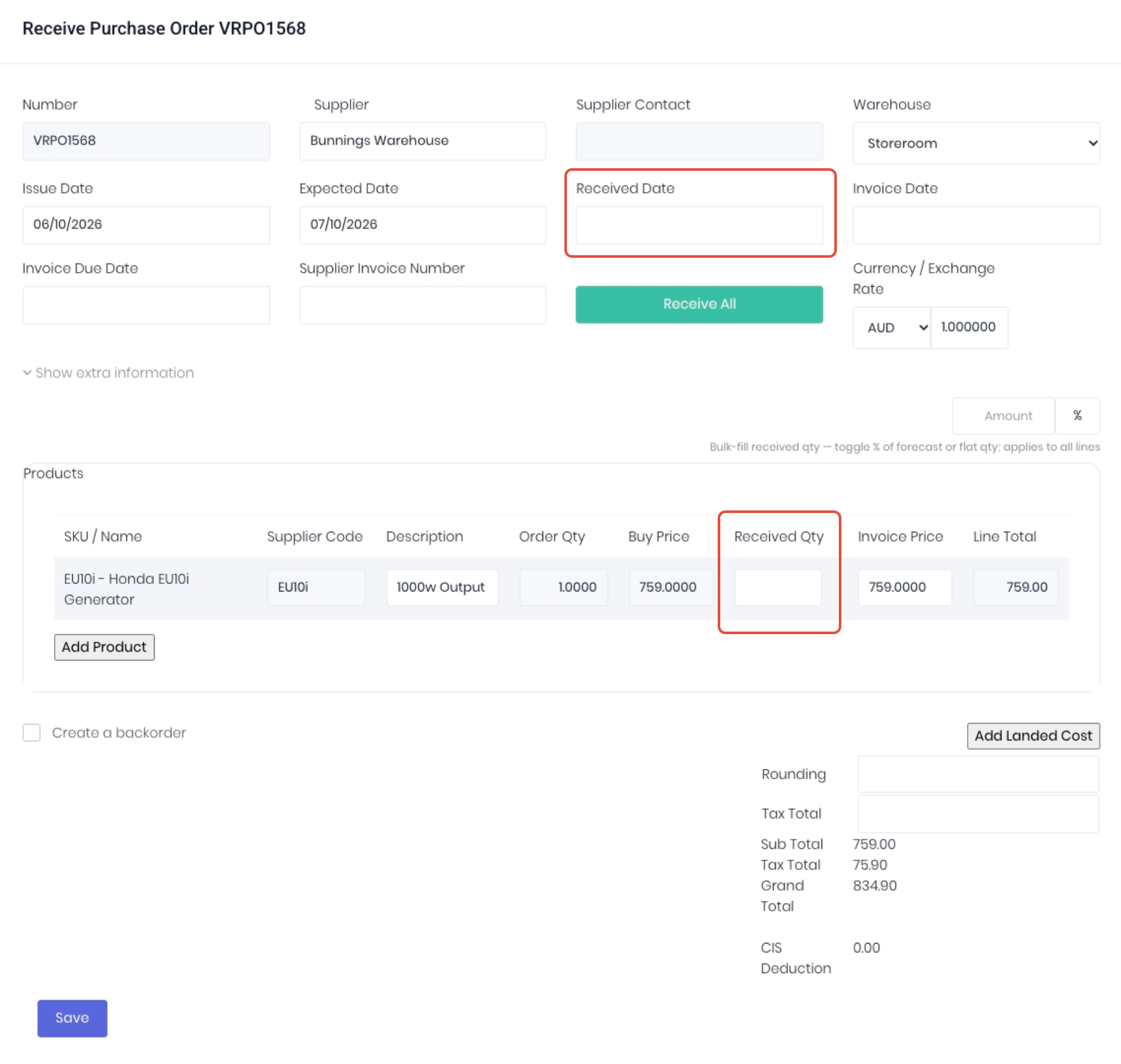
As you do not have the supplier invoice yet, leave Invoice Date, Invoice Due Date, Supplier Invoice Number and Invoice Price fields blank or the defaults and click Save to receive the products at the default costings.
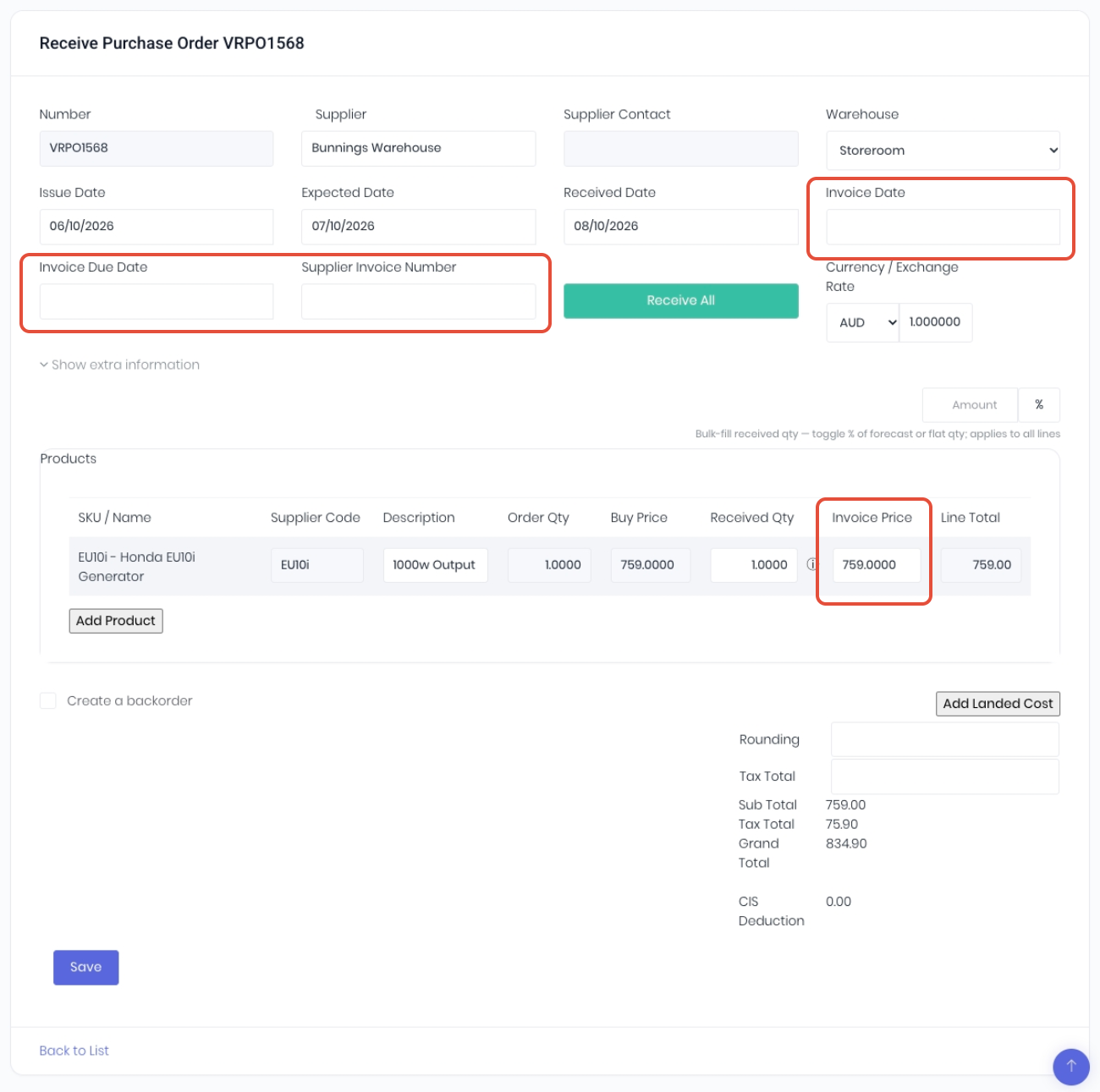
WorkGuru will receive the purchase order and line items at the value of order/buy price. Stock controlled items are now in stock ready to use or dispatch.
You can update pricing on the received items later when you receive the supplier invoice. NOTE: Once saved, you cannot edit or change the quantity received on the purchase order. If you need to reverse or adjust the purchases stock movement, you will need to adjust stock out via a stock adjustment and/or apply a supplier credit note.
Was this article helpful?
That’s Great!
Thank you for your feedback
Sorry! We couldn't be helpful
Thank you for your feedback
Feedback sent
We appreciate your effort and will try to fix the article