The WorkGuru Mobile App allows you to quickly add new and manage existing projects while on the go.
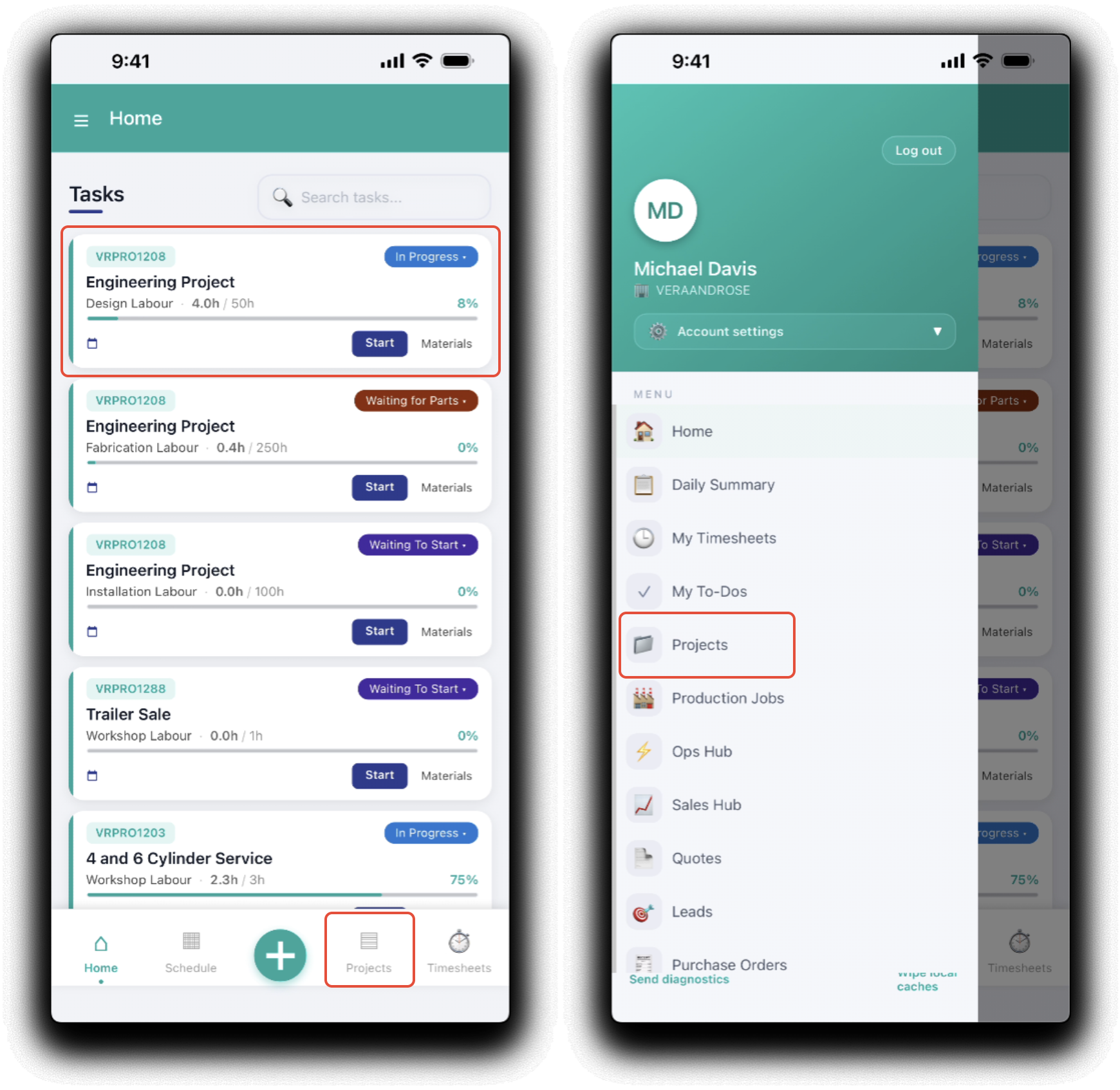
Active projects can be accessed by tapping Projects in the footer or from the mobile app menu. You can also quickly access the project details by tapping the task tile on the home page.
Mobile Projects Dashboard
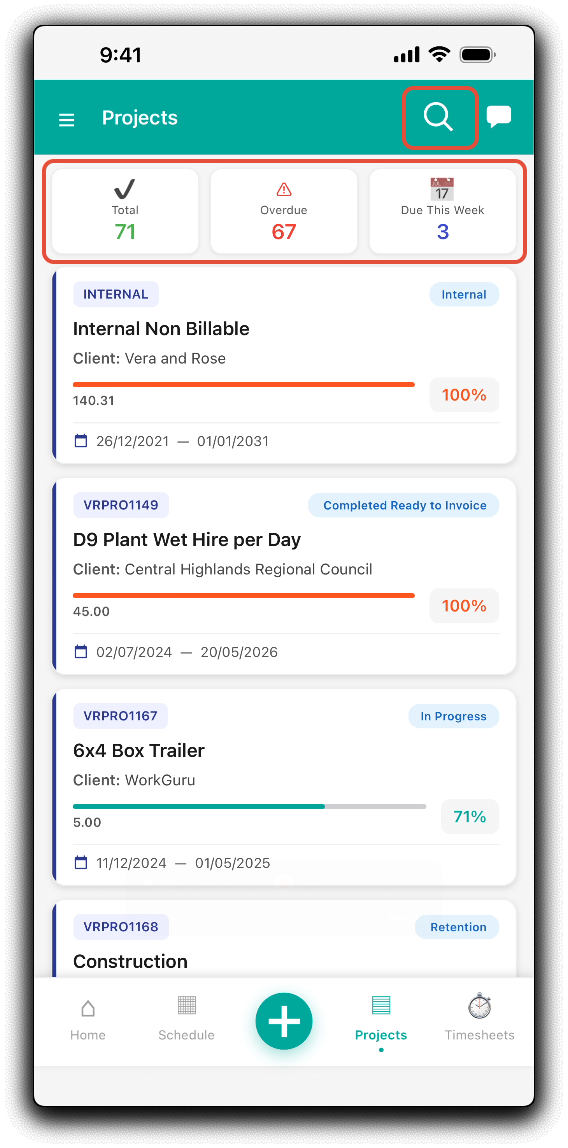
On the mobile projects dashboard, Search for or scroll the list to display projects. Tap on the status widgets to display the Total, Overdue and Due This Week lists of projects. Tapping on a project tile will display the project details.
Mobile Project Details
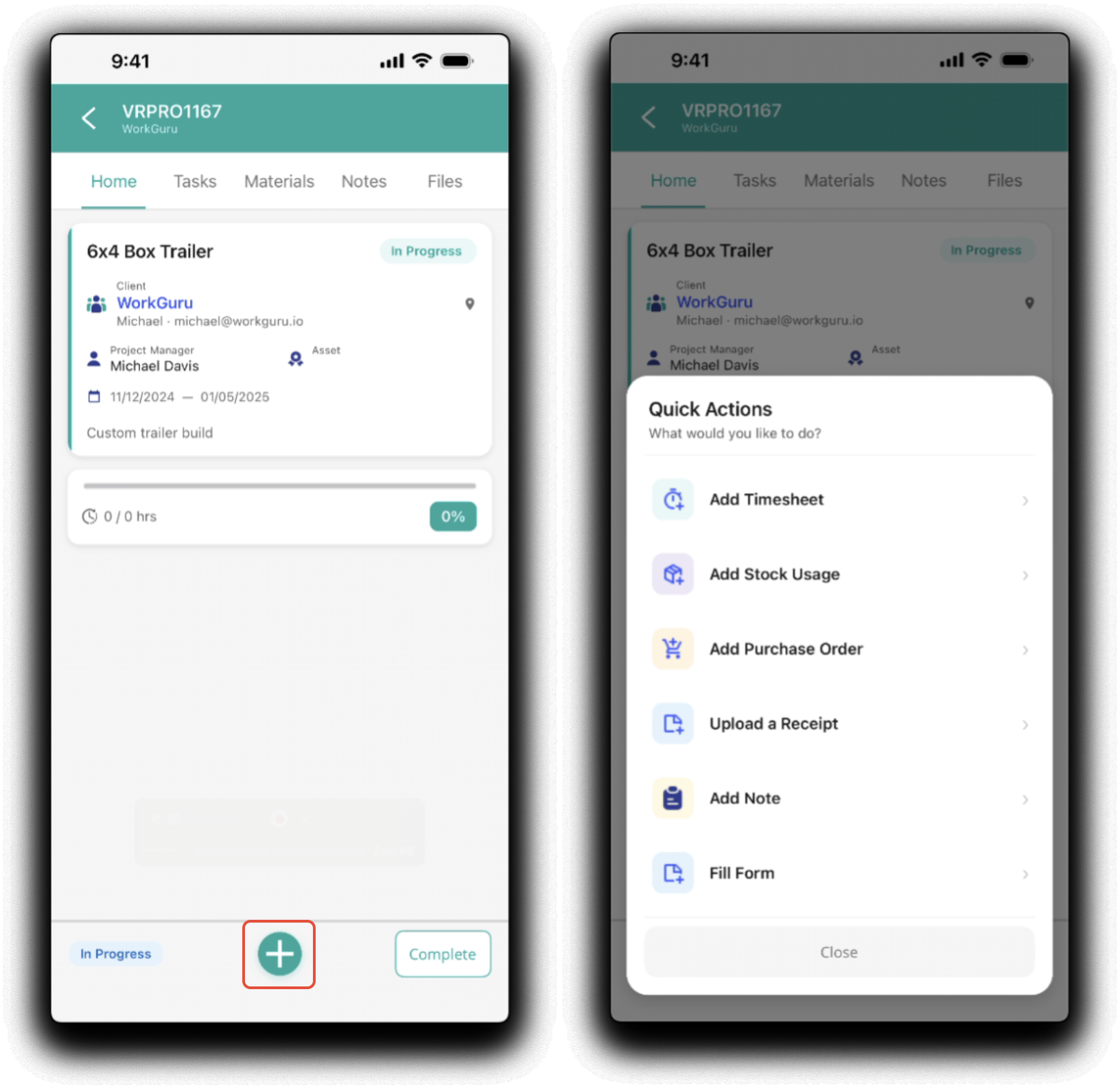
Actuals can be added to the production job by tapping the Plus icon in the footer of a production jobs detail page and selecting options from the Quick Actions menu.
Home
The home tab is a summary of projects details, status and progress.
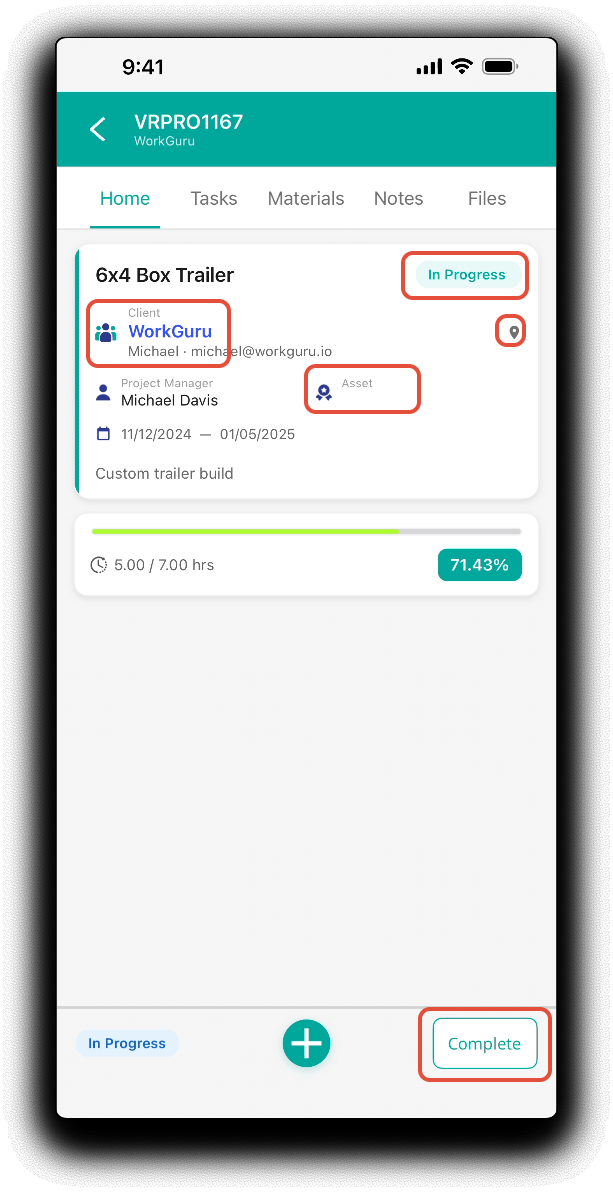
From the Home tab you can interact with the following:
- Project Status - Tap to change status
- Client - Tap to open the project's client details
- Asset - Tap to open the project's asset details
- Project Location - Tap the geo pin to open the project client's address in the devices's map app..
- Project Completion - Tap Complete in the footer to mark the project as complete.
Tasks
The tasks tab contains the project task details, timesheets and to-dos.
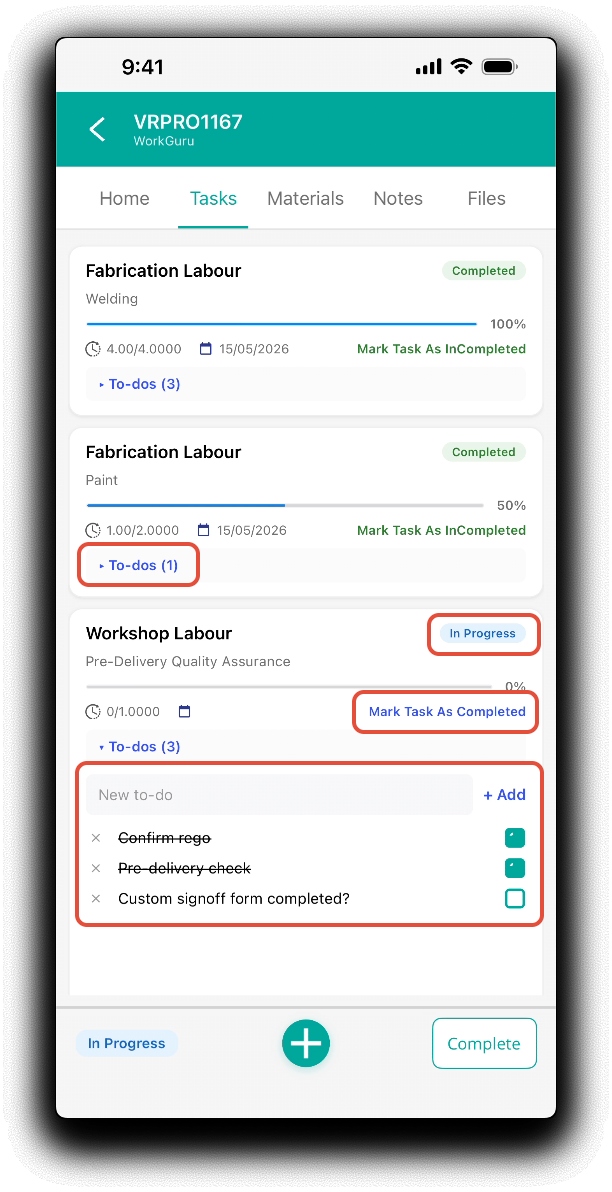
In the task tab you can interact with the following:
- Task Status - Tap to change status.
- Task Completion - tap Mark Task As Completed to mark the task as complete. When completed the completed date will display. Tapping Mark Task as InCompleted will reverse the completion.
- Task To Dos - Tap To-dos to open the to-do list. Add, remove or mark to dos as complete as required.
Materials
The materials will display the projects product line item details and actual vs forecast quantities and costs.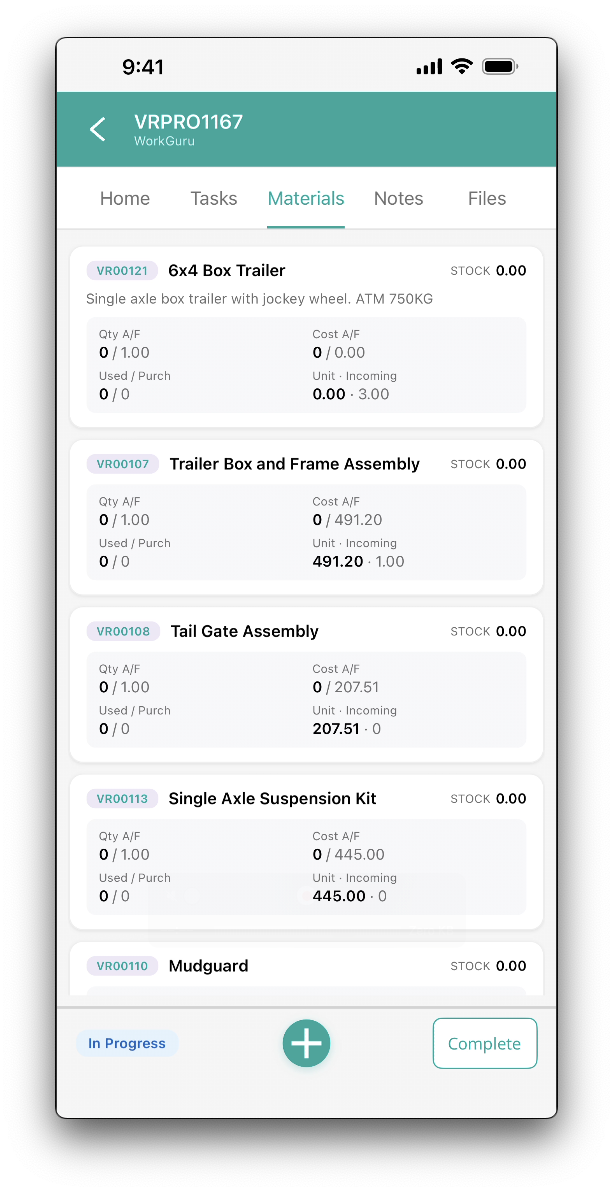
Notes
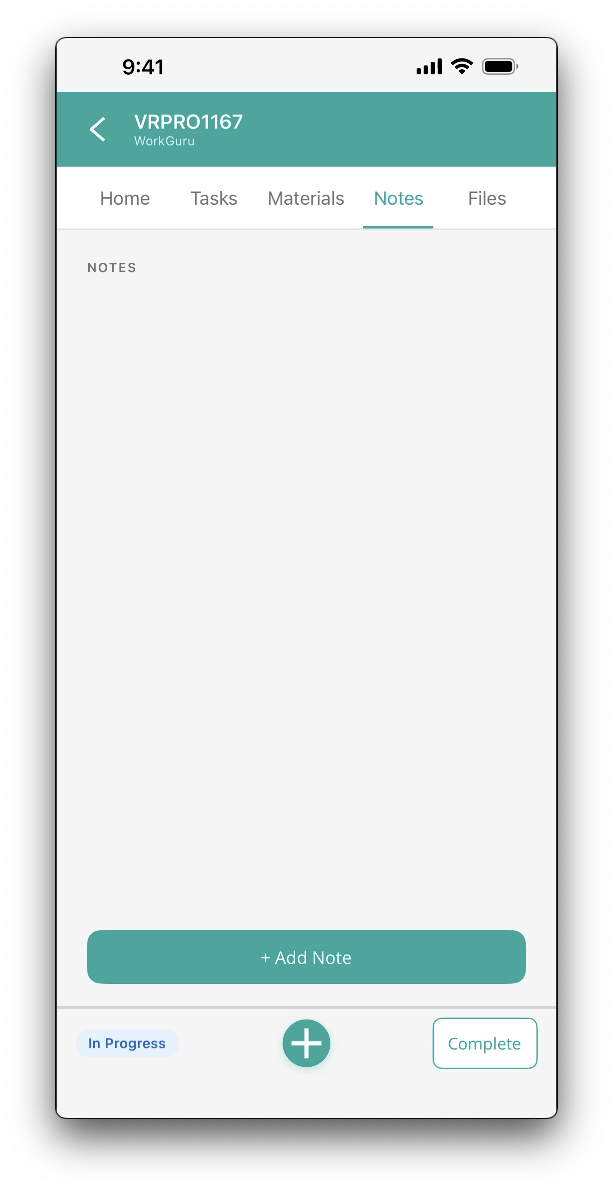
The notes tab allows easy access to review or add project notes.
Files
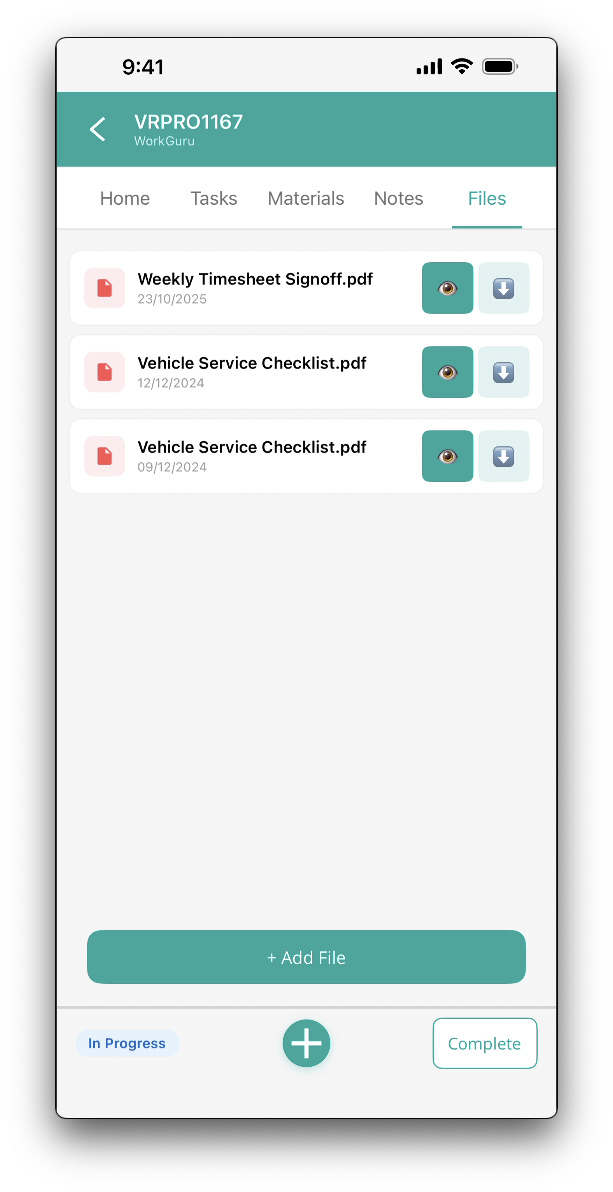
The files tab allows easy access to preview, download or add project files.
New Projects
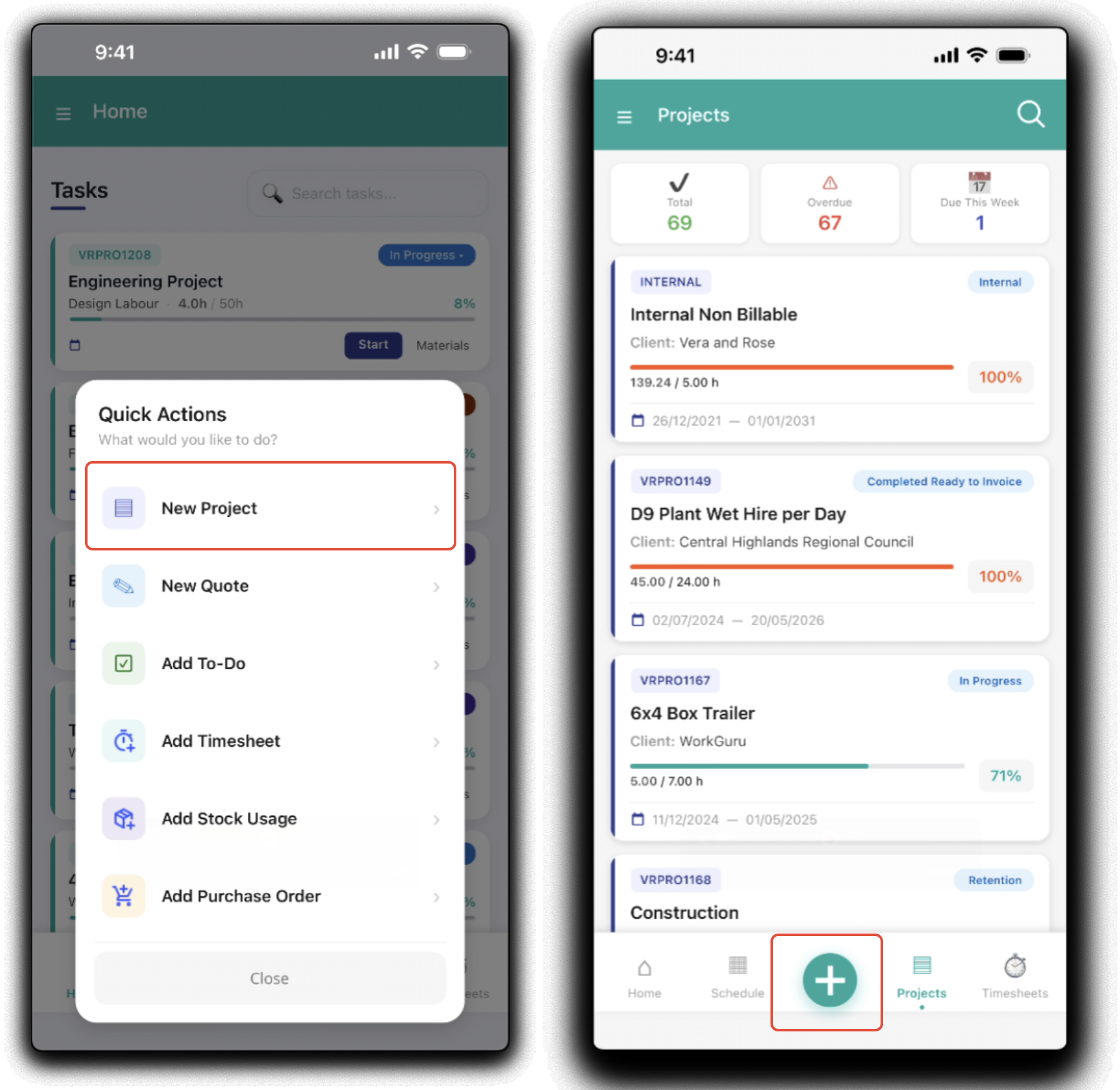
You can also quickly add a project via the app while on the go with the Mobile App. From the footer, in any page click the Plus in the footer to access the Quick Actions menu and tap New Project. From the Mobile Projects Dashboard, tapping the Plus in the footer will take you directly to the new project.
New Project Details
From the Create tab, enter the following details: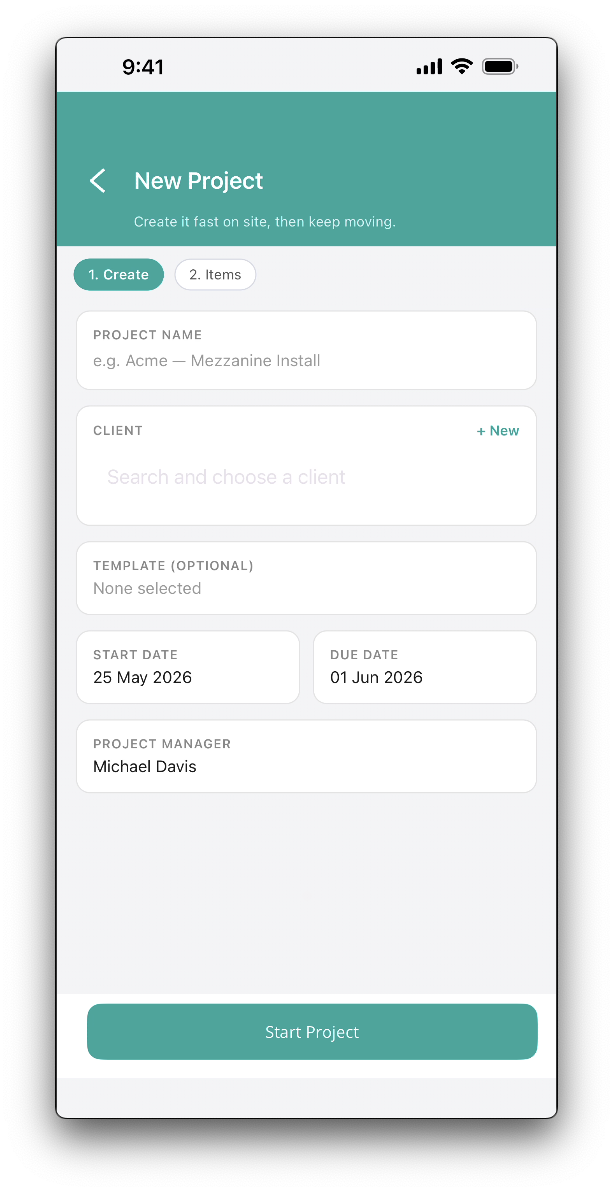
- Project Name - Enter project name.
- Client - Search for and scroll to select existing client. Tap + New to add a new client.
- Template (Optional) - Scroll to select an existing project template to apply to the new project (Recommended).
- Start Date - Scroll to select project start date.
- Due Date - Scroll to select project end date.
- Project Manager - Defaults to the logged in user, change to assign the project to another manager.
Tap start project to save changes and review line items.
New Project Line Items
From the Items tab, if you've selected a template in the Create tab, review the line items have applied correctly.
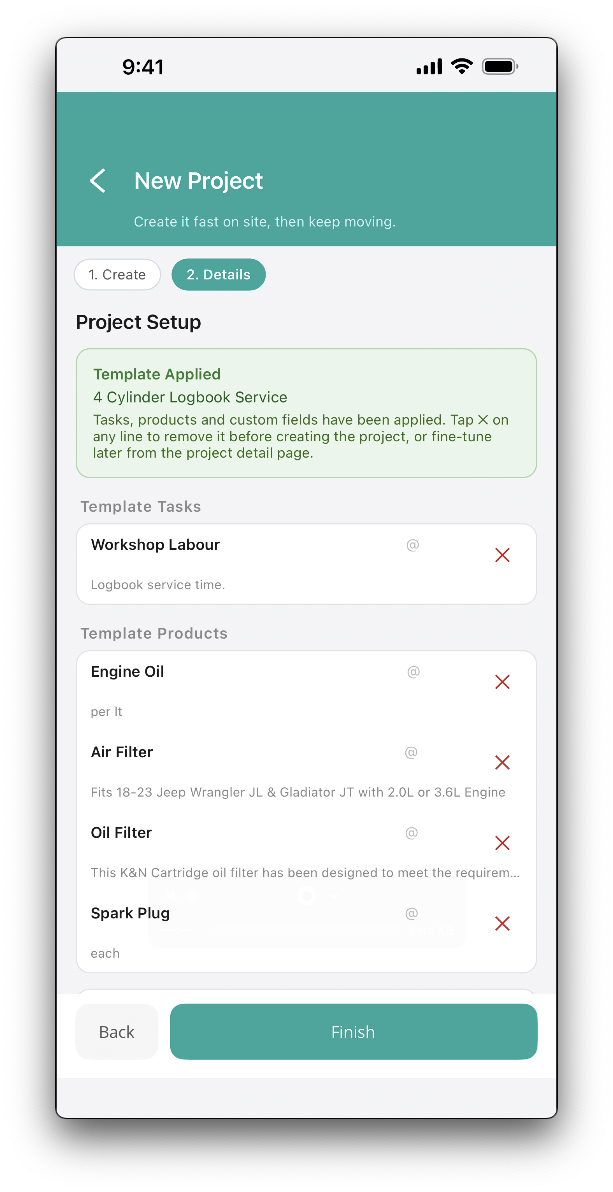
If you haven't selected a template, Search and scroll to select Tasks and Products. If you need to add an Ad Hoc line item (not from your task or product library) tap the +Blank button.
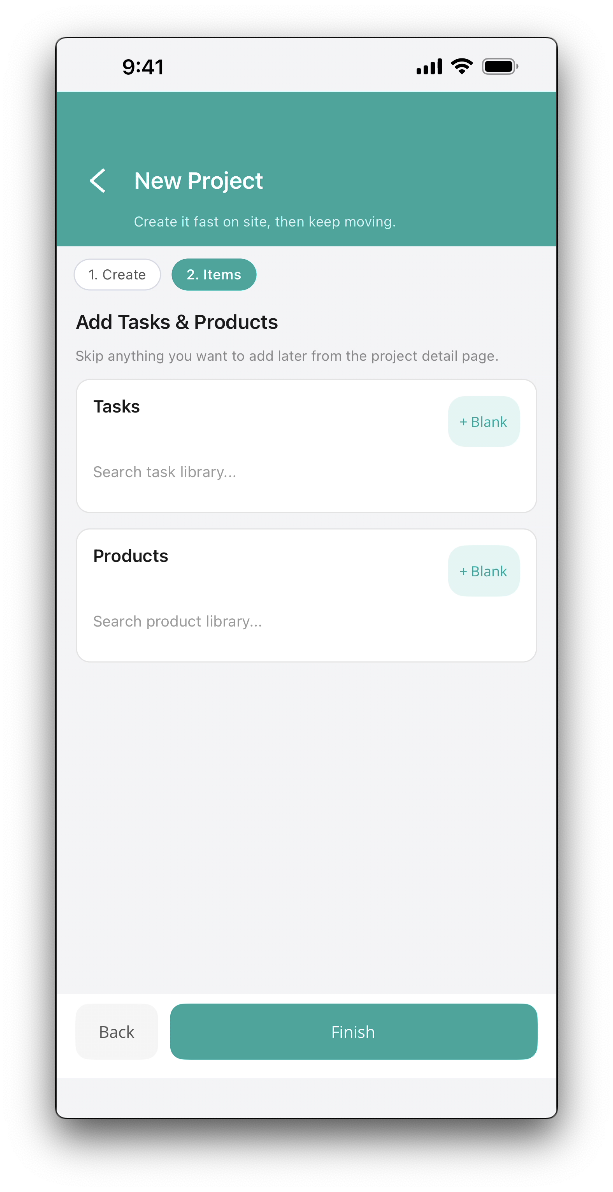
Tap Finish to apply the line items to the new project. The project will now be available in the projects list. Note: Detailed project details will need to be added via editing the project in the WorkGuru web browser.
Was this article helpful?
That’s Great!
Thank you for your feedback
Sorry! We couldn't be helpful
Thank you for your feedback
Feedback sent
We appreciate your effort and will try to fix the article