Work Areas are a tenant-wide setting. Set them up once, and they're available everywhere.
Step 1: Create your Work Areas
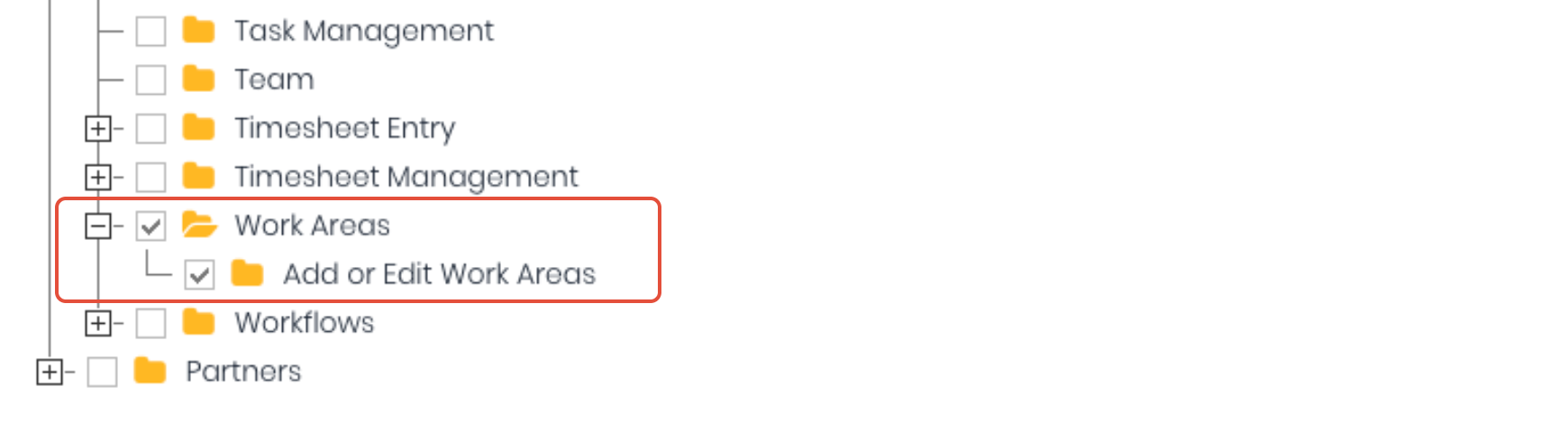
Go to Administration → Work Areas in the main menu (admin permission required — see https://support.workguru.io/a/solutions/articles/43000785557).
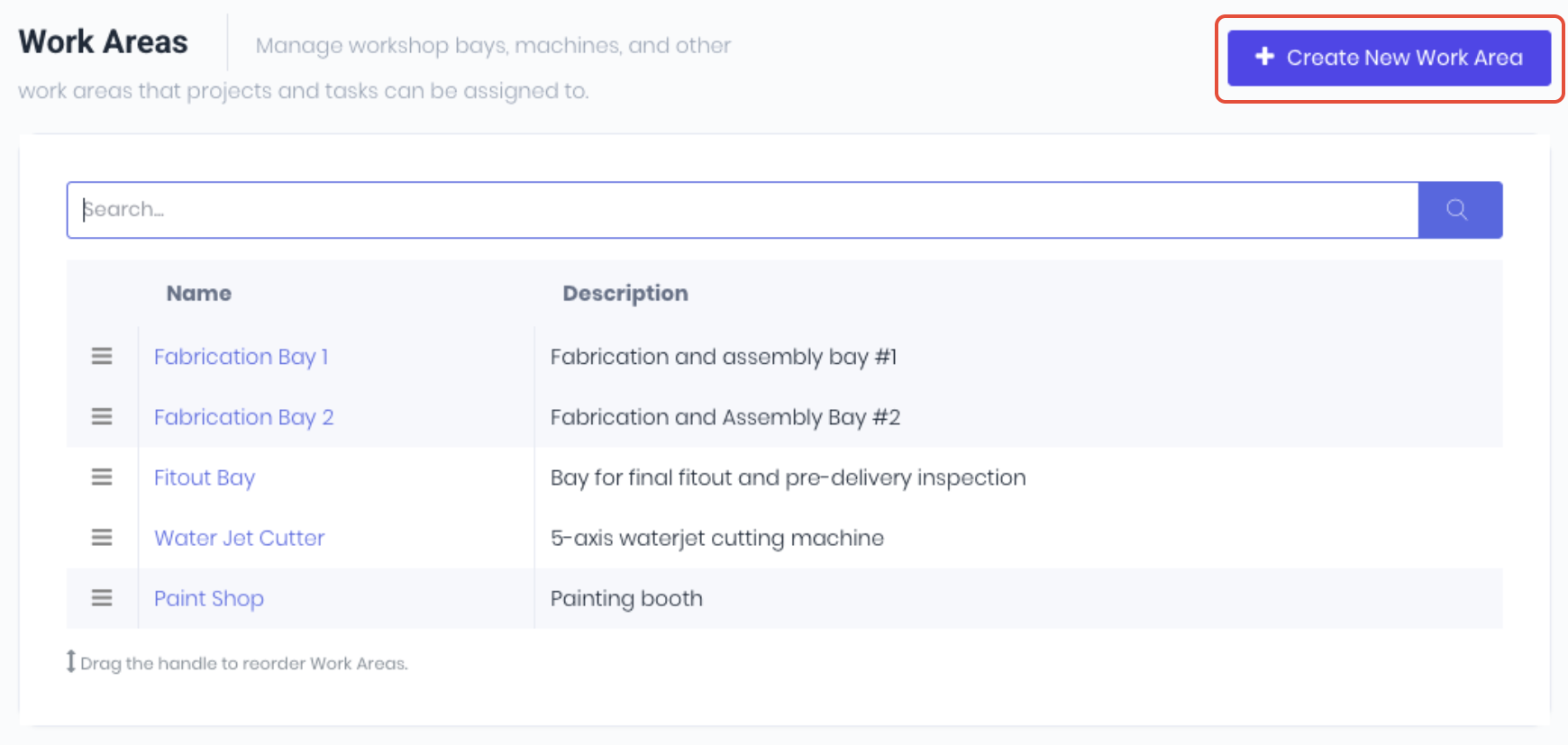
Click Create New Work Area:

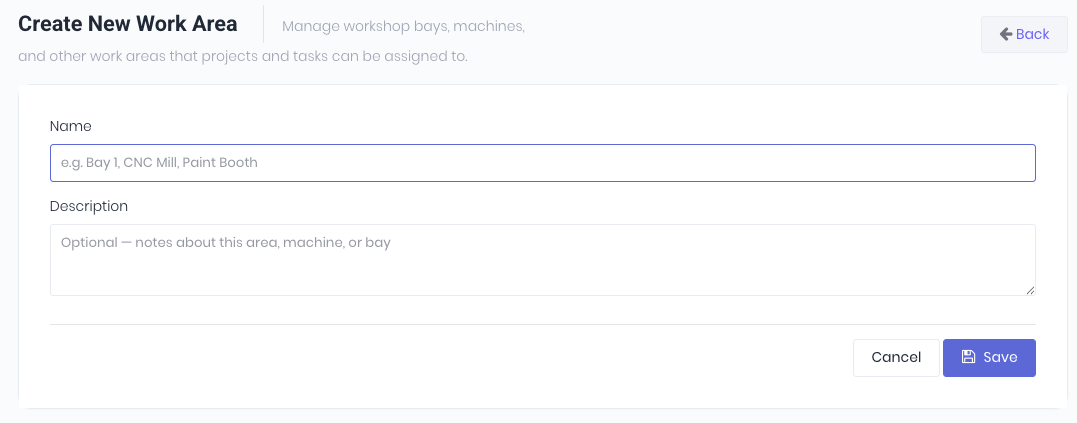
Give it a Name — short and recognizable: "Bay 1", "CNC Mill", "Paint Booth"

Add an optional Description for staff (equipment notes, capacity, etc.)
Save
Repeat for each physical area you want to track.
Step 2: Reorder them
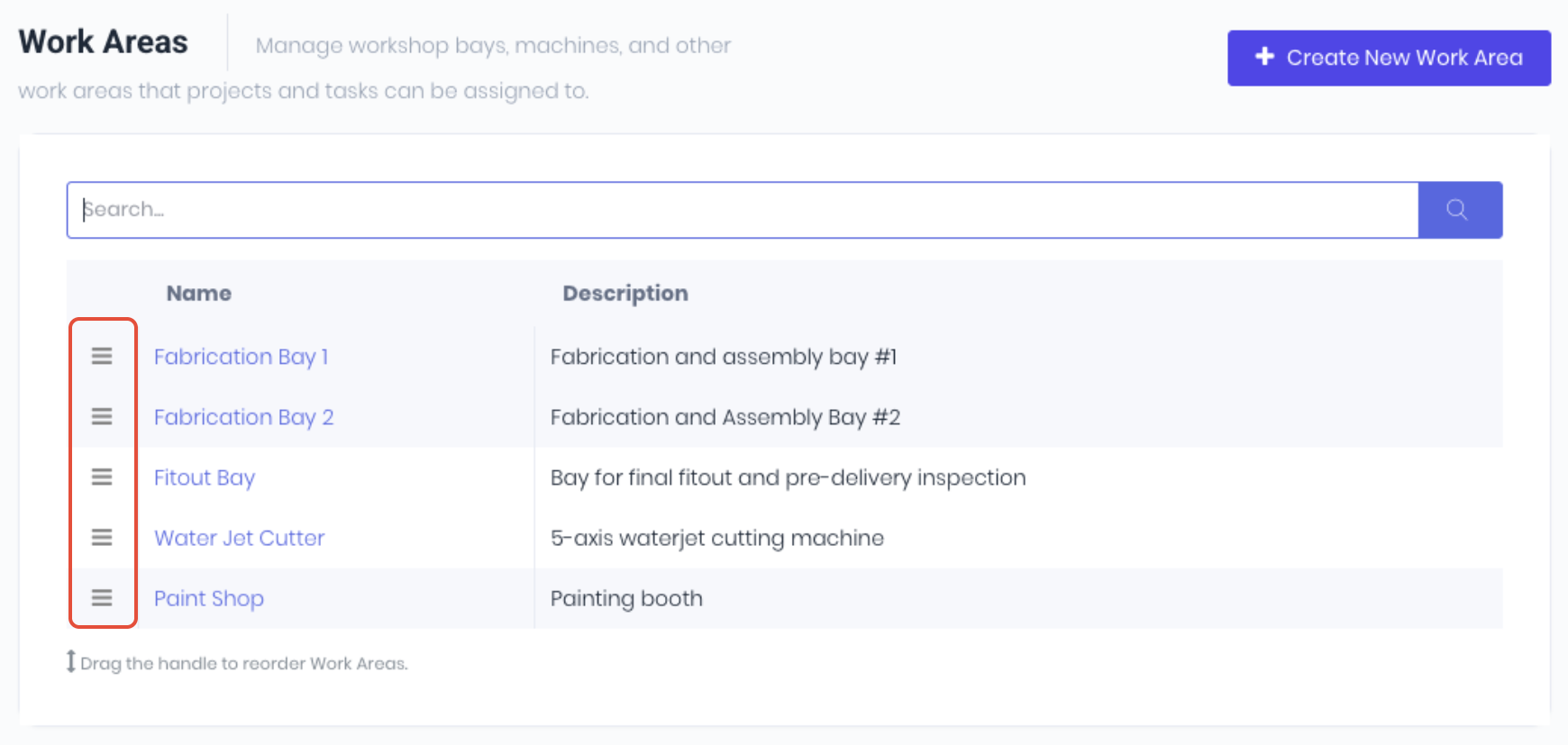
The order Work Areas appear in (Schedule view, dropdowns everywhere) is controlled by drag-and-drop on the index page. Grab the row handle on the left and drop it where you want — the new order saves immediately.
Step 3: Set defaults on Task definitions
This is the biggest time-saver. If you have tasks that always run on the same machine, set the default once:
Go to Tasks in the main menu
Edit (or create) the Task
Pick a Work Area in the Work Area dropdown

Save
Now whenever someone adds that Task to a Quote, Project, or Template, the new line's Work Area is pre-filled automatically. The user can still change it if a specific job is different — user override always wins.
Step 4: Set defaults on Project Templates
If you use Project Templates for repeating job types:
Edit a Project Template
Set the Work Area at the template header (default for projects created from this template)

Optionally override per task line — the picker is in each task's expanded detail row

When a project is created from the template, the Work Area settings copy across to the new project and its task lines.
Step 5: Use Work Areas on Quotes, Projects, and Production Jobs
Once your defaults are in place, most quotes and projects will pre-fill correctly without you thinking about it.
When you need to override:
Quote — Work Area picker on the quote header, plus per-task picker in each task's detail row. When the quote is accepted, both header and line-item Work Areas carry to the new project.
Project / Production Job — Work Area picker near the Project Manager field, plus per-task overrides. Tasks without their own Work Area inherit the project's at display time.
The cascade — where defaults come from:
When a Work Area appears pre-filled on a new line item, here's the priority order (first non-empty wins):
Manual choice — never overridden once a user has picked one
Task default — the Task definition's default fills the new line if blank
Parent document — at display time, lines without their own Work Area inherit from the project, quote, or template they belong to
These cascades happen once, at creation — never re-applied. Changing a Task's default later won't reach back and update line items already in flight, and accepted quotes/created projects keep whatever Work Area they were given.
Was this article helpful?
That’s Great!
Thank you for your feedback
Sorry! We couldn't be helpful
Thank you for your feedback
Feedback sent
We appreciate your effort and will try to fix the article