Once Work Areas are in place and tasks/projects are being assigned to them, the Work Area Schedule is where it all comes together.
Find it under Projects → Work Area Schedule.
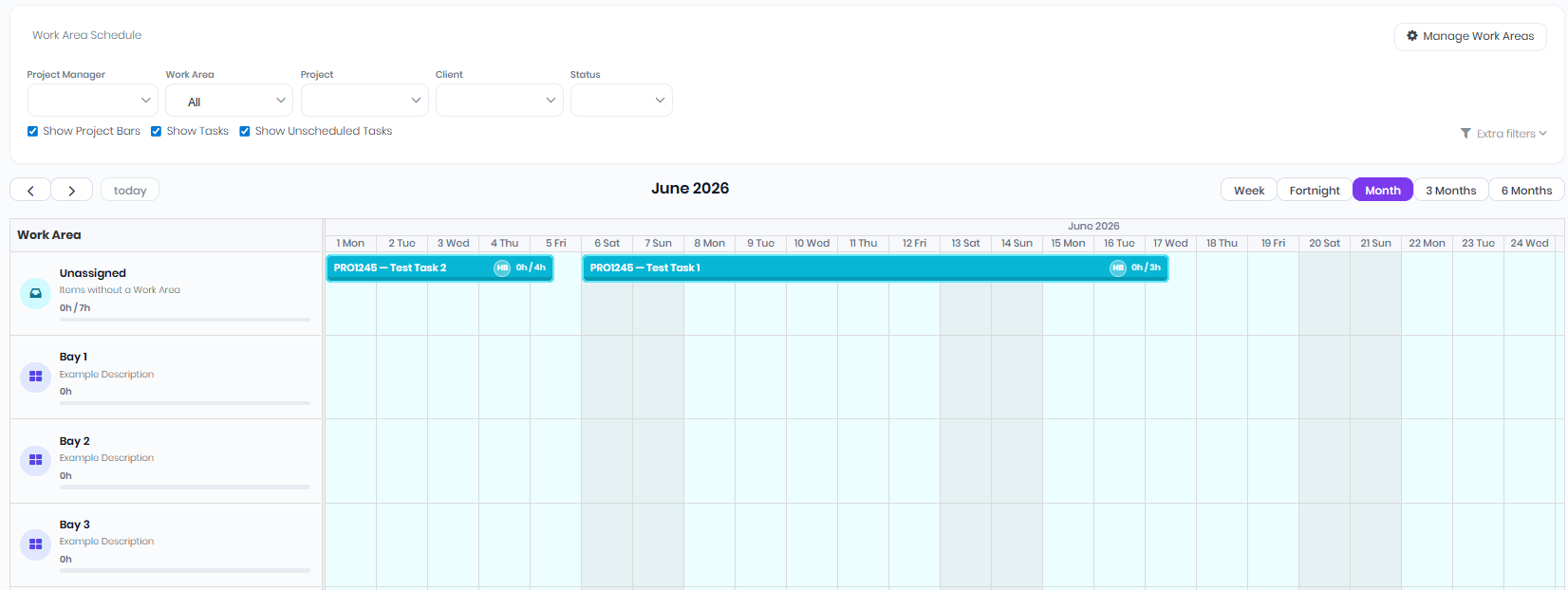
Layout:
Left column lists your Work Areas in the order you set on the admin page, with Unassigned pinned to the top
Right side is a timeline — switch between Week, Fortnight, Month, 3 Months, and 6 Months zoom levels
Each row shows the tasks and projects assigned to that Work Area within the visible window
Working with the schedule:
Drag horizontally to change dates (start, end, or both)
Drag vertically between rows to reassign work to a different Work Area — the task or project's Work Area updates automatically
Drag the edge of an event to resize (extend or shorten just one end)
Click a task or project name to open its detail page
Filtering and toggles:
Filter the view by Project Manager, specific Work Area, Project, Client, Status, or by Project vs Production Job type.
Two toggles control the level of detail shown:
Show Project Bars — high-level project rollups
Show Tasks — individual task detail
Use both for a complete picture, or one at a time for less clutter
Show Unscheduled Tasks includes tasks without explicit start/end dates — they show against their parent project's date range, so you can see what's not yet planned.
The Unassigned row:
Anything without a Work Area shows on the Unassigned row at the top. Drag items off to assign them to a real Work Area. Tasks that don't have their own Work Area inherit from their parent project — so dragging a project bar off Unassigned reassigns all its inherited tasks at once.
Filtering the Project Gantt by Work Area
If you prefer the standard Project Gantt but want to focus on one Work Area:
Open Projects → Gantt Chart
Click Show extra filters in the top filter row
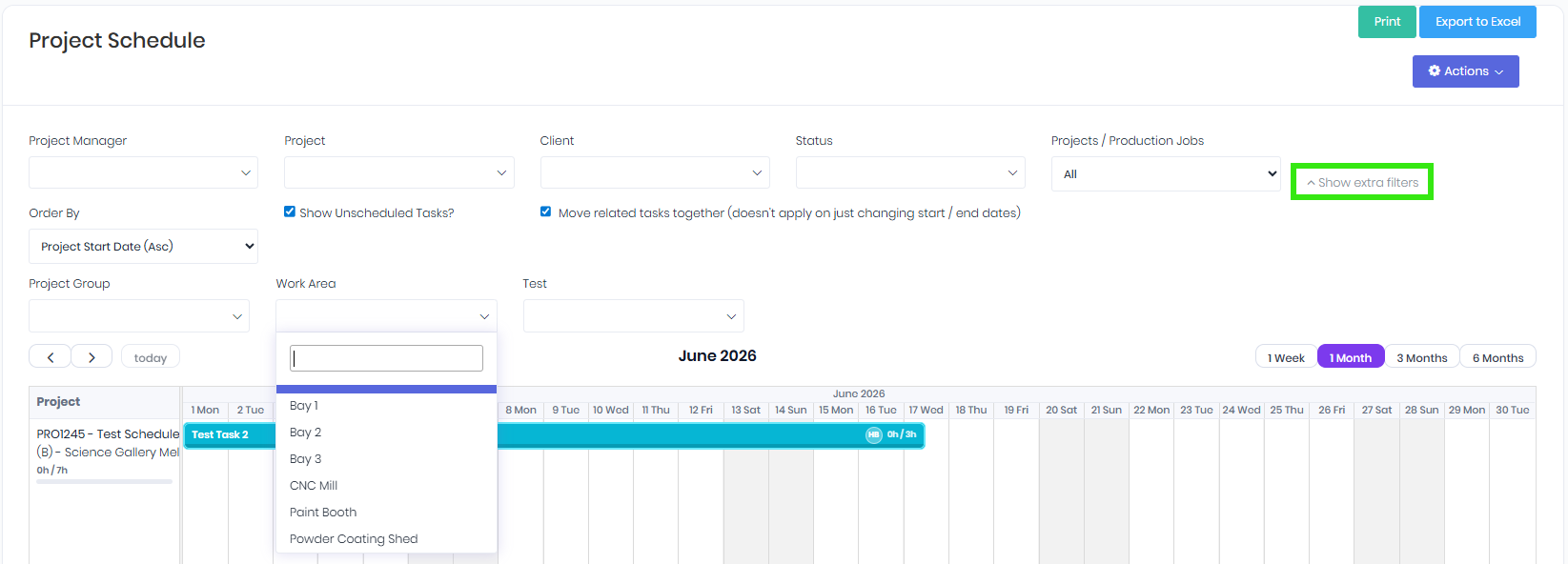
Pick a Work Area from the dropdown
The Gantt narrows to projects with that Work Area (or projects with at least one task in that Work Area), along with their relevant task lines.
Was this article helpful?
That’s Great!
Thank you for your feedback
Sorry! We couldn't be helpful
Thank you for your feedback
Feedback sent
We appreciate your effort and will try to fix the article