Once Work Areas are in place and tasks/projects are being assigned to them, the Work Area Schedule (Projects -> Work Area Schedule) is where you can visually schedule or re-schedule work area task assignments
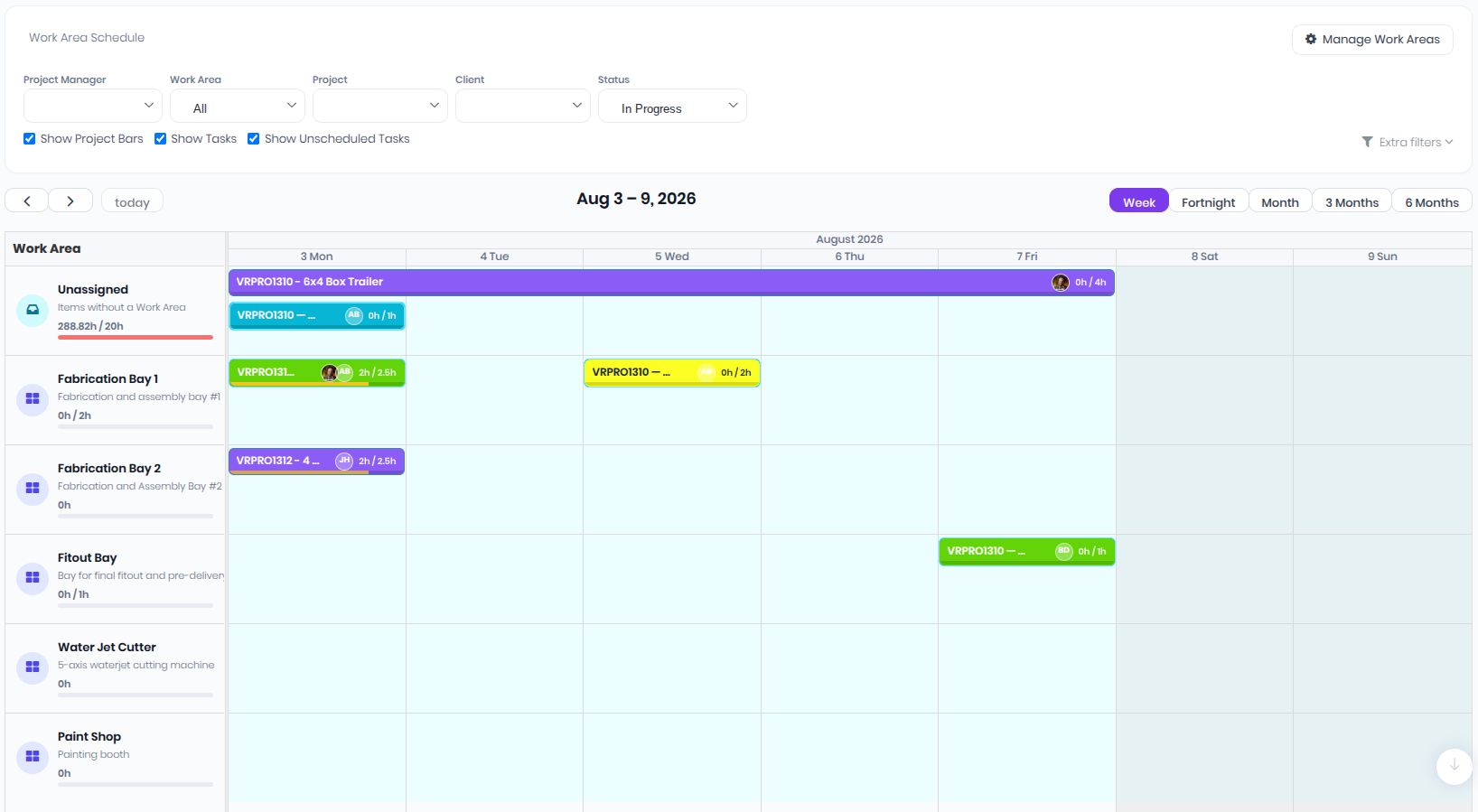
The work area schedule lists your Work Areas in the order you set on the admin page, with Unassigned tasks and projects pinned to the top row. You can filter the schedule with the following to reduce clutter if you have a lot of projects/tasks.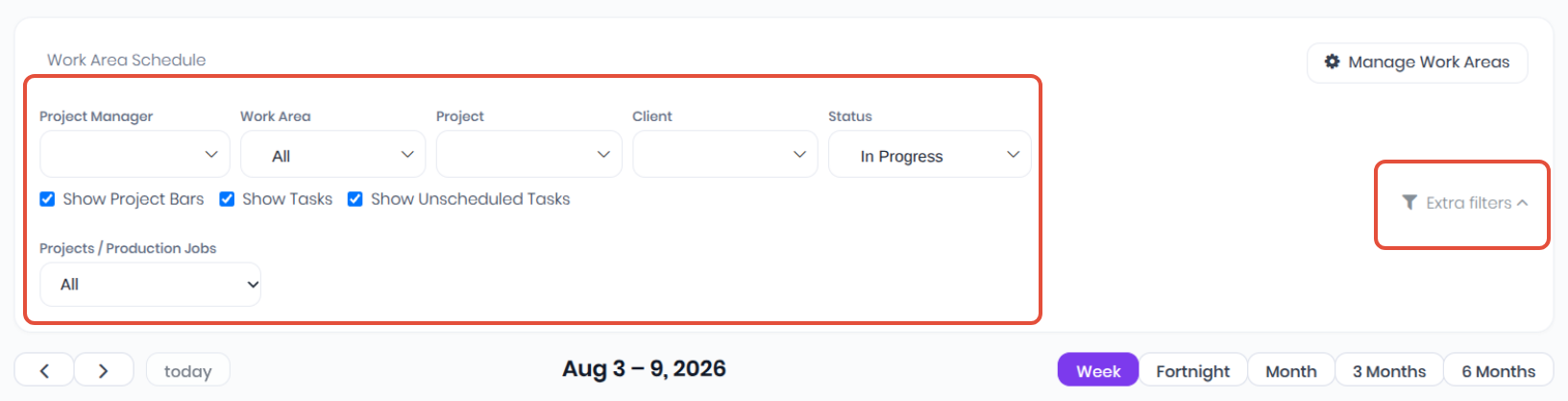
- Filter drop-downs
- Project Manager
- Work Area
- Project
- Client
- Status
- Project of Production Jobs - Click on Extra Filters to expand to access.
- Radio selections
- Show Project Bars - Only assign work areas at the project level
- Show Tasks - Only display work areas at the task level
- Show Unscheduled Tasks - show tasks that haven't been scheduled on the project schedule gantt chart. Unscheduled tasks default to the project schedule.
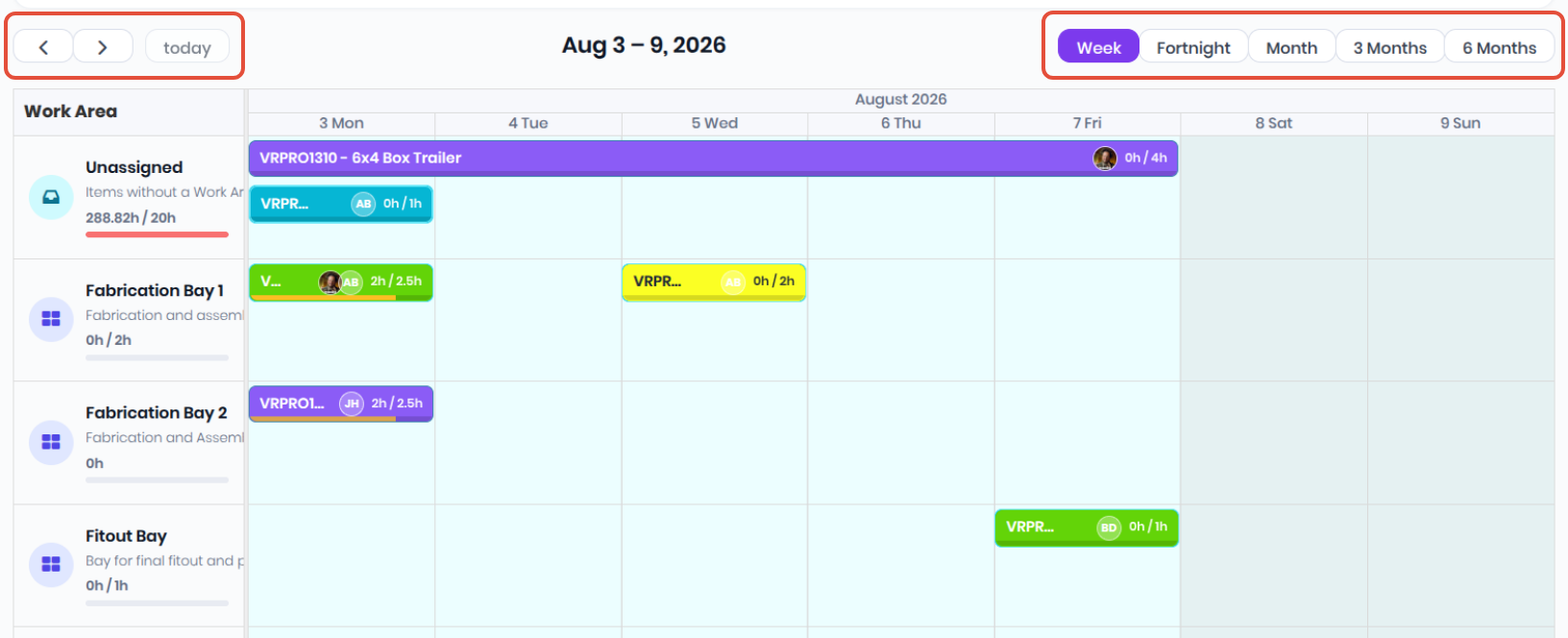
Use the display options to choose between Week, Fortnight, Month, 3 Months, and 6 Months view levels that is the most appropriate. You can use the <, > and Today to navigate prior and post the selected view period. Anything without a Work Area shows on the Unassigned row at the top. Drag items off to assign them to a real Work Area. Tasks that don't have their own Work Area inherit from their parent project, so dragging a project bar off Unassigned reassigns all its inherited tasks at once.
To visually assign/re-assign and schedule/reschedule tasks and work areas:
- Drag horizontally to change the task schedule dates (start, end, or both)
- Drag the edge of an event to resize (extend or shorten just one end)
- Drag vertically between rows to reassign work to a different Work Area — the task or project's Work Area updates automatically
Work Areas can also be used as a filter to display on the standard project schedule gantt chart.
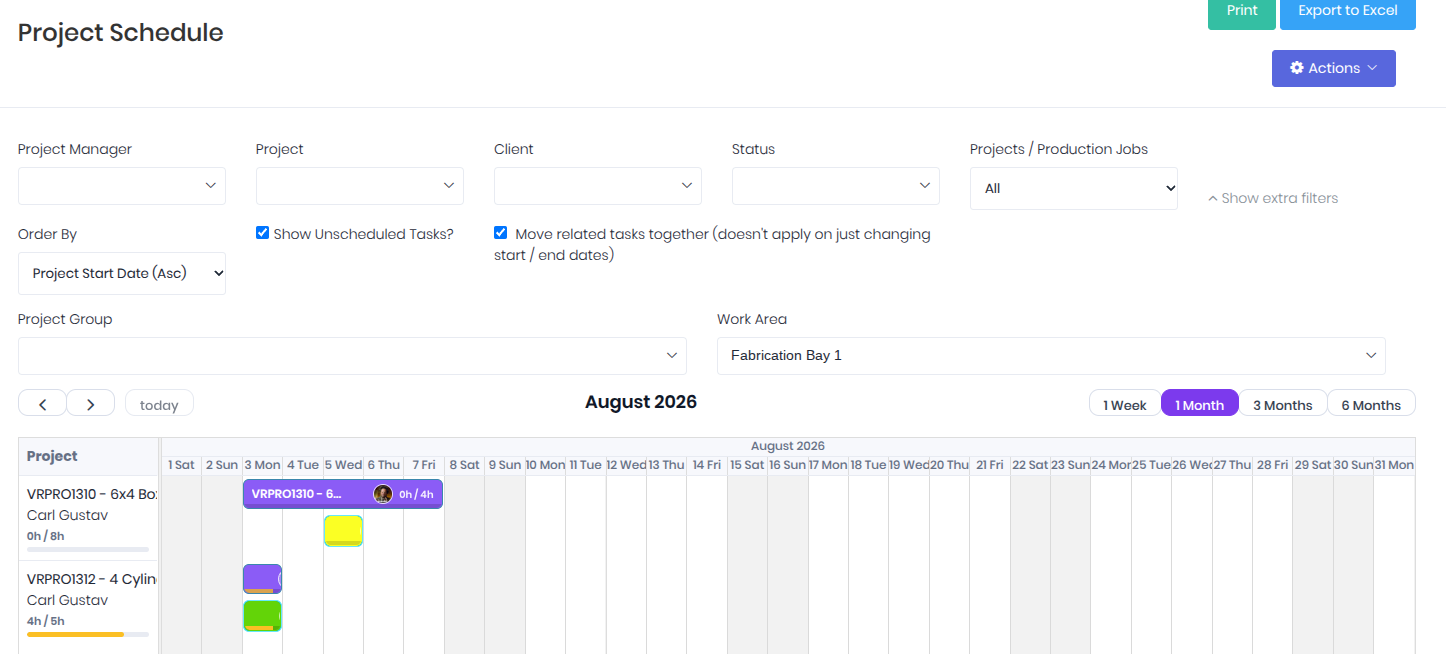 In the project schedule gantt chart, click Show Extra Filters and select an area from the Work Area dropdown. This will then display projects with that Work Area (or projects with at least one task in that Work Area), along with their relevant task lines.
Was this article helpful?
That’s Great!
Thank you for your feedback
Sorry! We couldn't be helpful
Thank you for your feedback
Feedback sent
We appreciate your effort and will try to fix the article