Once your form is built, WorkGuru gives you a short snippet of code to add to your website. Wherever you paste that snippet, the form will appear. This article shows you how to copy it and add it to the most common types of website.
Step 1: Copy the embed snippet
- Open the WebForms page.
- Find your form in the list and click the Embed button (in card view it’s labelled Copy Embed Script).
- A window opens showing the snippet. Click Copy to Clipboard.
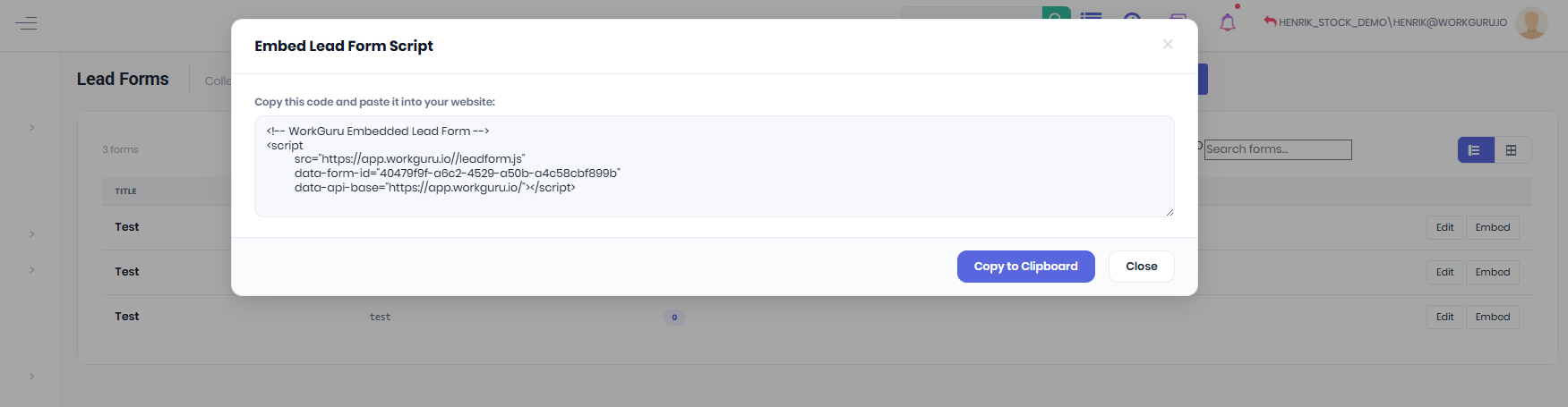
The snippet looks something like this (your form’s actual code will have its own ID and your region’s web address filled in for you):
<!-- WorkGuru Embedded Lead Form --> <script src="https://app.workguru.io/leadform.js" data-form-id="xxxxxxxx-xxxx-xxxx-xxxx-xxxxxxxxxxxx" data-api-base="https://app.workguru.io"></script>Step 2: Paste it onto your website
Paste the snippet into the page (and the exact spot on the page) where you want the form to appear. The form renders right where the snippet sits, so put it where you’d like visitors to see it — for example inside your “Contact Us” section.
Adding it to common website builders
WordPress — Edit the page or post, add a “Custom HTML” block, and paste the snippet into it. Update/publish the page.
Squarespace — Edit the page, add a “Code” block where you want the form, and paste the snippet in. Save.
Wix — Add an “Embed Code” / “Custom Embed” element (Embed > Embed HTML), paste the snippet, and place the element where you want the form.
Shopify — Edit the page in the online store, switch the content editor to “Show HTML” (the </> button), and paste the snippet in.
A custom / hand-built website — Paste the snippet directly into the page’s HTML at the point where the form should appear, then upload/publish the page. If someone else maintains your site, just send them the snippet and tell them which page it belongs on.
Step 3: Check it works
Open the live page in your browser. You should see the form with your four standard fields, plus any custom fields you included. Fill it in as a test and submit — you’ll get the “Thanks! We’ll be in touch.” message, and a new Lead should appear in your Lead Tracker within moments.
If the form doesn’t appear
- Make sure you pasted the whole snippet, including the opening
<scriptand closing</script>. - Confirm you pasted it into an HTML/“code” block, not a plain-text block (otherwise the code shows as text instead of running).
- Make sure the page has been saved/published after adding the snippet.
- If you edited the form’s fields, refresh the website page — the form always loads the latest version, so no re-copying is needed.
Was this article helpful?
That’s Great!
Thank you for your feedback
Sorry! We couldn't be helpful
Thank you for your feedback
Feedback sent
We appreciate your effort and will try to fix the article